
QuiQ Website IQ
Send your website forms to the CRM
Keep the forms you already have on WordPress, Wix, Webflow or Shopify. One line of code turns every submission into a lead, with what they wrote and the ad that brought them.
Prerequisites
- About 5 minutes
- Access to your website's code, or its "custom code" or "footer scripts" setting
Already have a contact, quote or booking form on your website? Keep it. QuiQSol picks up every submission and puts it in your CRM. Any email address works, Gmail and Yahoo included, and so does a phone number on its own.
1. Turn on capture
Open Website IQ → Website forms and switch on Capture forms on my website. Nothing is collected until you do.
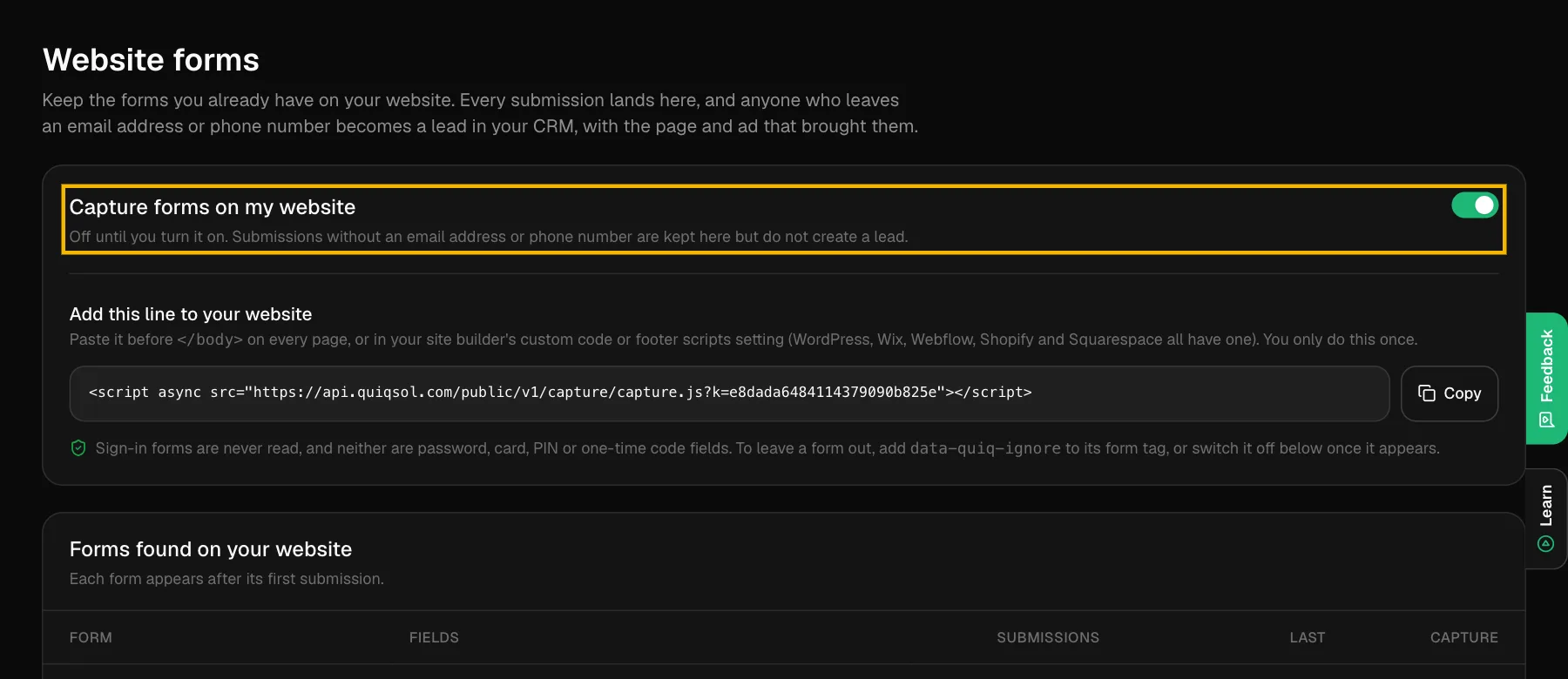 Website forms in Website IQ
2. Add the line to your website
Click Copy and paste the line on every page of your site, just before the closing </body> tag. Most site builders have one place for this:
- WordPress: a header and footer plugin (for example WPCode), in the footer box.
- Wix: Settings → Custom code → Add custom code, placed in Body end, on all pages.
- Webflow: Site settings → Custom code → Footer code, then publish.
- Shopify: Online Store → Themes → Edit code → theme.liquid, just above
</body>. - Squarespace: Code Injection, in the Footer box.
Some builders, Wix and Squarespace among them, only allow custom code on their paid plans. You do this once. New forms you add later are picked up automatically.
3. Send a test
Fill in your own contact form. Within seconds the form appears under Forms found on your website, named after its heading, and the submission appears under Latest submissions.
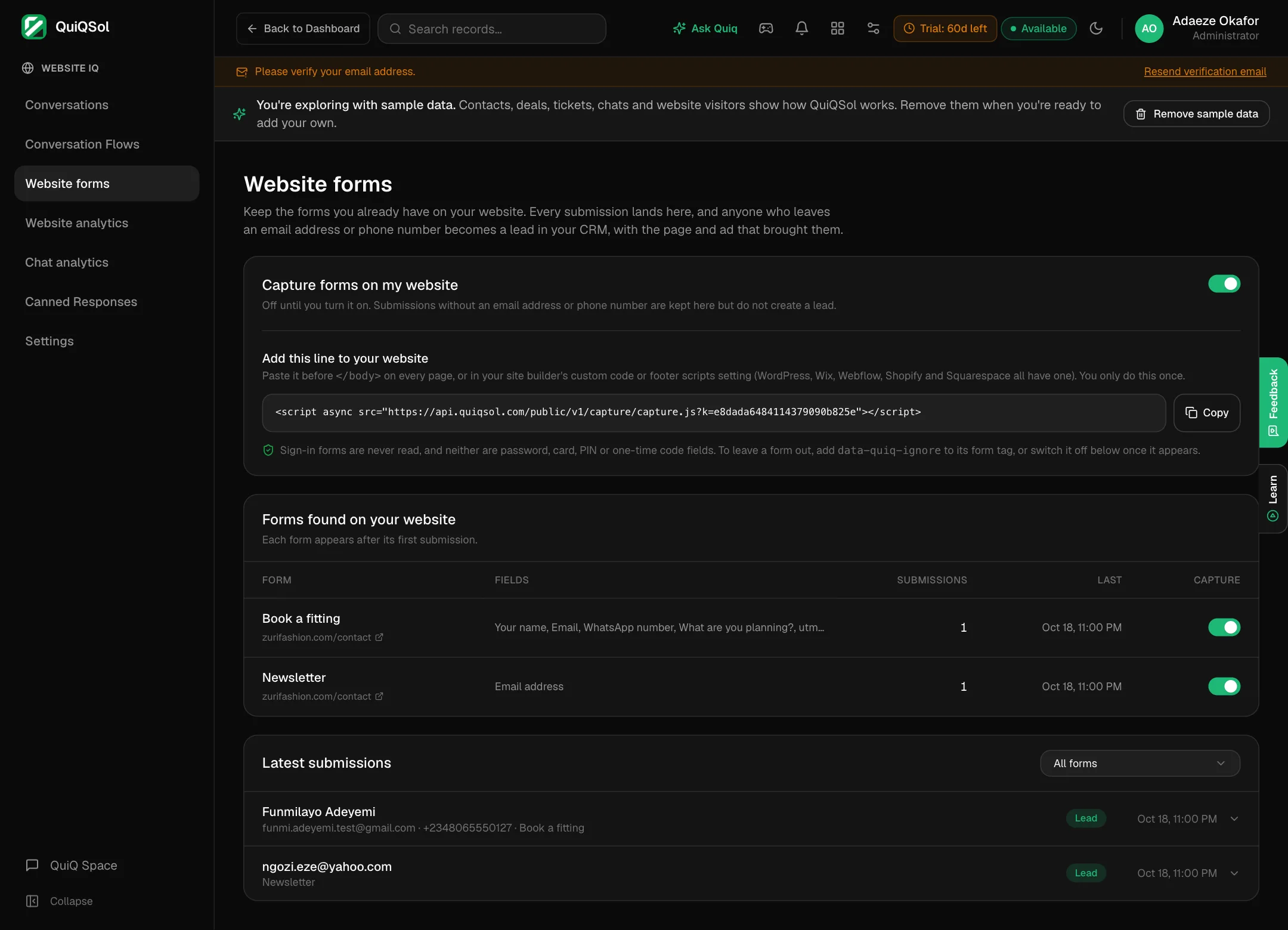 Your website's forms and their submissions
What happens to each submission
- With an email address or phone number: QuiQSol creates a lead, or updates the lead or contact who already has that email or number. Names, phone and company are read from your form's own labels, so there is nothing to map. Numbers are saved in international format.
- Without either: the submission is kept in Website forms so you can still read it.
Click a submission to see every answer, then Open lead.
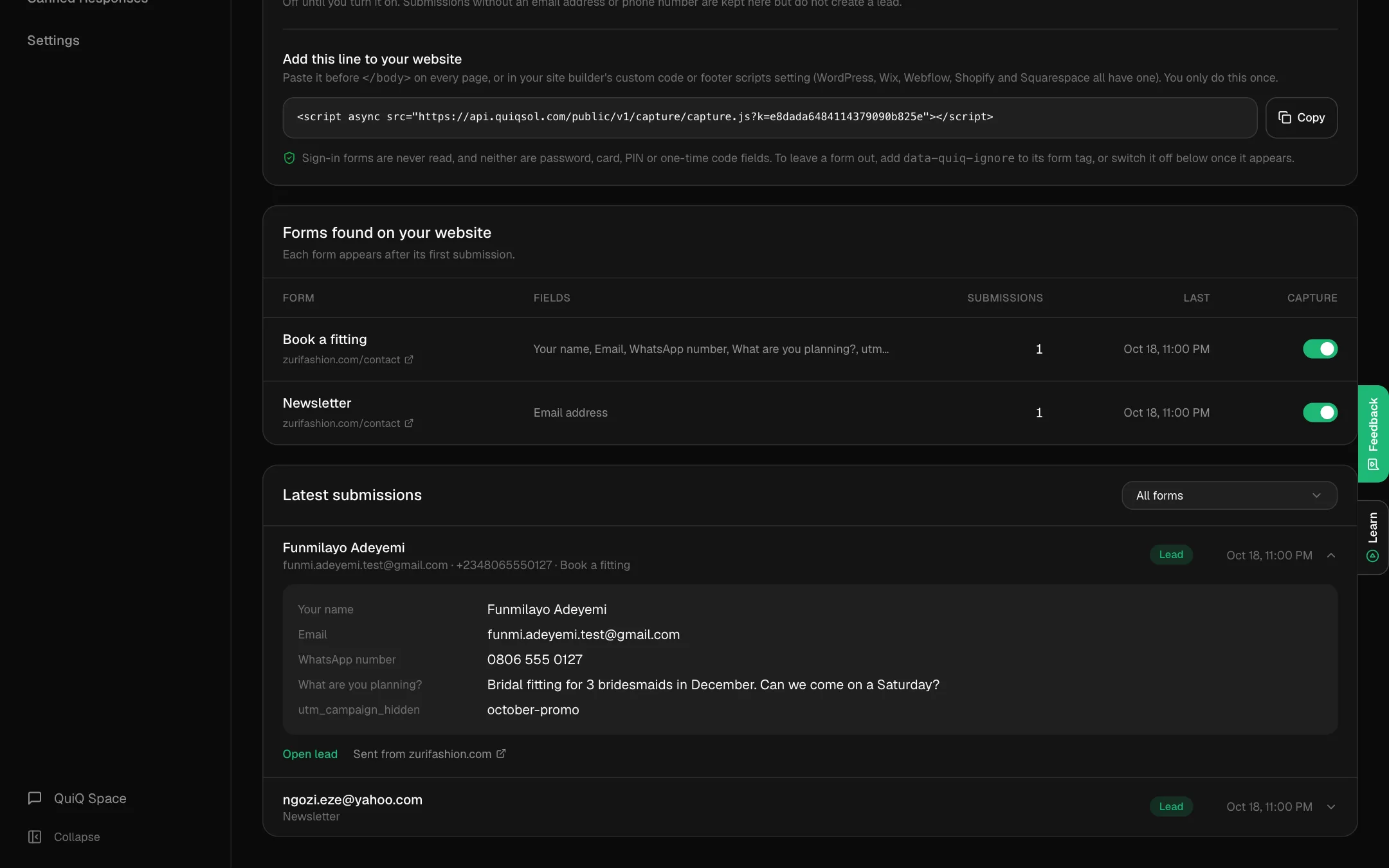 One submission, opened
On the lead's page, Sent from your website shows what they wrote, and Source shows the page and the ad or post that brought them, for example "Web form · Instagram" with the campaign name.
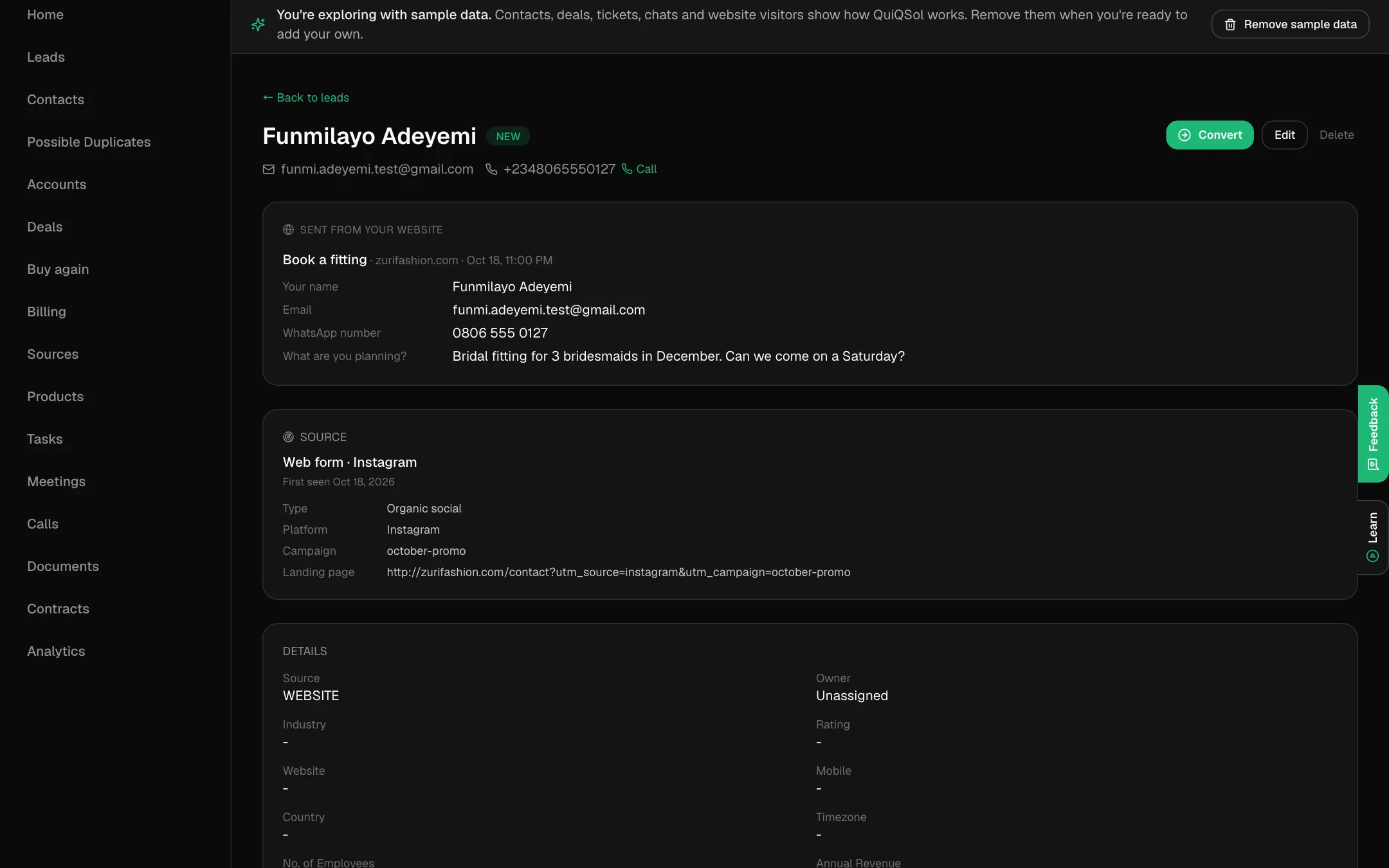 What the person wrote and where they came from, on their lead
New leads go to the right teammate through your assignment rules (Settings → Assignment rules).
Choose which forms count
Every form found on your site has its own Capture switch. Turn off one you do not need in the CRM, such as a search box, and the rest keep working.
What is never collected
Sign-in and sign-up forms (any form with a password field) are skipped entirely. Password, card, CVV, PIN, one-time code and security token fields are never read on any form. To leave a form out completely, add data-quiq-ignore to its form tag.
Forms built without a form tag
If a developer built your form with buttons instead of a standard form, they can send it with one line: QuiqCapture.send('Quote request', { name: 'Ada', email: 'ada@example.com' }).
Website forms or Quiq Forms?
Use Website forms to keep the forms your website already has. Use Quiq Forms to build a new form in QuiQSol and embed it, with your own design, file uploads, signatures and automations.