
Setting up Quiq Automation
Start from a template or a blank journey, pick a trigger from any product, add actions, conditions and waits, test it on one person, then publish and watch it run.
On this page
Quiq Automation runs your routine follow-ups for you, across every product: when a deal is won, a form comes in, a ticket is resolved or a customer leaves a cart, a journey waits, checks, and acts, with no one pressing a button. It is on the Growth and Enterprise plans.
Open it from the Apps menu, then Automation. You see My Journeys and Templates, with Queue and Create journey at the top right.
1. Start from a template
Open Templates and click Use template on the one closest to what you need. It opens in the builder as a draft, ready to change.
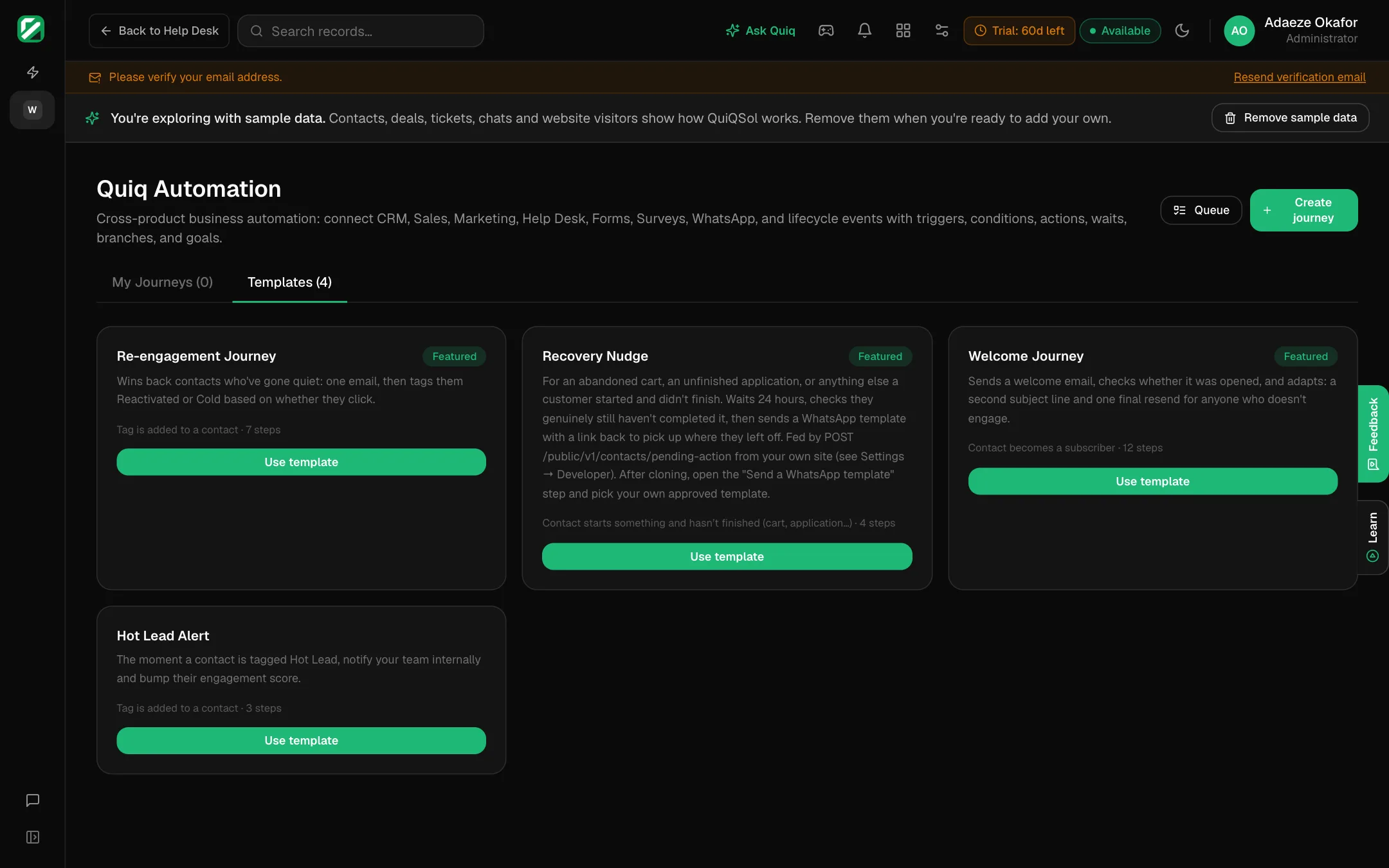 Automation templates
- Recovery Nudge: for an abandoned cart or an unfinished application. Waits 24 hours, checks the customer still has not finished, then sends a WhatsApp reminder.
- Welcome Journey: a welcome email, a check on whether it was opened, and a different follow-up for each case.
- Re-engagement Journey: wins back contacts who have gone quiet.
- Hot Lead Alert: tells your team the moment a contact is tagged Hot Lead.
To start from nothing, click Create journey and give it a name.
2. Read the builder
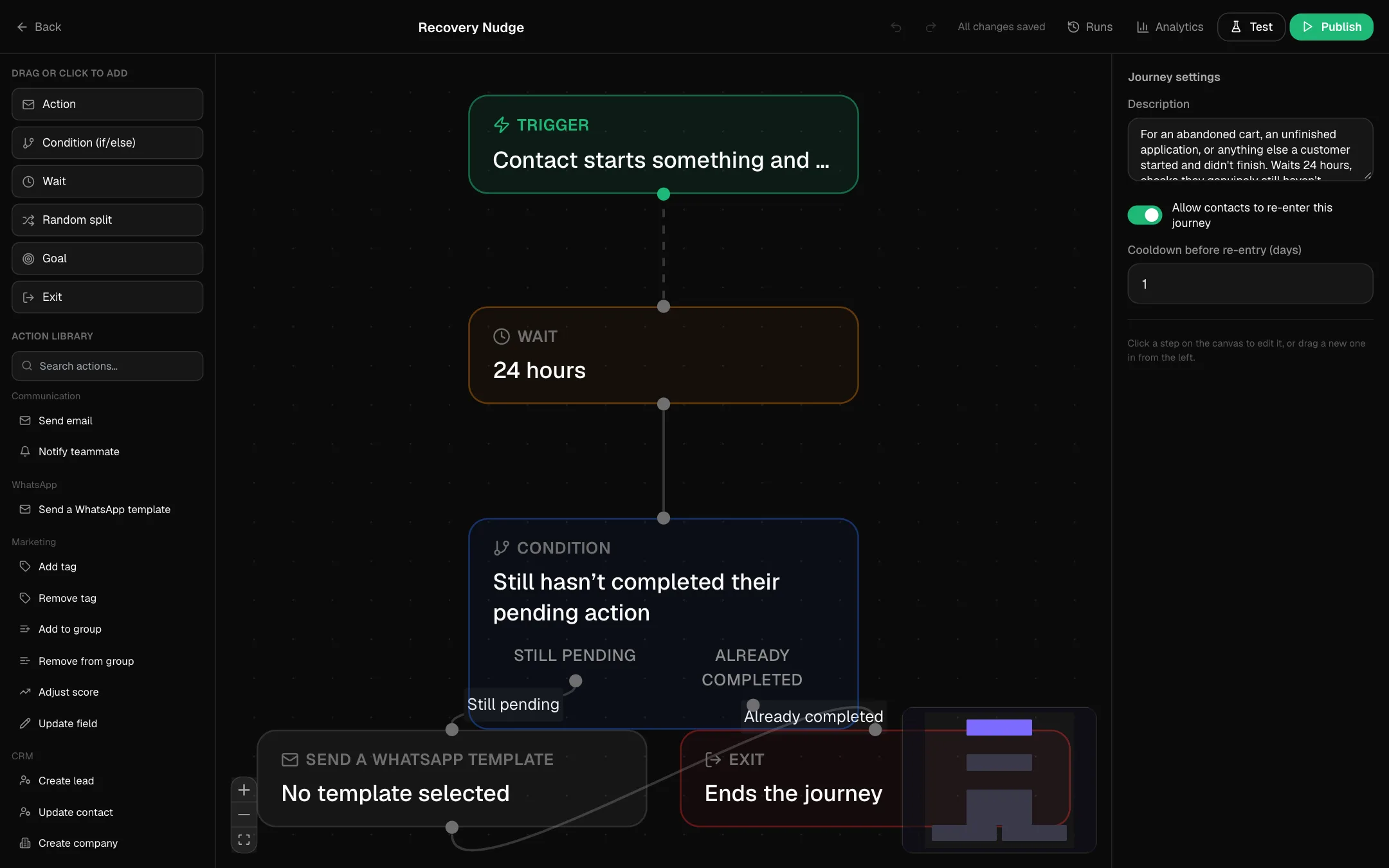 The journey builder
- Left: the steps you can add. Drag one onto the canvas, or click it to add it.
- Middle: the journey, read from top to bottom. Drag from one step's dot to the next to connect them.
- Right: the settings for whatever you clicked. With nothing selected, it shows the journey's description and Allow contacts to re-enter this journey, with a cooldown in days.
- Top: undo and redo, Runs, Analytics, Test and Publish. Changes save as you go.
3. Choose the trigger
Click the Trigger card at the top and pick what starts the journey under When, then click Save trigger.
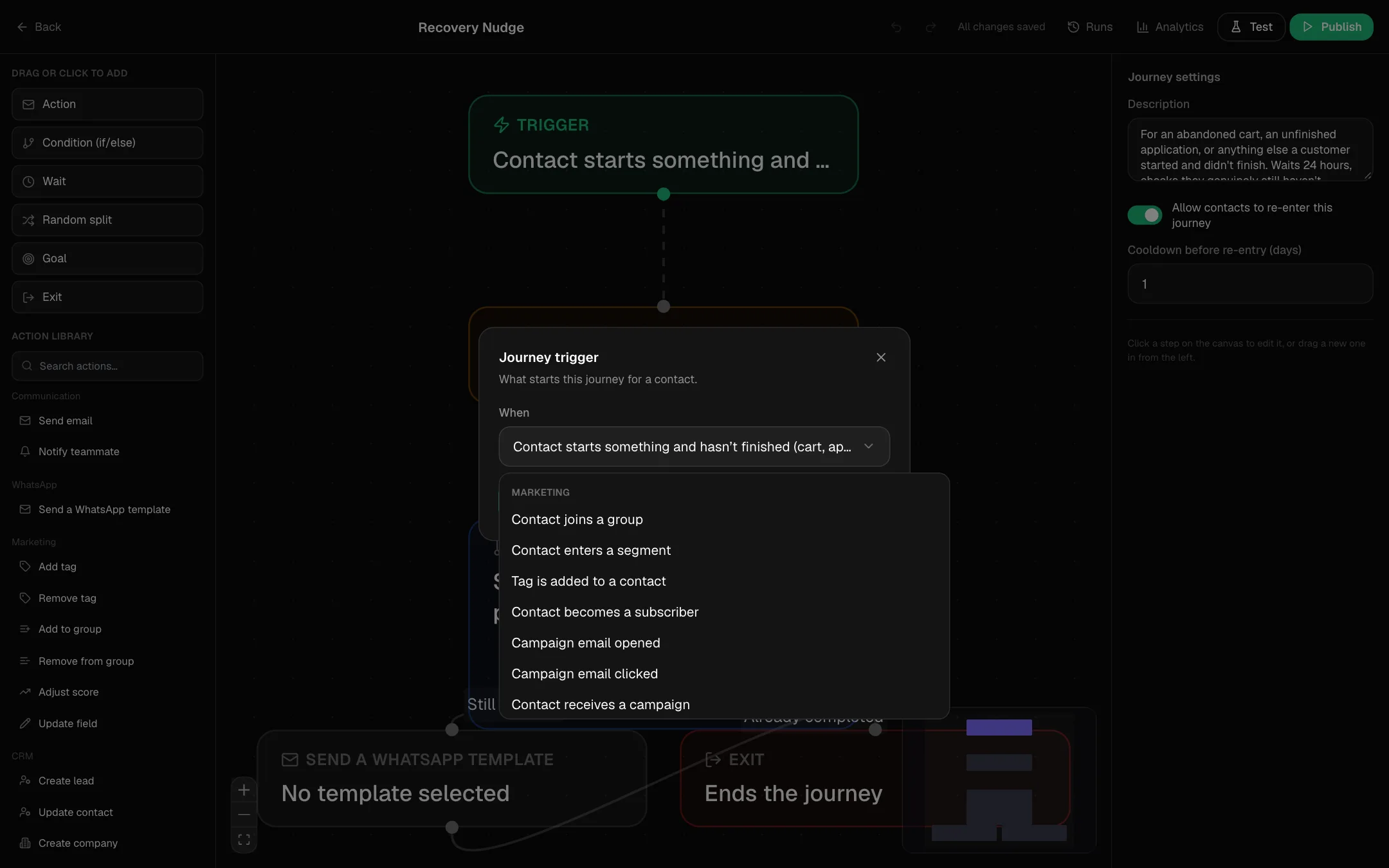 Choosing a trigger
Triggers are grouped by product:
- Marketing: a contact joins a group, enters a segment, gets a tag, becomes a subscriber, opens or clicks a campaign, receives a campaign, or unsubscribes.
- CRM: a lead is created, imported or updated; a contact is created or updated; a deal is created, changes stage, is won or is lost.
- Recovery: a customer starts something and has not finished it, such as a cart or an application.
- Support: a ticket is created or resolved.
- Forms & Surveys: a form or survey is submitted, or an NPS answer comes from a promoter or a detractor.
- Communication: any email is sent, opened or clicked, or a meeting is booked.
- Conversation: a conversation starts on any channel.
- Manual / test only: nothing starts it on its own. Use it while you build.
4. Add the steps
- Action: does something. The action library covers:
- Communication: send an email, notify a teammate.
- Conversation: send a message, send a booking link, route to a human agent, create a Help Desk ticket, end the conversation.
- WhatsApp: send an approved WhatsApp template.
- Marketing: add or remove a tag, add to or remove from a group, adjust the score, update a field.
- CRM: create a lead, update the contact, create a company, create a deal, change the lead status.
- Tasks & Assignment: create a task, add a task note, assign round robin, or assign to the least busy teammate.
- Workflow: start another automation, stop automations, or call a webhook to reach another system.
- Condition (if/else): splits the path. Use Simple to pick one check, or Rule builder to combine several with AND and OR: has a tag, is in a segment or group, opened or clicked the email, a field equals a value, the score is above or below a number, is an existing customer, or has completed their pending action. Name each branch so the canvas reads clearly.
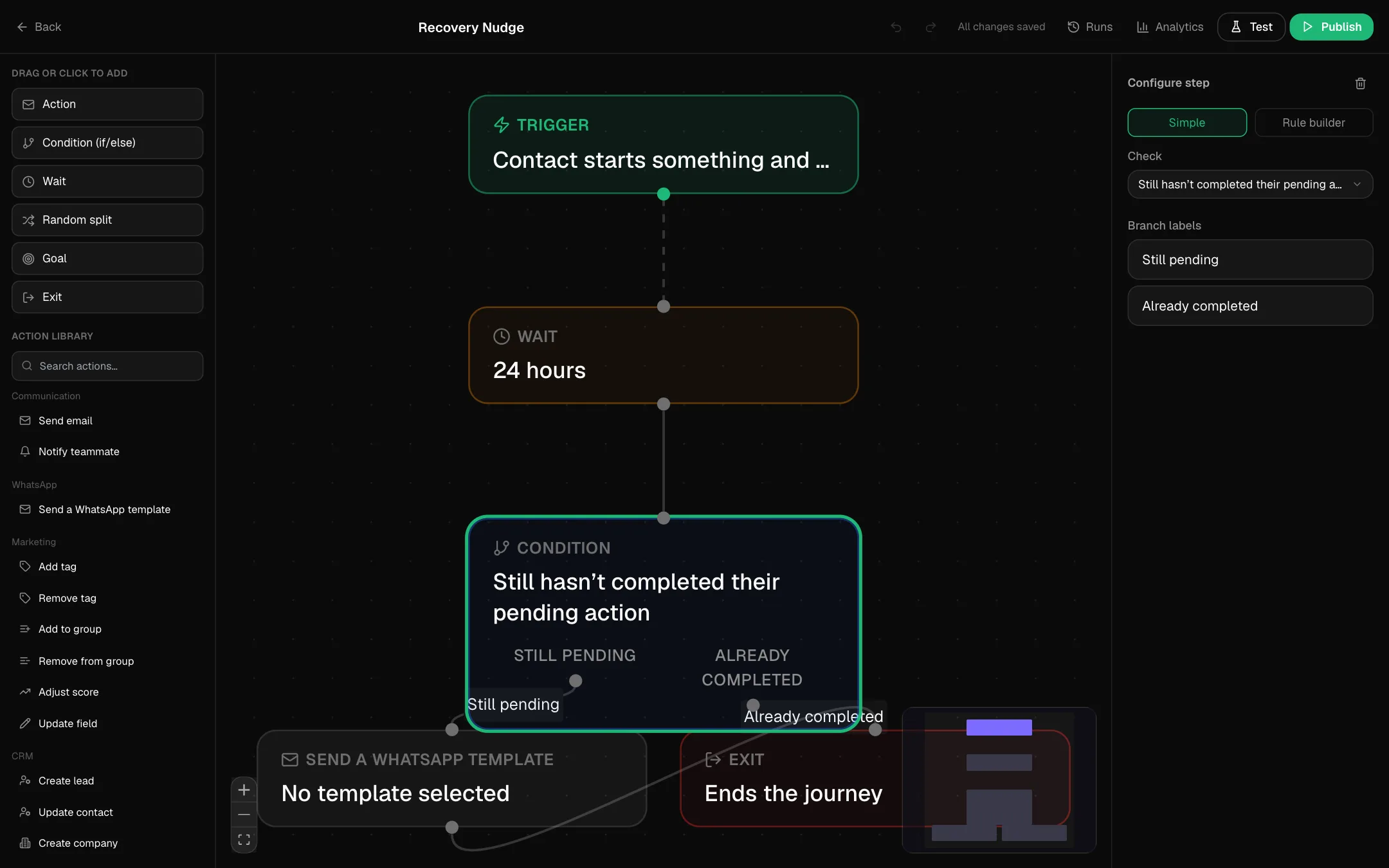 A condition step
- Wait: pauses for a fixed time in minutes, hours or days, or until an event, such as the journey's email being opened, a meeting booked, a deal won or a ticket resolved, with a timeout after which it moves on regardless.
- Random split: sends people down different paths at random, to test one approach against another.
- Goal: marks the journey as a success for that person.
- Exit: ends the journey.
Click any step to set it up on the right. A WhatsApp step lists your approved templates; build and submit one in Quiq WhatsApp CRM first if the list is empty.
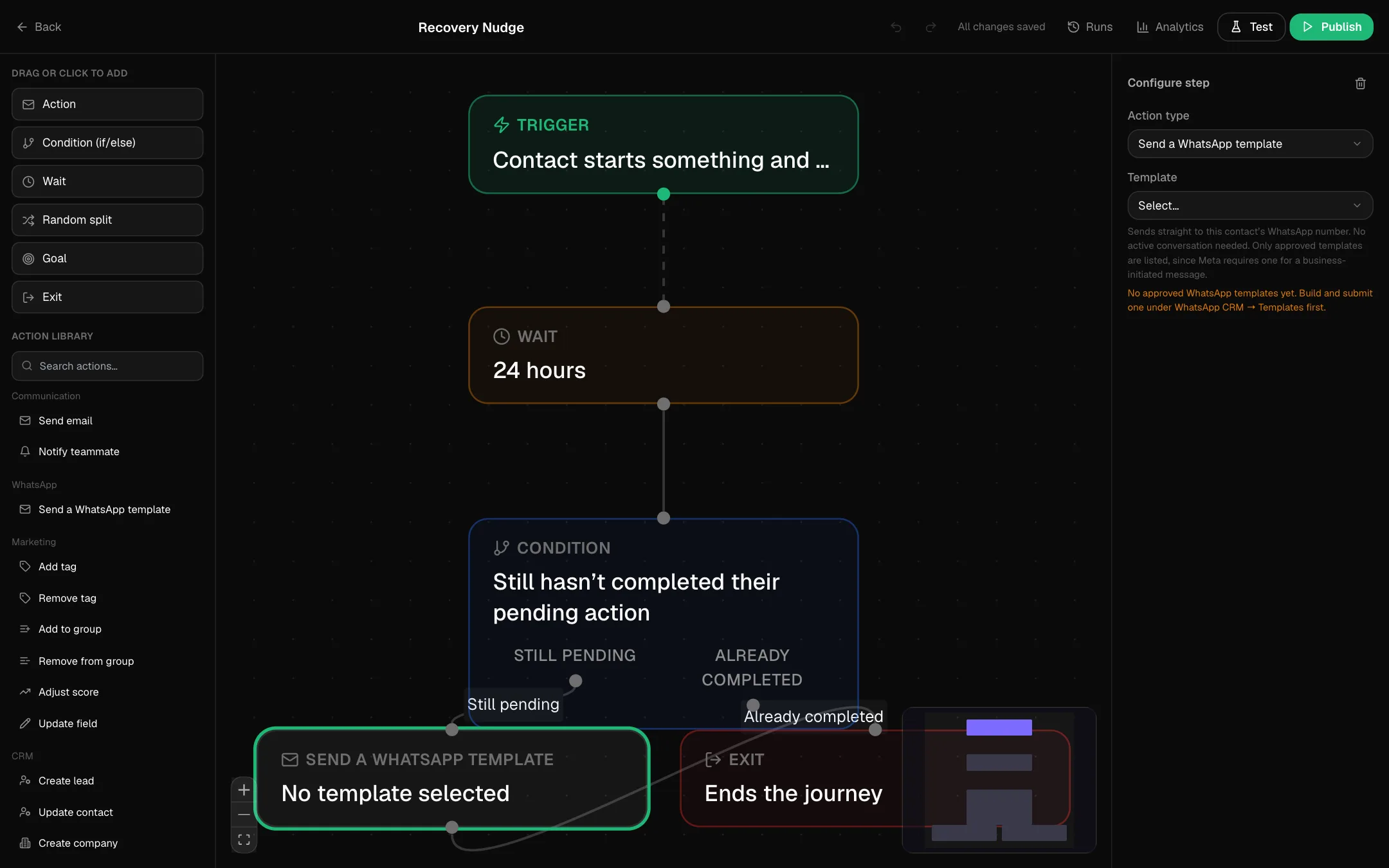 Setting up a WhatsApp step
5. Test, then publish
- Click Test and pick a contact or a lead. The journey runs for real for that one person, even as a draft, so pick yourself or a teammate: its emails and messages really send.
- Open Runs to follow each step that person went through.
- Click Publish. If anything is missing, such as a step with no template chosen, QuiQSol tells you exactly what to fix and keeps the journey a draft until it is complete. Publishing needs an Administrator or a role that can manage Marketing.
A journey does nothing until it is published. Nobody enters it while it is a draft.
6. Watch it run
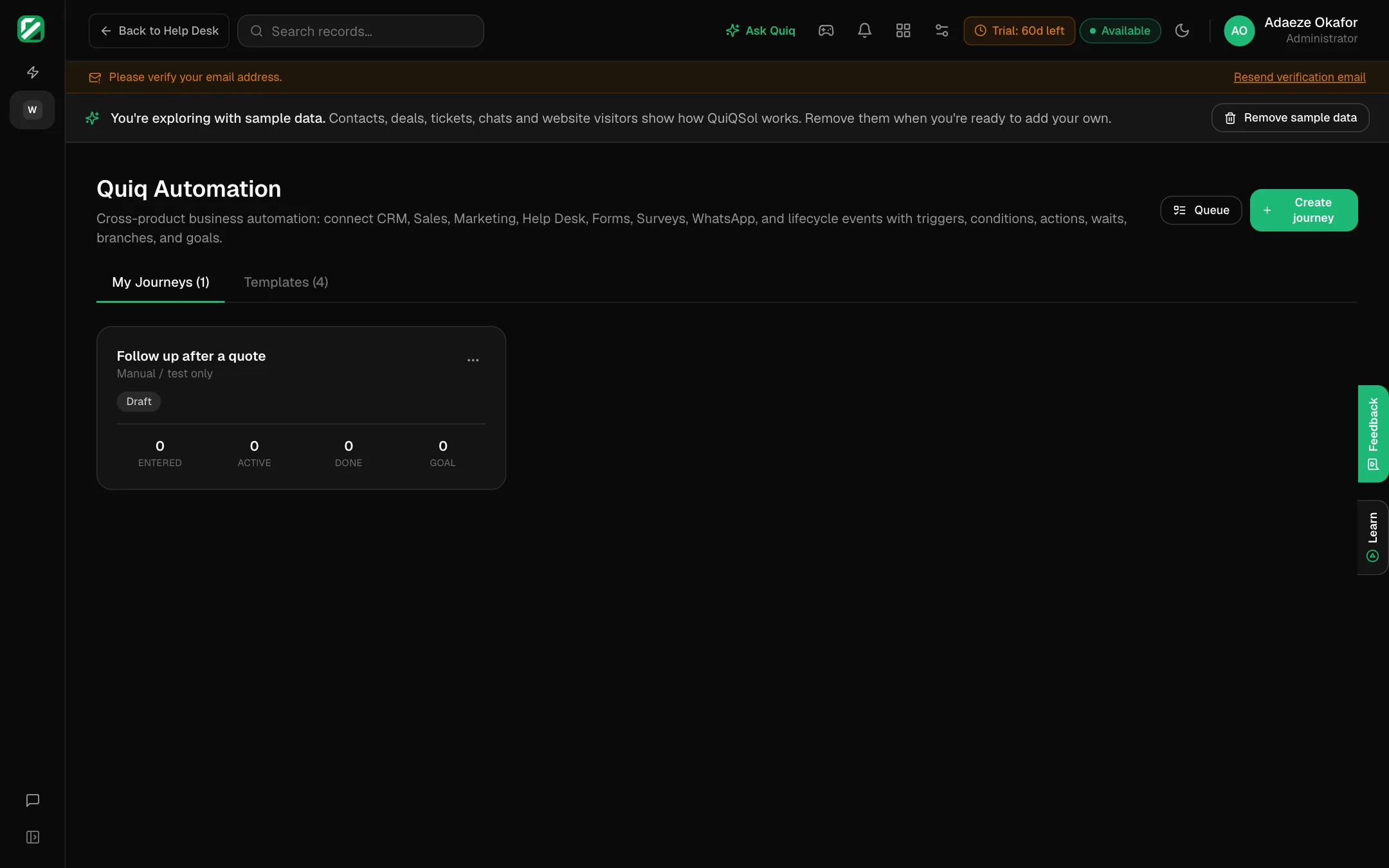 My Journeys
Each journey card shows how many people entered, are active, are done, and reached the goal. Click the name to open it, or use the ⋯ menu to pause, resume, publish, view runs, see analytics, duplicate or delete it. Pausing stops new people entering without dropping anyone already part way through.
Queue lists every run waiting on a timer or an event across all journeys, and flags any that are overdue.
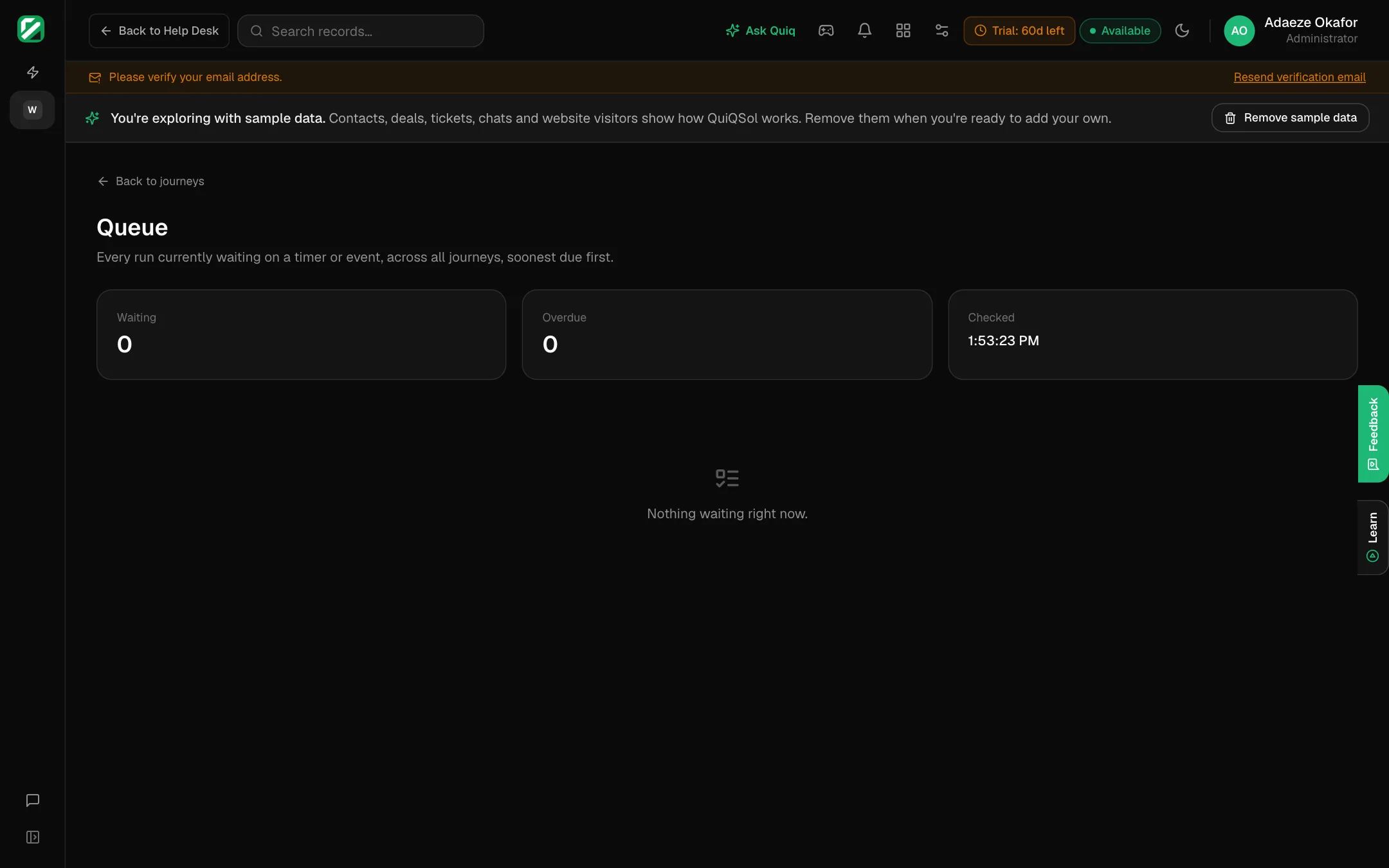 The queue
7. Recover carts and unfinished applications
The Recovery trigger starts when your own website or app tells QuiQSol that a customer began something and did not finish. Your developer sends one request to QuiQSol's public API with the customer's phone number and a label such as "checkout", plus the link, value, name and email if you have them, and a second request when the customer completes it. Create the API key under Settings → Developer Platform. The Recovery Nudge template then waits, checks, and reminds only the people who still have not finished.
Ideas to start with
- Deal is won → wait 1 day → send a thank-you email → create a task to ask for a referral in 30 days.
- Form is submitted → create a lead → assign to the least busy teammate → notify them.
- Support ticket is resolved → wait 2 days → send a survey email.
- NPS respondent is a detractor → create a task for the account owner to call within a day.