
Setting up Quiq Help Desk
Forward your support email, set the emails customers receive and how they rate you, then work tickets with response targets, saved replies and Quiq Intelligence.
On this page
Quiq Help Desk turns every support email, chat and message into a ticket your team can track to the end, with response targets, ratings and the customer's full history beside every reply. It is on every plan.
Open it from the Apps menu, then Help Desk. It has four tabs: Desk for tickets, Conversations for live chat, WhatsApp, email and social messages, Customers for your contacts, and Insights for performance. Settings at the top right opens the Help Desk settings.
1. Send your support email into QuiQSol
Go to Settings → Help Desk. Forwarding is the fastest way: no mailbox password is stored, and every email becomes a ticket within seconds.
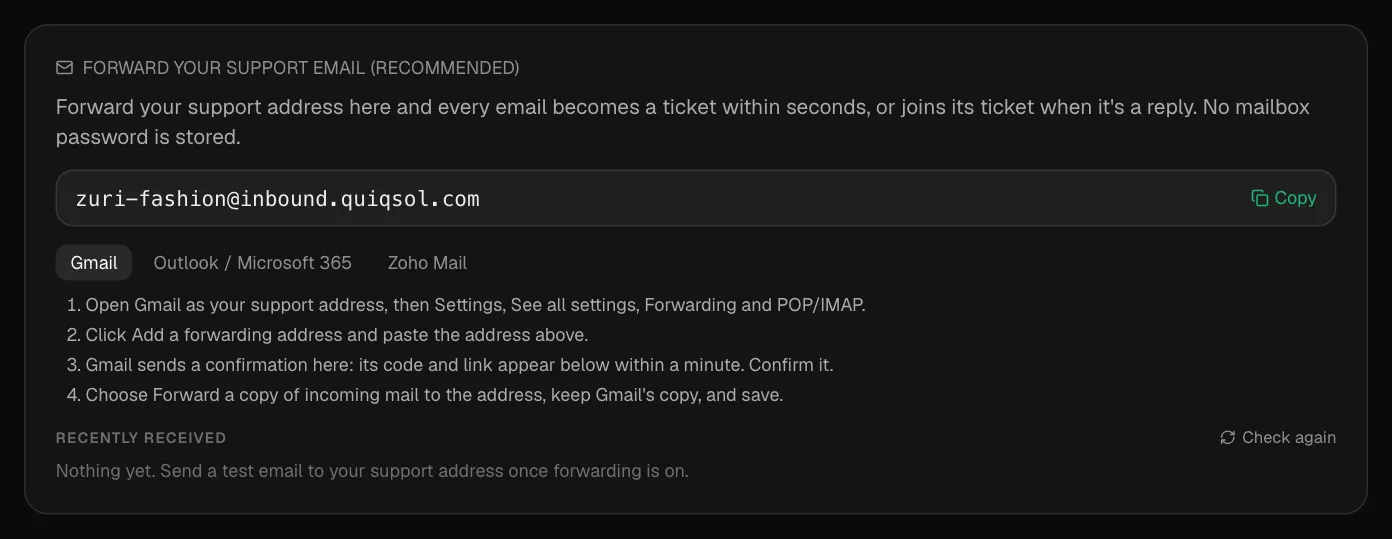 Your forwarding address
- Copy your workspace's forwarding address. It ends in @inbound.quiqsol.com.
- Pick your email provider for the exact steps:
- Gmail: open Gmail as your support address, then Settings, See all settings, Forwarding and POP/IMAP. Click Add a forwarding address and paste the address. Gmail sends a confirmation: its code and link appear under Recently received within a minute, so confirm it there. Then choose Forward a copy of incoming mail, keep Gmail's copy, and save.
- Outlook / Microsoft 365: open Settings, Mail, Forwarding. Turn on Enable forwarding, paste the address, tick Keep a copy of forwarded messages and save. Your Microsoft 365 admin may need to allow forwarding to outside addresses.
- Zoho Mail: open Settings, Mail Forwarding and POP/IMAP, and add the address. Zoho's verification code appears under Recently received. Enter it in Zoho.
- Send a test email to your support address. It shows under Recently received with the ticket it opened.
A reply to an existing ticket joins that ticket instead of opening a new one, because every email QuiQSol sends carries the ticket number in the subject. Out-of-office and other automatic replies never open tickets.
Your provider cannot forward? Under Or connect the mailbox directly (IMAP), click Connect a mailbox and enter the mailbox's server details. QuiQSol checks it every few minutes.
Prove you own the domain
Under Domain authentication, click Start verification and add the one TXT record it gives you at your DNS provider. QuiQSol checks it against live DNS.
2. Set the emails your customers receive
Acknowledgement email
Sent the moment a ticket opens, so the customer knows you have it.
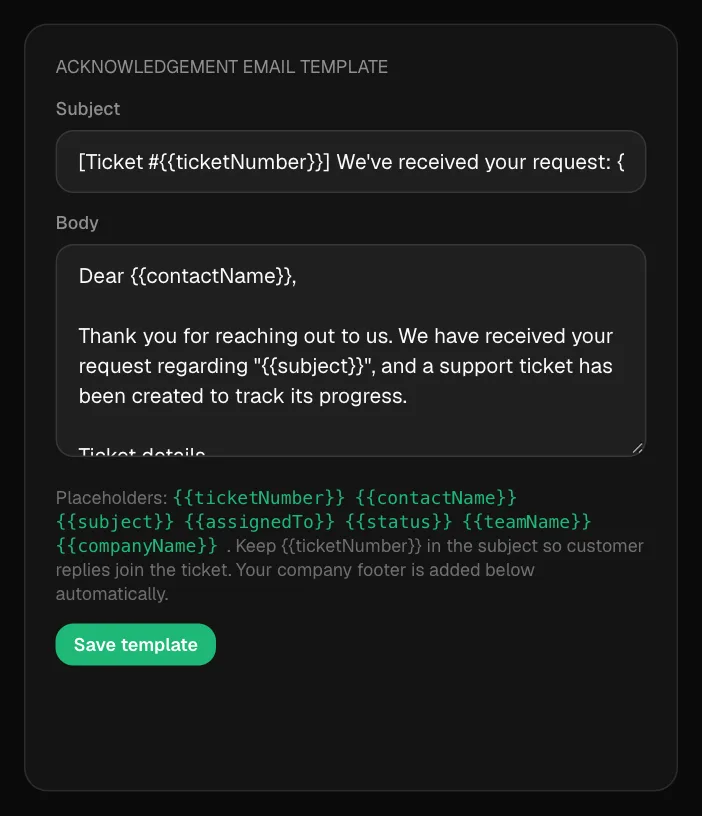 The acknowledgement email template
Use placeholders such as {{contactName}}, {{ticketNumber}}, {{subject}}, {{assignedTo}} and {{companyName}}. Keep {{ticketNumber}} in the subject so the customer's replies join the right ticket.
Footer and signature
Ticket email footer appears under every acknowledgement, reply and resolution email: your legal name, support email, website, phone or WhatsApp, address and an optional confidentiality note. Leave a line empty to leave it out.
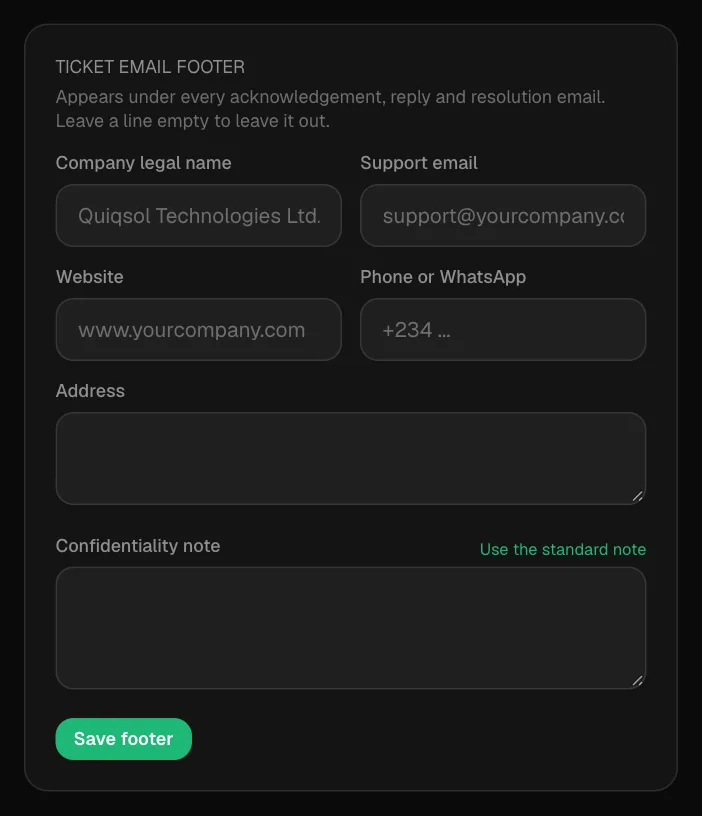 The ticket email footer
Your email signature is added to each reply you send by email. Every teammate sets their own. Your logo comes from Company Settings → Branding.
Resolution and rating email
Sent when a ticket is resolved. Three rating buttons, Happy, Fair and Poor, are added below your text. The customer rates with one click, with no login.
Customer happiness
Write the rating question and the reply a customer sees after each rating, in your own words. Under Add rating link, choose whether the rating buttons go on every reply or only when a ticket is closed.
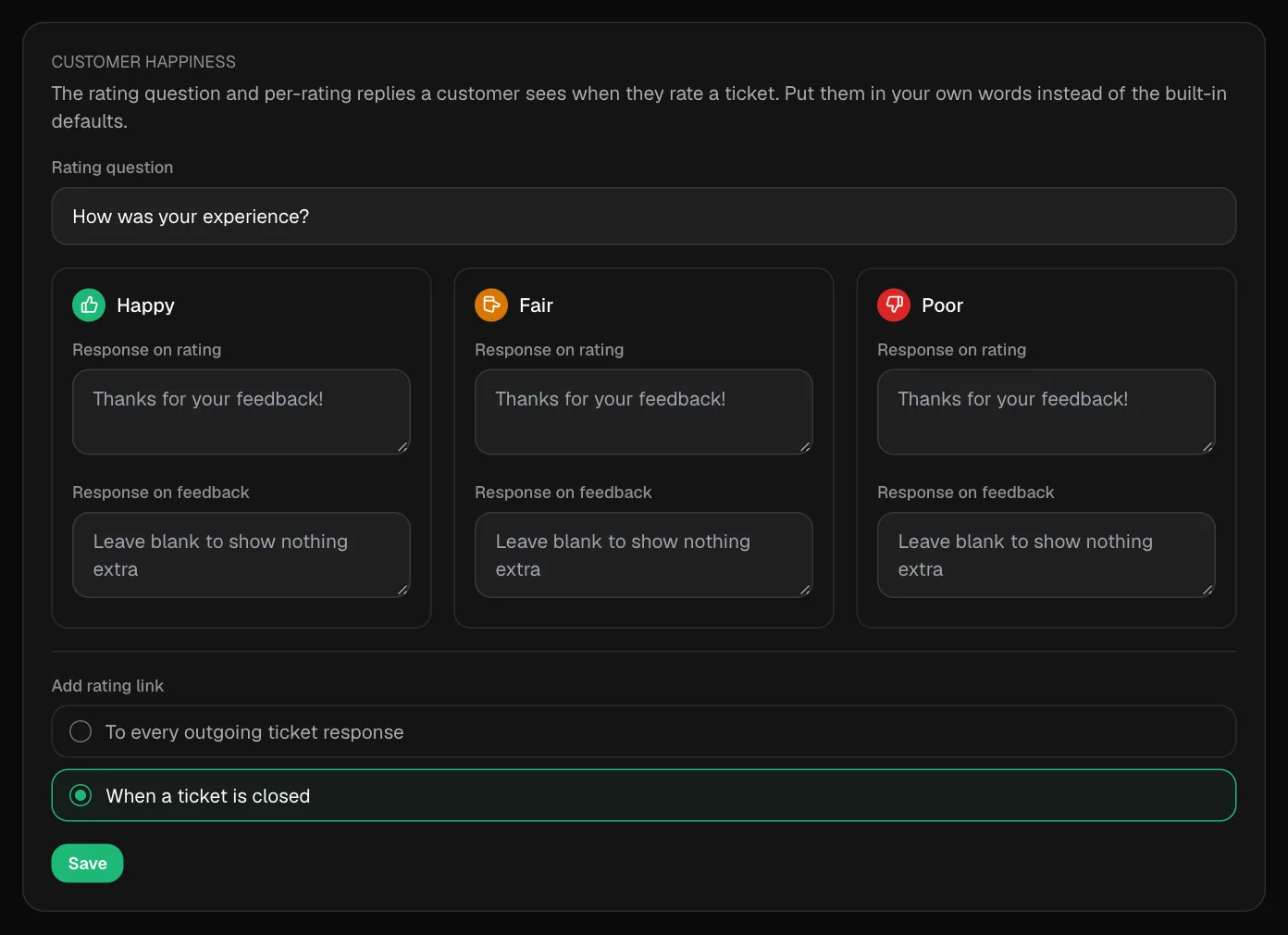 Customer happiness settings
When customers reply to any ticket email, the reply goes to your workspace and lands on the ticket.
3. Advanced options and categories
Still under Settings → Help Desk:
- Auto Cc e-mail replies to your support mailbox: every reply an agent sends is copied to your connected support mailbox.
- Create Contacts using the "Reply To" email address: use it when your website's contact form sends email on behalf of visitors.
- Show Agent name in Ticket replies and outgoing emails: customers see the agent's name instead of "[Company] Support".
- Ticket categories: add categories such as Delivery, Billing or Returns. Agents file tickets under them, and Insights breaks volume down by them.
- Monthly NPS survey: emails a 0 to 10 survey once, on the last day of the month, to every customer who opened a ticket that month. Create a survey from the NPS template under Quiq Surveys (Growth plan), publish it, then pick it here.
Set your team's working week under Settings → Company Settings → Business hours. Response and resolution targets count only those hours.
4. Work the Desk
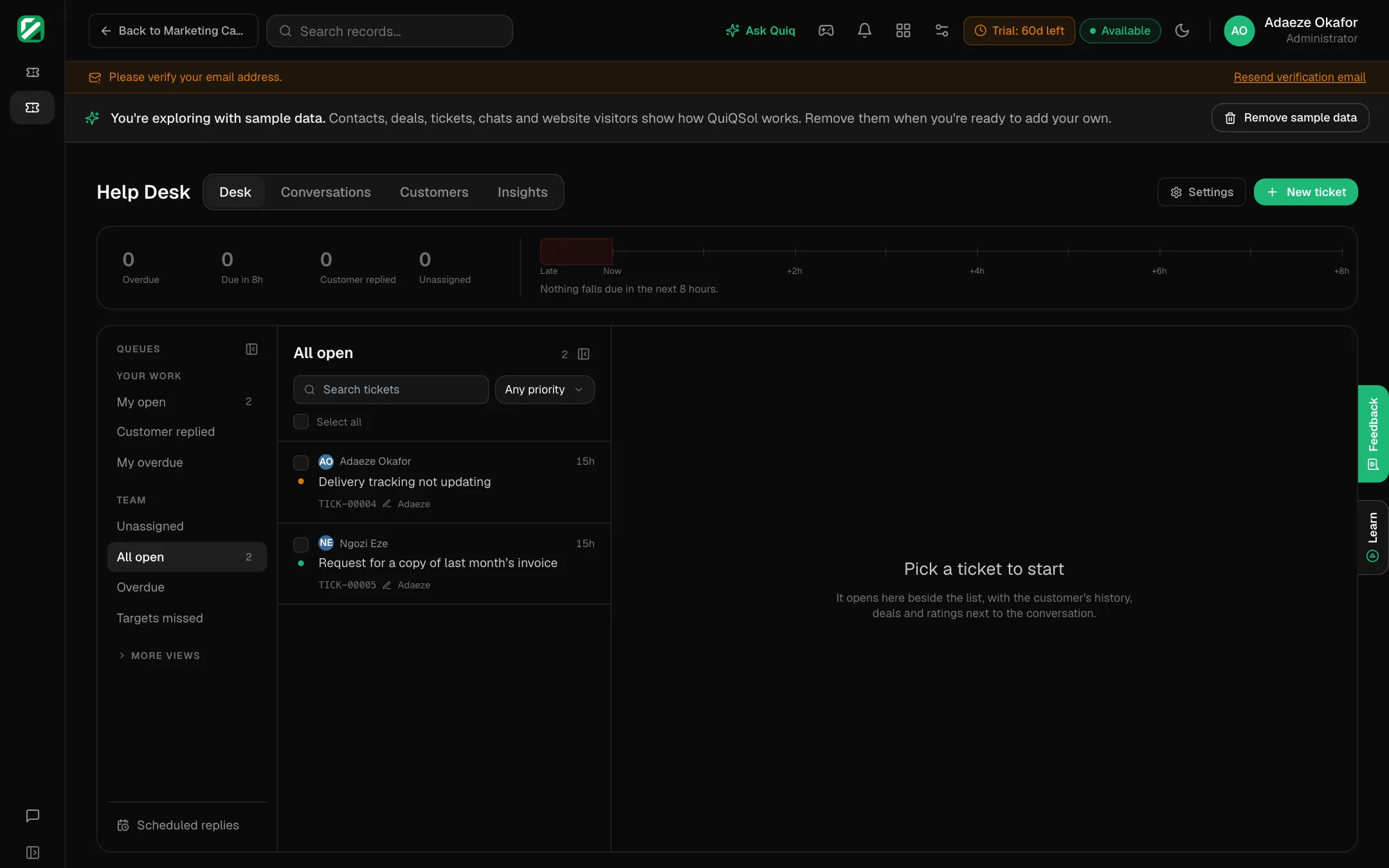 The Desk
- The strip at the top shows what is Overdue, Due in 8h, waiting since the Customer replied, and Unassigned, with a timeline of what falls due over the next 8 hours.
- Queues on the left: My open, Customer replied, My overdue, Unassigned, All open, Overdue and Targets missed. More views adds on hold, closed, for review, shared and spam.
- Search, filter by priority, and tick several tickets to act on them together.
Click a ticket to open it beside the list.
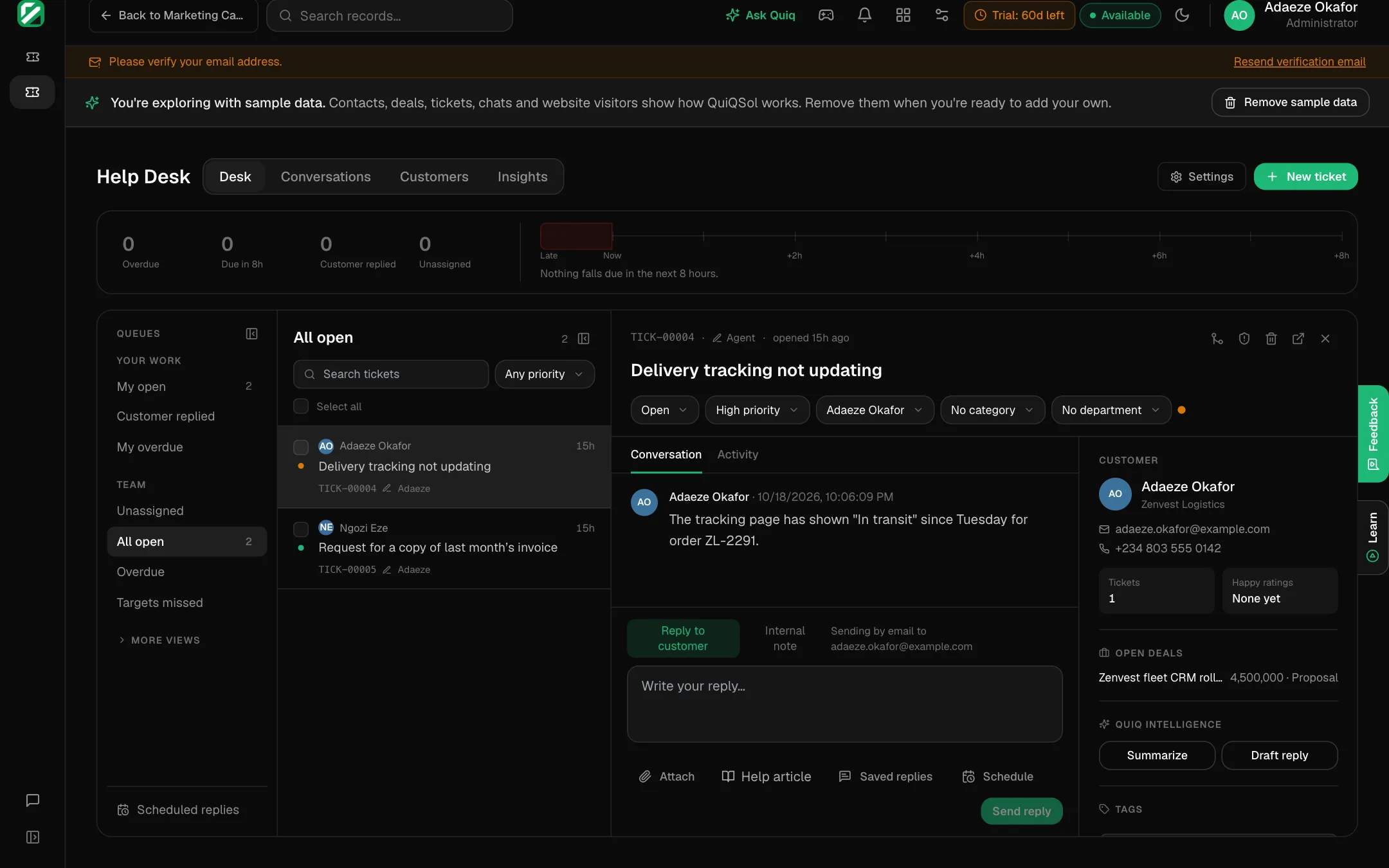 A ticket
- Set the status, priority, assignee, category and department from the bar under the subject.
- Reply to customer emails the customer. Internal note is only for your team.
- Attach files, insert a Help article from your Knowledge Base, or pick from Saved replies. Write a reply once, then click Save what I wrote as a reply to reuse it; {{customer.firstName}} and {{ticket.number}} fill in on their own.
- Schedule sends a reply later. Scheduled replies are listed at the bottom of the queues.
- On the right: the customer's contact details, their other tickets, happy ratings, open deals and meetings, suggested help articles, tags and custom fields.
- Summarize and Draft reply under Quiq Intelligence write a summary or a first draft for you to edit.
- Escalate to manager sends the ticket to the assignee's manager. Add to project turns it into work in Quiq Projects.
- The icons at the top right merge the ticket into another, open it on its own page, or delete it.
Create a ticket yourself
Click New ticket for a phone call or a walk-in. Leave priority and category on Let QuiQ Intelligence decide, or set them yourself.
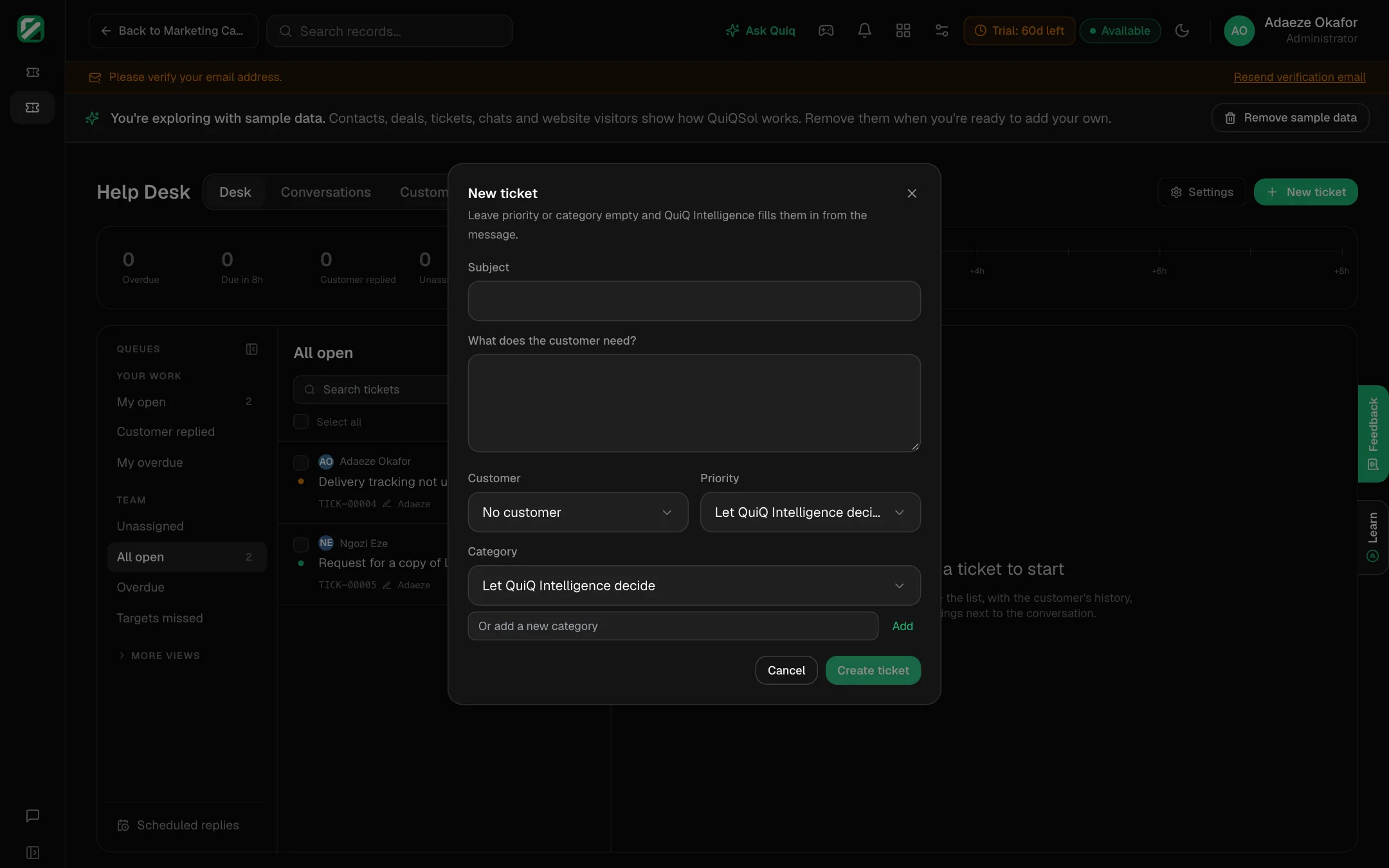 A new ticket
What happens to every new ticket
- It is read, categorised, prioritised and checked for duplicates the moment it lands. A likely duplicate from the same customer is flagged for the agent, never merged on its own.
- It is assigned to the teammate with access to Help Desk who has the fewest open tickets, and they are notified.
- It gets a first response target and a resolution target from its priority:
- Urgent: respond within 1 hour, resolve within 4 hours.
- High: respond within 2 hours, resolve within 8 hours.
- Medium: respond within 6 hours, resolve within 24 hours.
- Low: respond within 24 hours, resolve within 72 hours.
- A ticket that misses its target is escalated and shows under Targets missed.
5. Answer chats and messages
Conversations brings live chat from your website, WhatsApp, email and social messages into one list, with Open, Waiting and Closed filters and a Missed chats view.
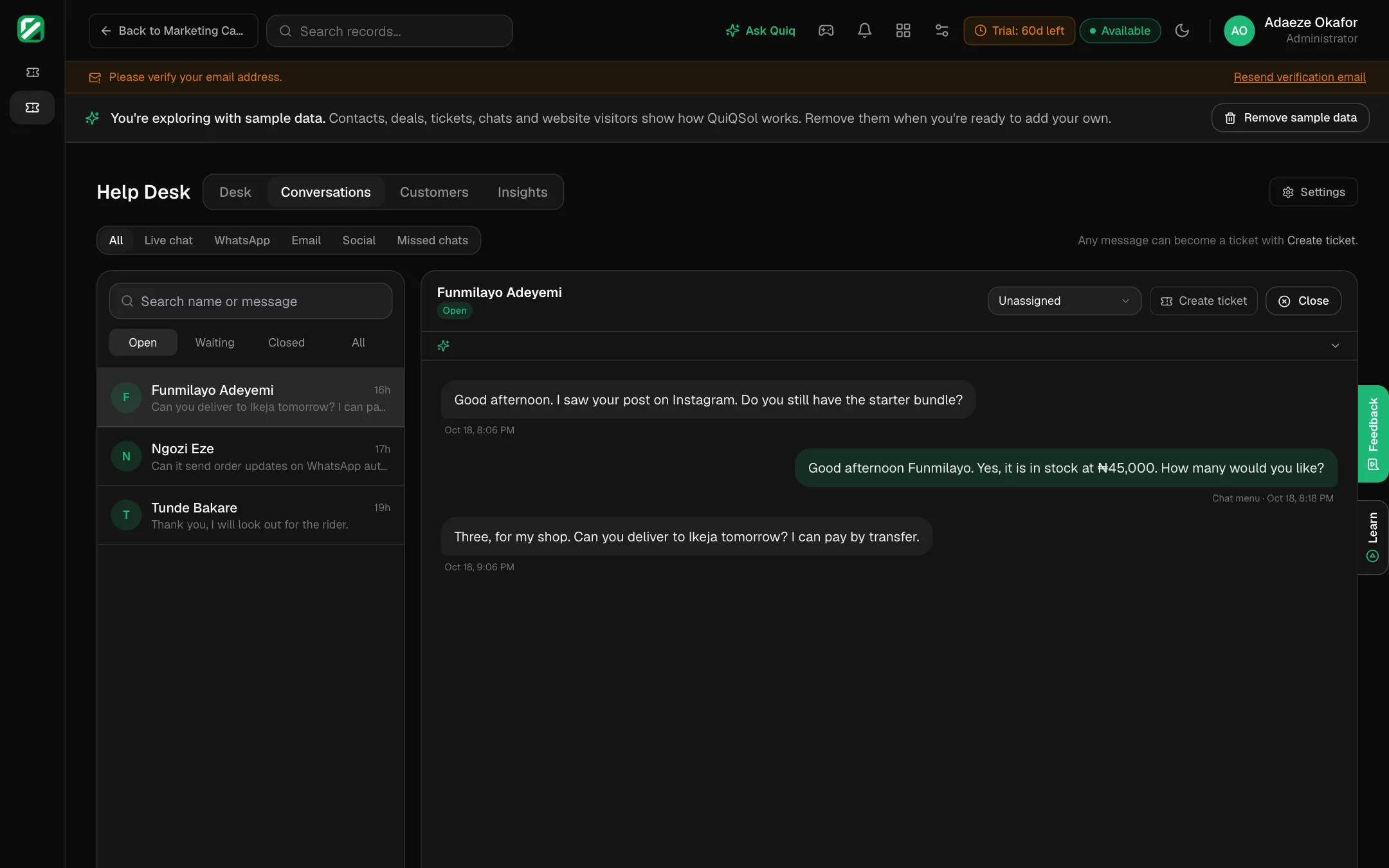 Conversations
Assign a conversation, close it, or click Create ticket to track it as a ticket. To connect the channels, see Set up Quiq WhatsApp CRM and Getting started for the website chat.
Sell from a conversation or ticket (chat to cash)
When a customer asking for help is ready to buy, close the sale where you are talking.
- In a conversation (live chat, WhatsApp, email, Facebook or Instagram), click Sell in the header.
- On a ticket, use the Sale section in the right-hand column, under the customer.
- If the conversation has no customer yet, search your contacts and pick one, or click Add as a new customer and enter their name and email. Social messages need this step once per person.
- Start a deal puts the sale in your CRM pipeline, at the first stage.
- Create invoice builds a Quiq Invoices invoice in the chat. Click Add product to pick from your product catalogue, or Custom item to type one, then set the quantity, unit price and any % discount. Add a Delivery fee and switch on Add VAT if it applies. On WhatsApp, Use their WhatsApp order fills in the items and quantities from a catalogue order the customer sent. The total updates as you go. Click Send invoice link and the branded invoice link drops into your reply, ready to send, or Save draft to finish it in Invoices first. The customer's name, phone, email and address come from their CRM record, and the invoice is tied to their open deal.
- The customer pays online and the money goes straight into the bank account you connected under Invoices → Settings → Get paid online. The invoice is marked paid and the deal moves to Won on its own, live on screen.
Without a connected bank account, the link shows your bank details so the customer can pay by transfer. Starting a deal needs CRM access and requesting payment needs Invoices access, so set roles under Settings → Roles.
6. Measure your support
Insights opens on HQ: what Quiq Intelligence triaged, sentiment, duplicates caught, and what needs attention right now.
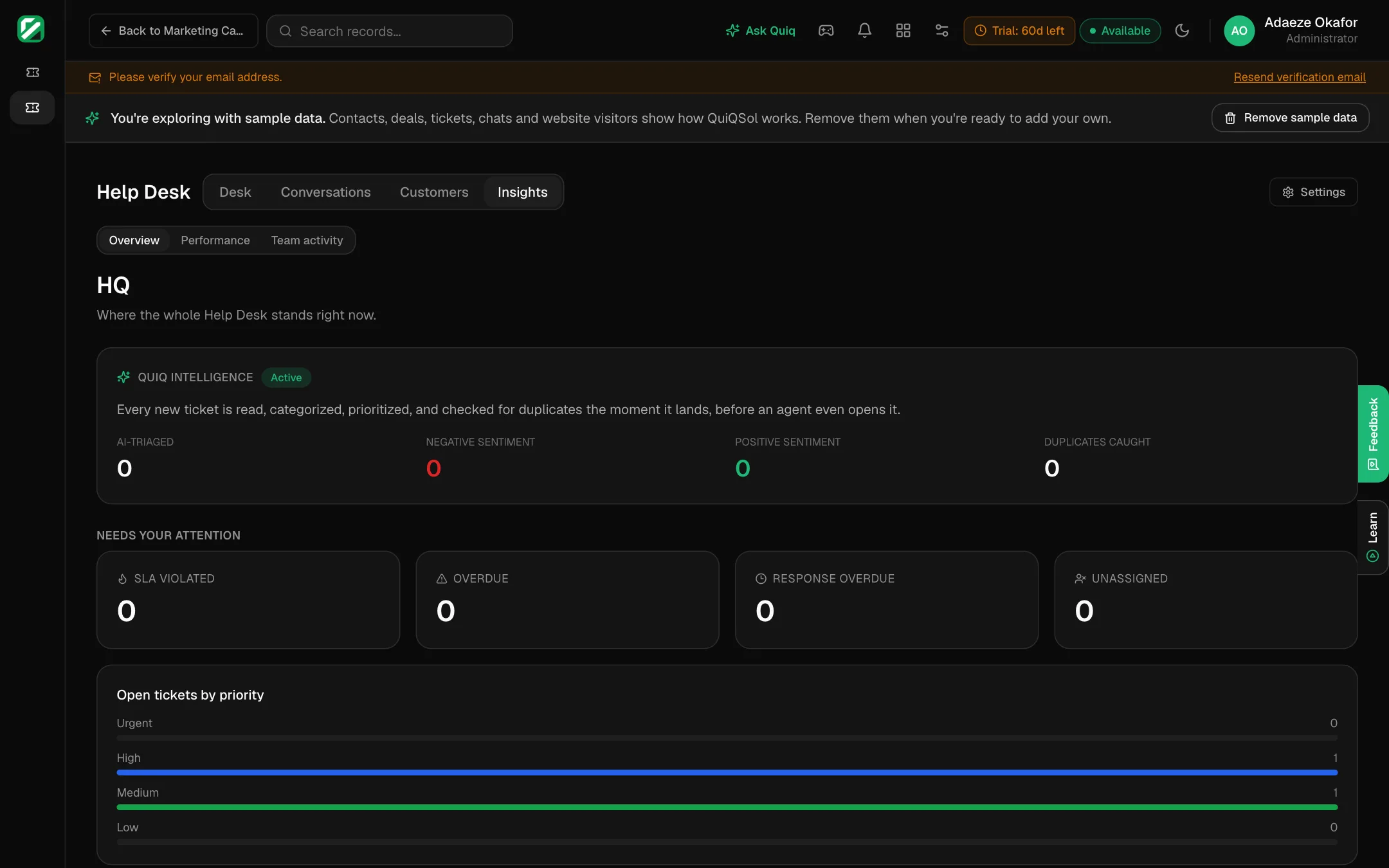 Help Desk HQ
Performance shows tickets opened, solved and pending, target compliance, volume by channel, the backlog over time, first response and resolution times, CSAT, NPS, first contact resolution and each agent's workload.
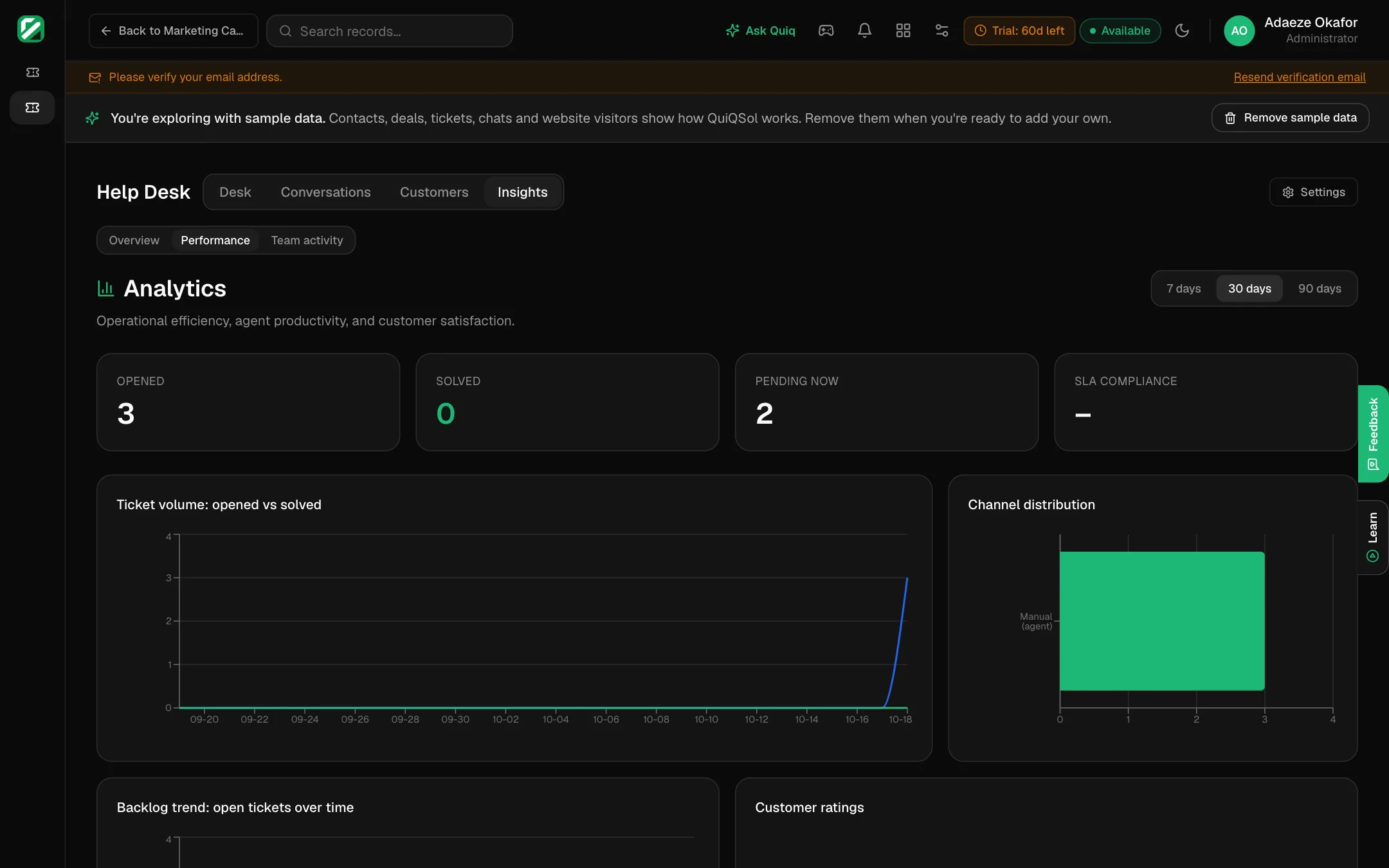 Performance
Team activity shows who did what, as it happens.
Good support habits
- Forward your support address on day one, so no email is left outside the Desk.
- Keep {{ticketNumber}} in every email subject.
- Turn on Show Agent name once your team is set up. Customers answer people faster than they answer "Support".
- Check Targets missed every morning.