
Setting up Quiq Forms
Build a form from a description, a template or scratch, send every response to the CRM, brand it, then share it as a link or on your website and work the responses.
On this page
Quiq Forms builds forms for enquiries, quotes, bookings, registrations, applications and orders, shares them as a link or on your website, and turns every response into a lead or contact in your CRM. It is on the Growth and Enterprise plans.
Open it from the Apps menu, then Forms. All Forms holds your forms and the templates; Submissions holds every response.
1. Create a form
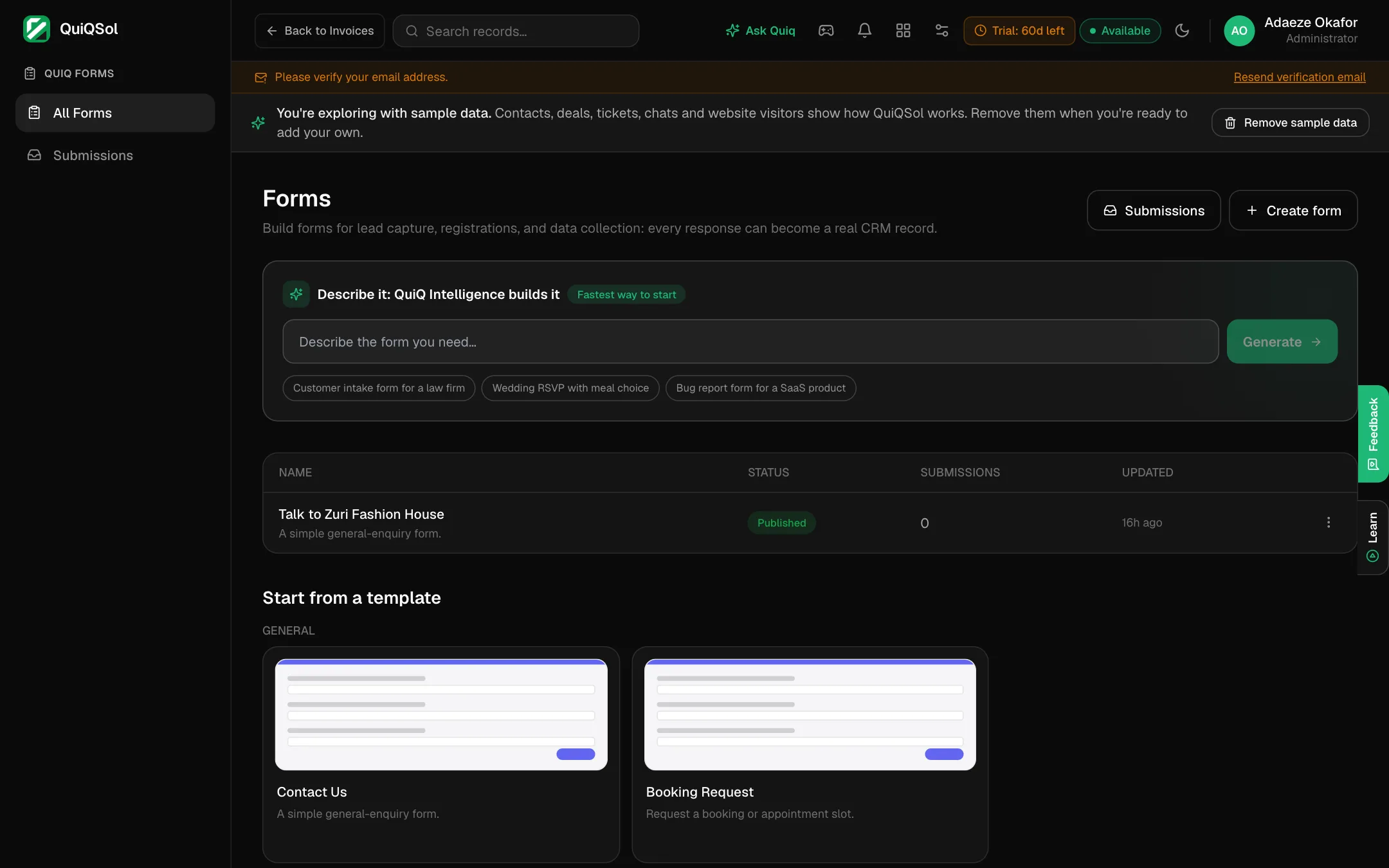 Create a form
Three ways to start:
- Describe it: type what you need, such as "Customer intake form for a law firm", and click Generate. Quiq Intelligence builds the questions for you to adjust.
- Start from a template: Contact Us, Booking Request, Lead Capture, Request a Demo, Quote Request, Event Registration, Newsletter Signup, Job Application, Customer Onboarding and Support Request.
- Create form: start from scratch, or choose Import from URL and paste the address of a page that already has a form, such as your current contact page, to rebuild its questions here.
Give it a name and it opens in the builder as a draft.
2. Add your questions
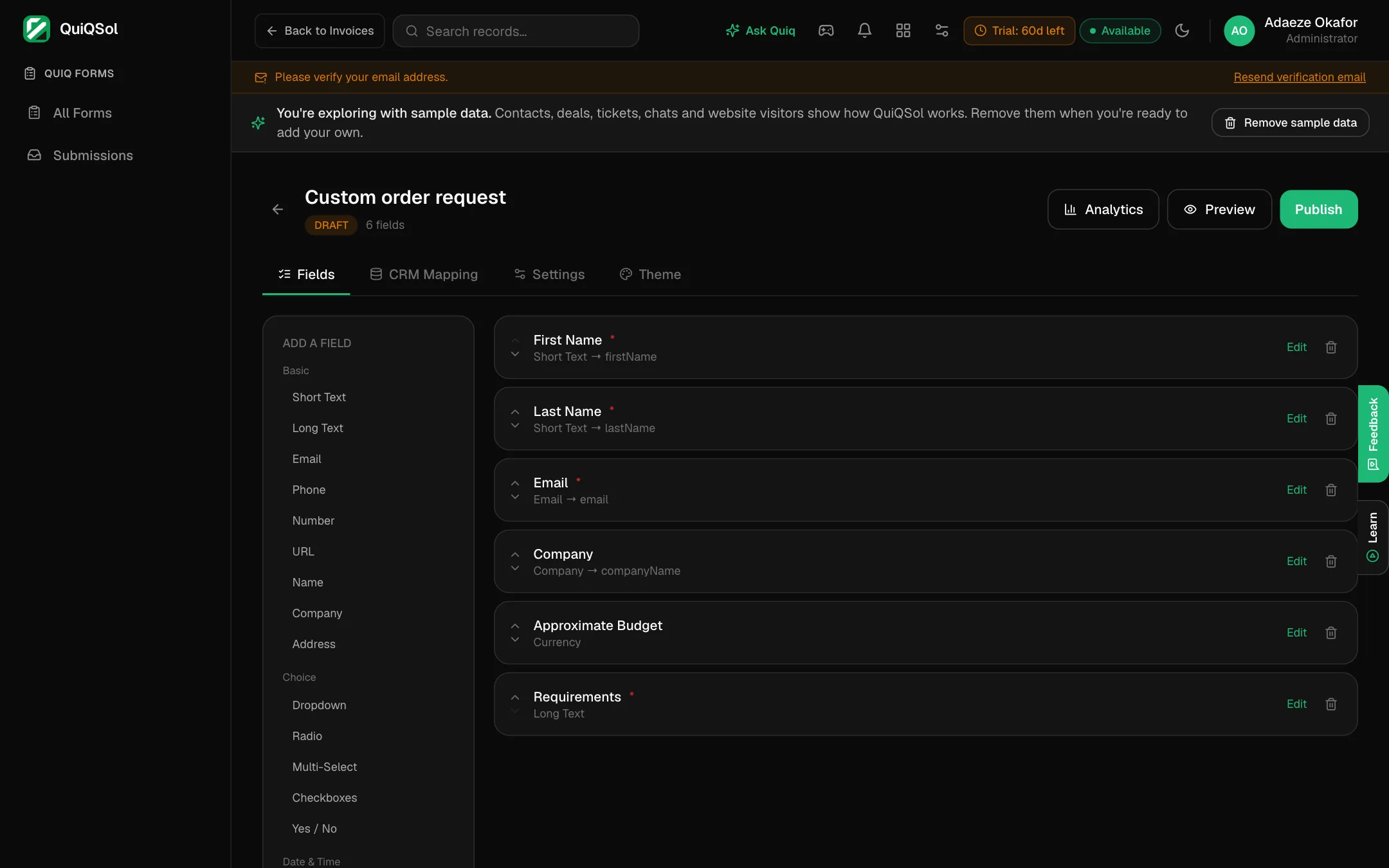 The form builder
Click a field type on the left to add it:
- Basic: short text, long text, email, phone, number, website, name, company and address.
- Choice: dropdown, radio, multi-select, checkboxes and yes or no.
- Date and time, Rating, NPS and Currency.
- File upload, Image upload, Signature and Consent checkbox.
- Hidden field: carries information the visitor does not see, such as the page or campaign.
Use the arrows to reorder. Click Edit on a field to change its label, description, placeholder and whether it is required, link it to a CRM field, or show it only when an earlier answer matches.
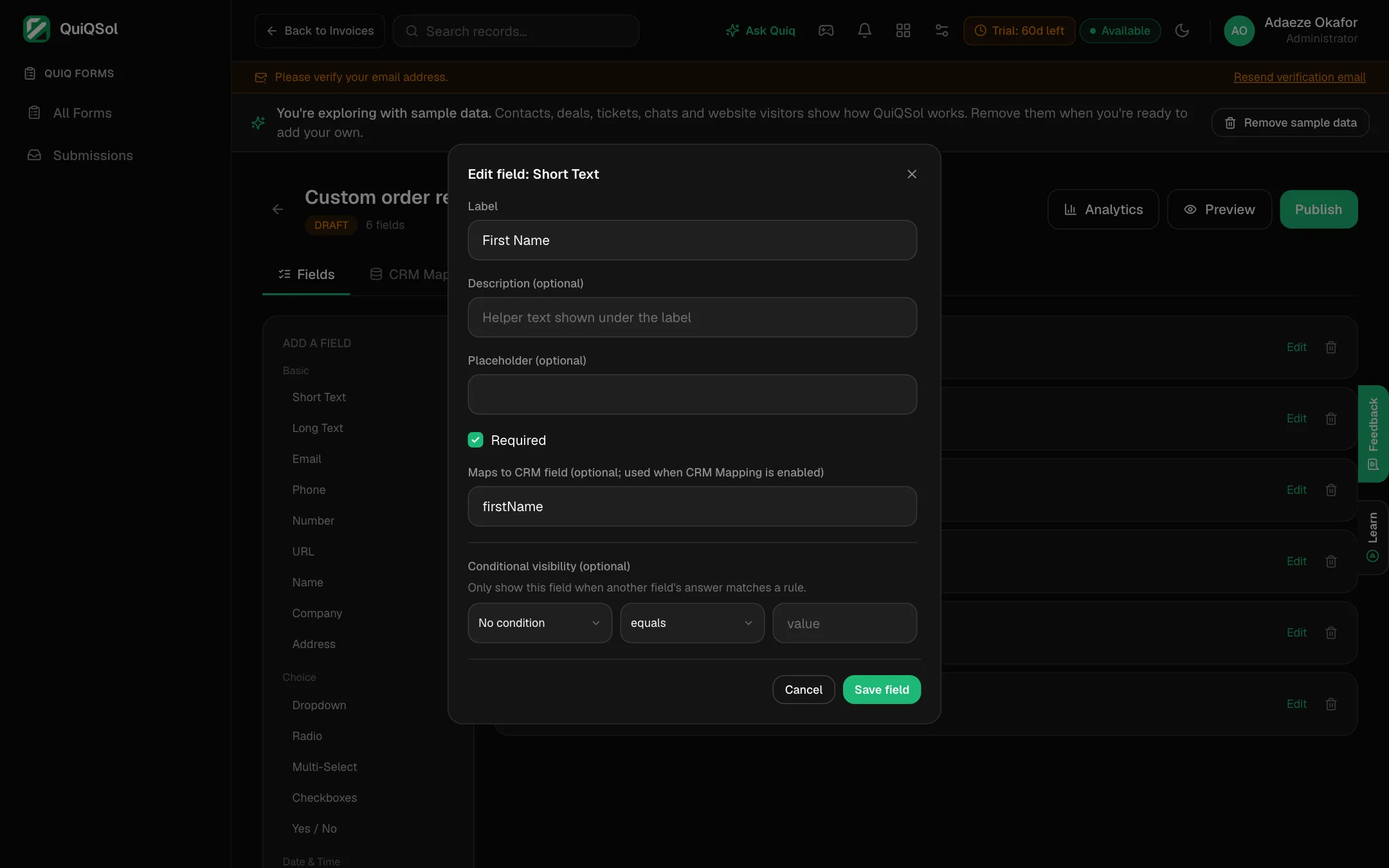 Editing a field
3. Send responses to the CRM
Open CRM Mapping and switch on Send responses to CRM automatically.
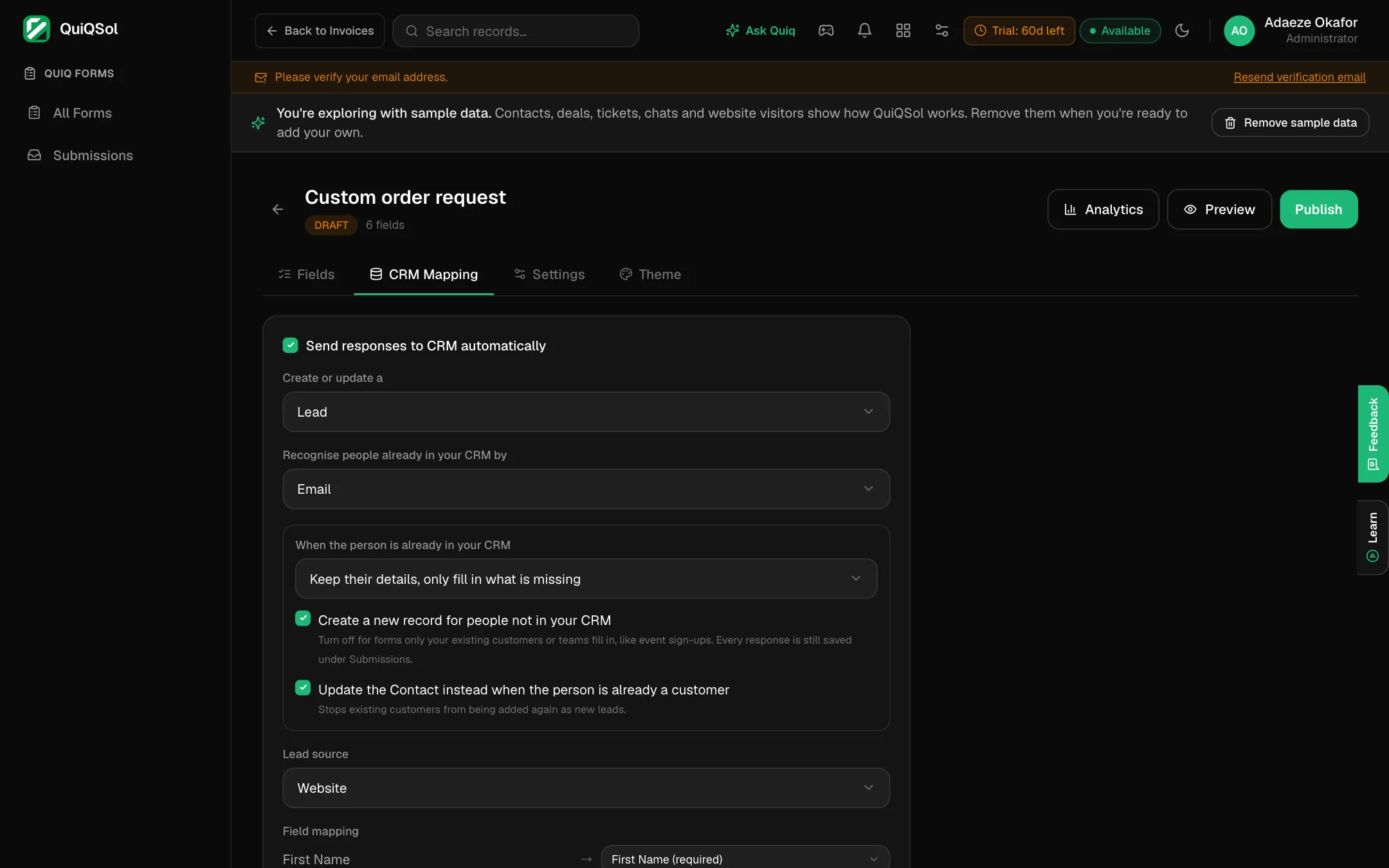 CRM mapping
- Create or update a Lead or a Contact.
- Recognise people already in your CRM by one of your questions, usually Email, so a returning customer is updated instead of duplicated.
- When the person is already in your CRM: keep their details and only fill in what is missing, or update them with the new answers.
- Choose whether to create a record for people not yet in your CRM, and whether to update the Contact instead when the person is already a customer.
- Lead source: what the new record shows as its source.
- Field mapping: which question fills which CRM field. Full name fills the first and last name from one answer. No field for a question yet? Choose + Create a new CRM field and name it: it is added to every Lead, Contact or Company, and each answer is saved there.
Click Save mapping.
4. Choose how the form behaves
Open Settings.
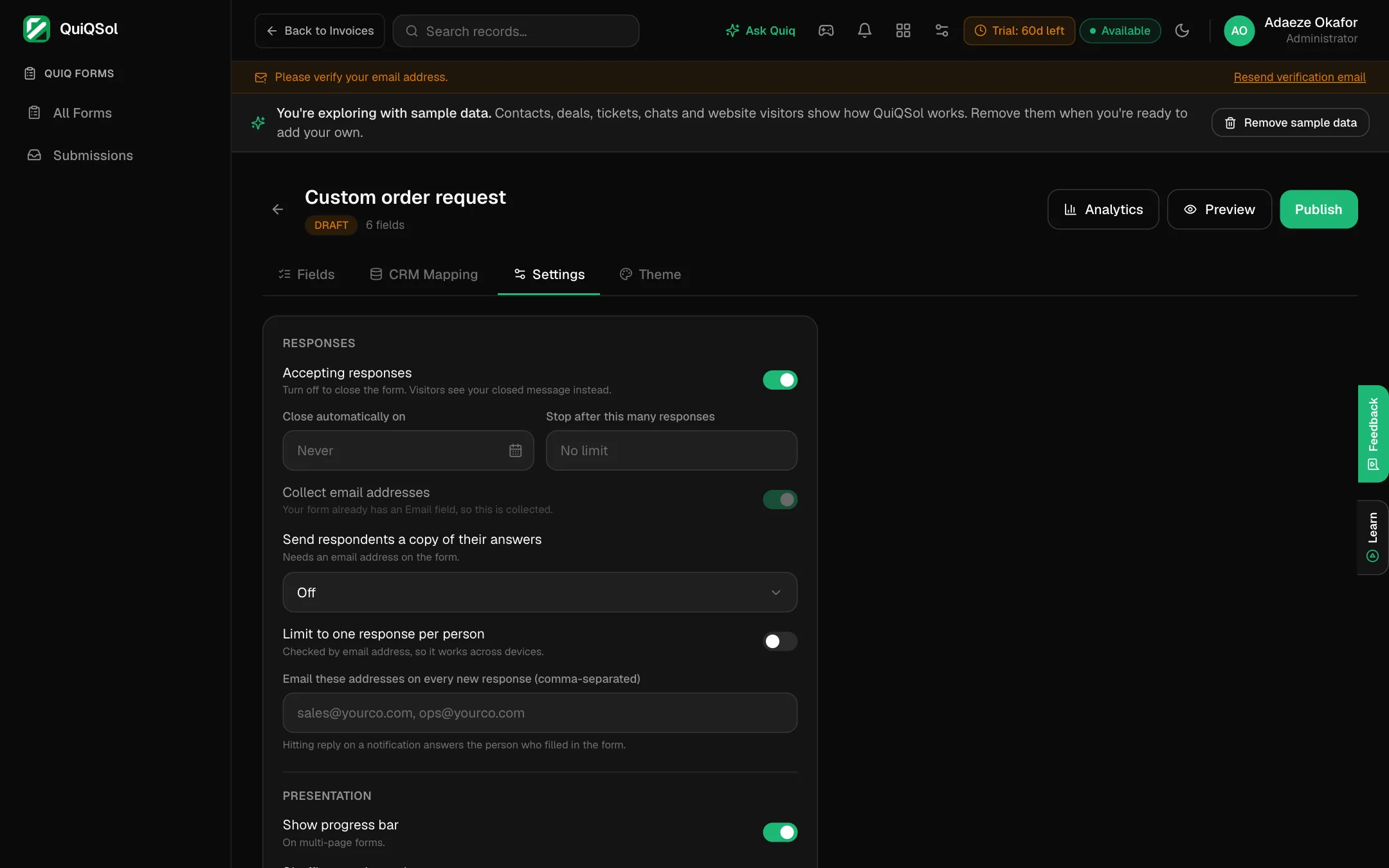 Form settings
- Accepting responses: turn off to close the form. Close it on a date, or after a number of responses.
- Send respondents a copy of their answers, and Limit to one response per person (checked by email, across devices).
- Email these addresses on every new response: your team is told the moment a response arrives, and replying answers the person who filled it in.
- Show progress bar, Shuffle question order, and Save answers on the visitor's device so they can finish later.
- After someone submits: show your thank-you message, send them to a page of yours, or open your booking page so they can pick a time.
- Remind people who don't finish: when someone types their email and leaves without submitting, they get one email with a link back, their answers kept. Off until you turn it on.
- Email the respondent after they submit: your own message to each person who submits, such as the webinar link and time, or a personal set-up guide after a sign-up. Write the subject and message, and click a placeholder to drop in an answer: First name, Last name, Email, Form name, Your company, or any question on the form (it appears as
{{fieldKey}}). Links become clickable, and a placeholder with no answer is left out. Send me a test sends it to your own email with your name and sample answers. It goes out once per response, from your workspace with your branding and footer, and needs an Email field (or Collect email addresses). Off until you turn it on. - Turn each response into a project task in Quiq Projects.
Click Save settings.
5. Make it look like your brand
Open Theme.
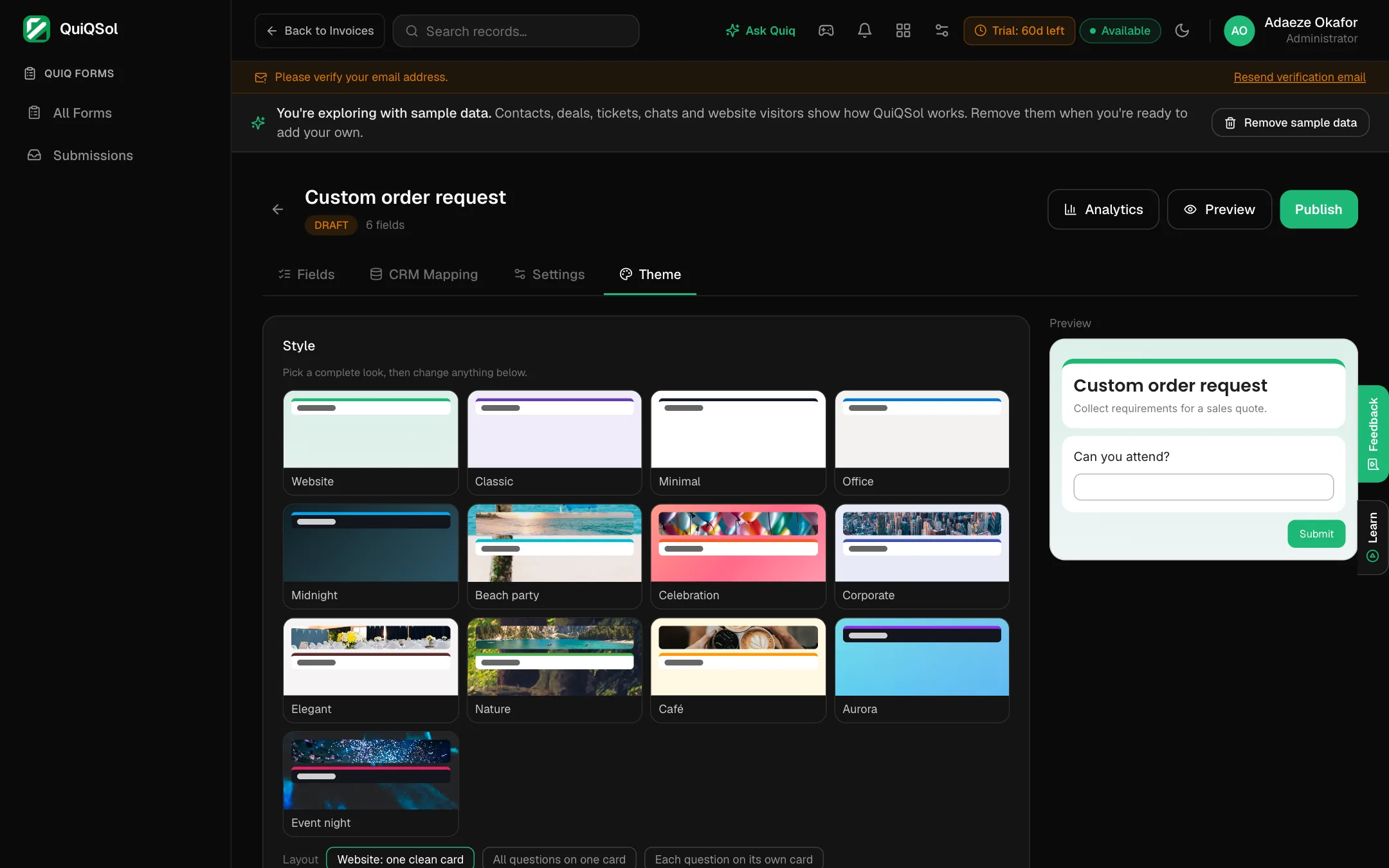 Form themes
Pick a complete style, then change anything: Website (one clean card, the default), Classic, Minimal, Office, Midnight and more. Choose all questions on one card or one question per card, a header banner, a background colour, gradient or photo, a light or dark card, fonts and sizes, your logo, and the submit button text. Full preview shows the result. Click Save theme.
6. Publish and share
Click Preview to try it, then Publish. Click Share for the link and the embed code.
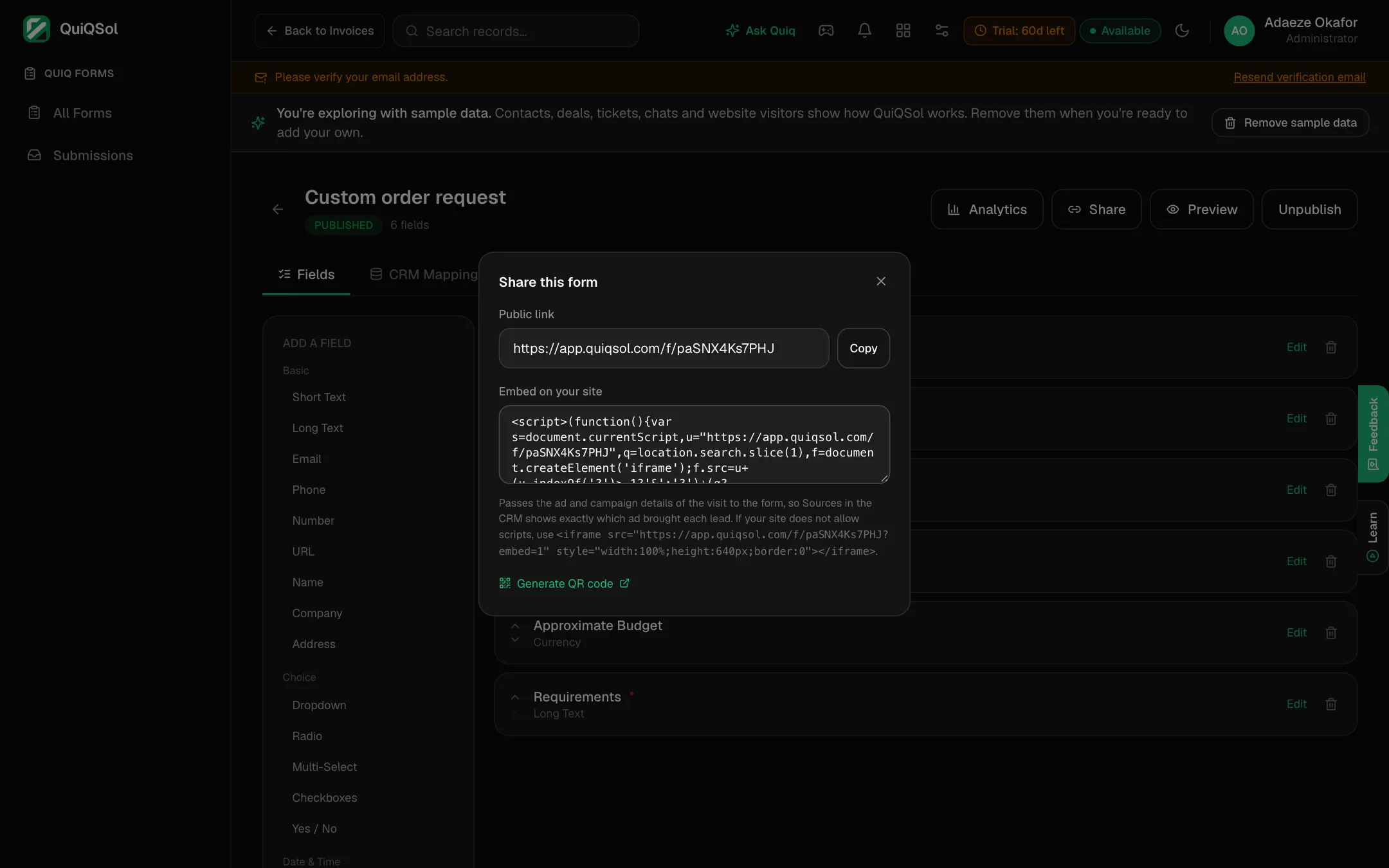 Share the form
- Public link: send it on WhatsApp, email, social media or a QR code (Generate QR code).
- Embed on your site: paste the code where the form should appear. The embedded form takes your page's background and resizes to its own height, and it passes the ad and campaign that brought the visitor, so Sources in the CRM shows exactly which ad produced each lead.
This is what your visitor sees:
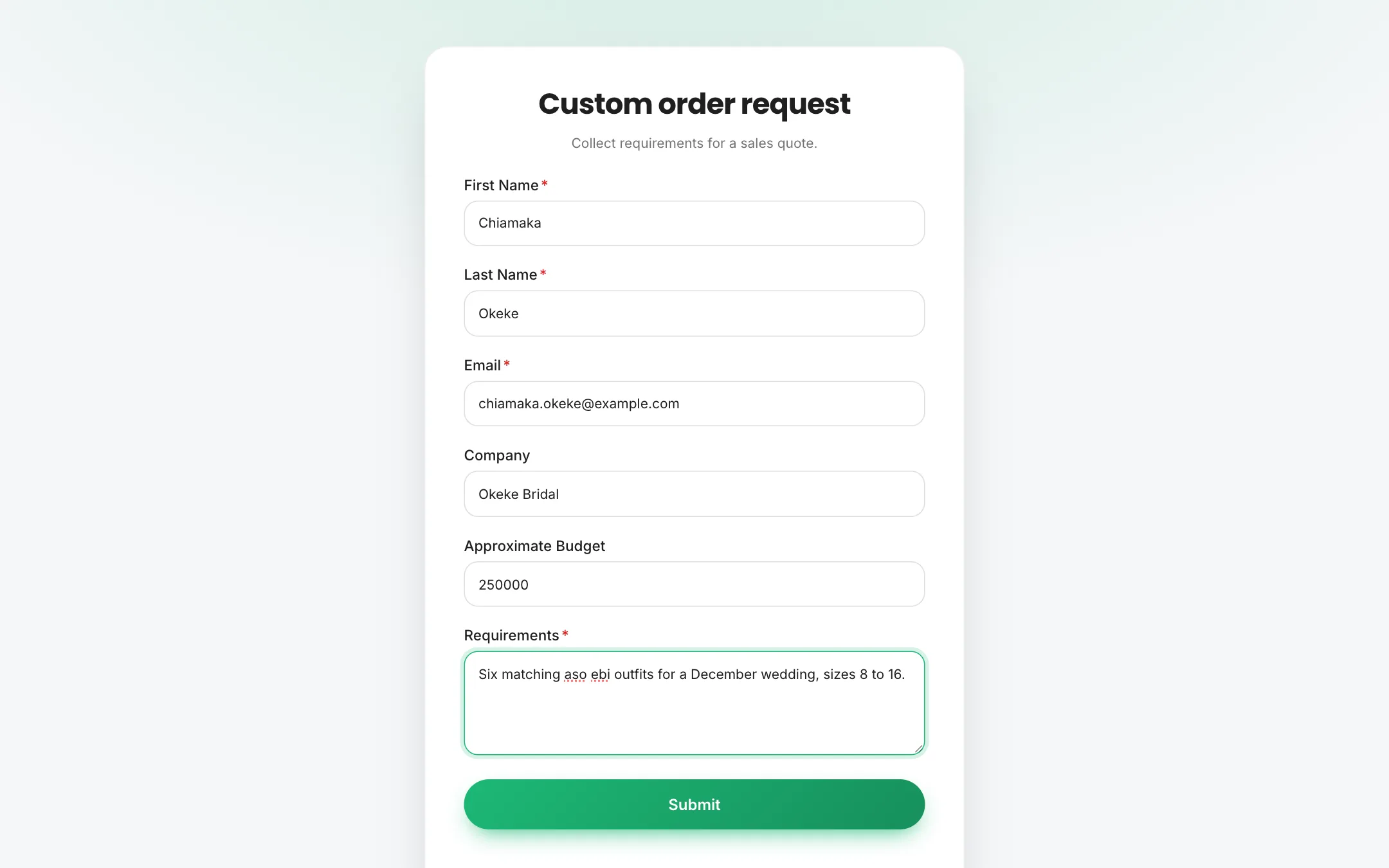 The published form
7. Work the responses
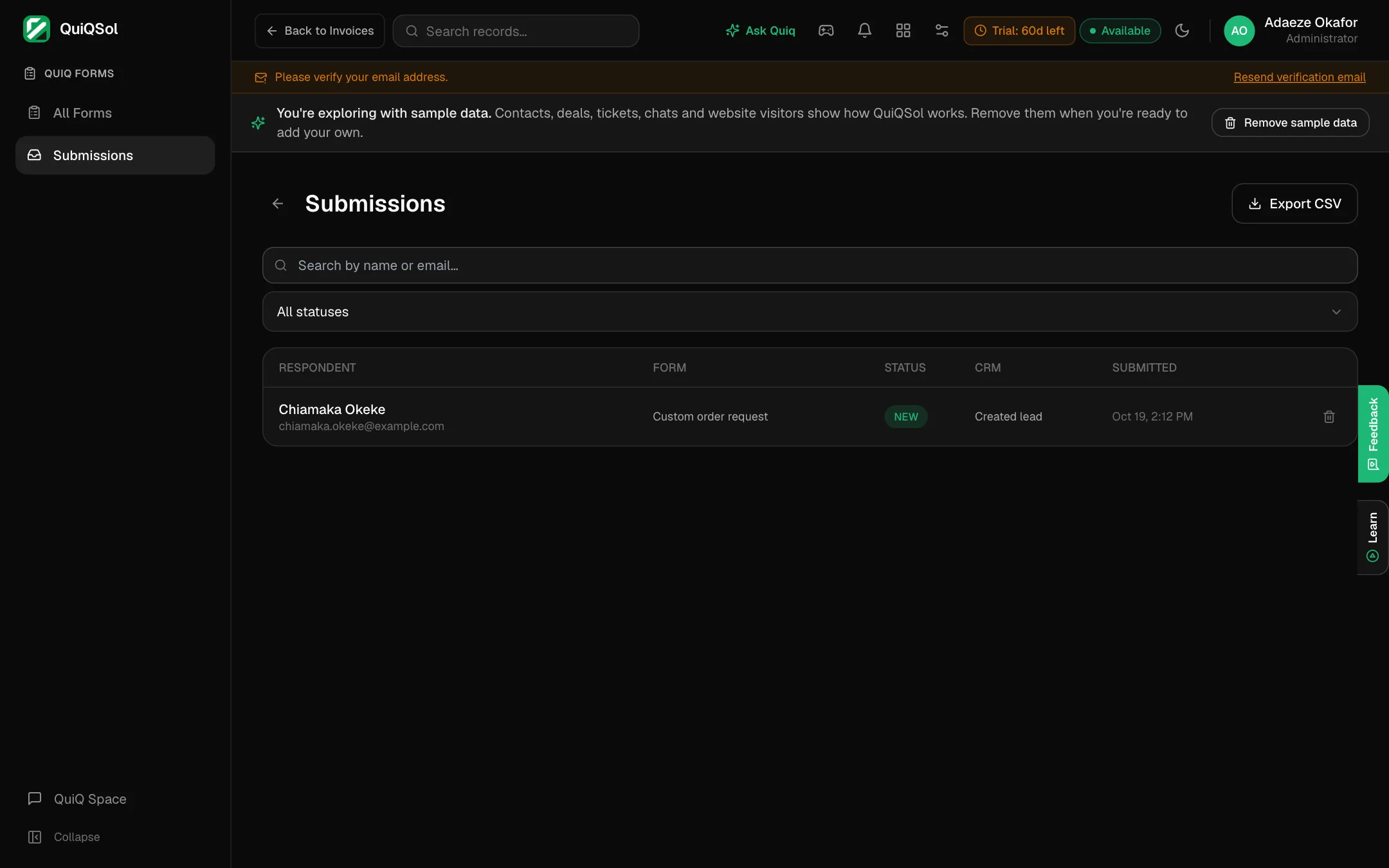
Go to Submissions for every response across your forms, with its status and what it created in the CRM.
 Submissions
Filter by status, open a response to read all its answers, set its status and add notes, and click Export CSV to download them. Analytics on each form shows views, starts, completions, completion and drop-off rates, the average time to complete, and responses over time.
To act on every response automatically, start a journey in Quiq Automation with the Form is submitted trigger: for example, assign the new lead to the least busy teammate and notify them.