
Setting up Quiq WhatsApp CRM
Connect your WhatsApp number through Meta step by step, then run your inbox, sell from chats, send templates and broadcasts, and set routing and auto replies.
On this page
- Part 1, step 1: Create your Meta app
- Part 1, step 2: Register your business phone number
- Part 1, step 3: Add a payment method
- Part 1, step 4: Create a permanent access token
- Part 1, step 5: Copy your App Secret
- Part 2, step 6: Connect in QuiQSol
- Part 2, step 7: Send incoming messages to QuiQSol
- Your inbox
- Sell from the chat
- Message templates
- Broadcasts
- Chat settings
- Routing rules
- Analytics
- More in WhatsApp CRM
QuiQSol connects to WhatsApp through Meta's official WhatsApp Business Platform. Part 1 happens on Meta's sites and gives you four values. Part 2 pastes them into QuiQSol. After that, everything happens in QuiQSol.
Part 1, step 1: Create your Meta app
Go to developers.facebook.com/apps and click Create App.
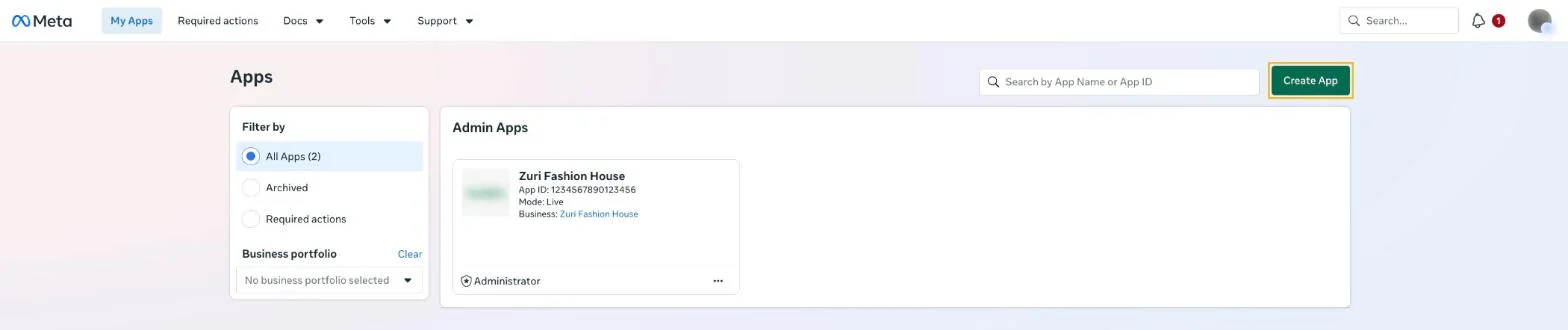 Meta for Developers, My Apps
- App details: give the app a name and check the contact email.
- Use cases: tick Connect with customers through WhatsApp.
- Business: choose your business portfolio.
- Requirements: click Next.
- Overview: check the summary and click Create app.
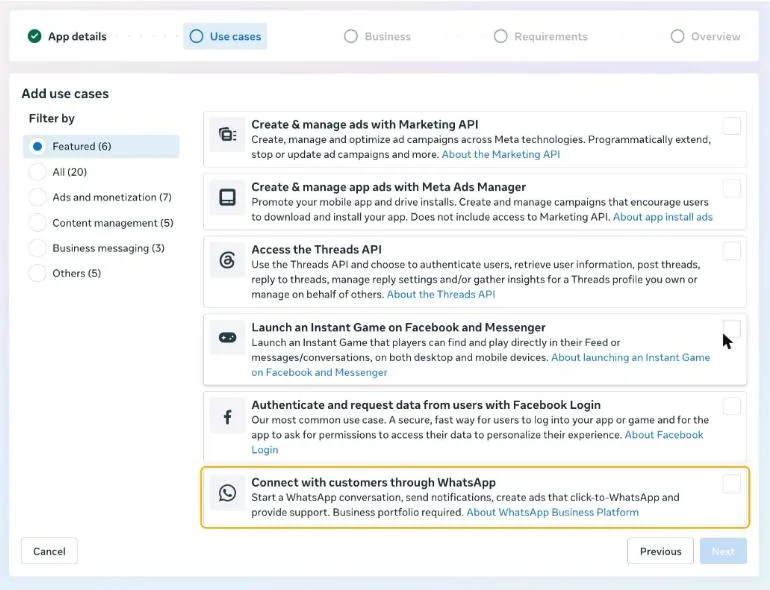 Choosing the WhatsApp use case
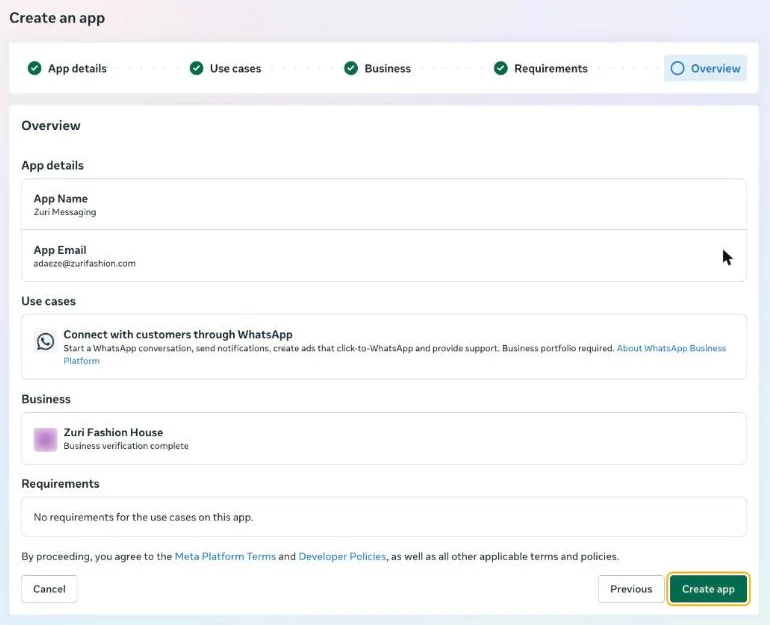 The summary before Create app
Part 1, step 2: Register your business phone number
In your new app, open Use cases → Connect on WhatsApp → Customize, then Step 2. Production setup. It lists four tasks.
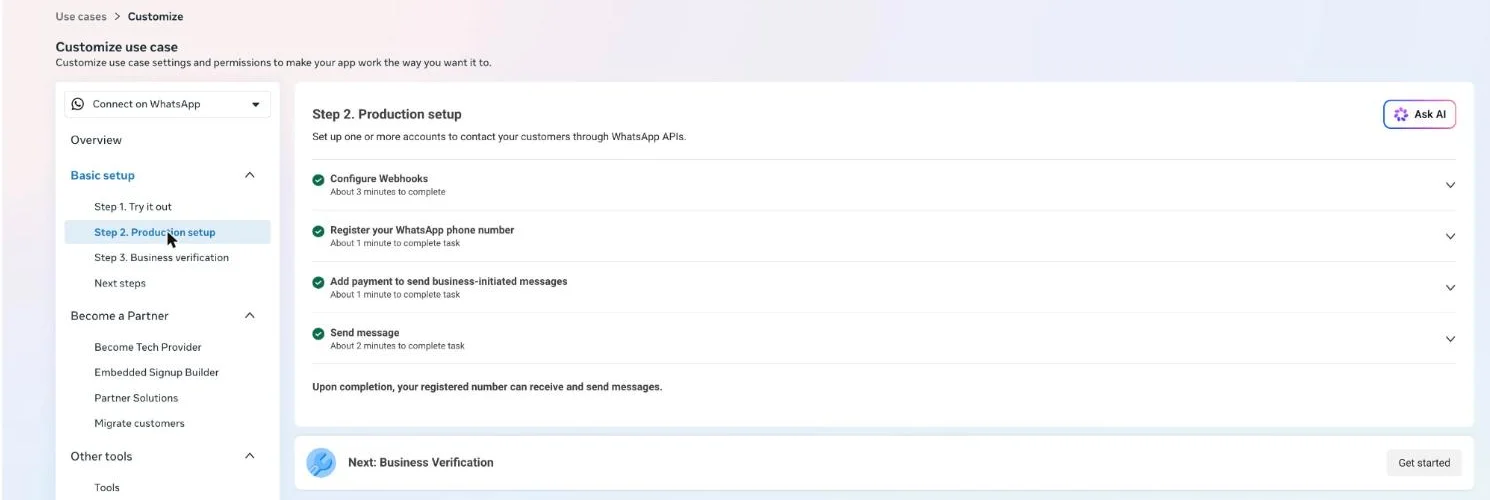 Production setup on Meta
Open Register your WhatsApp phone number and click Add new number. Enter the display name customers will see, your business category and the number, then verify it with the code Meta sends. When the number shows Registered, note the two IDs under it:
- WhatsApp Business account ID (the WABA ID)
- Phone Number ID
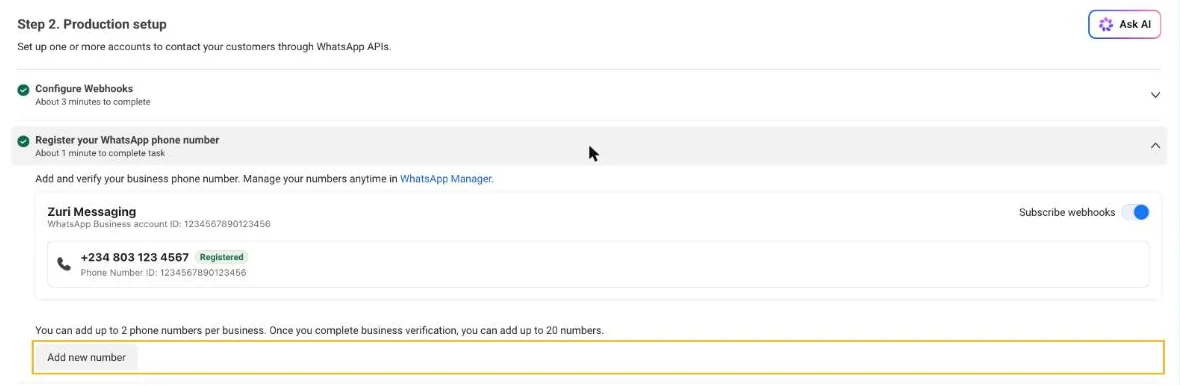 Your registered number with its Phone Number ID and WhatsApp Business account ID
Part 1, step 3: Add a payment method
Still in Production setup, open Add payment to send business-initiated messages and add your card. Meta charges for messages you start (templates and broadcasts). Replies to customers who message you first are free up to 1,000 per number each month.
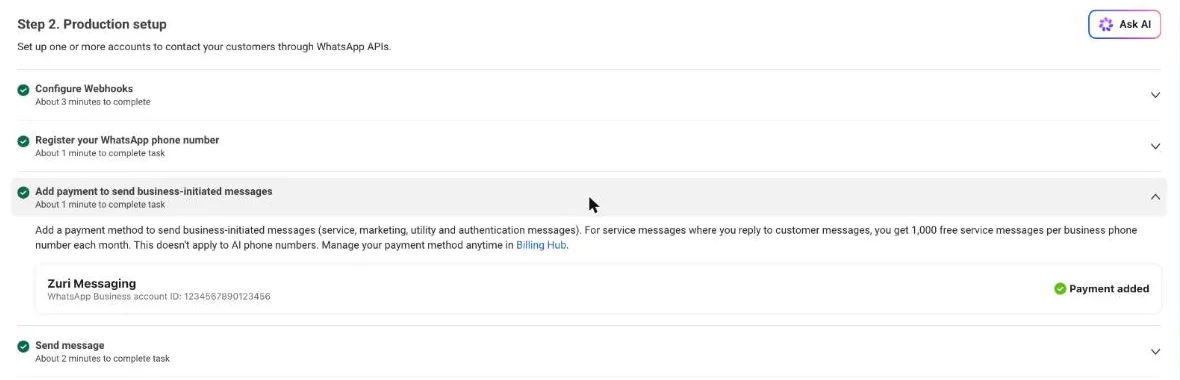 Payment added on Meta
Part 1, step 4: Create a permanent access token
QuiQSol needs a token that never expires, which comes from a system user in your business portfolio.
- Go to business.facebook.com/settings and open Users → System users.
- Click Add, name it (for example "QuiQSol"), and choose Admin.
- Click Assign assets: give it your app and your WhatsApp account, both with Full control.
- Click Generate token, choose your app, set the expiry to Never, and tick whatsapp_business_messaging and whatsapp_business_management. Add catalog_management if you will use the product catalogue.
- Copy the token and keep it safe. Meta shows it only once.
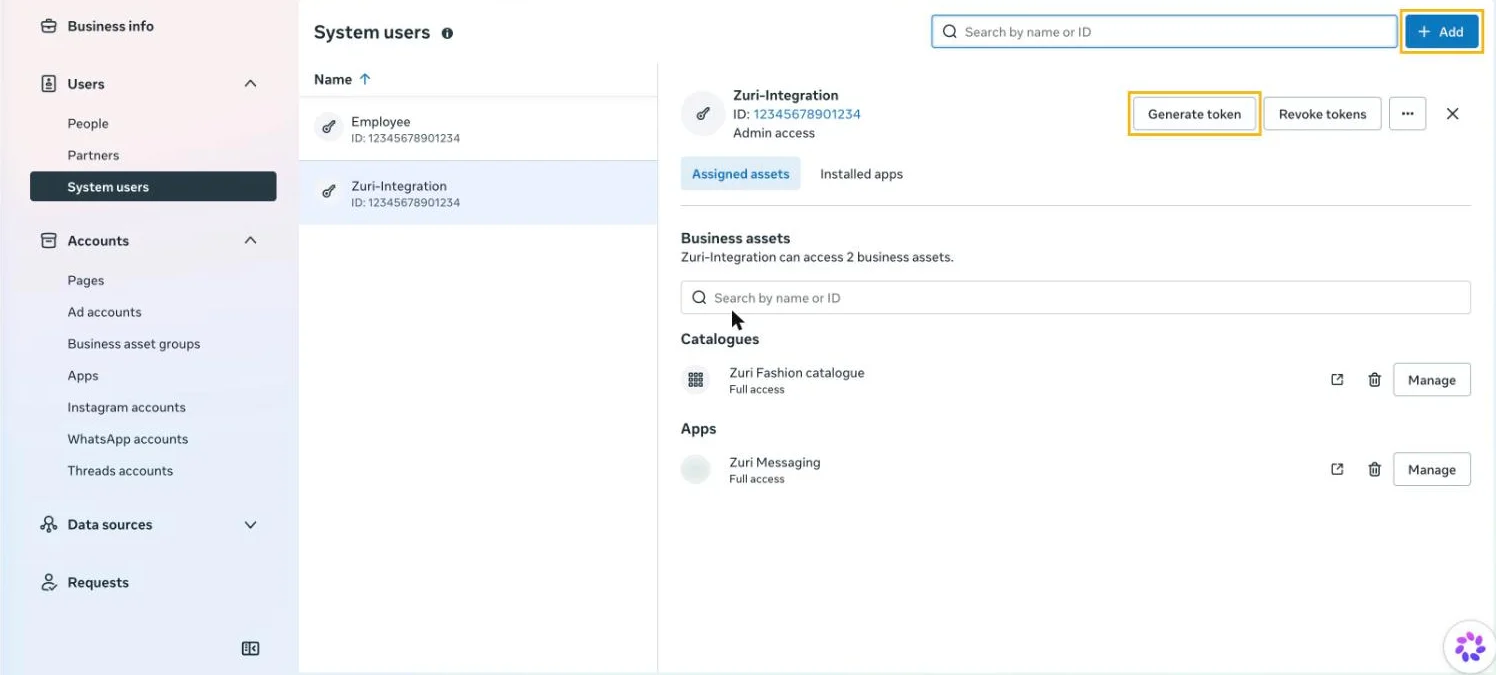 System users in Business Settings
Part 1, step 5: Copy your App Secret
Back on developers.facebook.com, open your app's App settings → Basic. Next to App secret, click Show, confirm your Facebook password, and copy it.
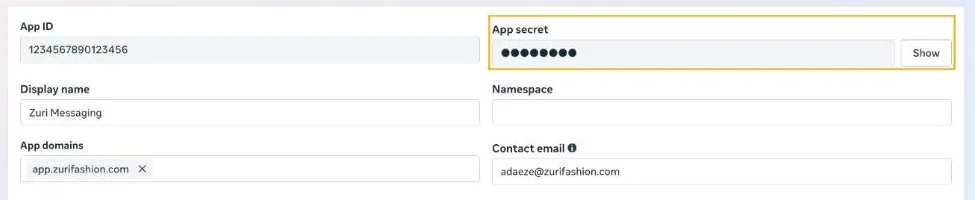 The App secret field
Part 2, step 6: Connect in QuiQSol
In QuiQSol, open WhatsApp CRM → Settings. Under Connect a number, paste:
- WhatsApp Business Account ID (WABA ID)
- Phone Number ID
- Access Token (System User, permanent)
- App Secret
Leave Verify token blank and QuiQSol makes one for you. Click Test & Connect. QuiQSol checks the details with Meta before saving them, and the card turns to Connected with your business name and number.
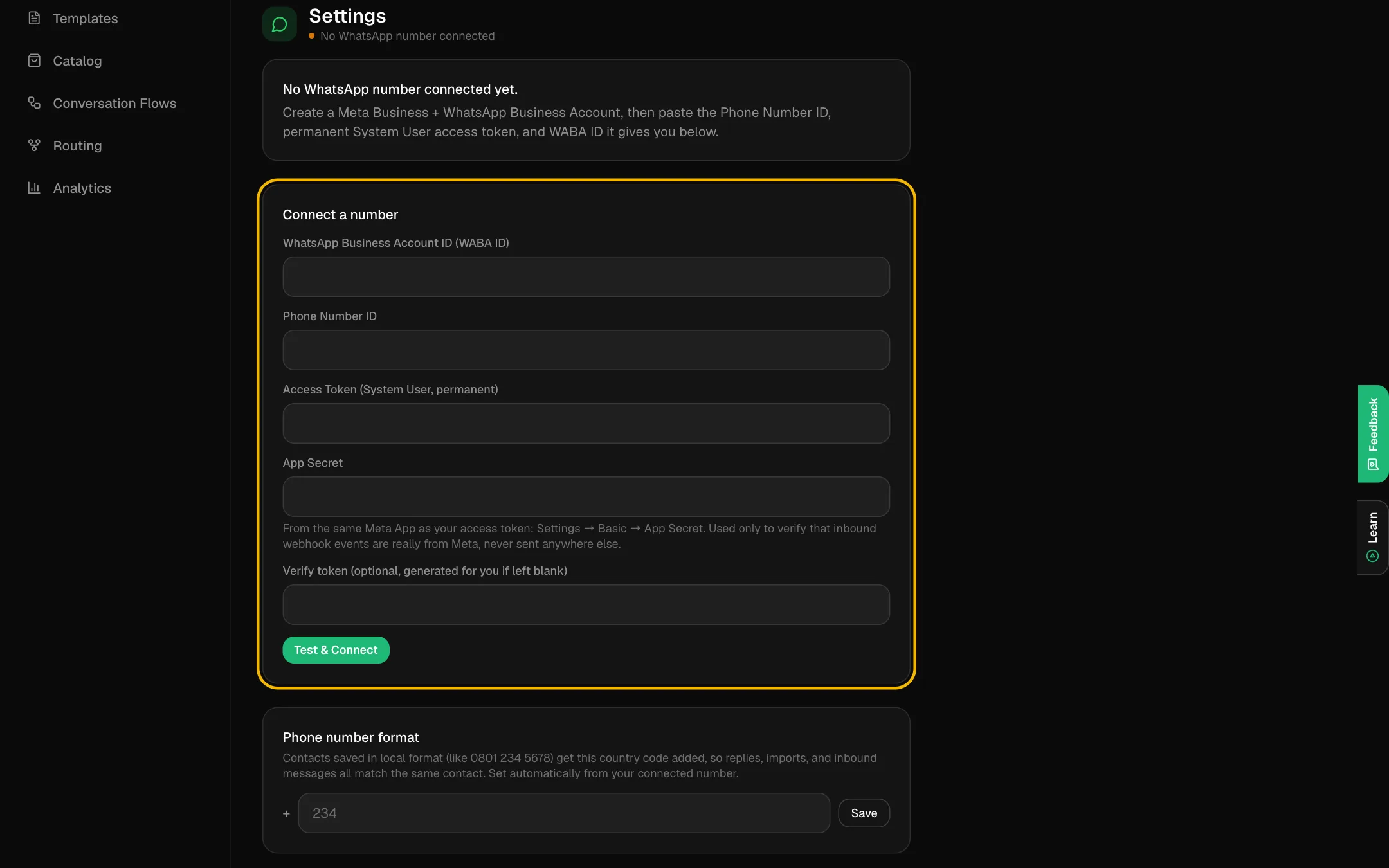 Connect a number in QuiQSol
Part 2, step 7: Send incoming messages to QuiQSol
Connecting lets QuiQSol send. To receive, Meta needs QuiQSol's address. The Webhook setup card in WhatsApp CRM Settings shows your Callback URL and Verify token, each with a copy button.
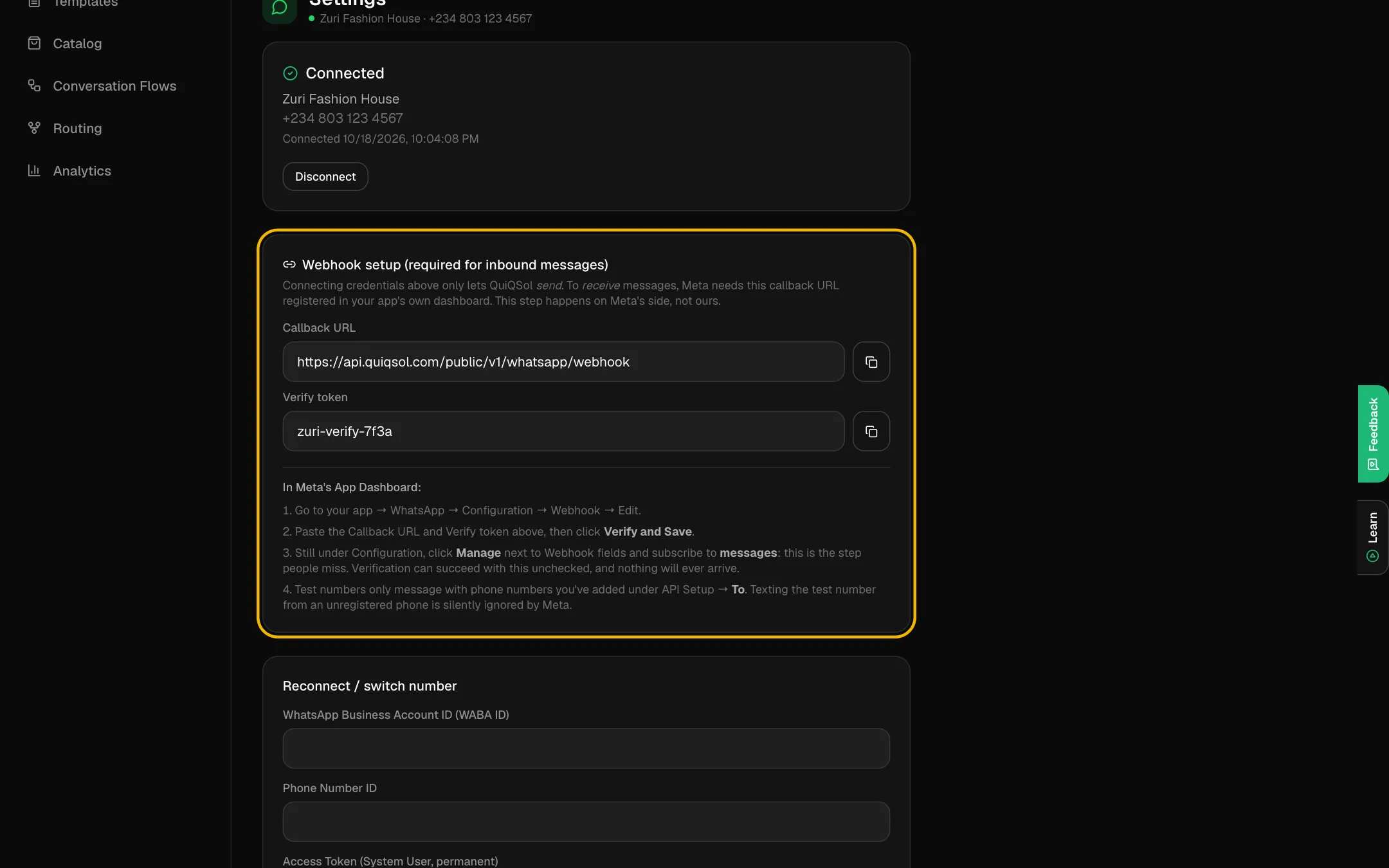 Your webhook details in QuiQSol
On Meta, in Production setup, open Configure Webhooks:
- Paste the Callback URL and Verify token from QuiQSol.
- Click Verify and save.
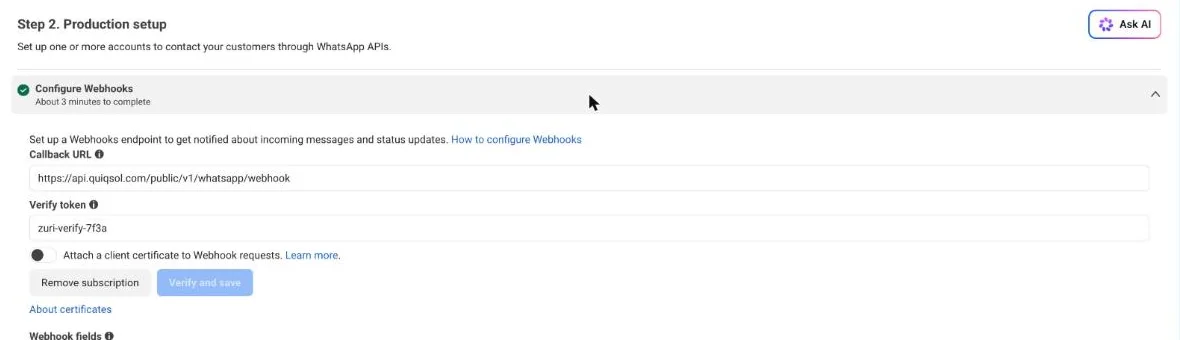 Configure Webhooks on Meta
Then, under Webhook fields on the same page, switch Subscribe on for:
- messages: required, or no customer message ever arrives.
- message_template_status_update: your templates' approvals show in QuiQSol on their own.
- calls: only if you take WhatsApp calls in QuiQSol.
 Subscribe to the messages field
Send your business number a WhatsApp message from your own phone. It appears in WhatsApp CRM → Inbox within seconds.
Your inbox
Every chat sits on the customer's record in the CRM, next to their deals, tickets and invoices. Filter by All, Unread, Mine, Unassigned or Closed, by tone, or by label.
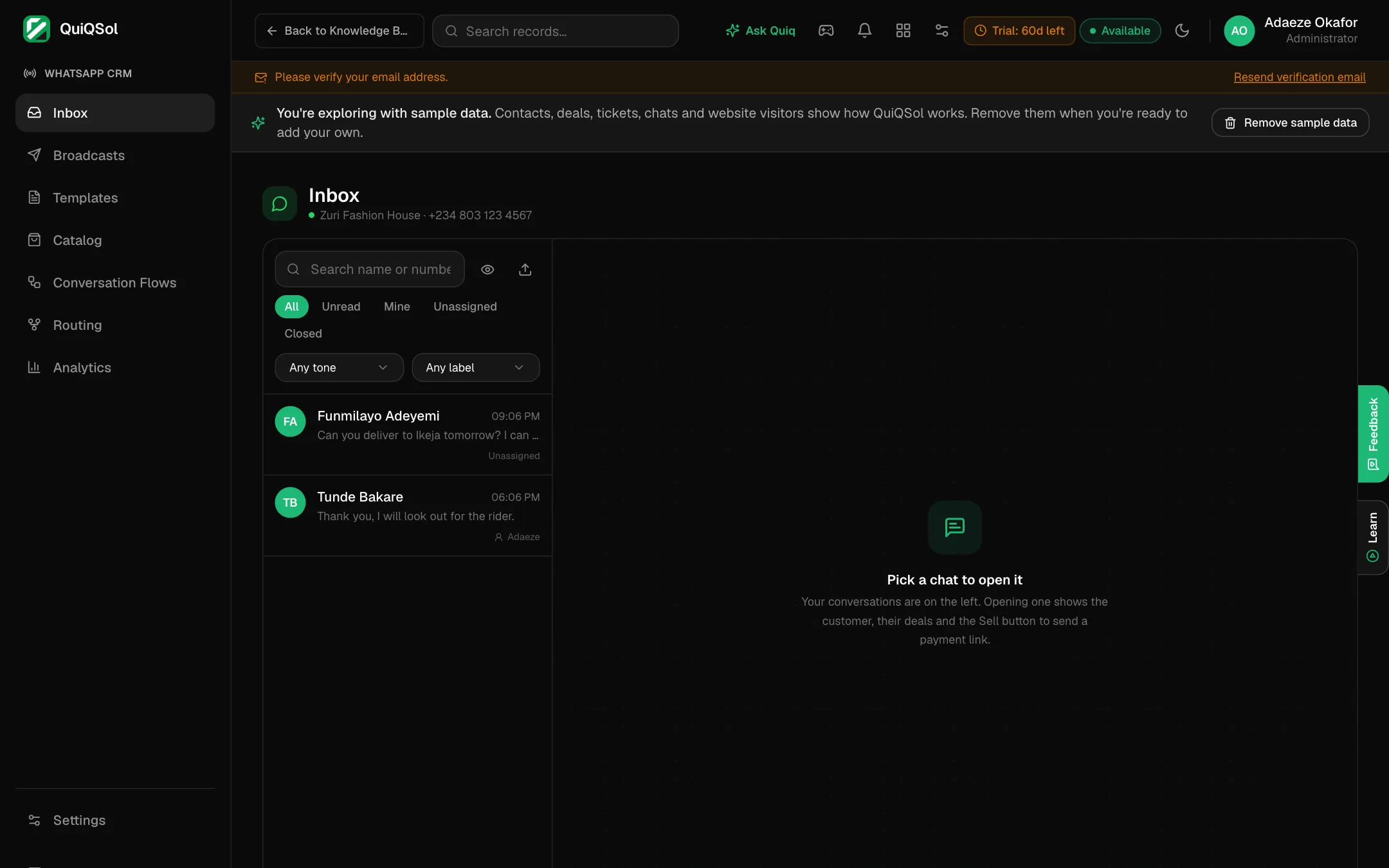 The WhatsApp inbox
Open a chat to reply. The header gives you:
- Unassigned: pick the teammate who owns the chat.
- Create ticket: turn the chat into a Help Desk ticket.
- Sell: start a deal or send a payment link (next section).
- Customer info, Close conversation and Hide chat.
A chat that started from a Click-to-WhatsApp ad opens with a Came from this ad card: the ad image or video, the headline, the full ad text and a link to the ad. The ad also becomes the contact's source in the CRM.
Below the messages, Reply sends to the customer and Internal note stays inside your team. The bar above shows how long the reply window stays open.
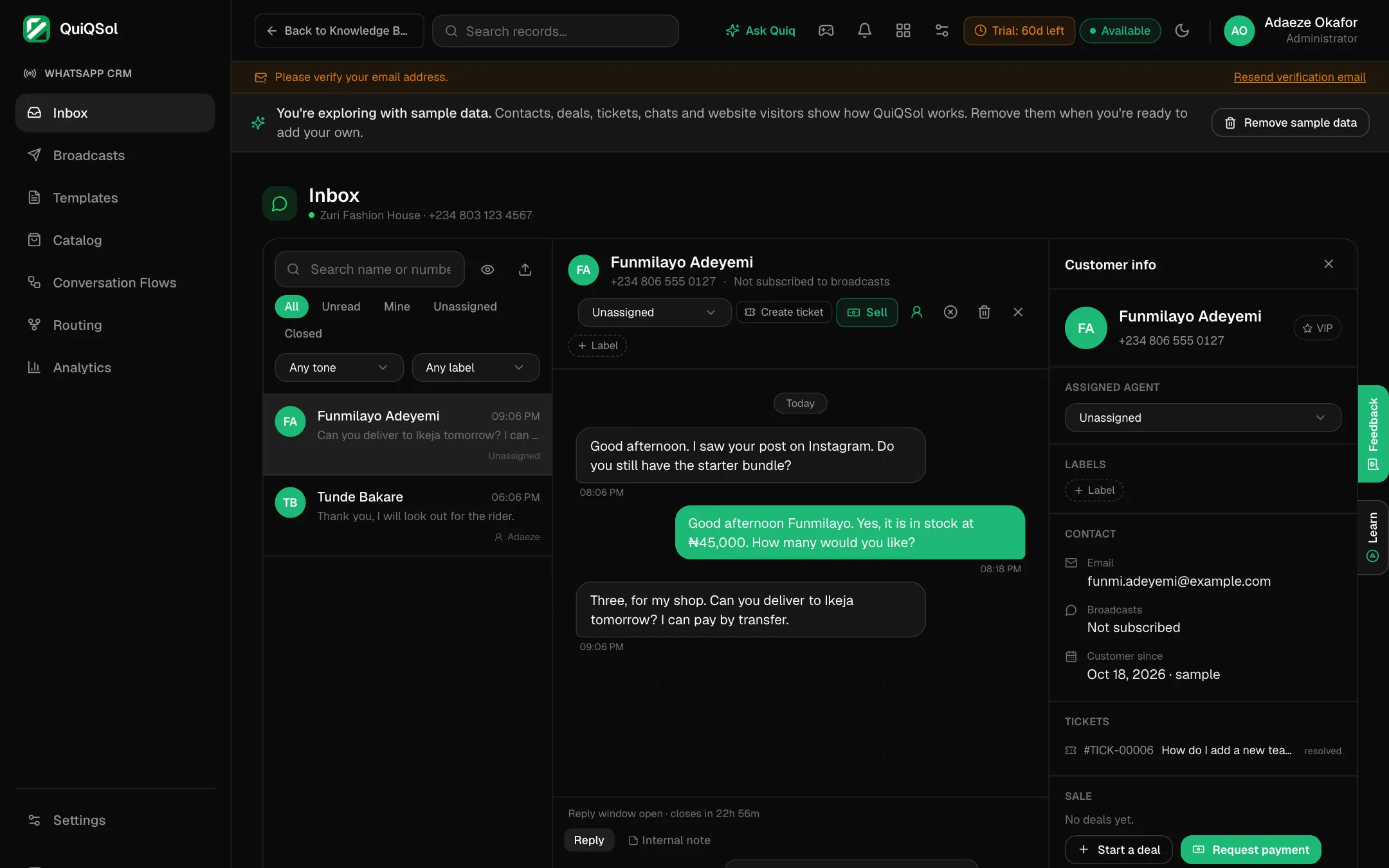 An open chat with the customer panel
Sell from the chat
When a customer is ready to buy, click Sell in the chat header.
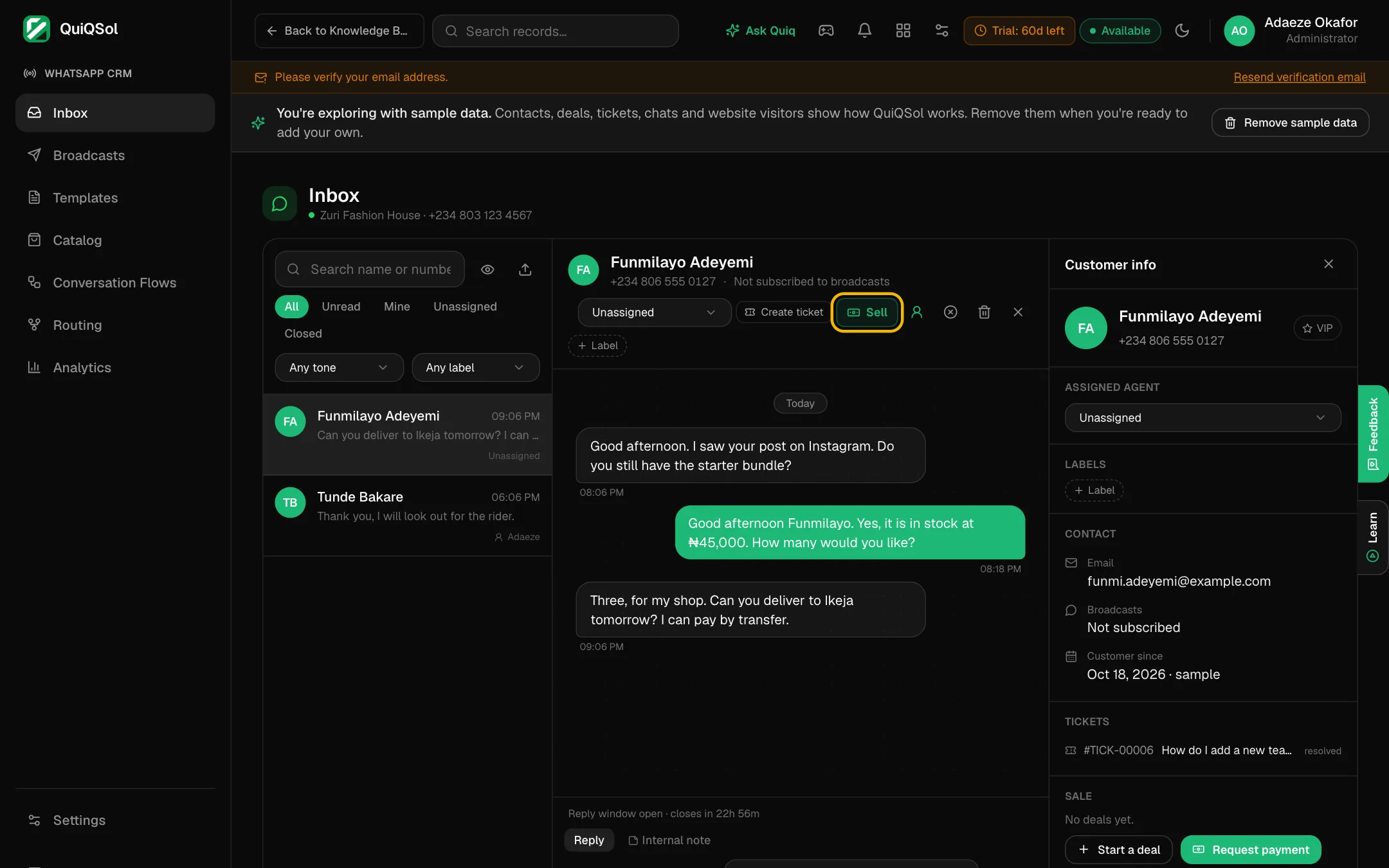 The Sell button
The Sale box opens in the customer panel:
- Start a deal puts the sale in your CRM pipeline.
- Create invoice builds an invoice from your product catalogue or the customer's WhatsApp order: quantities, prices, % discounts, a delivery fee and VAT, with the total shown as you go. Click Send invoice link and the branded invoice link drops into your reply, or Save draft to finish it in Invoices.
When the customer pays online, the invoice is marked paid and the deal moves to Won on its own. Online card payment needs your Paystack payout set up in Quiq Invoices; without it, the link shows your bank details instead.
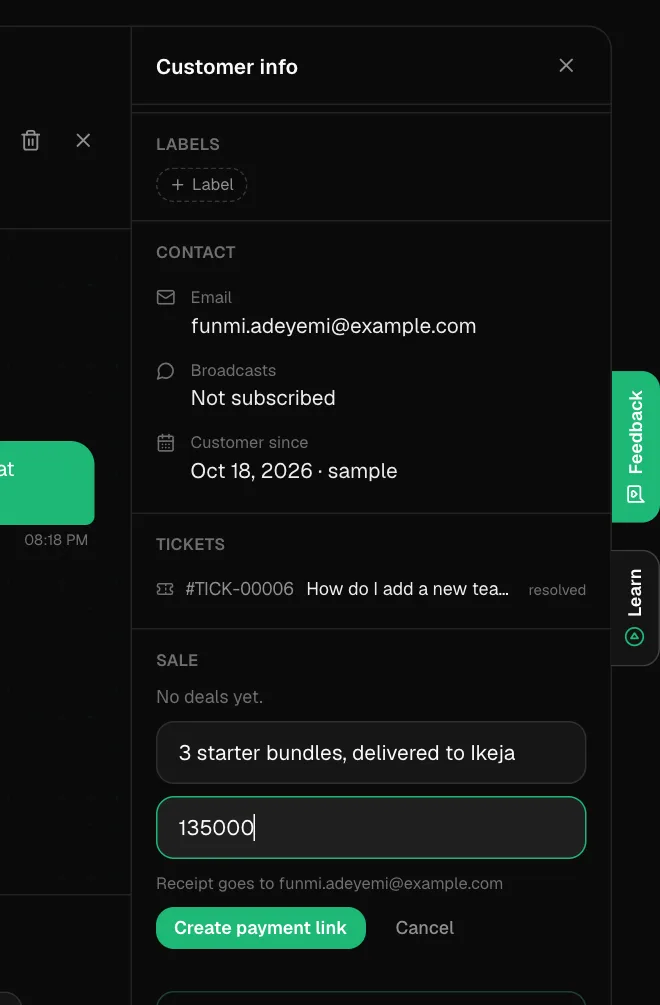 Requesting a payment from the chat
Message templates
Templates are the only way to message a customer outside the 24-hour window, and the only messages a broadcast can send. Open WhatsApp CRM → Templates → New template:
- Name: lowercase with underscores, for example
order_ready. - Category: Utility for order and account updates, Marketing for offers, Authentication for one-time codes.
- Header (optional): text, image, video or document.
- Body: your message. Click Insert variable to add
{{1}},{{2}}for details that change per customer, such as their name. - Sample values for Meta's review: an example for each variable.
- Footer and up to three Buttons (optional).
The Preview shows exactly what the customer will see. Click Save template to send it to Meta. Approval usually takes minutes, sometimes up to a day.
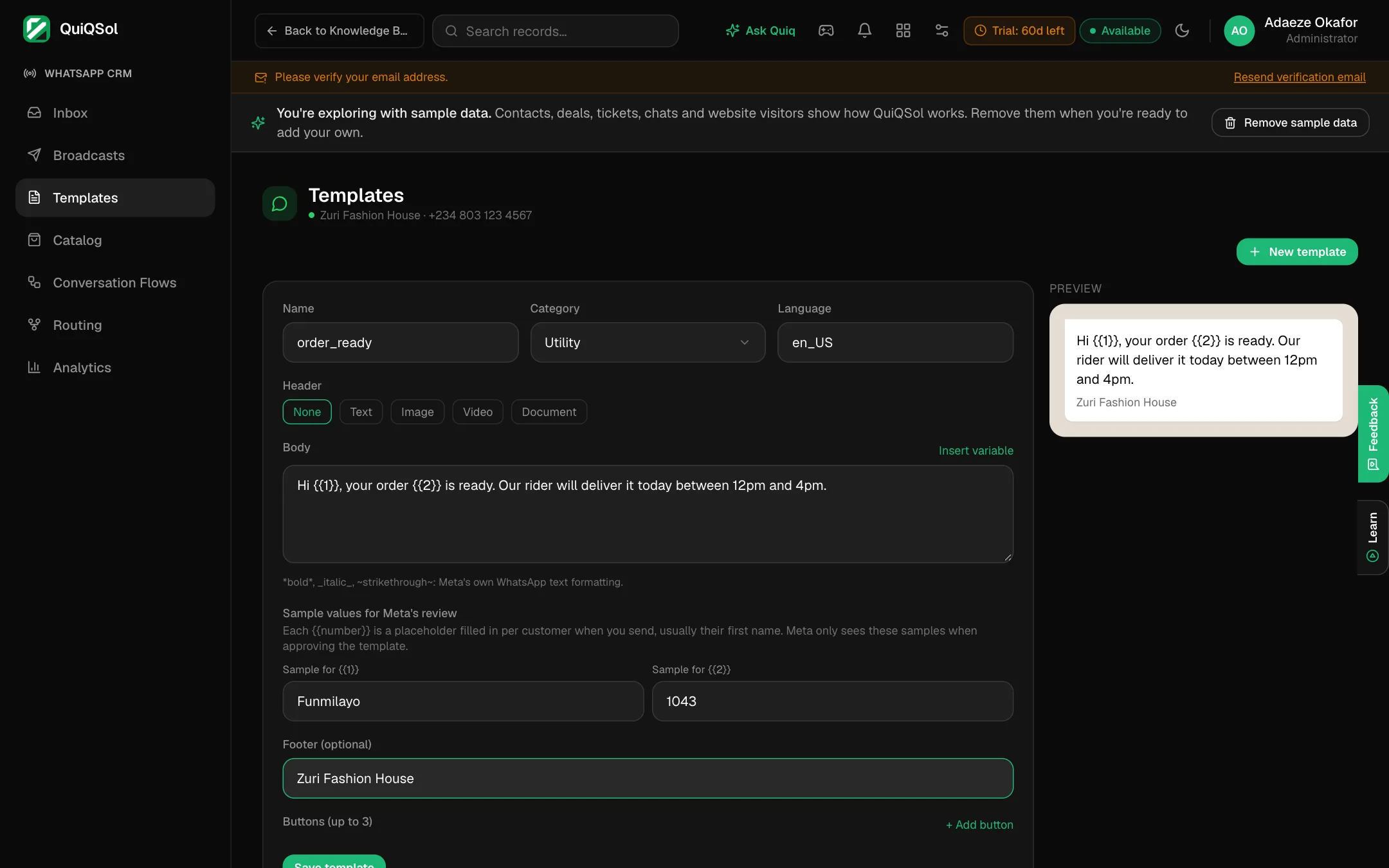 Building a template with a live preview
Broadcasts
WhatsApp CRM → Broadcasts → New broadcast sends an approved template to a CRM segment. Give it a name, choose the Audience and Template, then Send now, Schedule for later or Save as draft. Only customers subscribed to WhatsApp broadcasts receive it, and anyone who replies STOP is unsubscribed automatically (START subscribes them again).
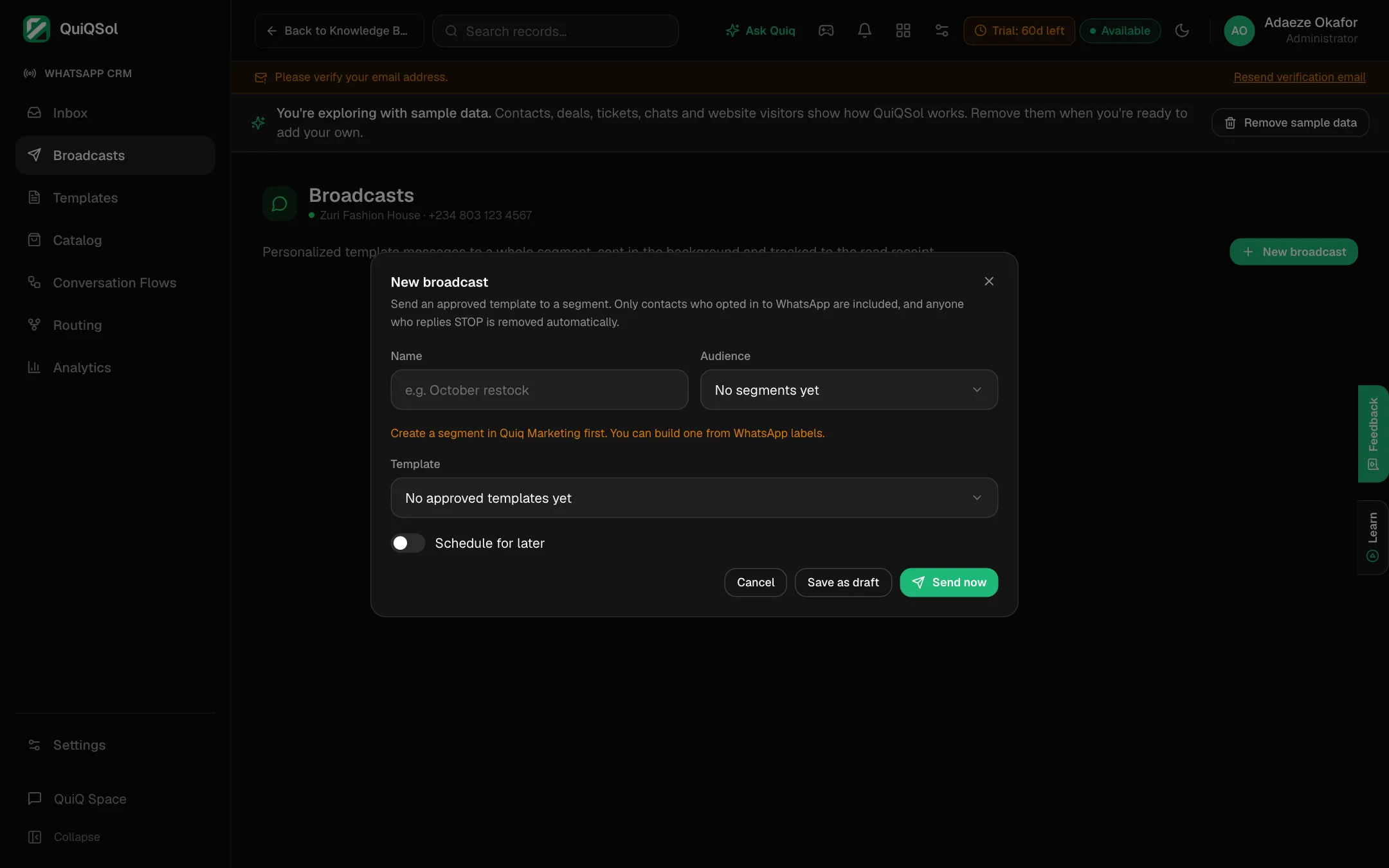 A new broadcast
Chat settings
In WhatsApp CRM → Settings, everything under New conversation behavior is off until you turn it on:
- Create a Help Desk ticket automatically for every new conversation.
- Welcome message: sent the moment a new conversation starts.
- Ask the customer to rate the conversation when it's closed: Good, Okay or Poor.
- Closing message: sent when a chat closes.
- When a customer goes quiet: one reminder after the minutes you set, then the chat closes.
Click Save under the section.
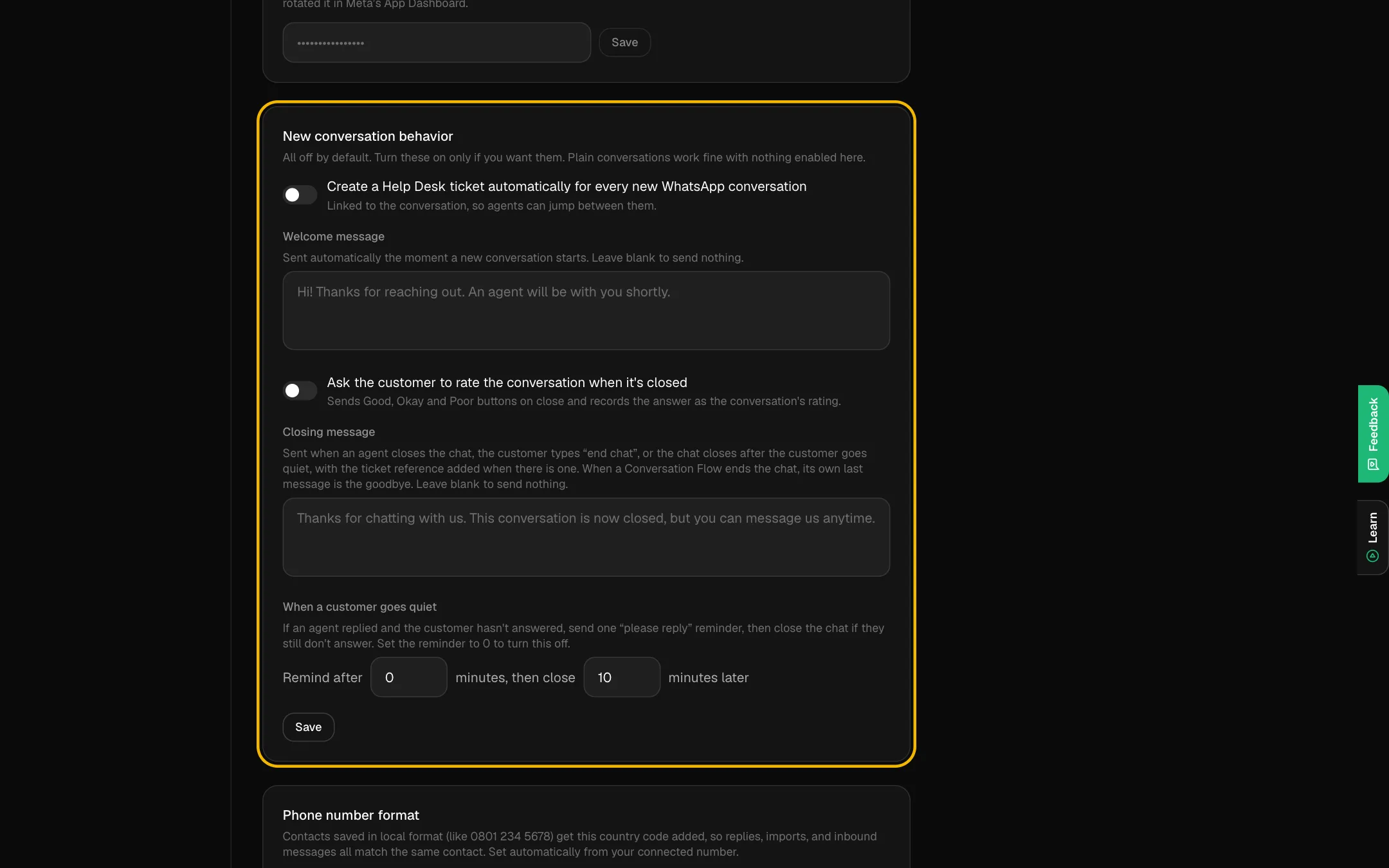 New conversation behavior
After hours decides what happens when a message arrives while you are closed (set your hours in Settings → Company Settings): no auto reply, an away message once per chat per night, or QuiQ Intelligence answering from your Knowledge Base.
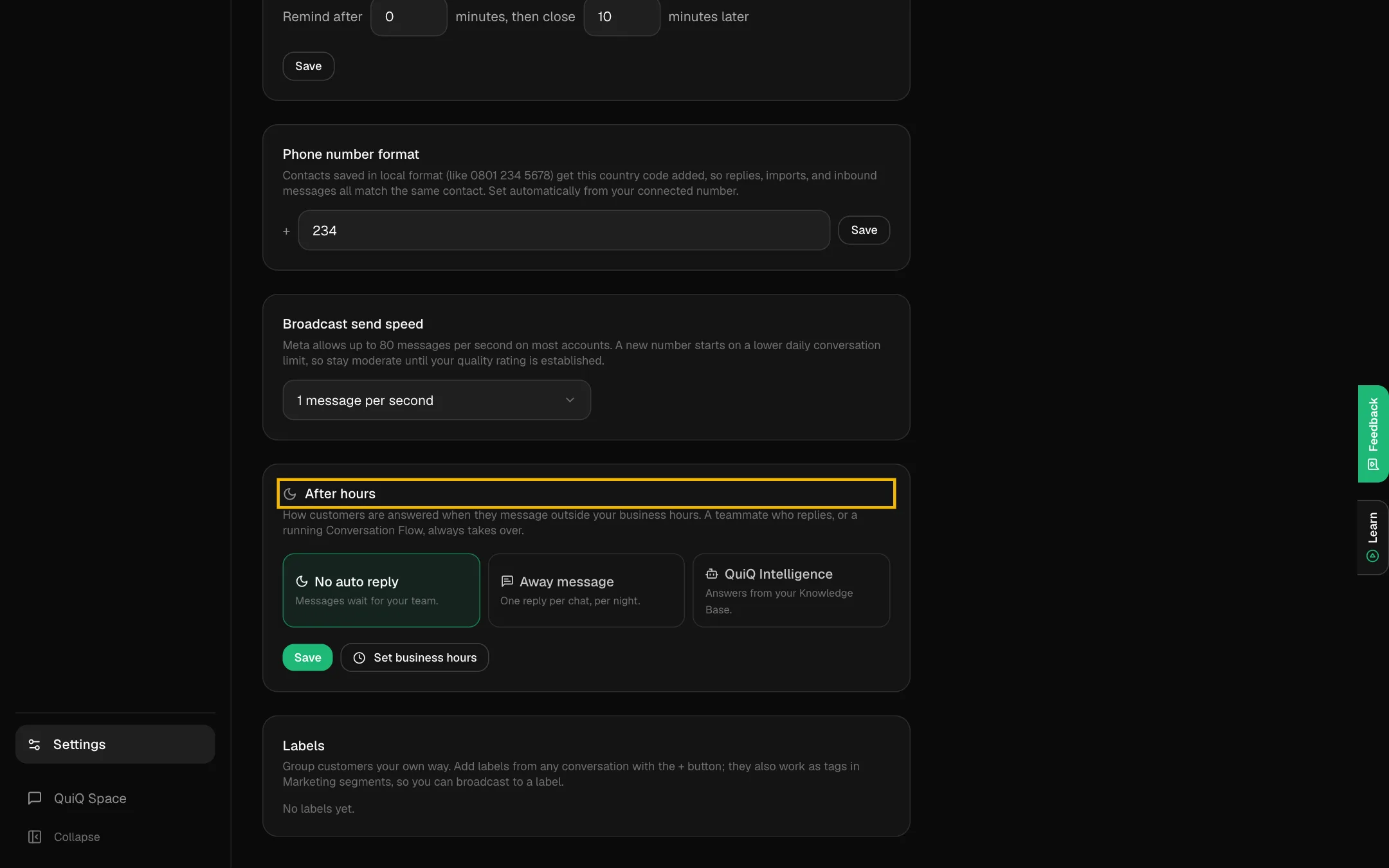 After hours options
Routing rules
WhatsApp CRM → Routing → New rule sends chats to the right team automatically. Match on a keyword in the message, limit the rule to business hours or VIP customers (star a customer as VIP in their Customer info), then choose the action and the team.
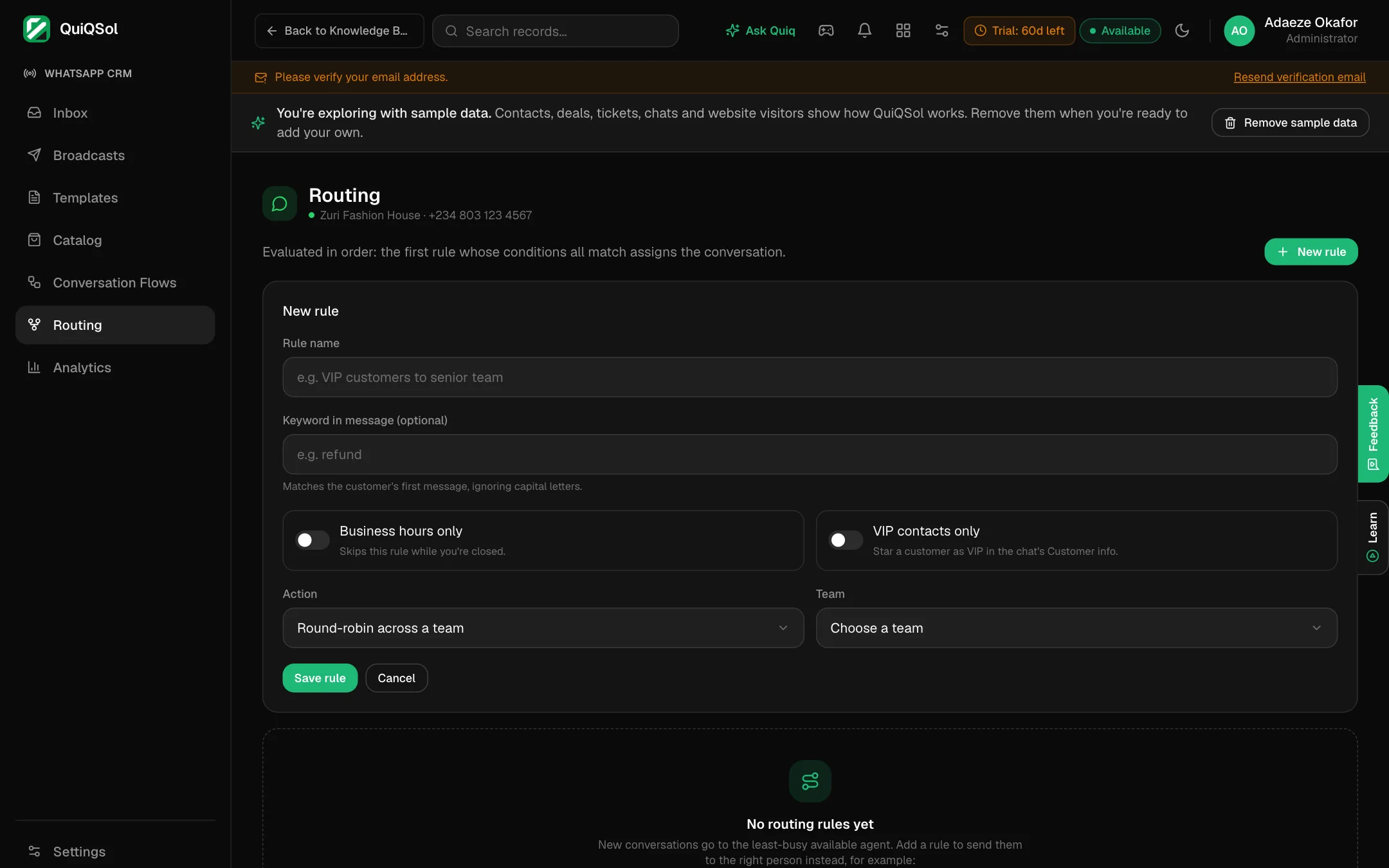 A new routing rule
Analytics
WhatsApp CRM → Analytics shows message volume, peak hours, reply speed, customers, sentiment and Meta's billing windows, with tabs for Agents, Sales pipeline, Broadcasts, Chatbot and Satisfaction. Choose Today, 7, 30 or 90 days, and Export CSV to take the numbers with you.
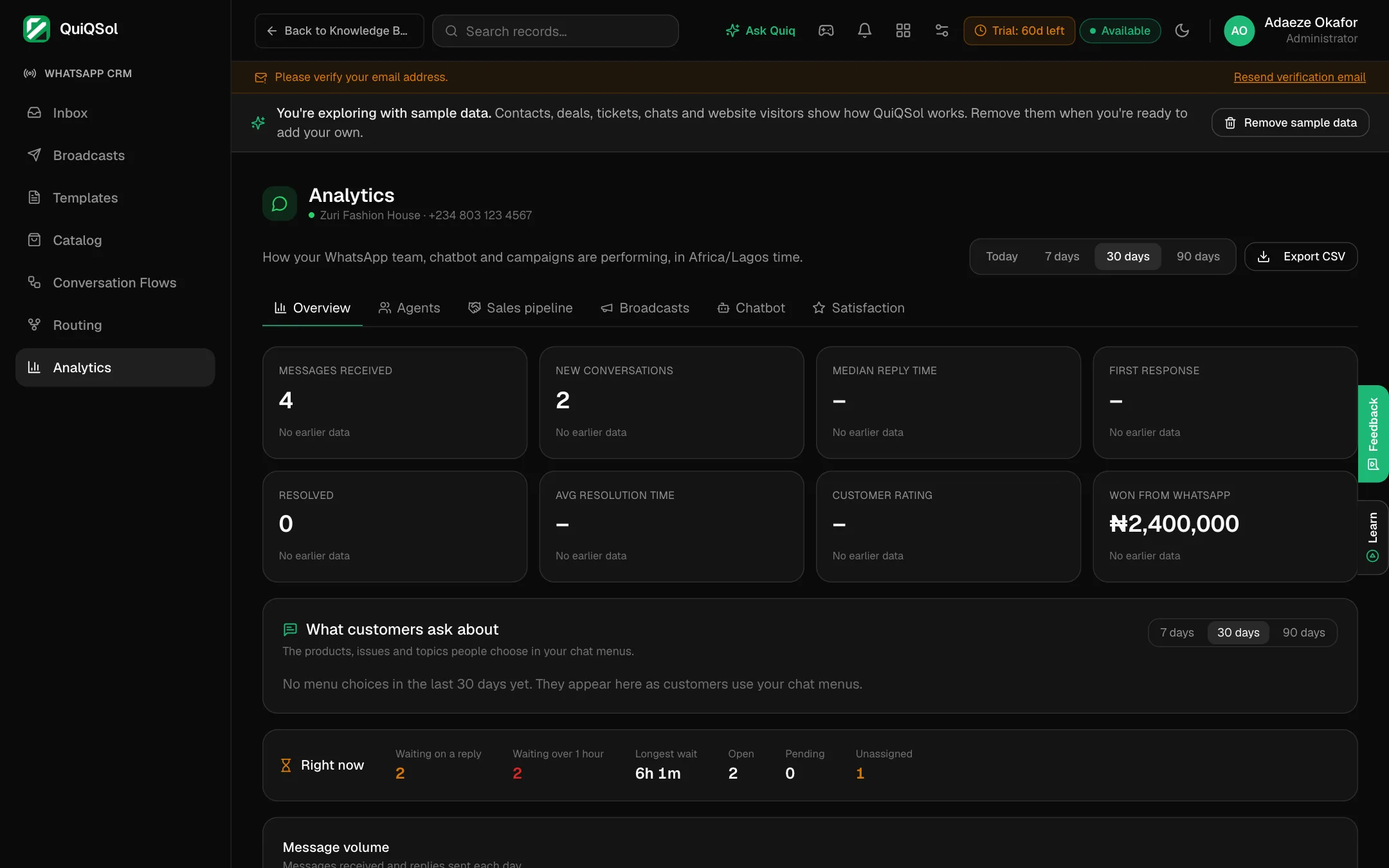 WhatsApp analytics
More in WhatsApp CRM
- Catalog: create or link a product catalogue so customers can browse and order inside WhatsApp.
- Conversation Flows: automated chat journeys, built in Quiq Automation.
- WhatsApp calls: switch on calling in Settings to answer customers' WhatsApp calls in QuiQSol.