
Setting up Quiq Marketing
Set your sender details, send from your own domain, import subscribers with consent, design and send campaigns, and automate emails with journeys, landing pages and popups.
On this page
- 1. Read the dashboard
- 2. Set your sender details
- 3. Send from your own domain
- 4. Bring in your subscribers
- 5. Create a campaign
- 6. Test two subject lines (A/B split)
- 7. Automate your emails with journeys
- 8. Build a landing page
- 9. Grow your list with a popup
- 10. Read your results
- Also in Marketing
- Good sending habits
Quiq Marketing sends your email campaigns, runs automated email journeys, and builds the landing pages and popups that grow your list. Your subscribers are the same contacts as your CRM, so every open, click and signup lands on the customer's record. Quiq Marketing is on the Growth and Enterprise plans.
Open it from the Apps menu, then Marketing Campaign. The sidebar holds Dashboard, Campaigns, Subscribers, Automations, Landing Pages and Popup Forms, then My Templates, Media Library, Reports & Analytics, Integrations and Account Settings.
1. Read the dashboard
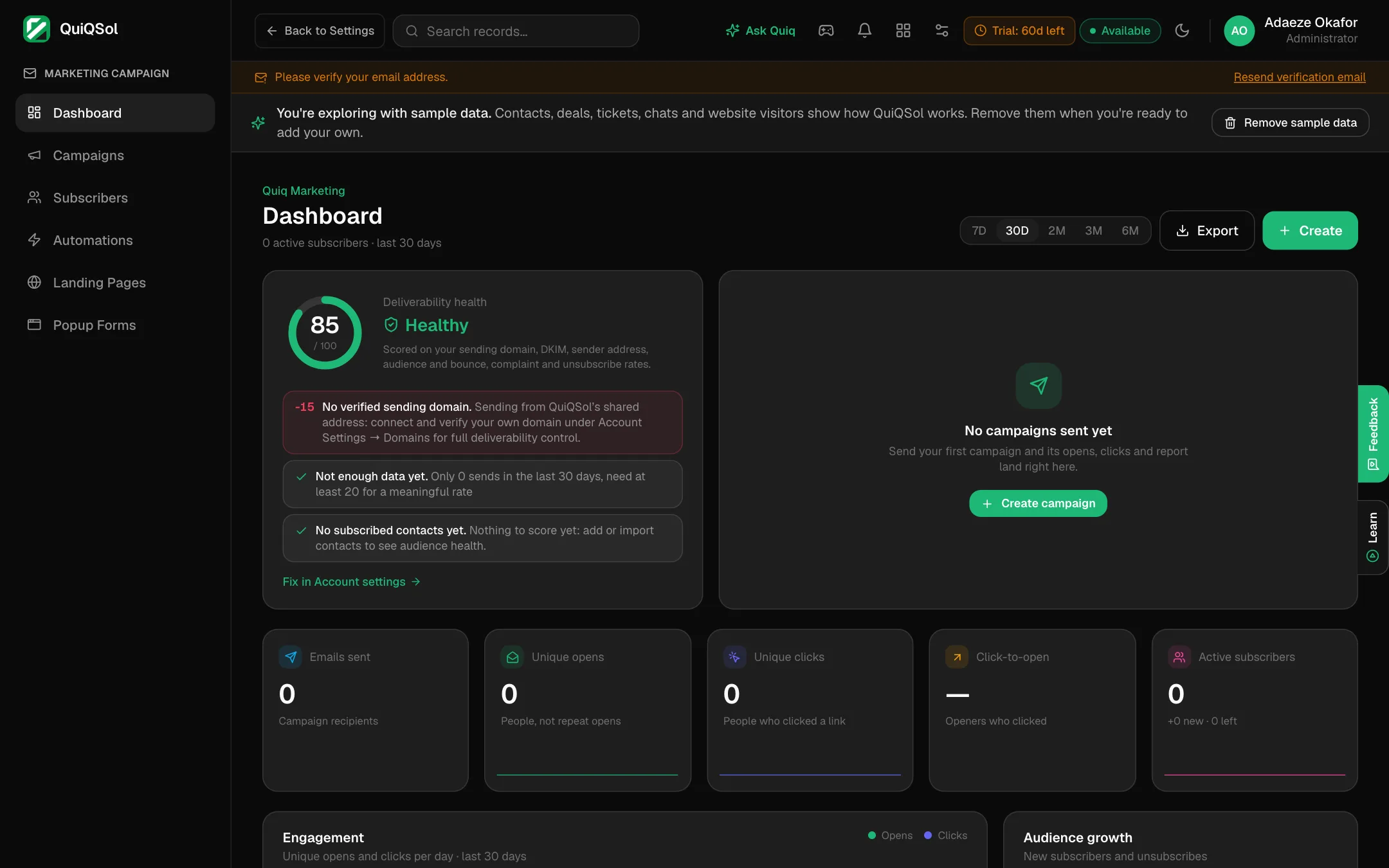 The Marketing dashboard
- Deliverability health: a score out of 100 from your sending domain, DKIM, sender address, audience and your bounce, complaint and unsubscribe rates. Each point it loses is listed with what to do about it. Fix in Account settings takes you straight there.
- Emails sent, Unique opens, Unique clicks, Click-to-open and Active subscribers, for 7 days up to 6 months.
- Charts for engagement, audience growth and campaigns by month.
- Create starts an email campaign, automation, signup form or landing page from one place.
2. Set your sender details
Go to Account Settings → Default settings.
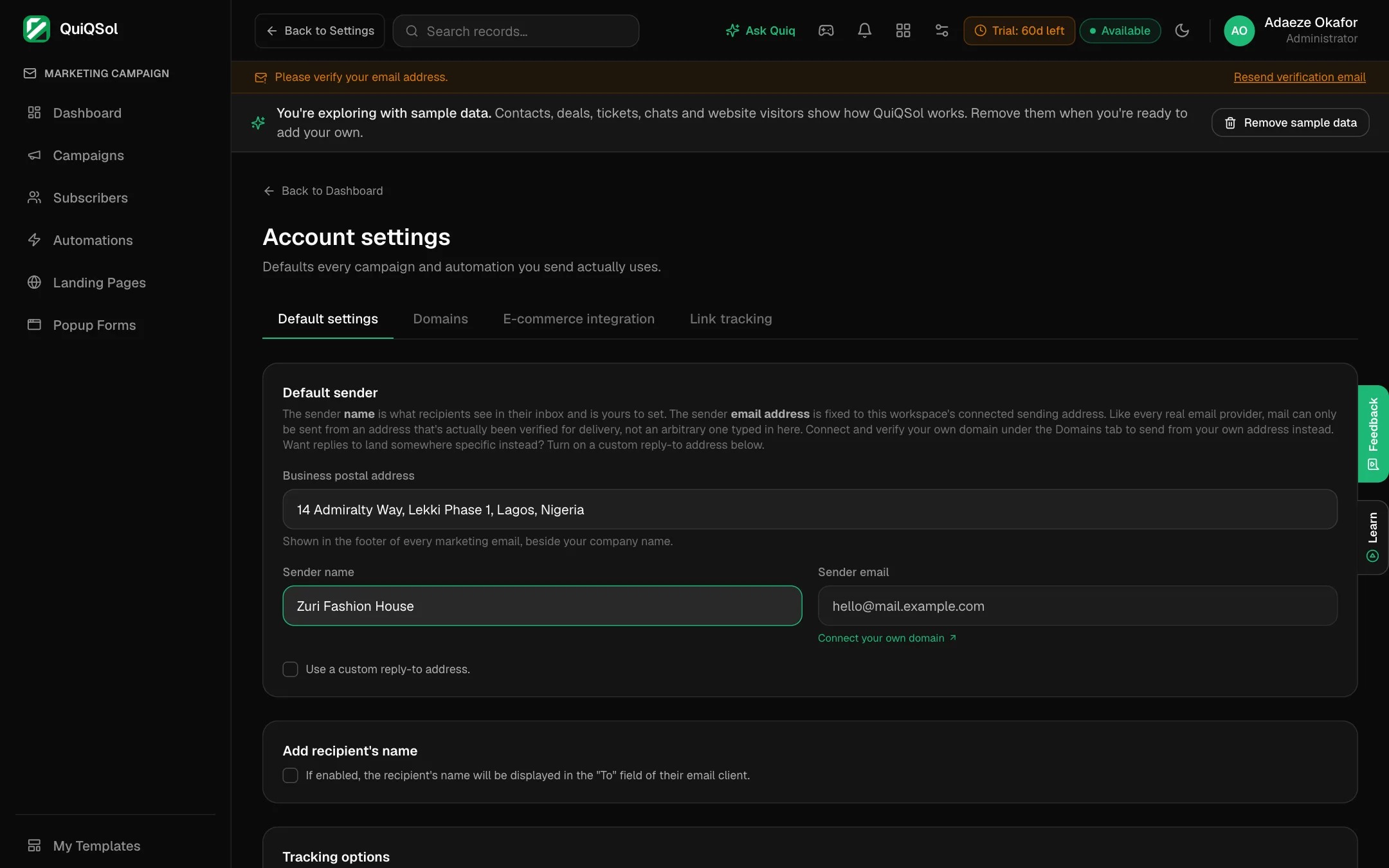 Default sender settings
- Business postal address: required before you send. Email law asks for a real postal address in every marketing email, and QuiQSol puts it in the footer for you.
- Sender name: what people see in their inbox, such as your business name.
- Sender email: the address your campaigns send from. Until you verify your own domain (step 3), campaigns go out from QuiQSol's shared sending address.
- Tick Use a custom reply-to address if replies should go to a different inbox.
- Under Tracking options, choose whether to track opens and add Google Analytics tags.
- Click Save changes.
Link tracking sets the UTM tags added to every link, so your analytics tool shows which campaign brought each visit. E-commerce integration connects Shopify, WooCommerce, Square, BigCommerce and other stores through Quiq Flow.
3. Send from your own domain
Sending from your own domain (news@yourbusiness.com) keeps campaigns out of spam folders and puts your brand in the From line. Go to Account Settings → Domains and click Add domain.
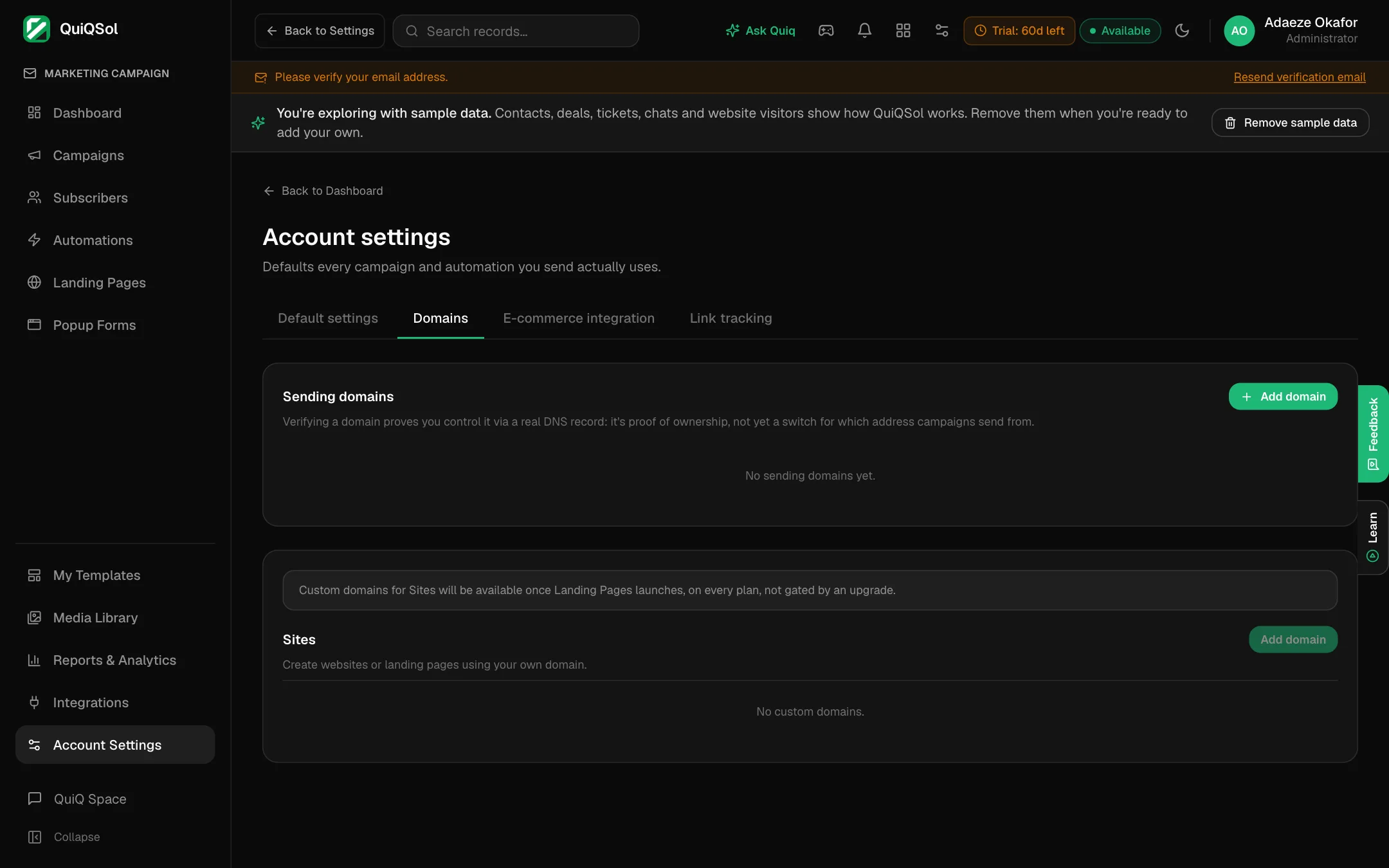 Sending domains
QuiQSol walks you through each step and checks each record for you:
- Go to your DNS provider: where your domain is managed (your registrar, Cloudflare, or your web host).
- Prove you own this domain: add one TXT record.
- Verify with our email provider: add three CNAME records. These let campaigns send as your address.
- Add your logo (BIMI, optional): shows your logo next to your name in Gmail, Yahoo and Apple Mail once DKIM passes.
- Custom tracking domain (optional): links in your emails use your own subdomain.
DNS changes can take from a few minutes to a few hours to be seen. Click the check button on each step after you add the records.
4. Bring in your subscribers
Go to Subscribers and click Add subscribers. You can:
- Import CSV file: any spreadsheet saved as CSV.
- Copy/paste: rows copied straight from Excel or Google Sheets.
- Add single subscriber: one person at a time.
- Import using API: for developers sending subscribers from another system.
Coming from Mailchimp? Export your audience to CSV in Mailchimp and use Import CSV file.
Import a CSV in four steps
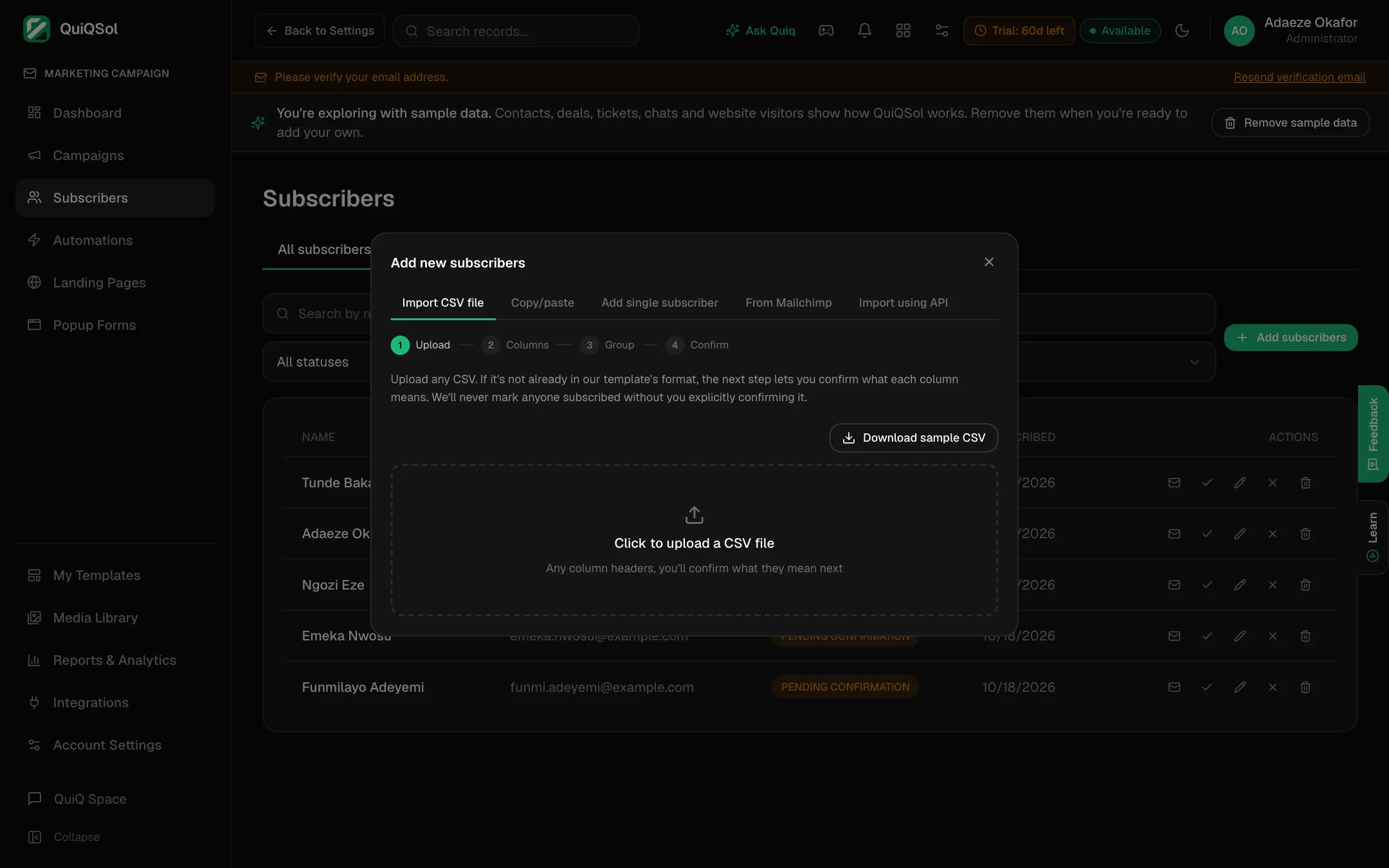 Upload a CSV
- Upload: choose your file. Any column headers work.
- Columns: QuiQSol matches what it can. Confirm or change what each column means. An email column is required.
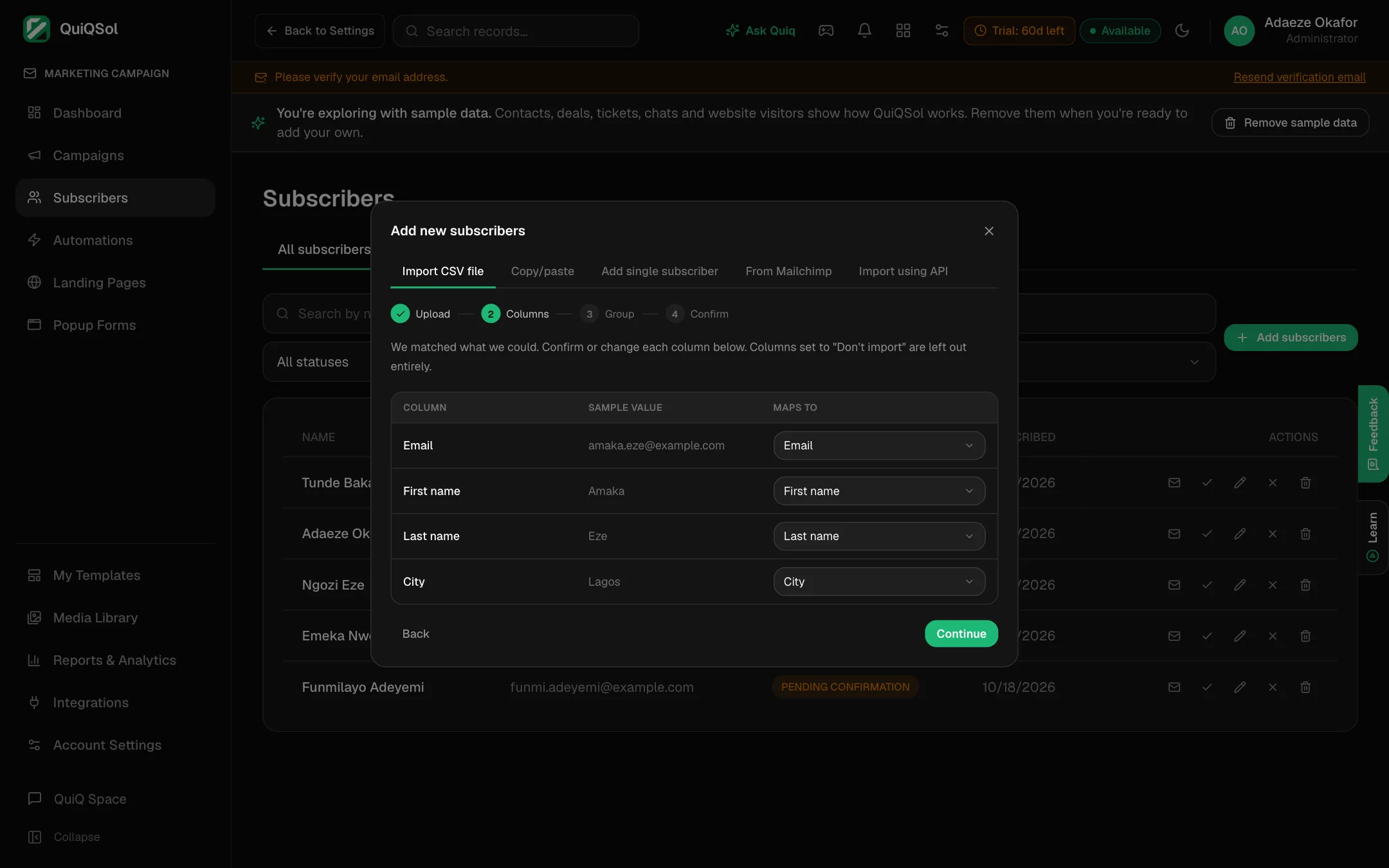 Confirm what each column means
- Group: add everyone to an existing group, create a new one (for example "VIP customers"), or skip.
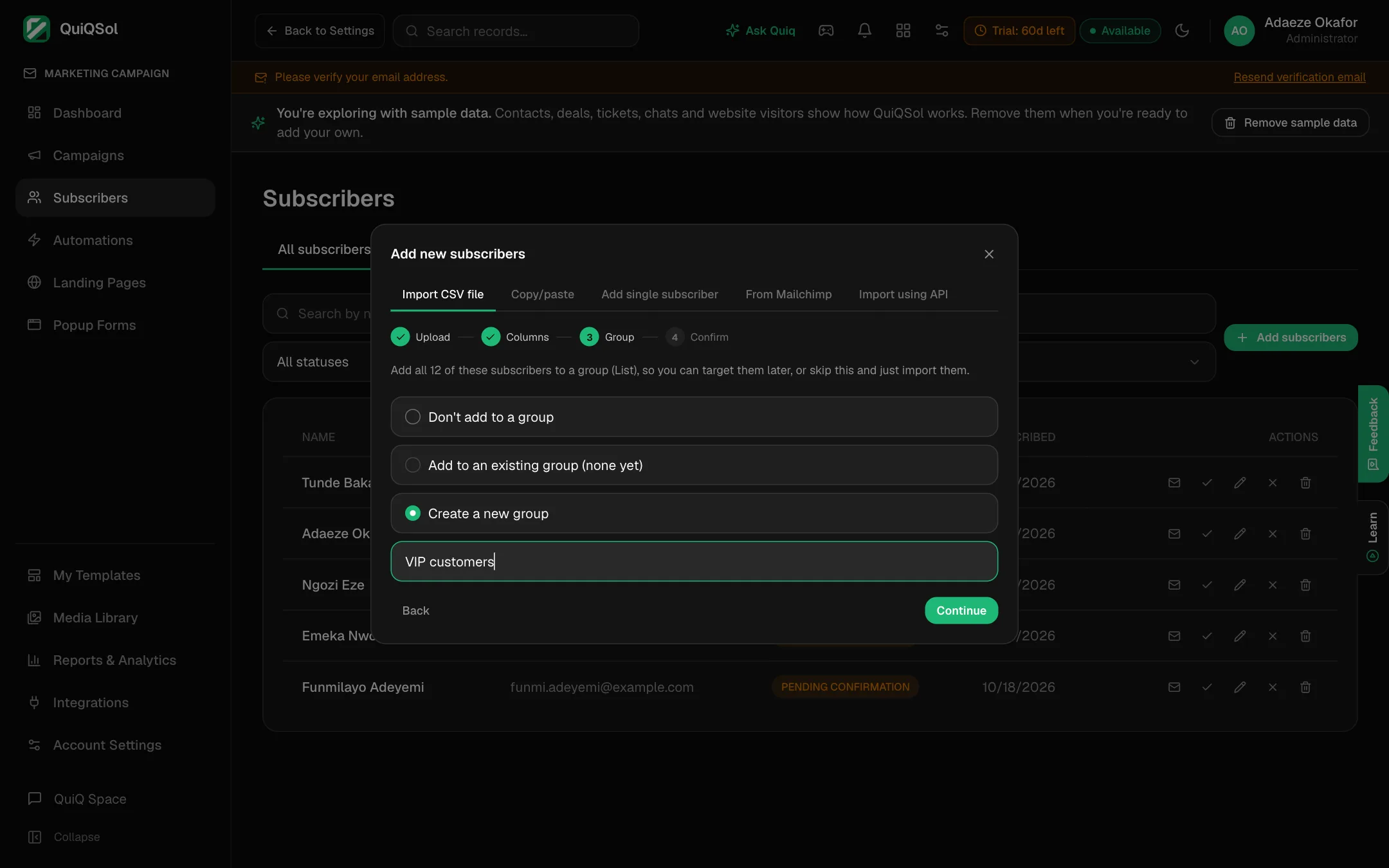 Add the import to a group
- Confirm: tick These are confirmed, consenting subscribers only if these people agreed to hear from you. Leave it unticked and they come in as Pending Confirmation and receive no campaigns until they confirm.
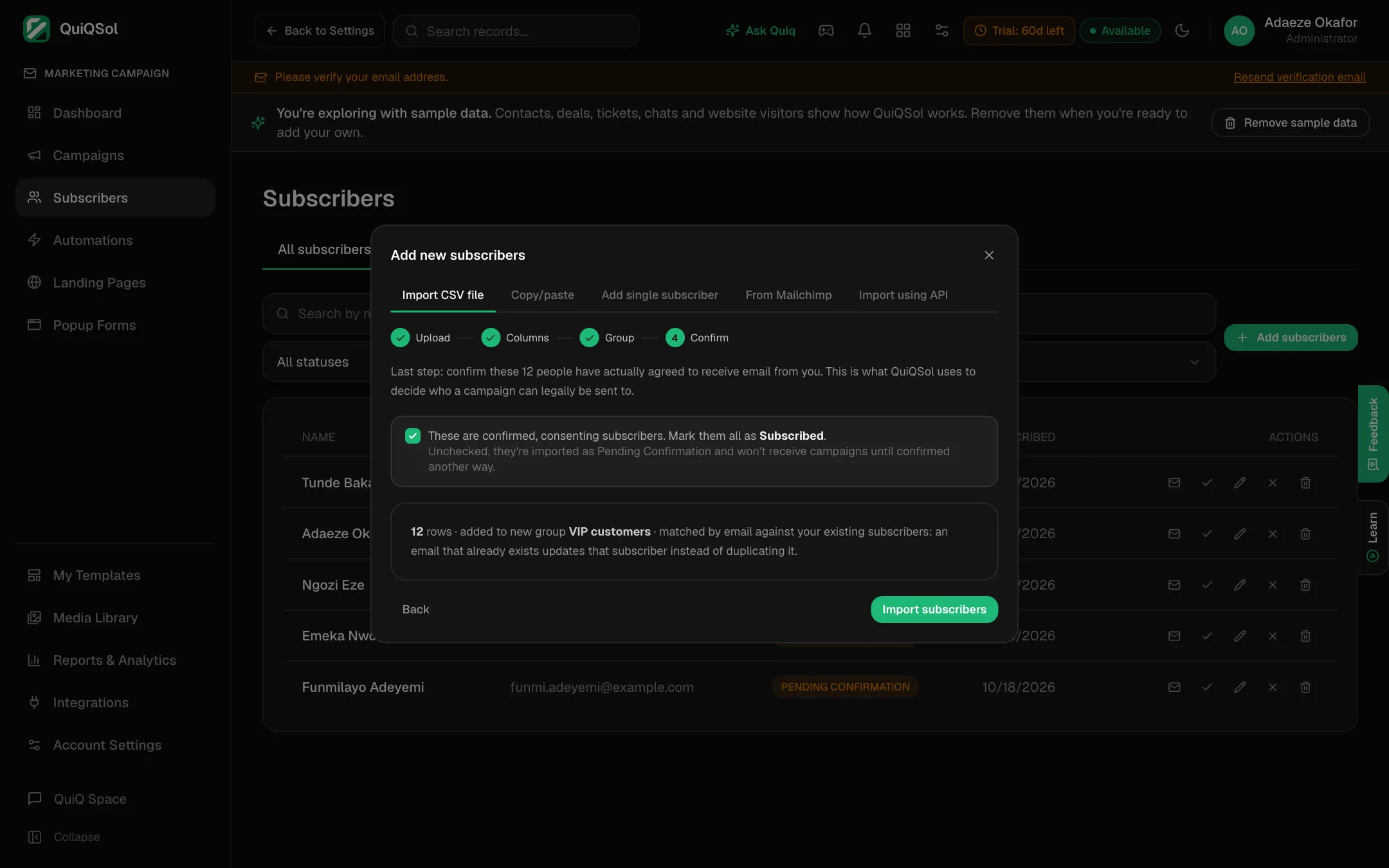 Confirm consent and import
An email that already exists updates that subscriber instead of creating a second one, so importing the same list twice is safe.
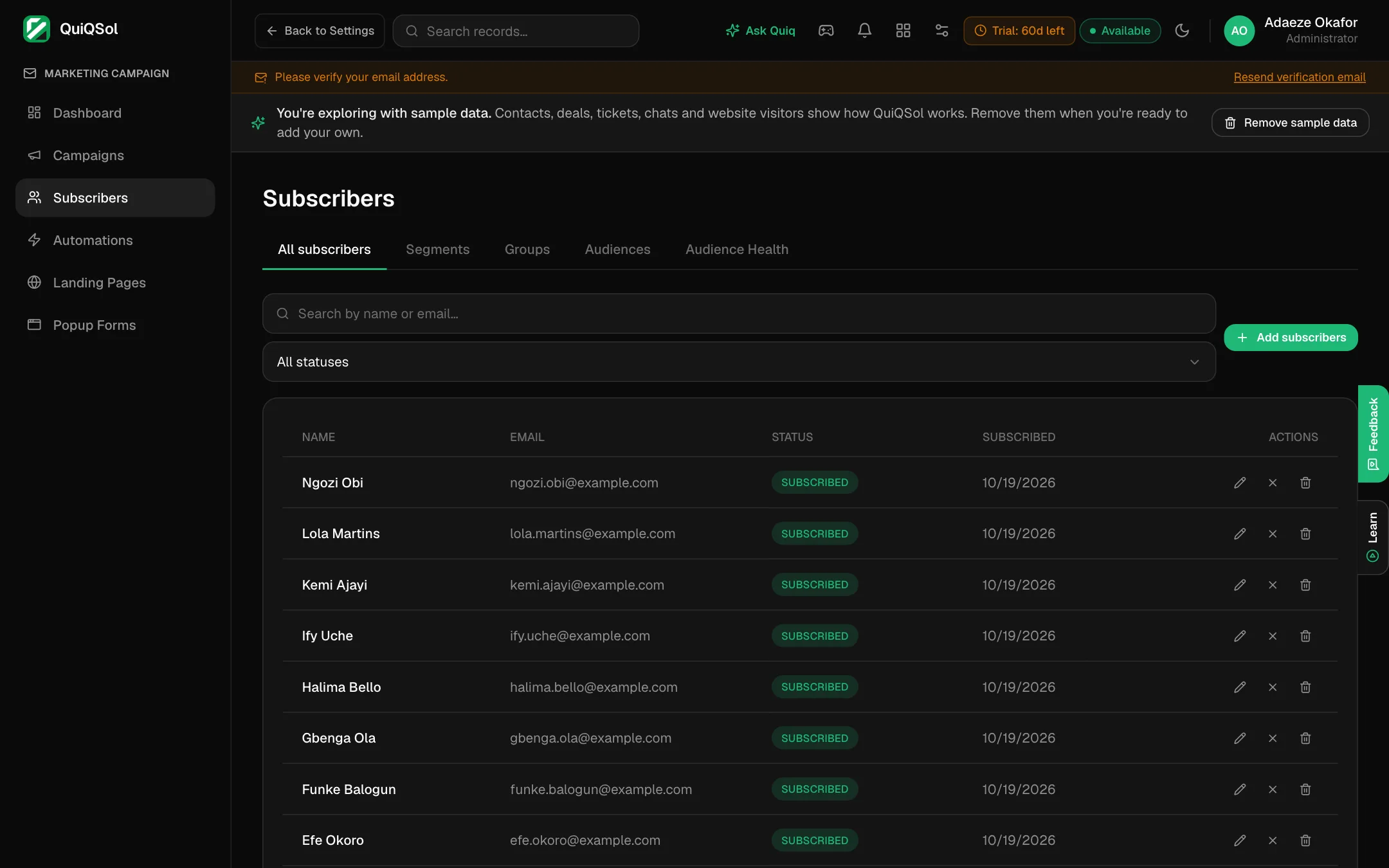 Your subscribers
Your subscribers are your CRM contacts. A contact who subscribes is marked Subscribed; one who unsubscribes is never emailed again by a campaign.
Groups, segments and audiences
- Groups: lists you fill yourself, by import, by a popup or form, or by a journey step.
- Segments: rules that keep themselves up to date, such as everyone in Lagos who opened in the last 30 days.
- Audiences: groups and segments combined, with people to include and exclude. Target an audience when one group is not enough.
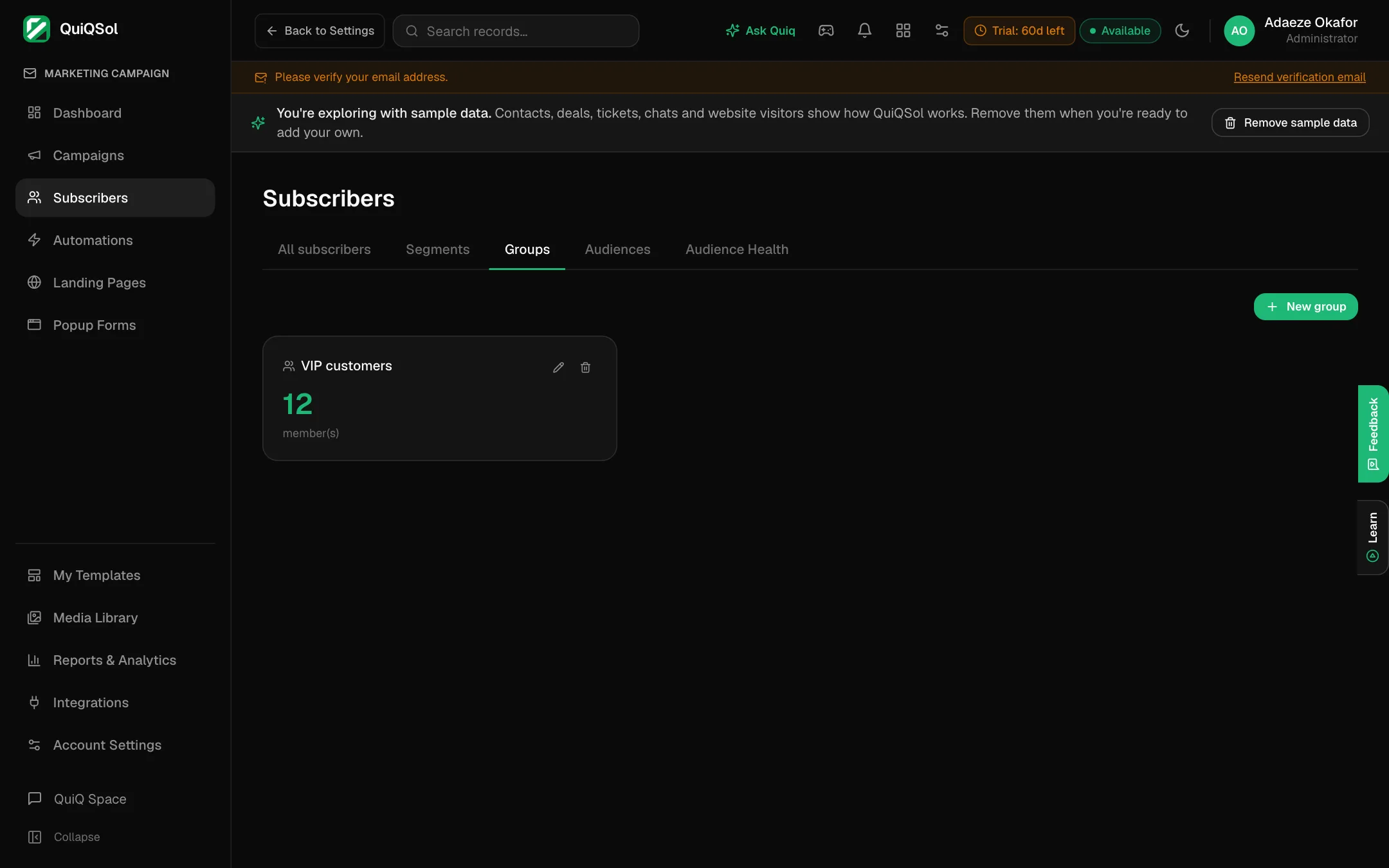 Groups
Audience Health checks your subscribed contacts for disposable, role-based (info@, sales@) and malformed addresses before they hurt your sending reputation.
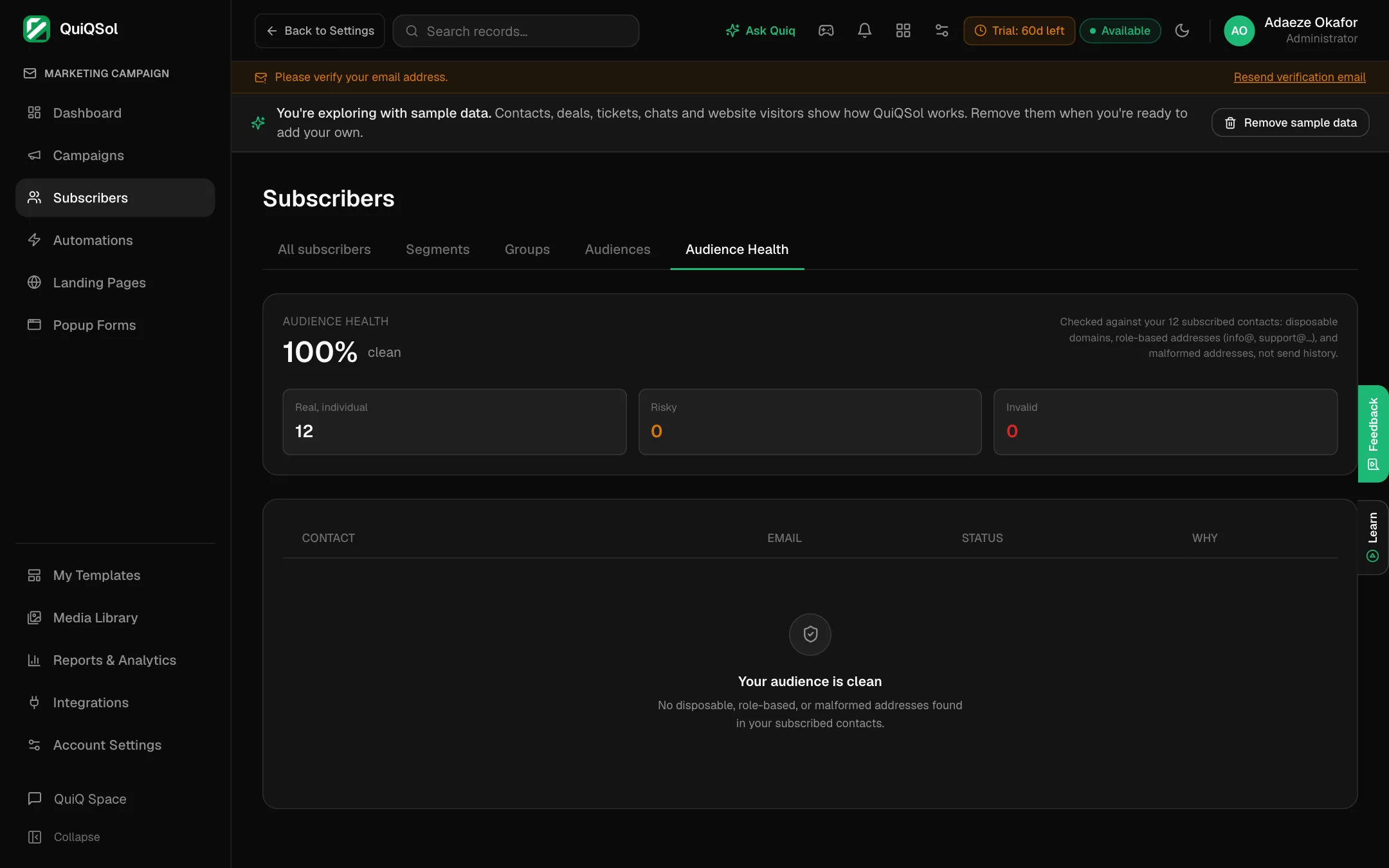 Audience Health
5. Create a campaign
Go to Campaigns and click Create campaign.
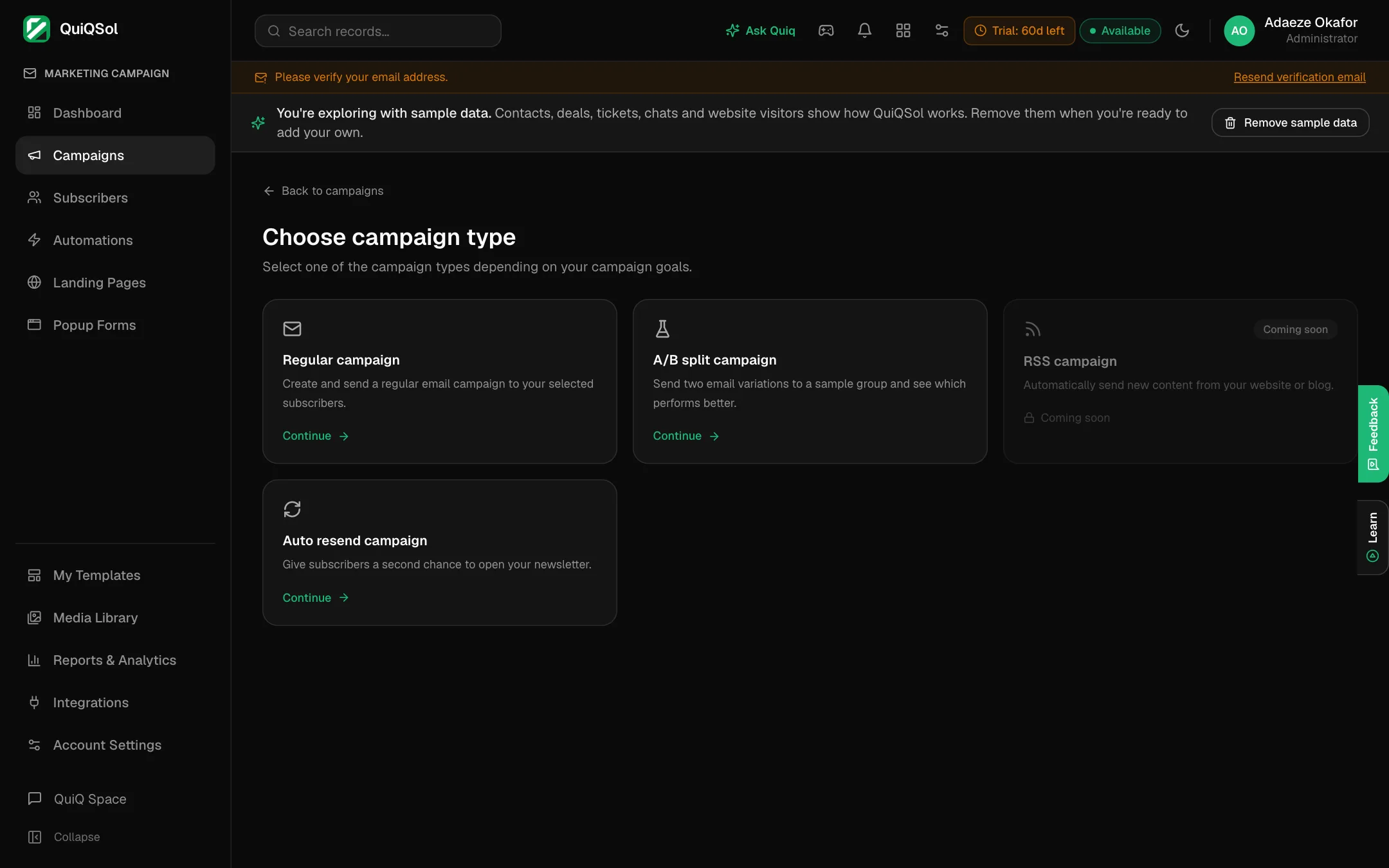 Choose a campaign type
- Regular campaign: one email to the people you choose.
- A/B split campaign: two subject lines sent to a sample first (see step 6).
- Auto resend campaign: send a campaign you already sent again, to people who joined since or to people who did not open it.
Design the email
Pick Start from scratch, the Template gallery, or Recent emails to reuse one of your own. The gallery has ready designs for newsletters, promotions, announcements, e-commerce, offers, events, holidays, Black Friday, welcome emails and more.
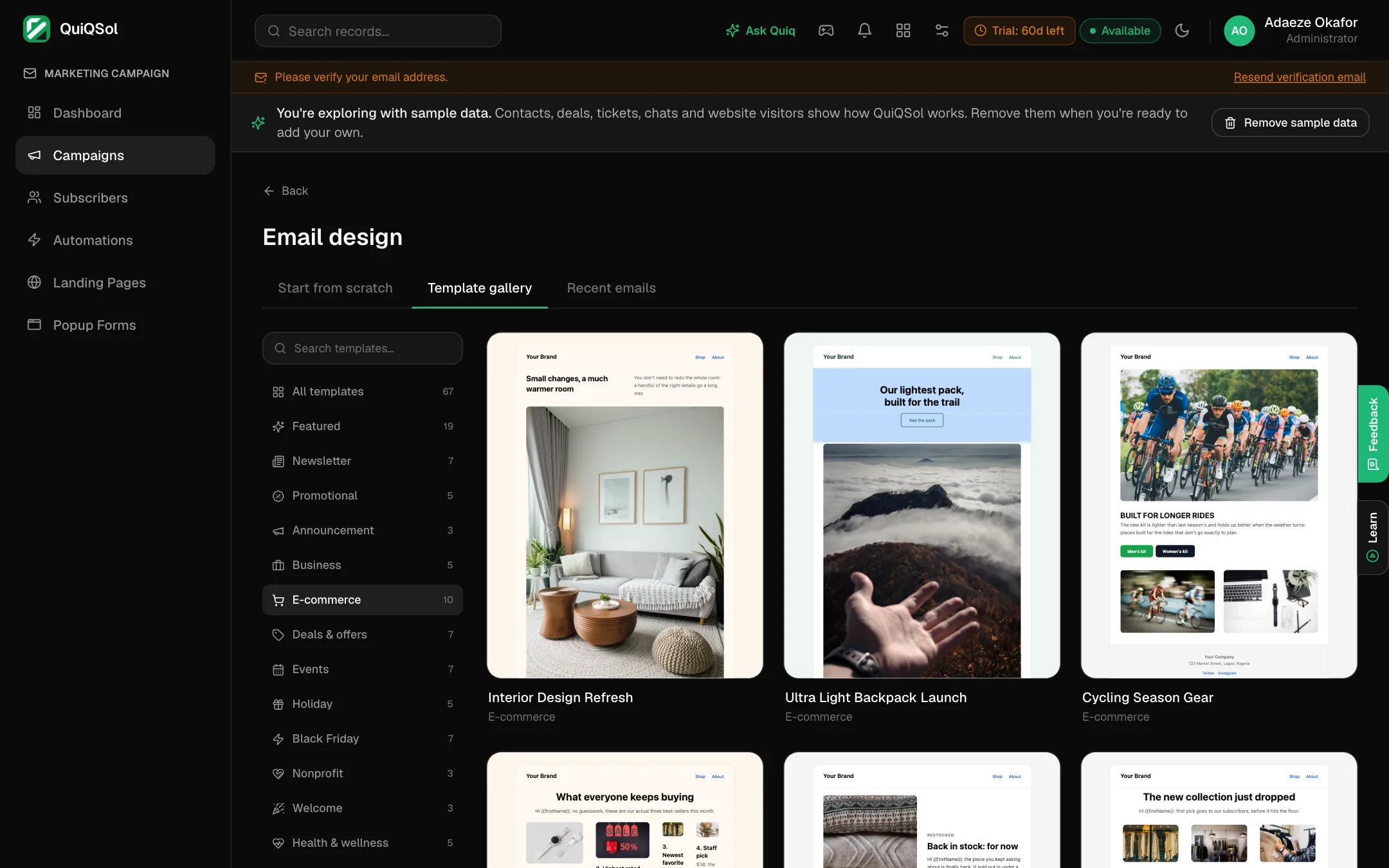 The template gallery
From scratch, choose the Drag & drop editor, the Simple editor for a plain letter-style email, or the Custom HTML editor if you have your own code.
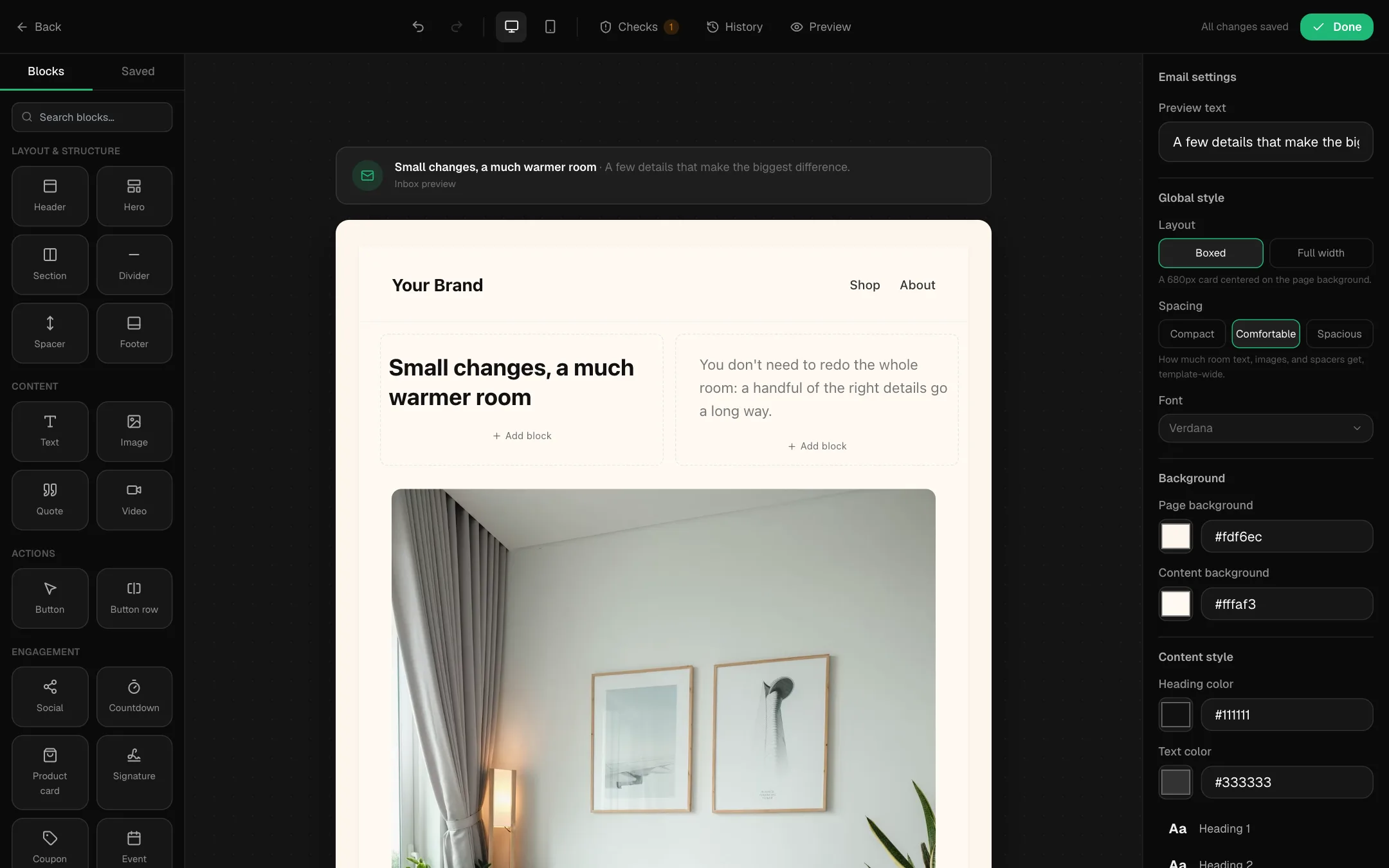 The drag and drop email builder
In the builder:
- Drag blocks from the left: header, hero, text, image, button, social links, countdown, product card, coupon, event, gallery, video and more.
- Click any block to edit it. The right panel sets the layout, spacing, font, colours and heading styles for the whole email.
- Switch between desktop and mobile view at the top.
- Checks looks for spam triggers, buttons without a link and images without alt text before you send.
- History restores an earlier version. Preview shows the email as subscribers will see it.
- Your work saves as you go. Click Done when the design is ready.
Add the details
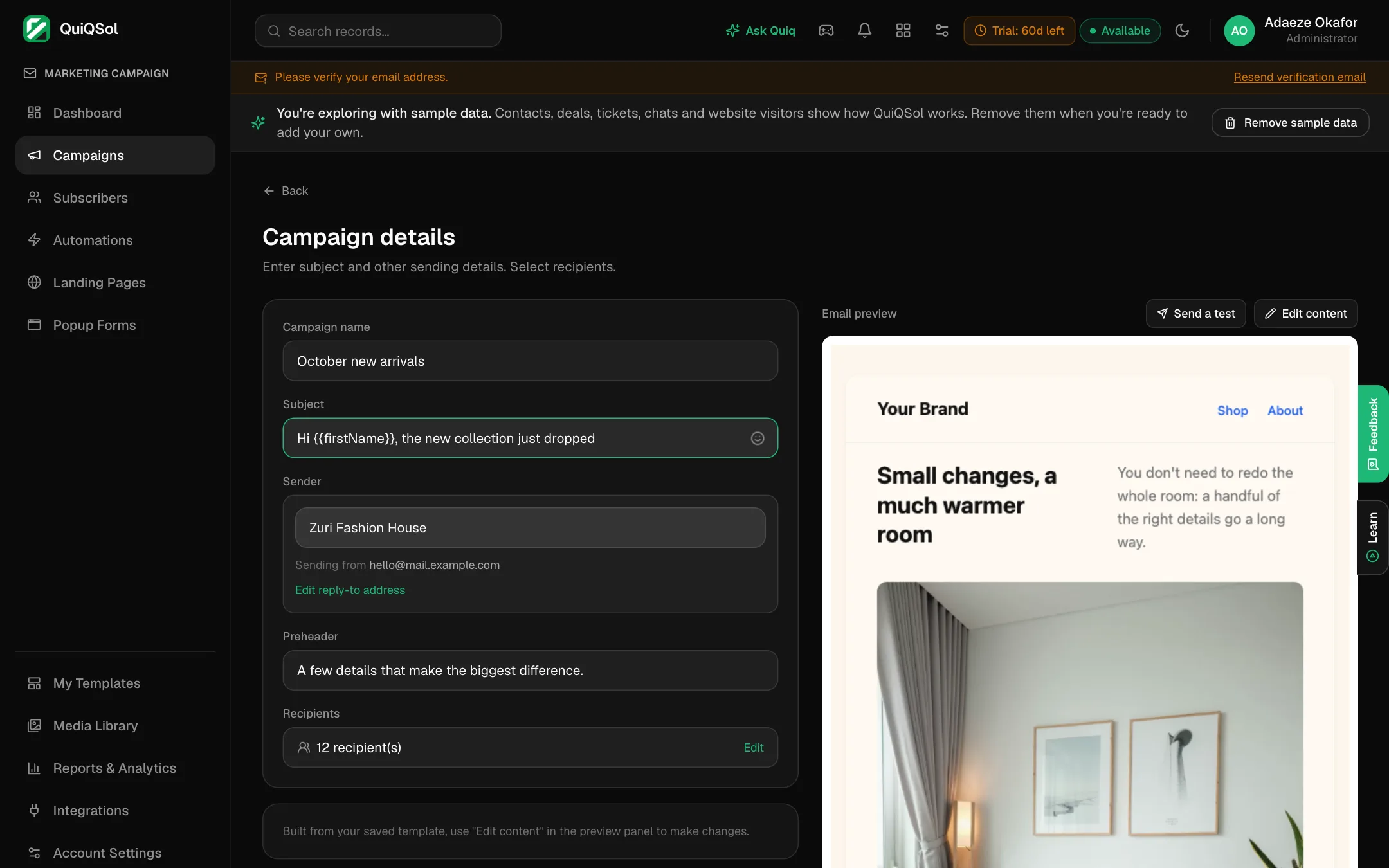 Campaign details
- Campaign name: for your own reference.
- Subject: write {{firstName}} to greet each person by name.
- Sender: your sender name, with the address it sends from.
- Preheader: the short preview line shown after the subject in most inboxes.
- Recipients: everyone, or specific groups and segments. The count updates as you choose.
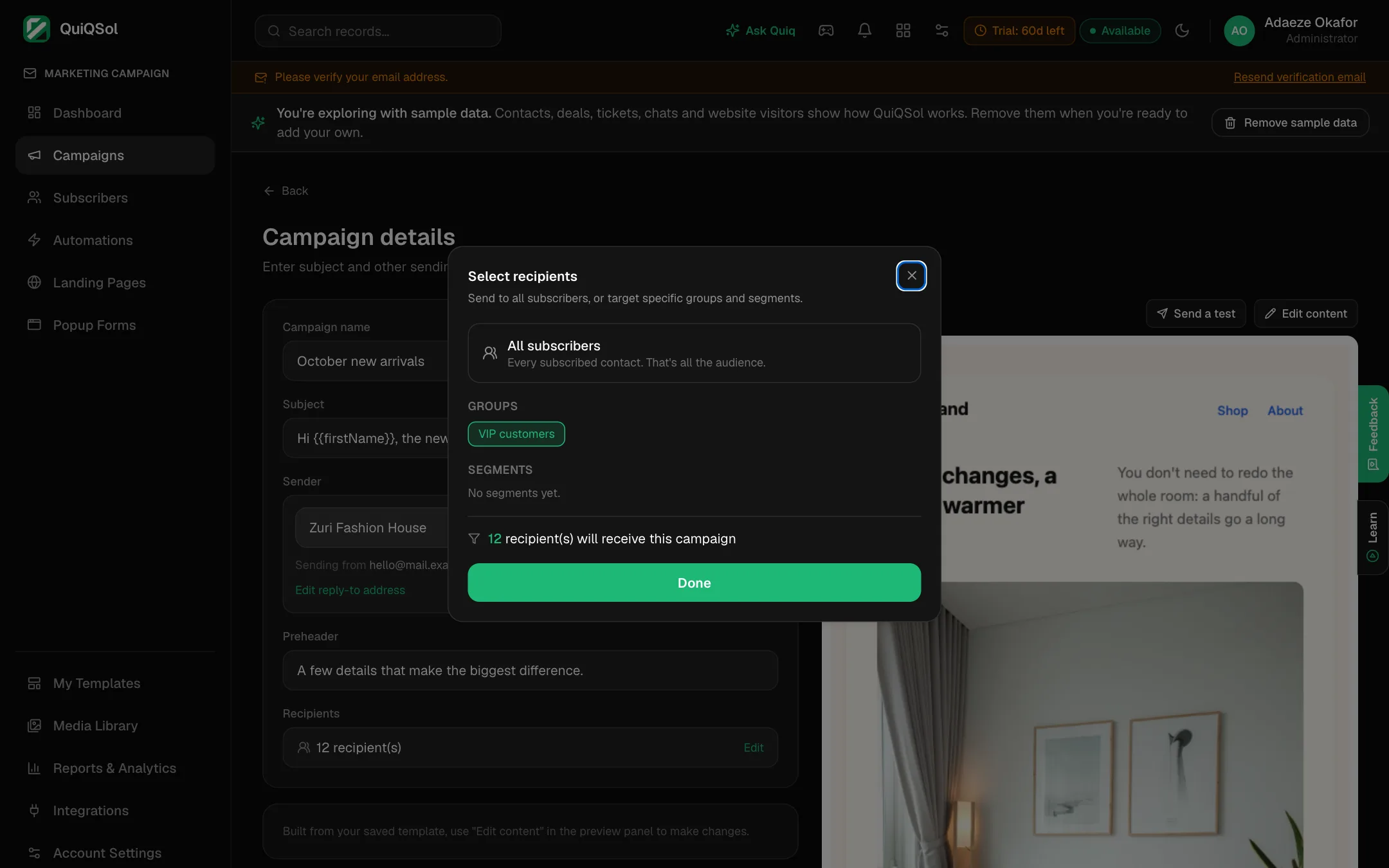 Choose who receives it
Click Send a test to see the email in your own inbox first, then Continue.
Send or schedule
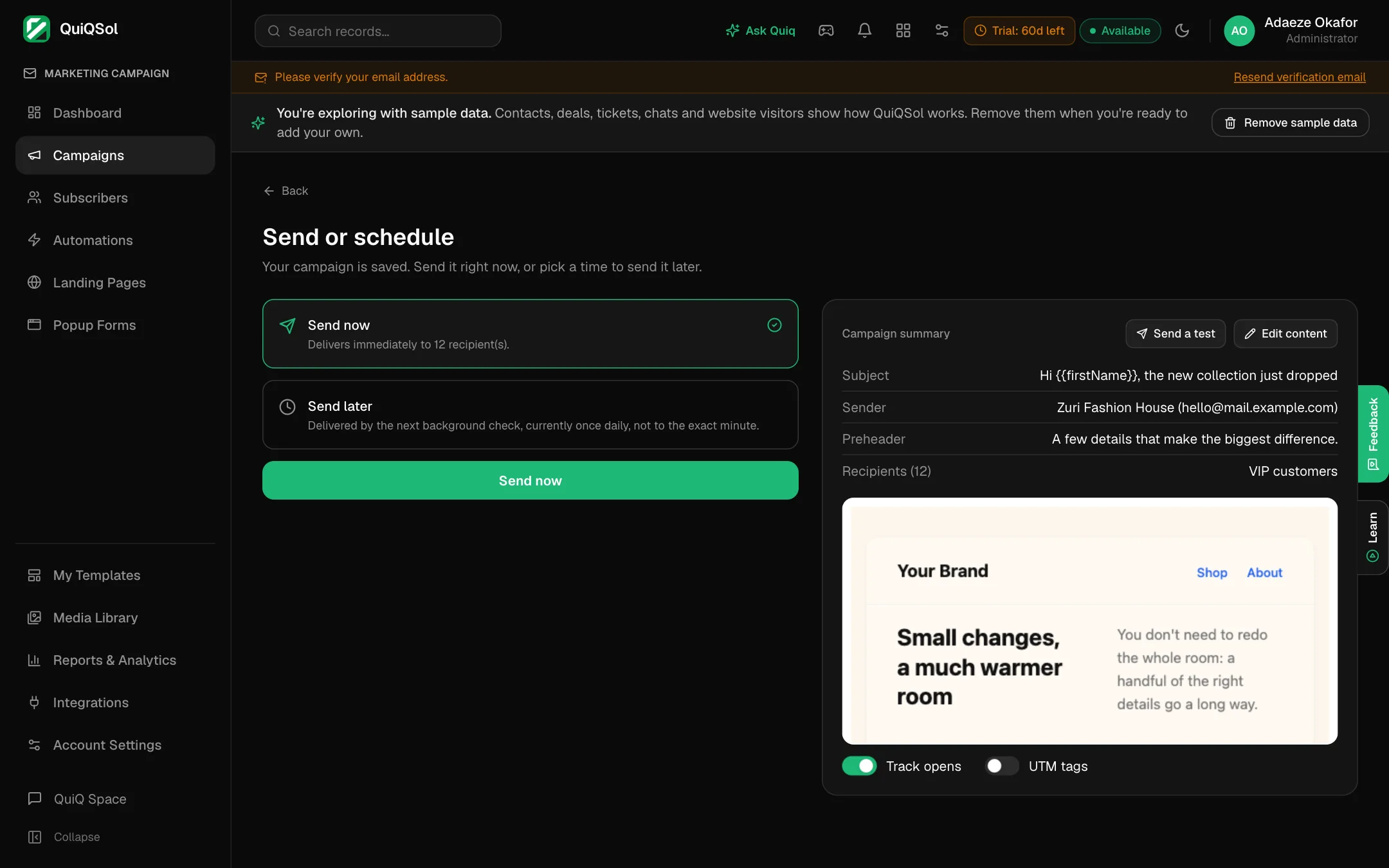 Send or schedule
Check the summary, then choose Send now or Send later. Scheduled campaigns go out with the next scheduled run, once a day, so schedule a day ahead when the exact hour does not matter. For a precise time, send it yourself at that time.
6. Test two subject lines (A/B split)
Choose A/B split campaign. Write a second subject line and set the Sample size %. QuiQSol sends both versions to that share of your recipients. When the results come in, open the report and click Pick winner & send rest: the subject with the higher open rate goes to everyone else.
7. Automate your emails with journeys
Go to Automations. A journey sends the right email at the right moment without anyone pressing send.
Start from Templates: Welcome Journey, Re-engagement Journey and Hot Lead Alert are ready to adjust.
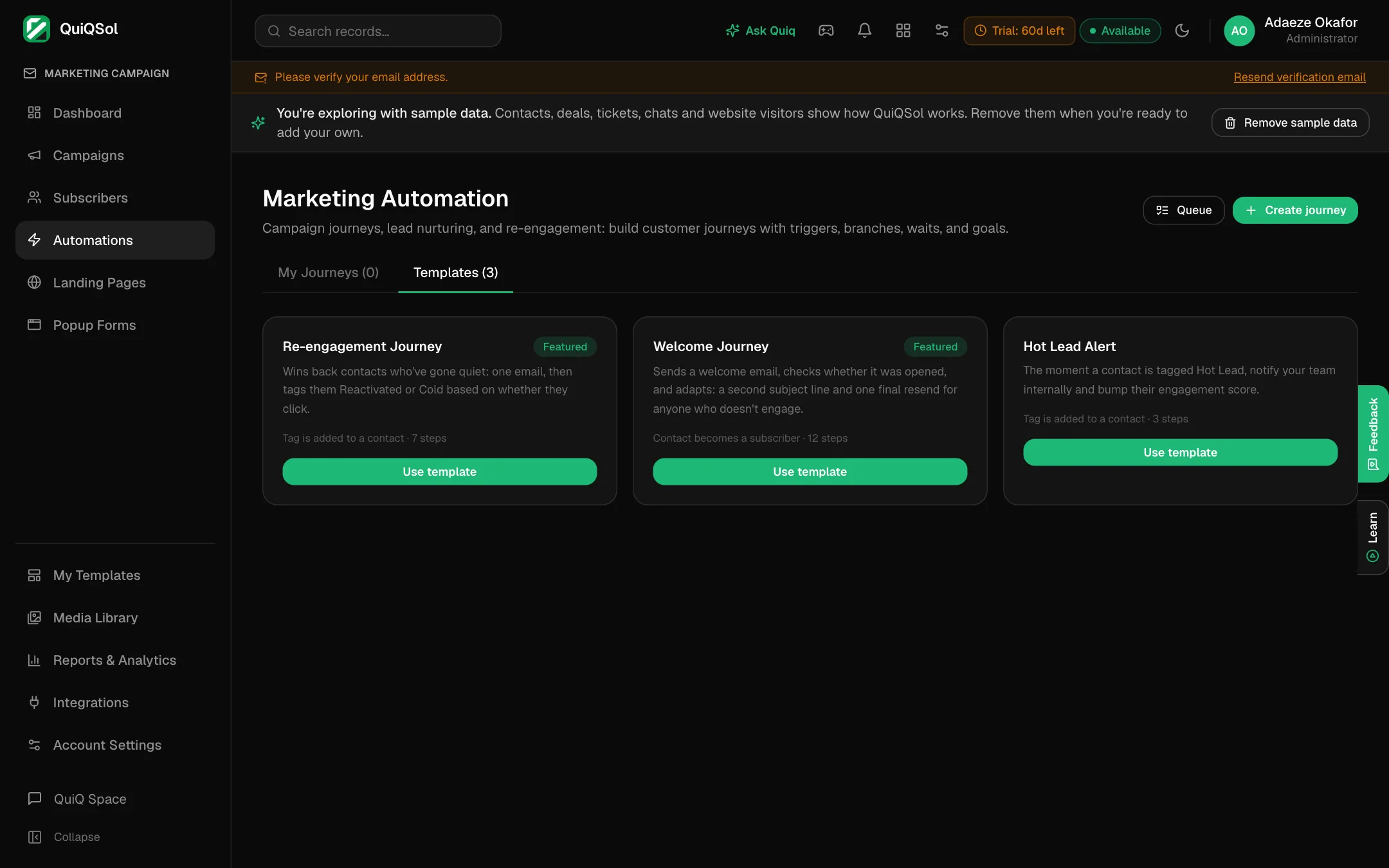 Journey templates
Or click Create journey to build your own.
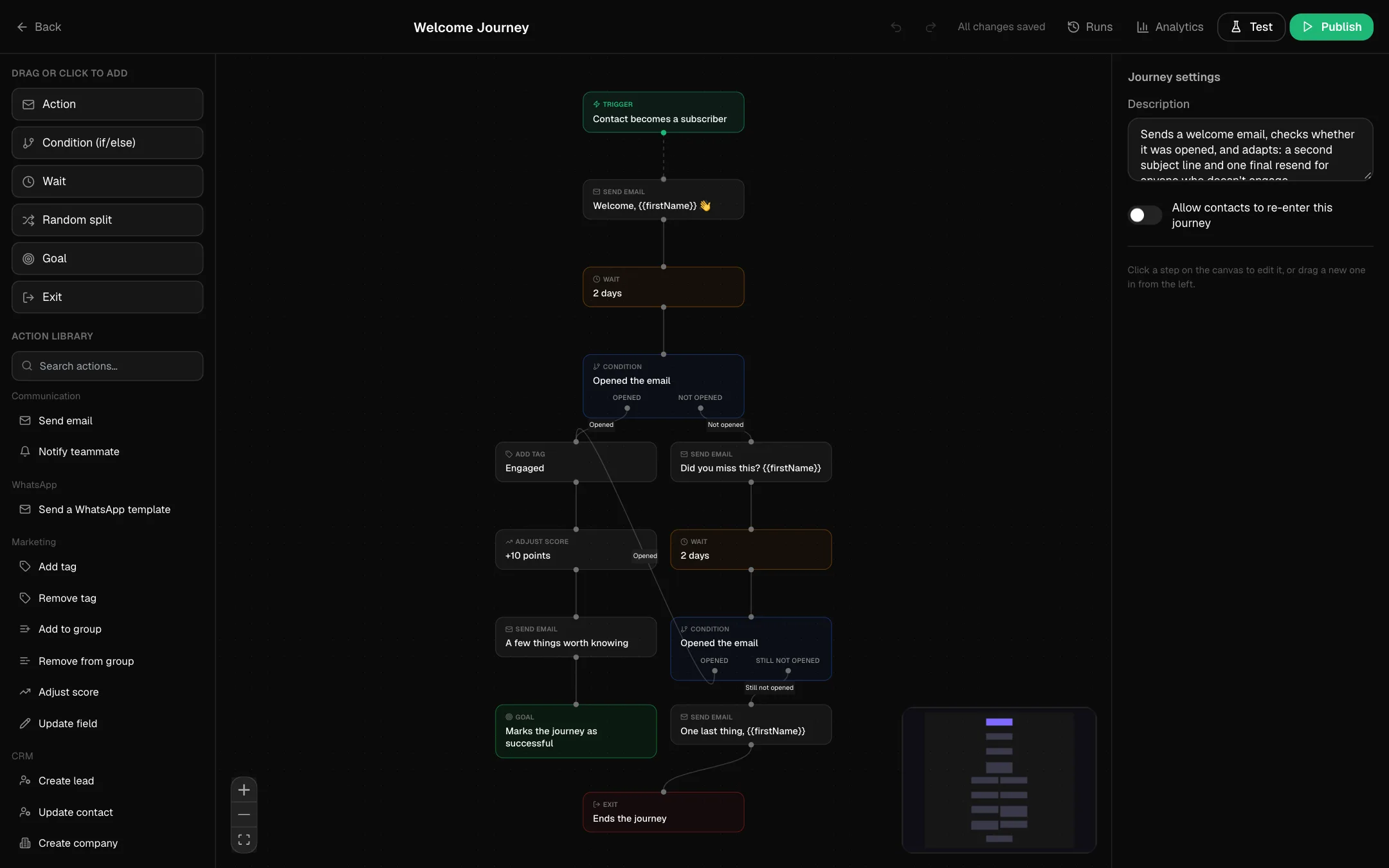 The journey builder
- Trigger: what starts the journey. For example: a contact becomes a subscriber, joins a group, enters a segment, gets a tag, opens or clicks a campaign, submits a form, books a meeting, or a deal is won.
- Steps: drag them in from the left. Action (send an email, notify a teammate, send a WhatsApp template, add a tag, add to a group, adjust a score, create a lead), Condition (if/else, such as "opened the email"), Wait, Random split, Goal and Exit.
- Click Test and pick a contact to run it for real on that one person, even before it is published. Pick yourself or a teammate, since its emails really send. Then click Publish.
Journeys run only once published. Runs shows each person's path, and Analytics shows how many reached each step and the goal. Turn on Allow contacts to re-enter this journey in the journey settings if the same person can go through it again.
8. Build a landing page
Go to Landing Pages. Build a page with drag and drop, or paste HTML made anywhere, then publish it to a QuiQSol link or your own domain. The Template gallery has pages for newsletter signups, launches, events and webinars, free guides, sales, waitlists, consultations and personal brands.
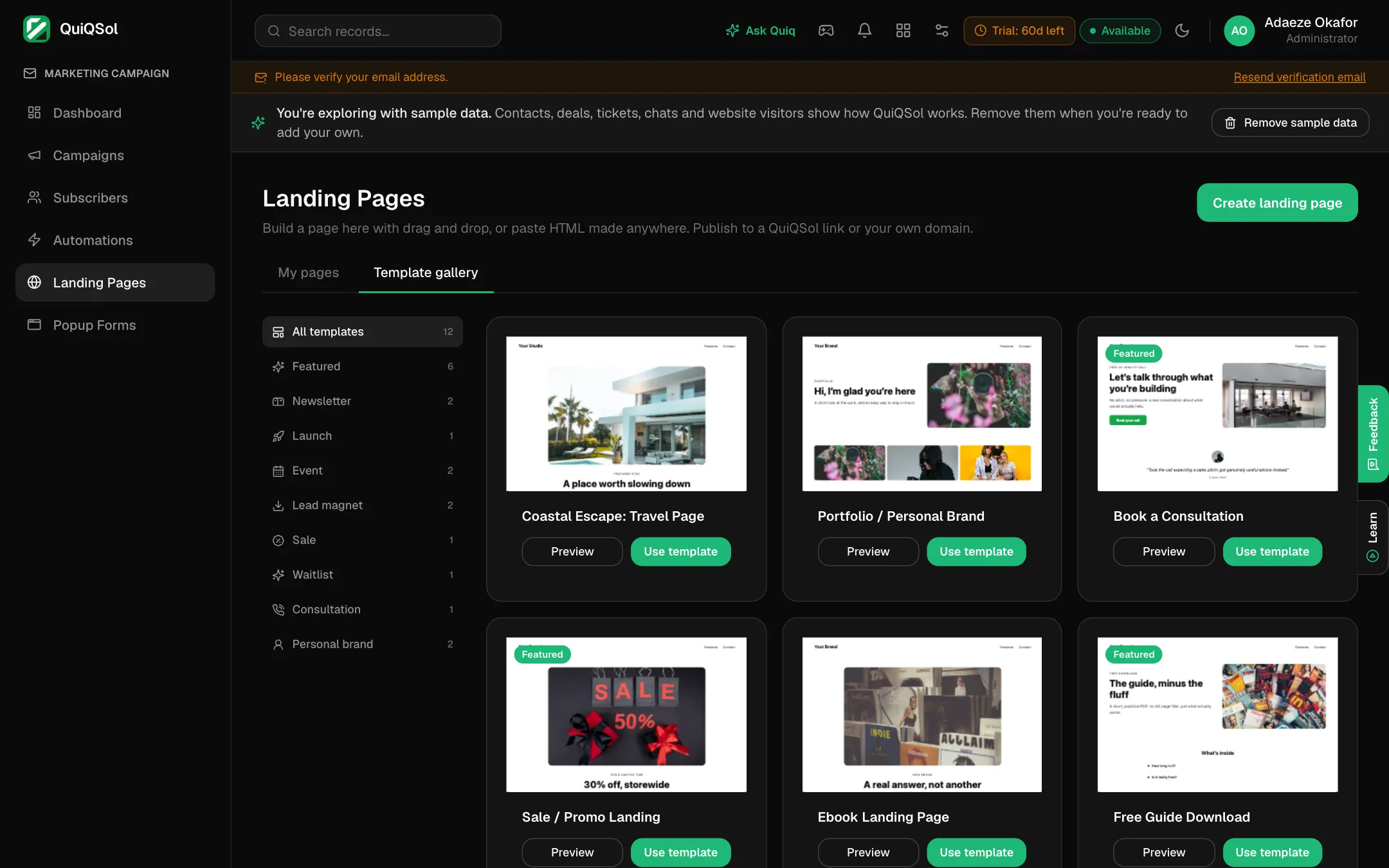 Landing page templates
9. Grow your list with a popup
Go to Popup Forms and click New popup form.
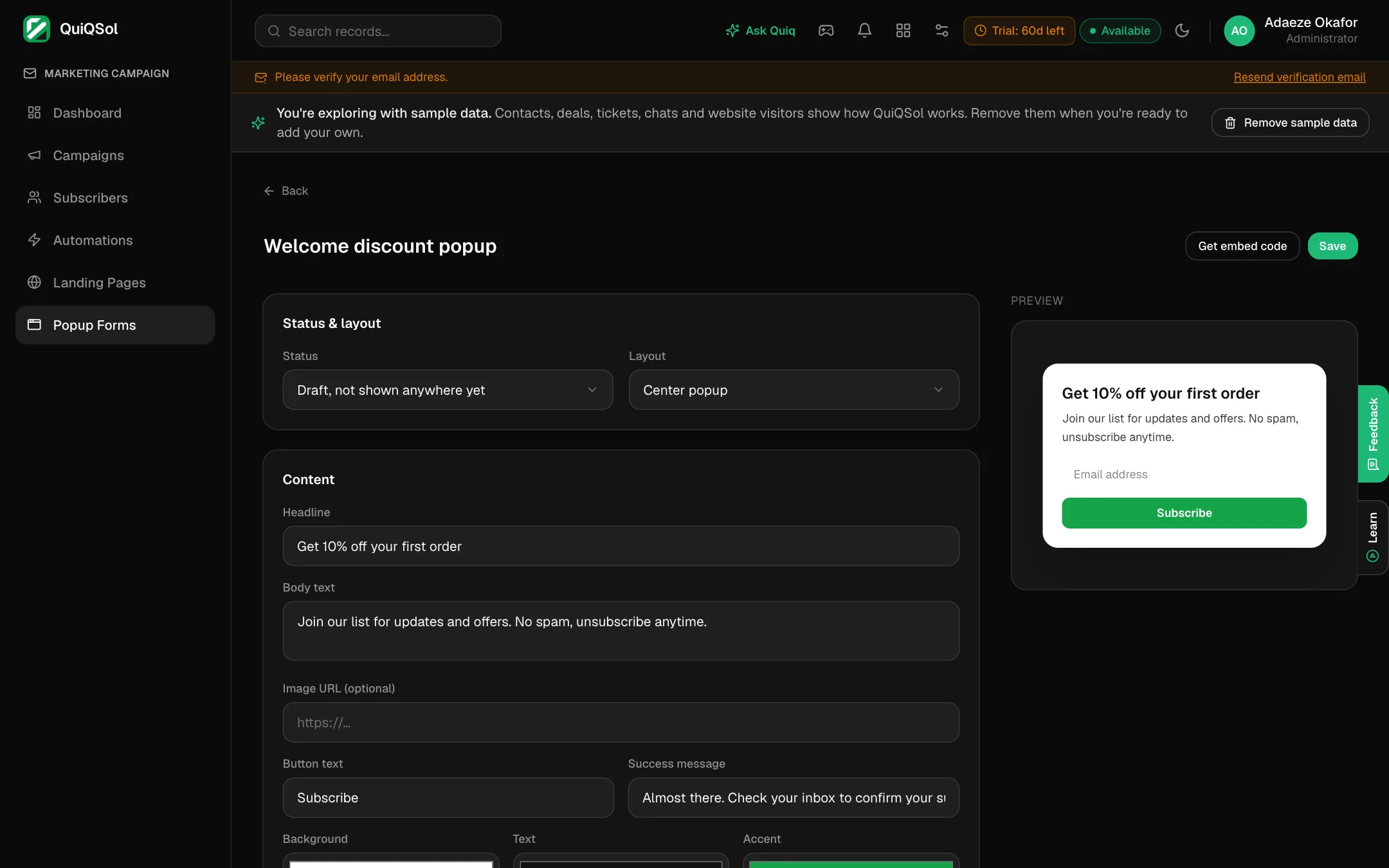 The popup form editor
- Layout: center popup, slide-in from a bottom corner, top or bottom banner, or embedded in your page.
- Content: headline, text, image, button text, success message and colours, with a live preview.
- Fields: email is always required. Set each other field to Off, Optional or Required.
- When it appears: immediately, after a delay, after the visitor scrolls part of the page, or when they are about to leave.
- Where it appears: every page, or only pages whose address contains a word you choose.
- Frequency: how many days before the same visitor sees it again.
- Add subscribers to a list: put every signup in a group.
Every signup gets a confirmation email, and nobody is subscribed until they confirm. Set the status to Active, click Save, then Get embed code and paste it on your website once. If your site already runs the Website IQ code, add the popup's code alongside it.
10. Read your results
Reports & Analytics lists every sent campaign with its open and click rates. Open a campaign's report for:
- Overview: opens and clicks over the first 24 hours.
- Link activity: which links were clicked, and how often.
- Subscriber activity: who opened and clicked.
- Location data: opens by country.
- A/B variant breakdown for split campaigns.
- View email: the email exactly as sent.
Opens and clicks also show on each contact's timeline in the CRM.
Also in Marketing
- My Templates: your own saved email designs, ready to reuse.
- Media Library: images for your emails and pages, in folders.
- Integrations: connect Mailchimp, SendGrid, Klaviyo, Shopify and other apps through Quiq Flow.
Good sending habits
- Email only people who agreed to hear from you. Buying lists damages your sending reputation for every future campaign.
- Verify your domain before your first large send.
- Send a test to yourself every time.
- Keep the Deliverability health score above 80, and act on each item it lists.