
Setting up Quiq Social Intelligence
Connect your social accounts, read performance across platforms, answer messages, comments and reviews from one inbox, plan and publish posts, and report to your team.
On this page
Quiq Social Intelligence brings your social accounts into one place: performance across every platform, one inbox for messages, comments and reviews, a content calendar that publishes for you, mentions with their tone, competitor tracking and reports. It is on the Growth and Enterprise plans.
Open it from the Apps menu, then Social Intelligence. The sidebar holds Overview, Inbox, Conversation Flows, Connections, Content, Calendar, Mentions, Competitors and Reports.
1. Connect your accounts
Go to Connections and click Connect on a platform: Facebook, Instagram, X, LinkedIn, YouTube, TikTok or Google Business Profile. You sign in on the platform's own page and approve access there. Use an account that manages the business Page or profile.
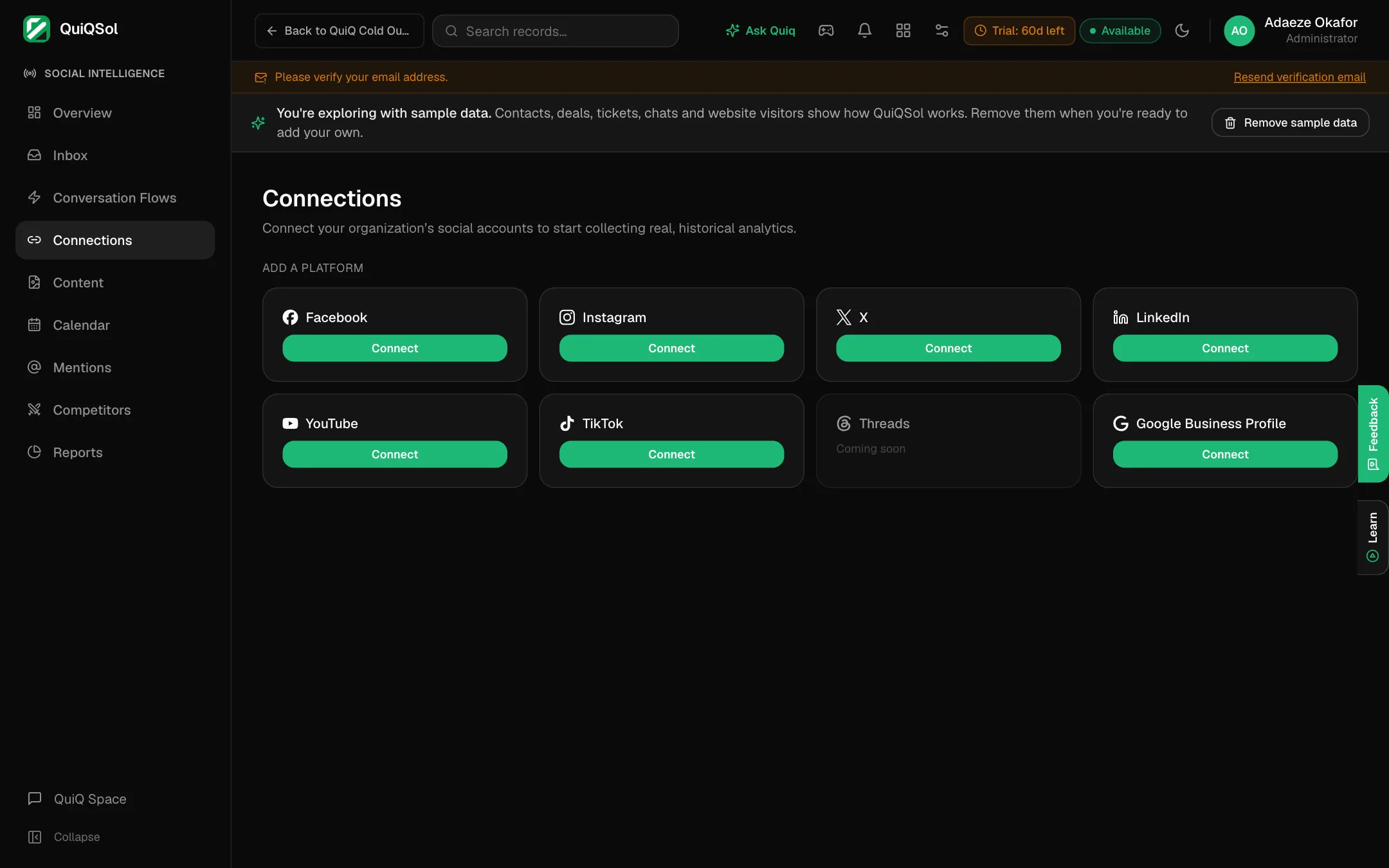 Connections
- Facebook and Instagram: sign in with the Facebook account that manages your Page. Your Instagram account must be a business or creator account linked to that Page.
- LinkedIn: sign in as an admin of your company page.
- YouTube and Google Business Profile: sign in with the Google account that owns the channel or the business listing.
After connecting, QuiQSol collects your history and keeps it up to date. Connected accounts show here with their status, and Reconnect appears if a platform ever asks you to sign in again.
2. Read the Overview
Overview shows total followers, engagement rate, impressions and audience growth across every connected account for the period you choose, with a comparison to the previous period. Platform performance compares your platforms side by side. As data builds up, QuiQSol flags what changed (follower spikes, a post taking off, a shift in tone) and recommends what to post more of, labelled Good news, Worth a look or Act soon.
Content lists every post with its results, sorted and filtered by platform, with Export CSV. Click a post for its full numbers.
3. Answer everything from one Inbox
Inbox collects Messenger messages, Instagram messages, Facebook and Instagram comments, and Google reviews in one live queue. Every conversation shows the channel and the Page or account it came through.
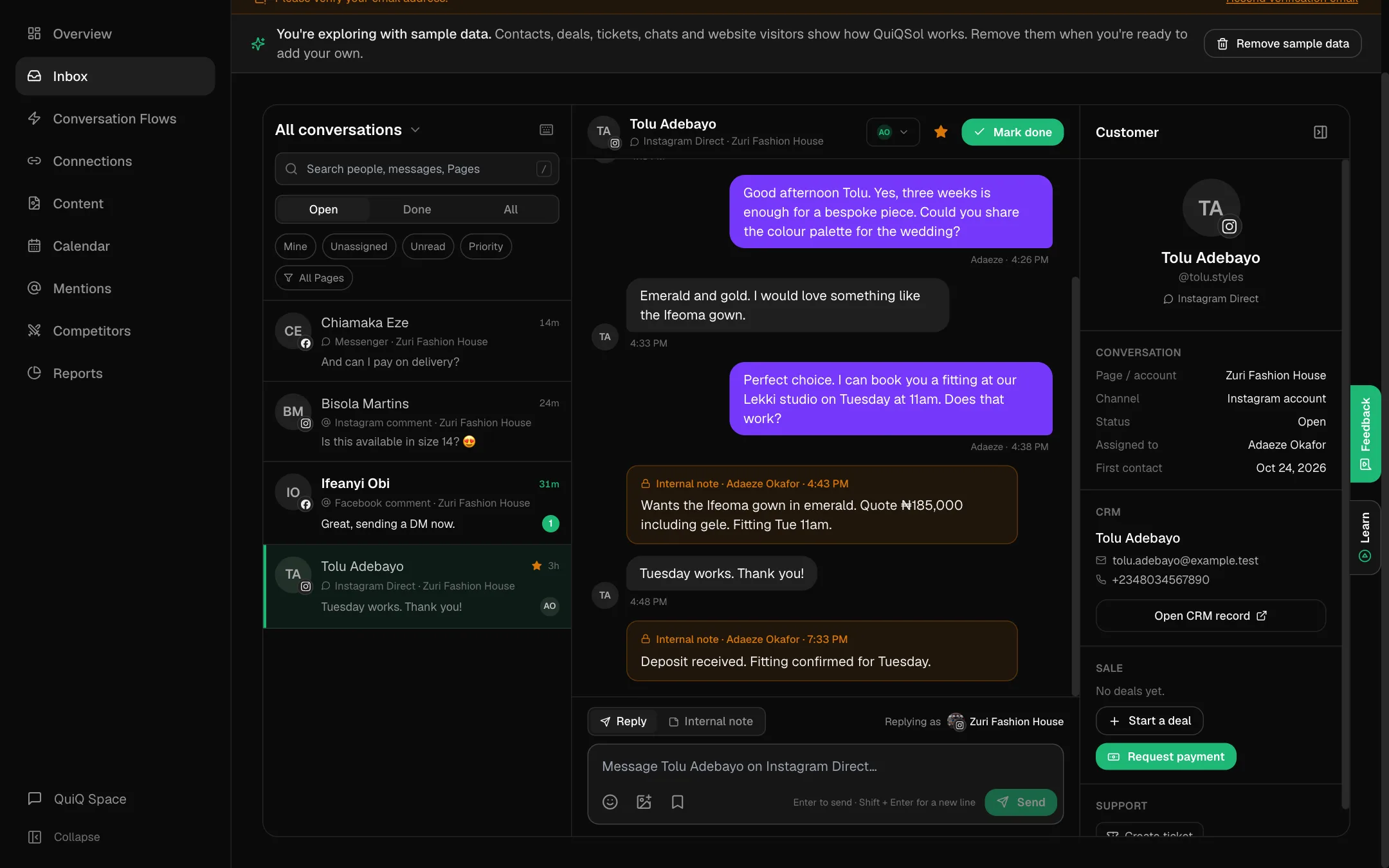 The social Inbox
- Pick a view: click the title at the top of the list to switch between All conversations, Direct messages, Messenger, Instagram Direct, the comment views and Google reviews.
- Filter: choose Open, Done or All, then narrow to Mine, Unassigned, Unread, Priority or one Page.
- Reply: open a conversation and type in the box at the bottom. The line above it shows which Page you are replying as. Press Enter to send, or Shift + Enter for a new line. The bookmark button inserts a saved reply, and you can save the reply you just wrote for next time.
- Internal note: switch the box to Internal note to leave context for your team. Notes are never sent to the customer.
- Assign the conversation to a teammate, star it as a priority, and click Mark done when it is handled. Marking a Messenger or Instagram chat done sends your closing message and rating request.
- Customer panel: on the right, add the person to your CRM or link an existing contact, open their CRM record, start a deal, request a payment or create a ticket.
Press ? in the Inbox for keyboard shortcuts: J and K move through conversations, R replies, N adds a note, E marks done, A assigns to you.
4. Automate common conversations
Conversation Flows runs automated Messenger and Instagram conversations: greet the person, ask questions, offer quick-reply buttons, qualify them into a lead, and hand over to a teammate when needed. Start from a template such as Chatbot Starter or AI Support Assistant, then publish it. What customers ask about shows the products, issues and topics people pick in your chat menus.
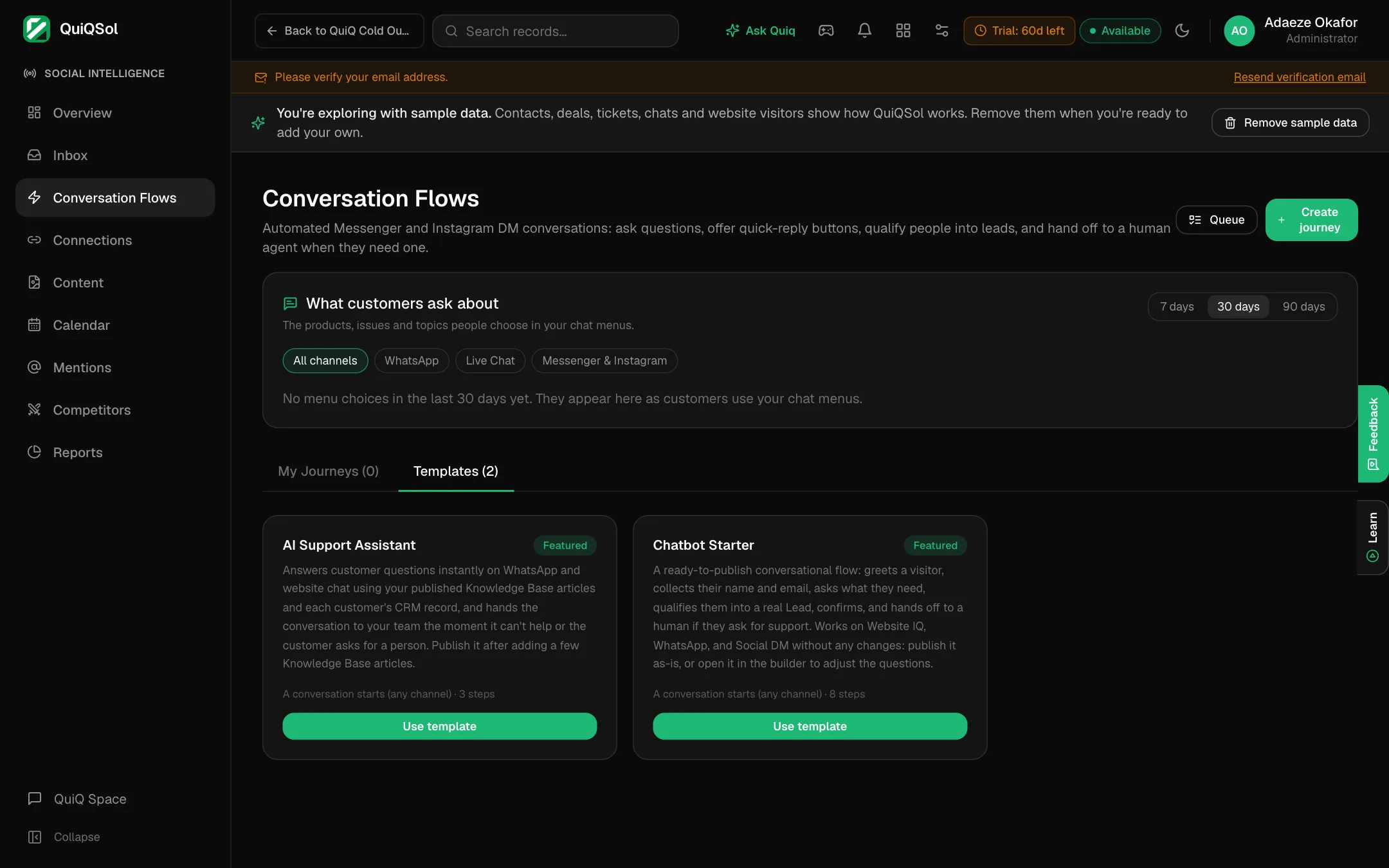 Conversation Flows templates
The builder works like Quiq Automation.
5. Plan and publish posts
Go to Calendar and click Create post, or click any open day or hour on the calendar to start a post at that time.
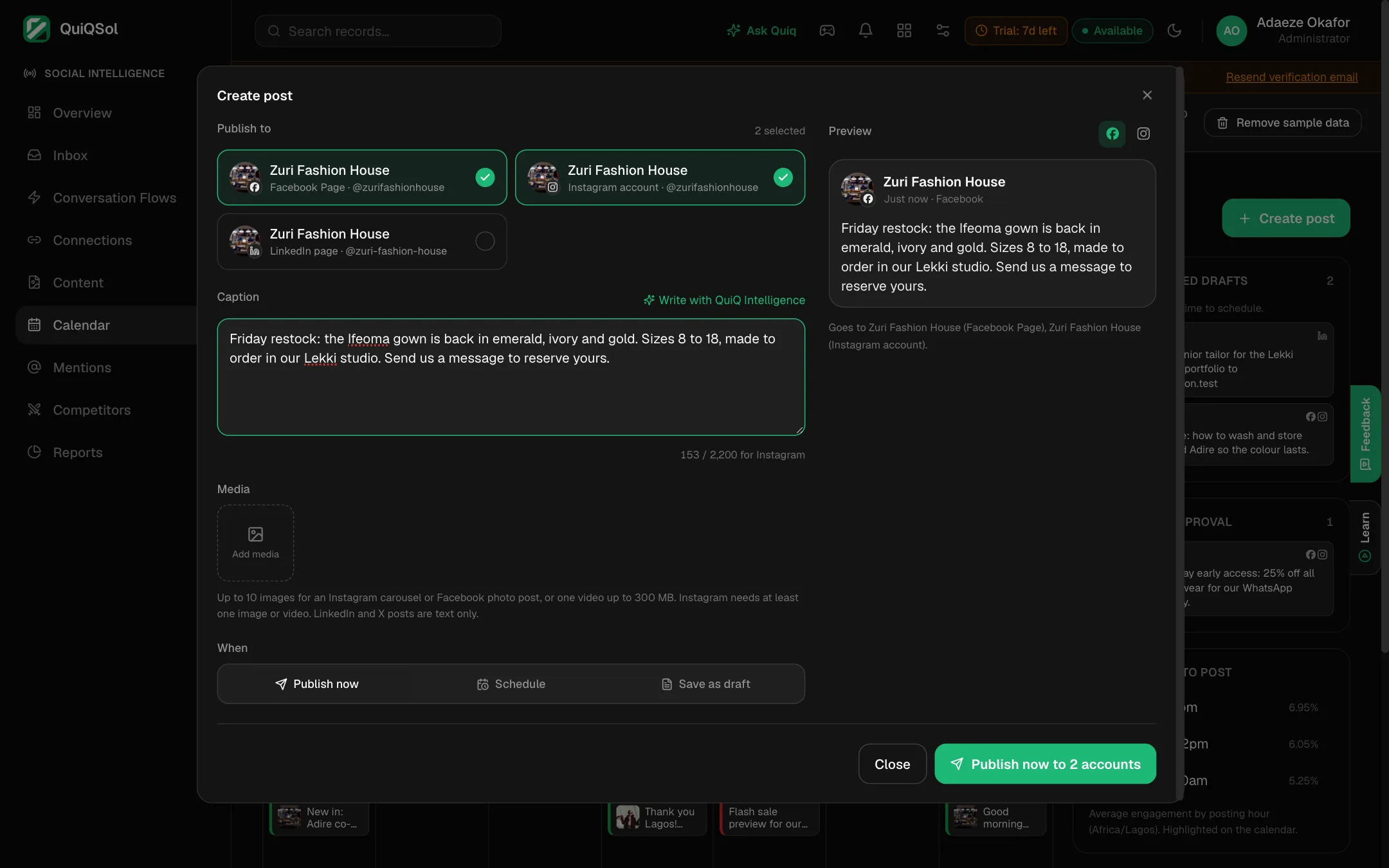 Writing a new post
- Publish to: pick the connected accounts. Each one shows its name and type, such as Facebook Page or Instagram account. Facebook, Instagram, LinkedIn and X can publish from QuiQSol.
- Caption: write it, or click Write with QuiQ Intelligence for a draft. The counter shows the limit of the strictest platform you picked.
- Media: up to 10 images for an Instagram carousel or a Facebook photo post, or one video up to 300 MB. Instagram needs at least one image or video; LinkedIn and X posts are text only.
- When: choose Publish now, Schedule (pick a date and time, or one of your best times) or Save as draft.
- Check the Preview on the right, then click the button at the bottom. It says exactly what will happen, for example Publish now to 2 accounts.
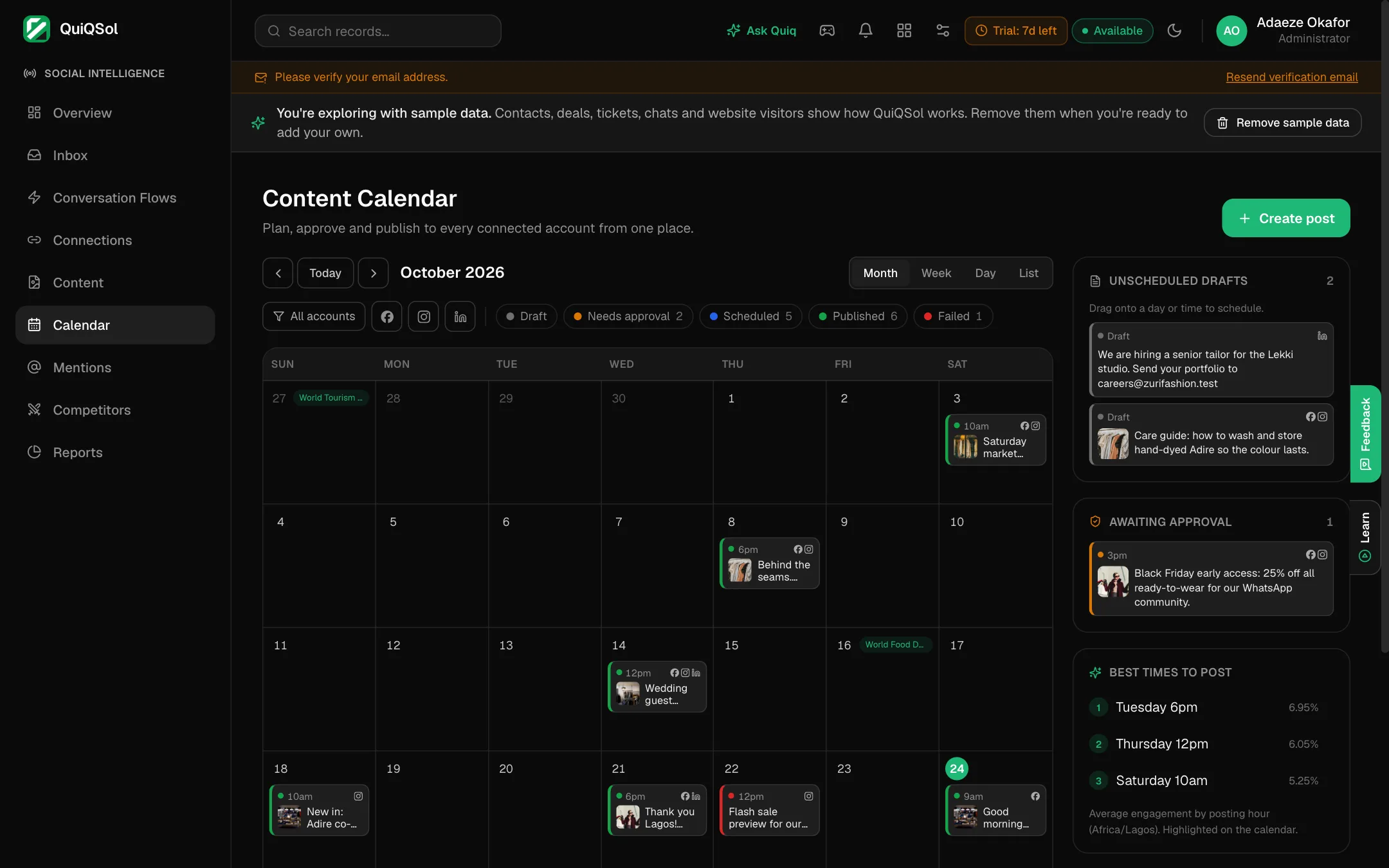 The content calendar
The Calendar has Month, Week, Day and List views. Each post shows its image, time, accounts and a status colour: Draft, Needs approval, Scheduled, Published or Failed. Use the filters to show one account, platform or status.
- Reschedule: drag a draft or scheduled post to a new day (it keeps its time) or, in Week and Day view, to a new hour.
- Unscheduled drafts wait in the panel on the right. Drag one onto the calendar to schedule it.
- Best times to post come from your own results and are highlighted on the calendar.
- Approvals: turn on Teammates' posts need a manager's approval in the right panel if posts need sign-off. Posts waiting for review are listed there too.
- The Calendar also marks dates worth planning around, such as World Food Day.
6. Watch what people say
Mentions collects comments on your posts and posts that tag you with every sync, and scores each one Positive, Neutral or Negative. Filter by type or tone, and Log a mention you found elsewhere.
Competitors tracks public Instagram business accounts next to your own: what they post, when it works, and what to do about it, updated daily. Type a competitor's Instagram username and click Track. It needs your own Instagram business account connected.
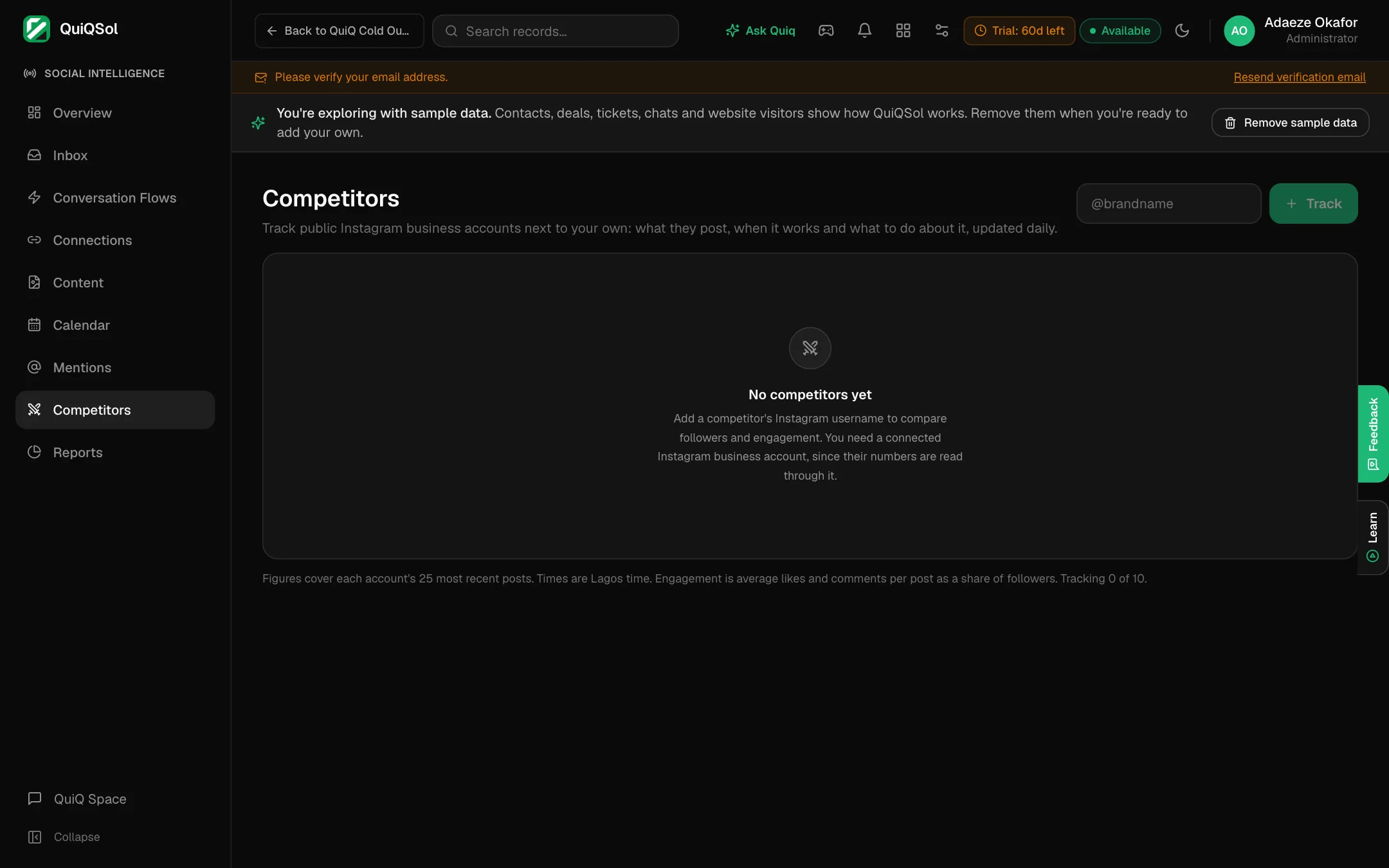 Competitors
7. Report to your team
Go to Reports and start from a template: Audience growth, Post engagement, Performance highlights (the executive view: what happened, what worked, what to do next) or Multiple networks overview. Every figure comes from your connected accounts. Save a report to revisit it, and schedule it to be emailed to your team.
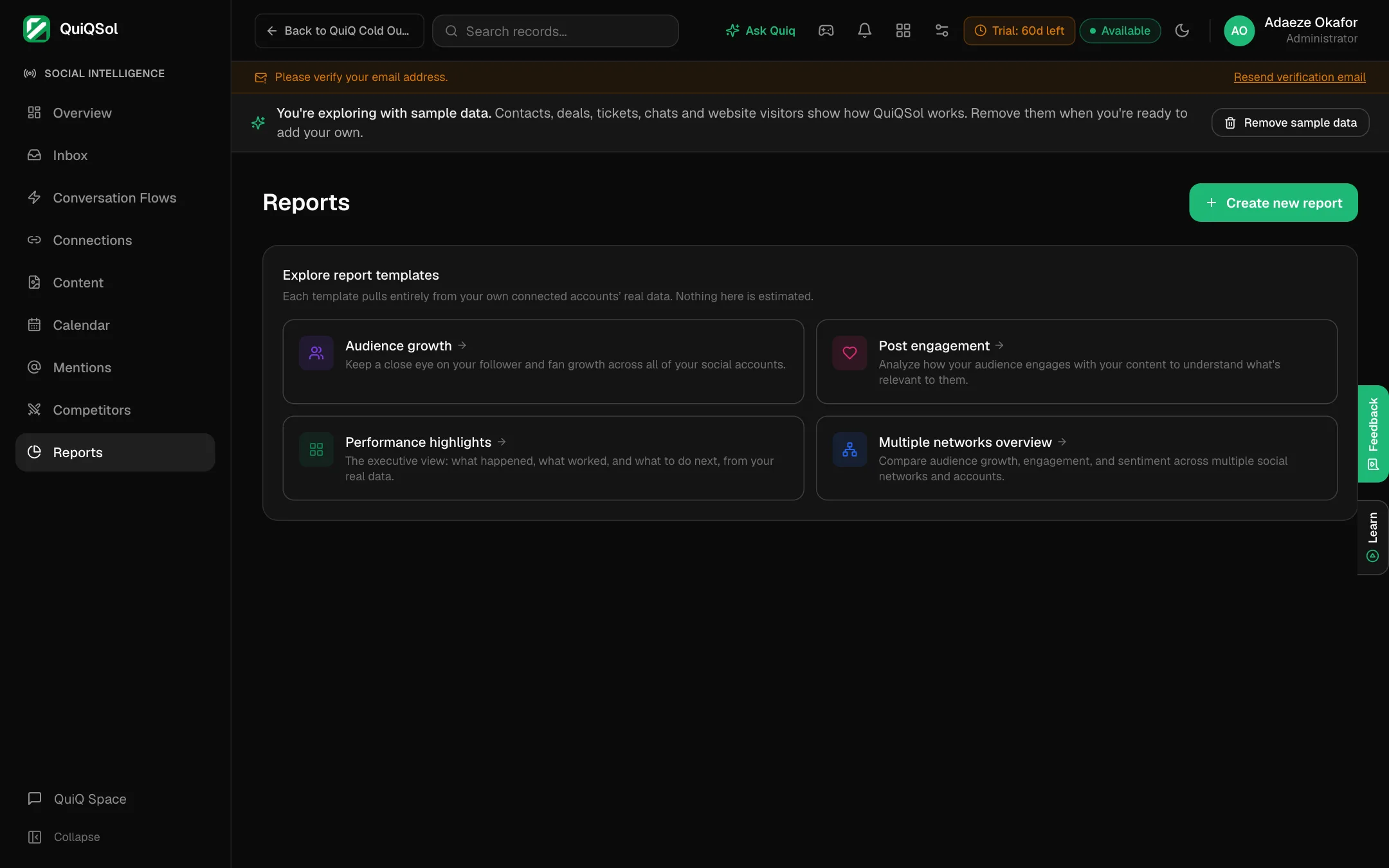 Report templates