
Setting up Quiq Invoices
Set your business details, connect your bank account so customers pay online, then send invoices, estimates, recurring bills and credit notes, and track what you are owed.
On this page
Quiq Invoices sends professional invoices, estimates and credit notes, collects payment online by card, bank transfer or USSD straight into your own bank account, and chases late payers for you. Every invoice sits on the customer's record in the CRM. It is on the Growth and Enterprise plans.
Open it from the Apps menu, then Invoices. The sidebar holds Dashboard, Invoices, Customers, Recurring, Estimates and Credit Notes, then Reports and Invoice Settings.
1. Set your business details
Go to Invoice Settings.
Invoice design
Pick how your invoices, estimates, credit notes, receipts and their emails look:
- Template: Bold puts your logo, the invoice number and the total due on a header band in your brand colour. Classic keeps a white header with a brand-colour rule. Minimal is monochrome with one accent. Each invoice and estimate can still choose its own.
- Brand colour: tap a swatch or type a hex code, for example #1DB876.
- Logo: upload a PNG or JPG. It shows on the customer's page, the PDF and the email.
Your logo and brand colour are shared with Settings → Company Settings, so your branded emails match.
Business details
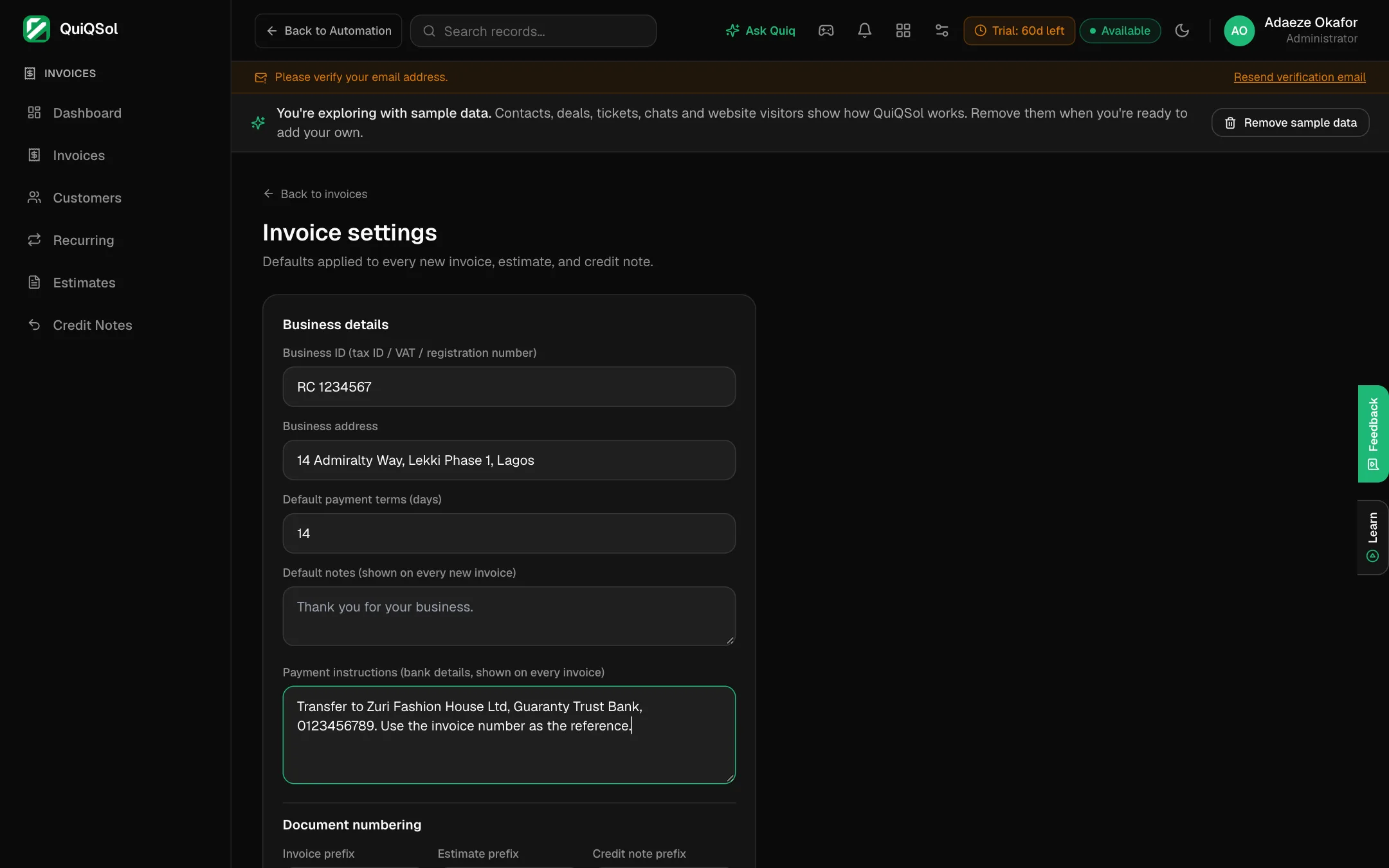 Invoice settings
- RC / BN number and TIN: printed under your business name.
- Billing phone and Billing email: shown under Contact on every invoice.
- Other tax or registration ID: shown only when RC and TIN are empty.
- Business address.
- Default payment terms (days): when invoices fall due if you do not pick a date.
- Default notes: a line for every new invoice, such as a thank-you.
- Payment instructions: your bank details for customers who pay by transfer. They show under Payment method on every invoice.
- Terms & conditions: printed at the foot of every new invoice and estimate, and editable on each one.
- Signature: switch on Sign every invoice, estimate and receipt, then enter the signatory's name and title and upload a signature image.
- Document numbering: the prefixes for invoices, estimates and credit notes (INV-, EST- and CN- to start).
- Tax defaults: the tax name (VAT to start), the tax rate and an optional WHT rate. They are filled in on every new invoice, estimate and recurring schedule, and you can change them on each one.
- Overdue reminders: switch on, then choose how many days after the due date each reminder goes, for example 3, 7, 14. To keep chasing after the last one, set Then keep reminding every to a number of days; 0 stops after the last reminder.
Click Save.
Credit chasing
Below the settings, Credit chasing reminds customers who owe you. It stays off until you switch it on. Instead of one email per invoice, each customer gets one message with everything still owed on their overdue invoices, part payments taken off, and a link to view and pay.
- First reminder (days overdue): how long after the oldest invoice falls due the first reminder goes (3 days to start).
- Then every (days) and Stop after (reminders): the follow-ups, for example every 7 days, at most 6 times for the same debt.
- Only if they owe at least: skip small balances.
- Send by: WhatsApp, else email; WhatsApp only; or Email only. For WhatsApp, pick an approved template (the Utility category suits payment reminders) and fill its variables with the balance, the invoice numbers, the oldest due date, the days overdue or the pay link. The email can also list every invoice with its own balance and link.
- Quiet hours and Weekdays only work the same as for reorder reminders and are shared by both.
Click Preview the next run to see who would be reminded, how much they owe and the exact message, without sending anything. Don't remind takes a customer out, and Allow again brings them back. Each reminder shows on the customer's CRM timeline and under Recent reminders. Invoices need a saved customer or a CRM contact to be chased. If Overdue reminders is also on, those per-invoice emails keep going out as well, so most businesses use one or the other.
2. Get paid online, straight to your bank
Under Get paid online in Invoice Settings, connect the bank account your customers' payments should settle to. You do not need a Paystack account of your own.
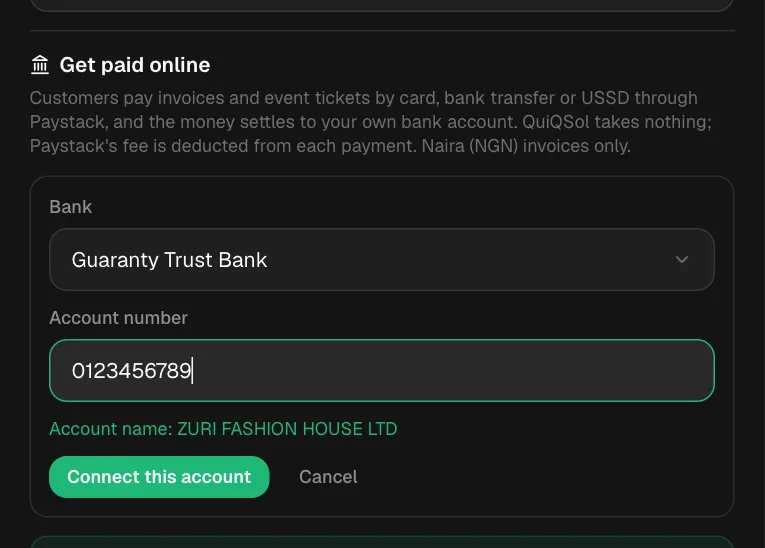 Connect your bank account
- Click Connect your bank account.
- Choose your bank and type your 10-digit account number.
- QuiQSol checks the account and shows the account name. Make sure it is your business.
- Click Connect this account.
From then on, every Naira invoice and paid event ticket gets a Pay button. Customers pay by card, bank transfer or USSD through Paystack, the invoice is marked paid on its own, and the money settles to your account. QuiQSol takes nothing; Paystack's standard fee comes off each payment. Use Change account or Turn off at any time; when it is off, customers see your payment instructions instead.
3. Create an invoice
Go to Invoices and click New invoice.
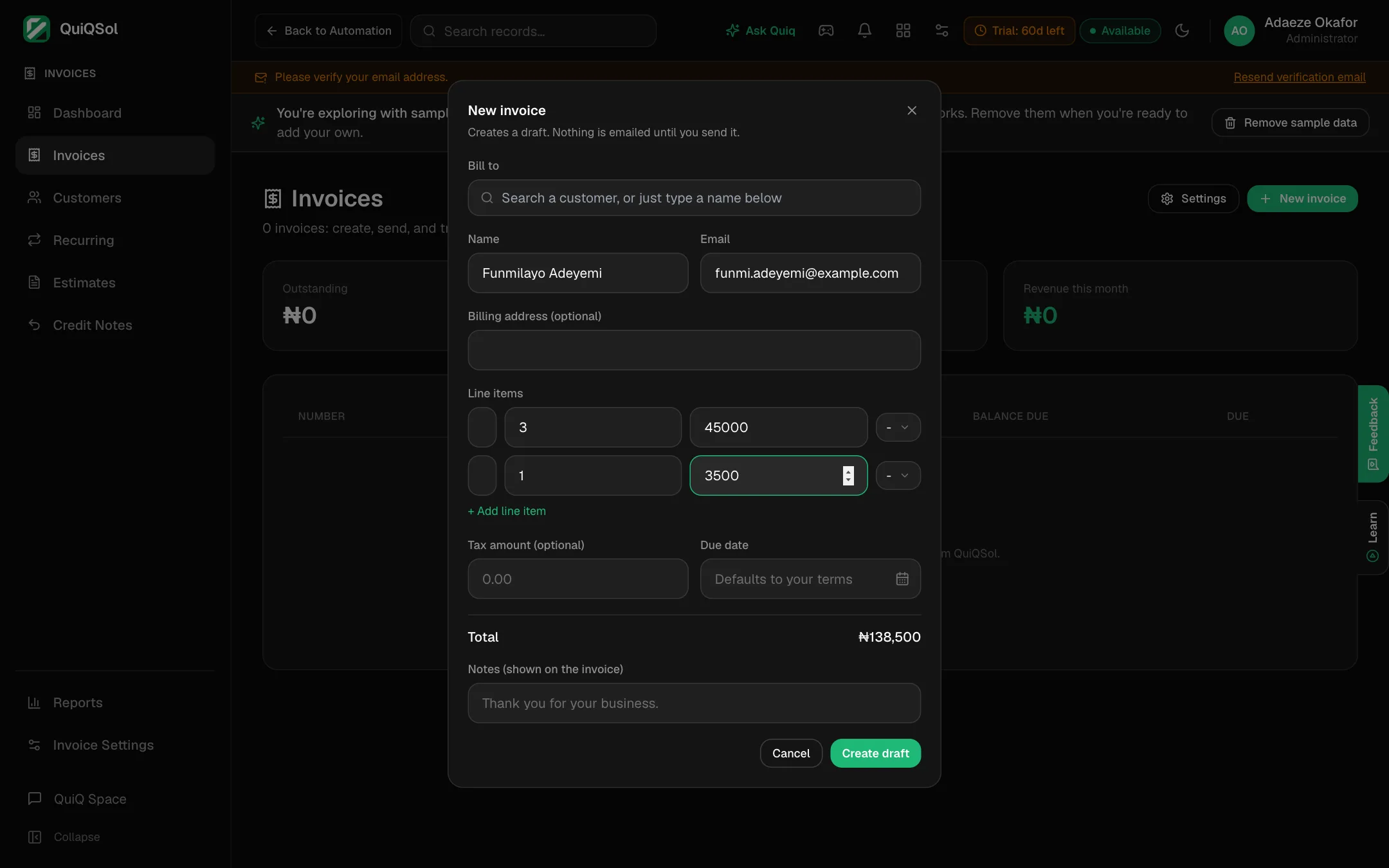 A new invoice
- Bill to: search by name, email or phone. Results include your invoicing customers and your CRM contacts. Pick one, or type a new customer's name and email. Contacts and new names are saved under Customers, so the next search finds them. You can still correct the name, email or address for this invoice.
- Line items: a description (the box grows as you type), quantity and unit price. Click + Add a detail line for a second line such as size, colour or scope. Add a discount per line as a percentage or an amount; the invoice shows it on its own row, for example Discount 15% -₦1,500,000, so the customer sees the full price and the saving. Click Add line item for more.
- Discount, tax and WHT: an optional discount for the whole invoice, then the tax rate and WHT rate (see below).
- The Due date (leave it empty to use your payment terms), the Notes shown on the invoice, the Terms & conditions and the Design (Default follows Invoice settings, or pick Bold, Classic or Minimal). Add the customer's phone under Bill to and it prints on the invoice.
- Click Create draft.
How tax and WHT are worked out
Tax is a percentage added on top of the amount after discounts. WHT (withholding tax) is the share your customer deducts and pays to the tax office on your behalf, so it comes off what they pay. It is worked out on the amount before tax.
For a ₦2,000,000 job with 7.5% VAT and 5% WHT:
- Subtotal: ₦2,000,000
- VAT (7.5%): +₦150,000
- Total: ₦2,150,000
- Less WHT (5%): -₦100,000
- Amount payable: ₦2,050,000
The invoice, PDF, customer link and emails all show this breakdown, and Reports total the tax you charged and the WHT customers withheld, so you know which WHT credit notes to collect.
A draft is not sent to anyone. Check it, then click Send: the customer receives it by email with a link to view, download and pay it.
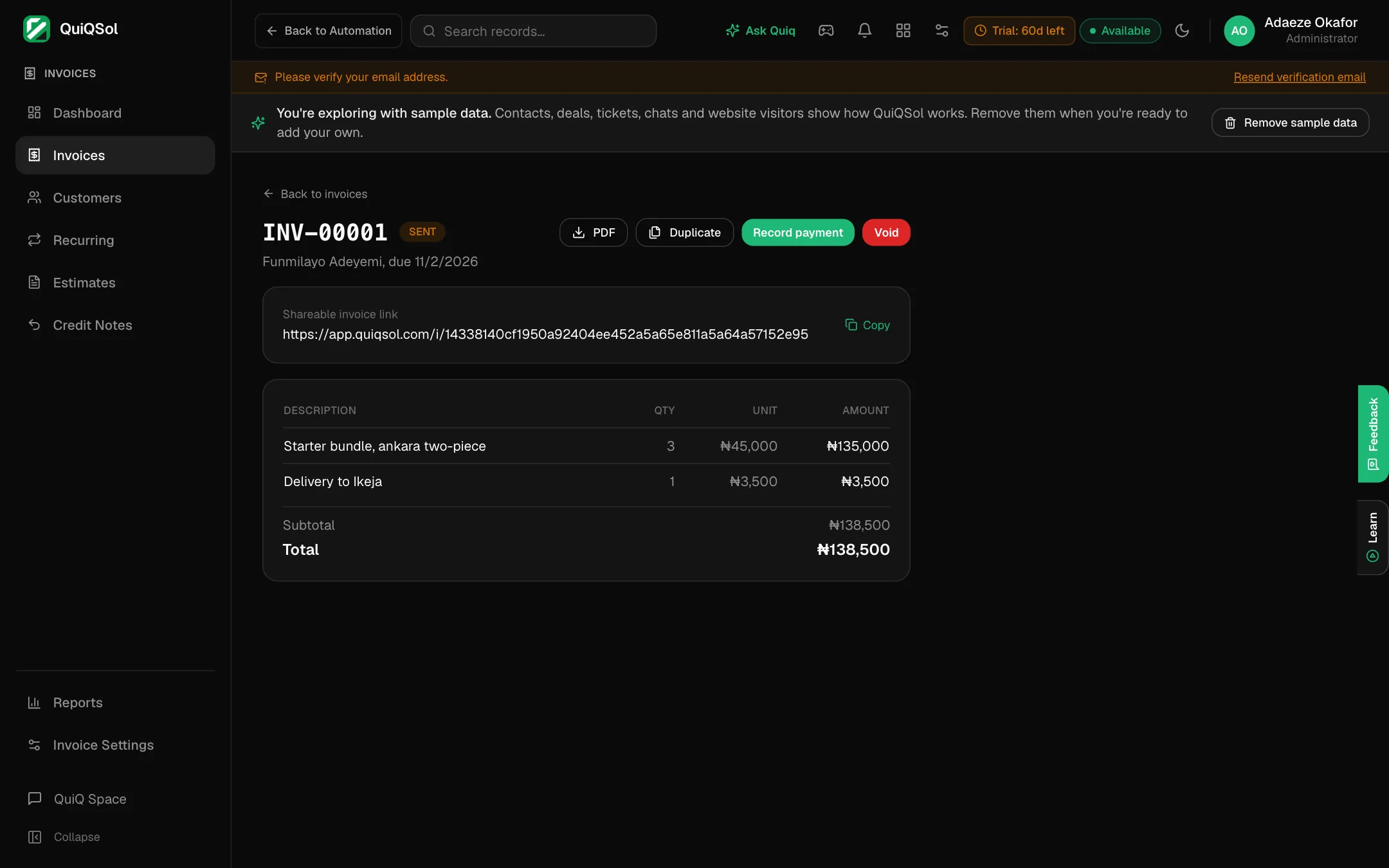 A sent invoice
On the invoice:
- Invoice total, Paid and Balance due sit at the top with a progress bar, how many days late it is and how many reminders have gone out.
- Customer link: click WhatsApp to open WhatsApp with the link and a short message ready for the customer's number, or Copy to send it anywhere else.
- PDF downloads it. Once money has come in, Receipt downloads the receipt in the same design. Duplicate starts a new one from it.
- Edit changes a draft or a sent invoice (see below).
- Record payment for money received by transfer, cash, POS or cheque: enter the amount (Full balance fills in what is owed), the method, the date the money arrived and an optional reference. The receipt email to the customer is on by default and you can switch it off.
- Send reminder emails the customer a reminder for the balance still due.
- Void invoice cancels a sent invoice and keeps the record.
Part payments
If a customer pays ₦1,000,000 of a ₦2,050,000 invoice, record ₦1,000,000. The invoice shows Partially paid, ₦1,000,000 paid and ₦1,050,000 due, and lists each payment with its date and method. Overdue reminders carry on for the ₦1,050,000 left and tell the customer what they have already paid. A part-paid invoice past its due date is also marked Overdue and counts in your overdue totals. When the last payment arrives, the invoice moves to Paid and the customer gets a receipt.
Editing a sent invoice
Prices often change after a conversation. Click Edit, change the lines, tax, WHT, due date or customer details, add an optional reason, and choose whether to email the updated invoice to the customer. The customer link always shows the latest version, marked Revised, and the invoice keeps an Edit history of every change: what changed, who made it, when, and the total before and after.
Two rules keep your books straight: the new total cannot be lower than what has already been paid or credited (use a credit note instead), and an invoice that is paid in full is locked.
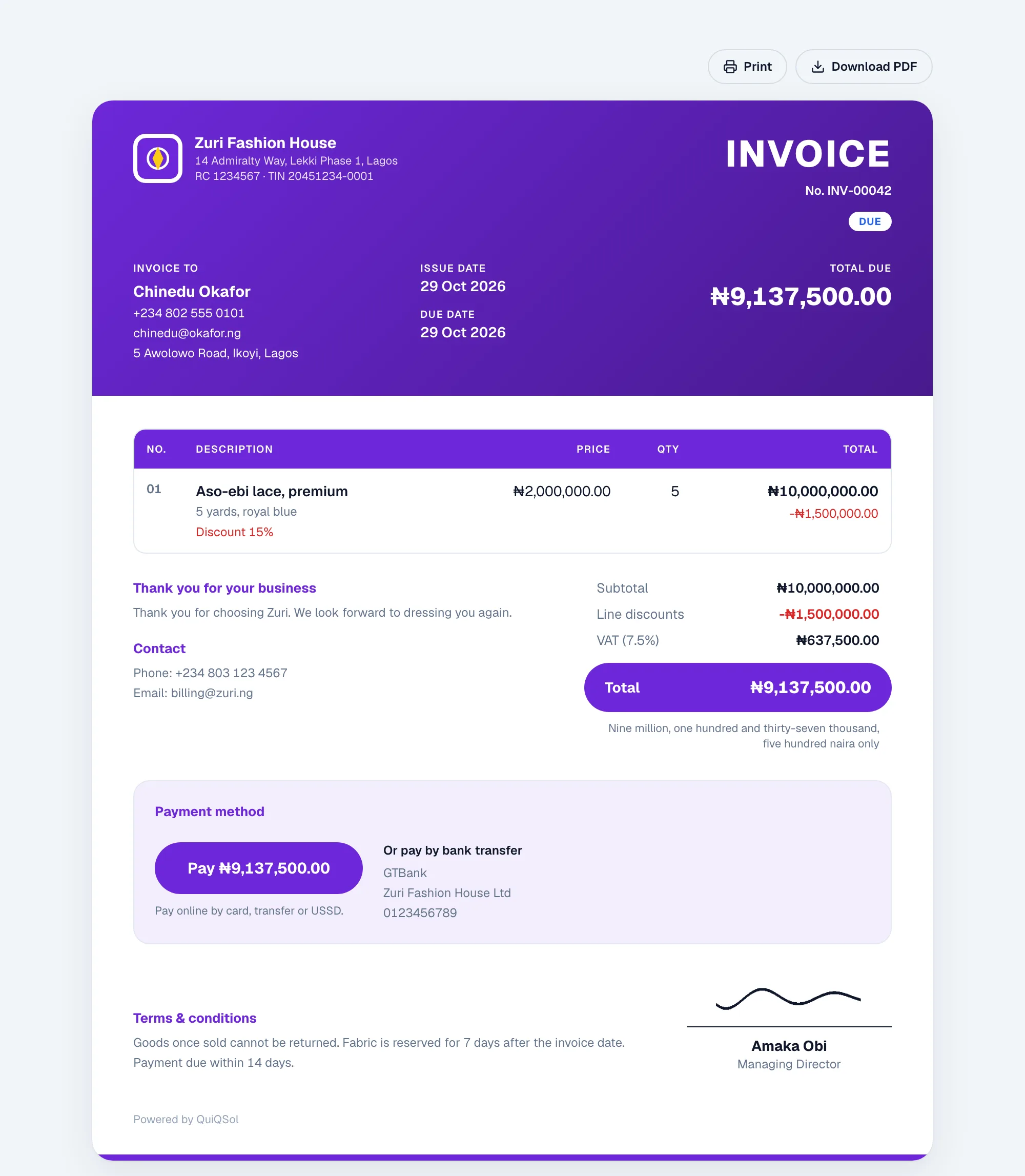
This is what your customer sees when you take payment online:
 The customer's view of the invoice with the Pay button
Your logo, brand colour, RC and TIN sit in the header with the invoice number, dates and total due. Below come the line items with each discount shown, the subtotal, VAT, WHT and total, the amount in words, your thank-you note and contact details, then Payment method with a Pay button in your brand colour, your bank details for transfers, your terms and the signature. On a part-paid invoice the button asks for the balance only. The customer can print it or download the PDF, which carries a clickable Pay link and a Scan to pay QR code. The invoice email shows the same invoice with the same Pay button. The page follows the customer's light or dark setting on screen and always prints as a clean A4 page.
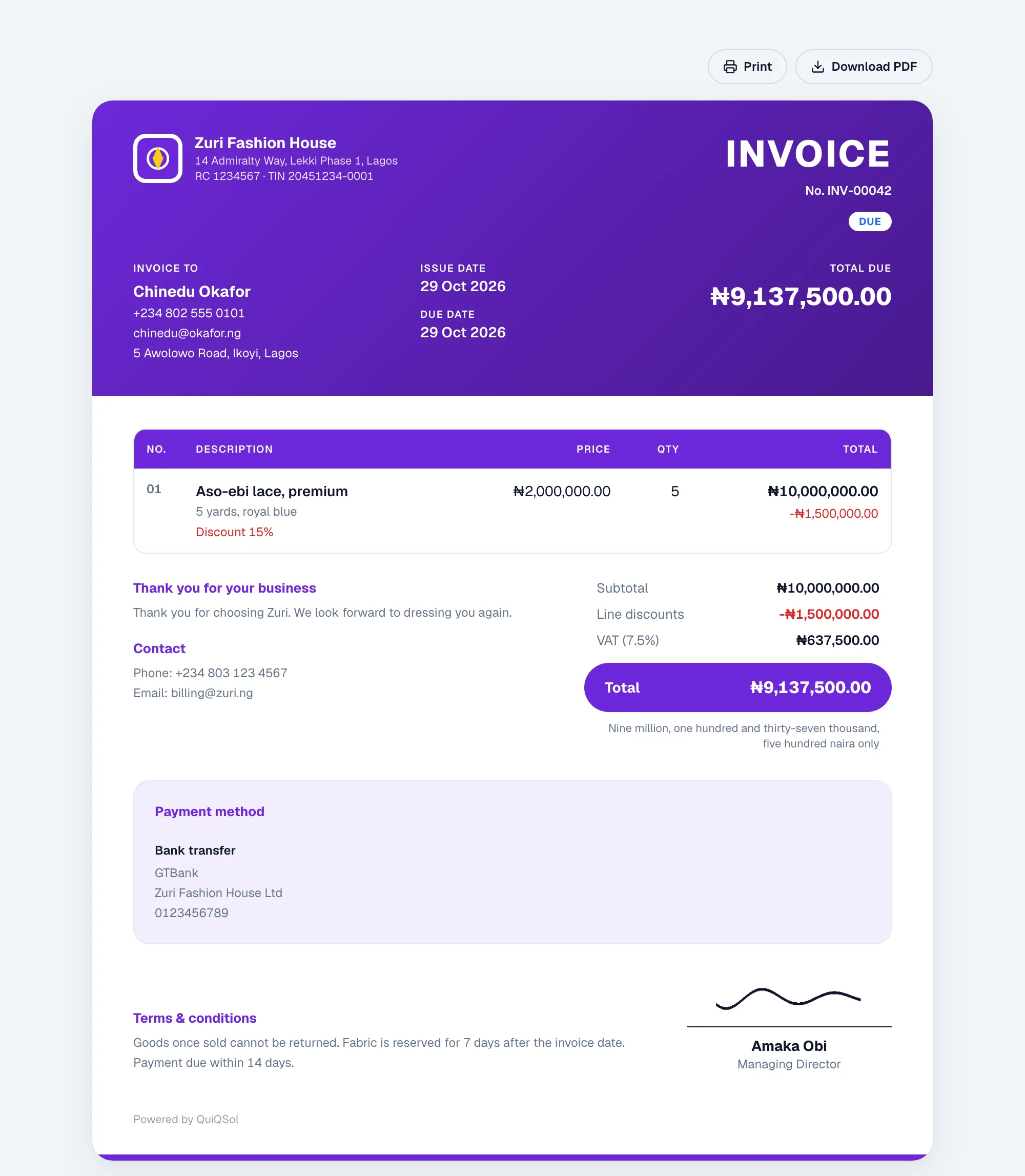
Without online payment, the same invoice shows your bank details only:
 The customer's view of the invoice with bank details only
An invoice moves from Draft to Sent, then Partially paid or Paid, or Overdue from the day after the due date, in your workspace time zone, with money still owed. An invoice due today is never shown as overdue. With overdue reminders on, QuiQSol emails the customer on the days you chose, for whatever balance is left.
4. Quote first with estimates
Go to Estimates to send a quote before the work. Estimates use the same design as your invoices. The customer opens the link, downloads the PDF if they need it, then accepts or declines with a reason. PDF on the estimate downloads it for you too. Click Convert to invoice on an accepted estimate and the invoice is ready to send, with its tax and WHT, and nothing typed twice.
To change a quote after a conversation, click Edit on the estimate at any stage before it becomes an invoice. Changes to a sent estimate go into its edit history, you choose whether to email the revised version, and an estimate the customer already accepted or declined goes back to them to respond to the new numbers. An expired estimate gets a fresh valid-until date when you edit it. Quotes created from a deal in the CRM work the same way, and an accepted quote moves the deal forward.
5. Bill on a schedule
Go to Recurring for retainers, subscriptions and regular services. Name the schedule, pick the customer, the line items, the frequency (weekly, monthly, quarterly or yearly), a start date and an optional end date. A real invoice is created and sent on each date.
Click Edit on an active or paused schedule to change its lines, tax, customer, frequency or end date. Changes apply to the invoices it creates from then on.
6. Refunds and corrections
Go to Credit Notes to credit a customer (the same search as Bill to, CRM contacts included), then apply the credit to one of their invoices that still has money owed. The invoice's balance due drops by the credit. PDF on each credit note downloads it in your invoice design to send to the customer.
7. Track what you are owed
- Invoices: filter by All, Unpaid, Part paid, Overdue, Paid and Drafts, or search by number or customer. Each row shows the total, what has been paid and the balance due.
- Dashboard: total invoiced, outstanding and overdue, money collected this month, recent invoices, upcoming payments and the ageing summary.
- Customers: each customer's invoices, payments and outstanding balance.
- Reports: pick a period (last 30 or 90 days, this year, the last 12 months or all time). You get invoiced, collected (and your collection rate), outstanding and overdue, the average days to get paid, tax charged and WHT withheld, a month-by-month chart of invoiced against collected, the customers who owe you most, recent payments, and CSV exports.
Reading the ageing summary
The ageing summary groups every unpaid balance by how long it has been overdue: Not yet due, 1 to 30 days, 31 to 60 days, 61 to 90 days and over 90 days. Part-paid invoices count only what is still owed. The older a debt, the harder it usually is to collect, so start with the groups on the right. Click a group in Reports to see its invoices, with what was paid, what is left and how many days late each one is.
Invoices and payments also show on the customer's record in the CRM under Billing, and a paid invoice can move its deal to Won (see Setting up Quiq CRM).