
Setting up QuiQ Space
Message a teammate or open a channel, share files and records, ask for approvals, call, and catch up on what you missed: nothing to set up.
QuiQ Space is your team's chat, inside QuiQSol: direct messages, channels, calls, files and approvals, next to the customers and deals you are talking about. Every teammate in your workspace can use it from day one, with nothing to set up. It is on every plan.
Open it from QuiQ Space at the bottom of the sidebar, anywhere in QuiQSol.
1. Start a conversation
Click New chat.
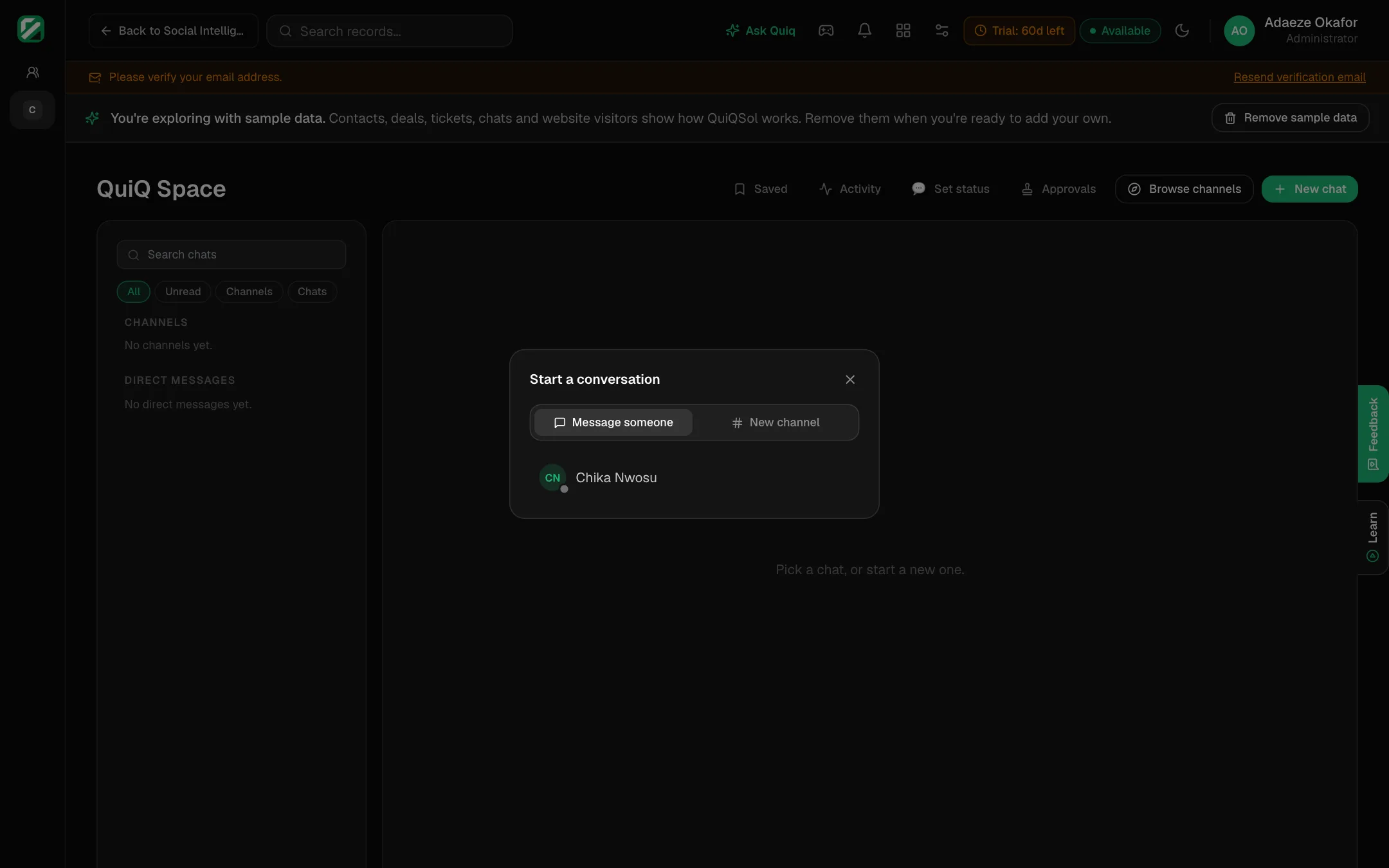 Start a conversation
- Message someone: pick a teammate for a direct message.
- New channel: a named group for a team, a project or a customer.
For a channel, give it a name, pick the members and click Create channel. Two options are worth knowing:
- Client account: link the channel to a customer's account and it gains tabs for that customer's deals, tickets and more.
- Announcement channel: only you and admins post; everyone else reads.
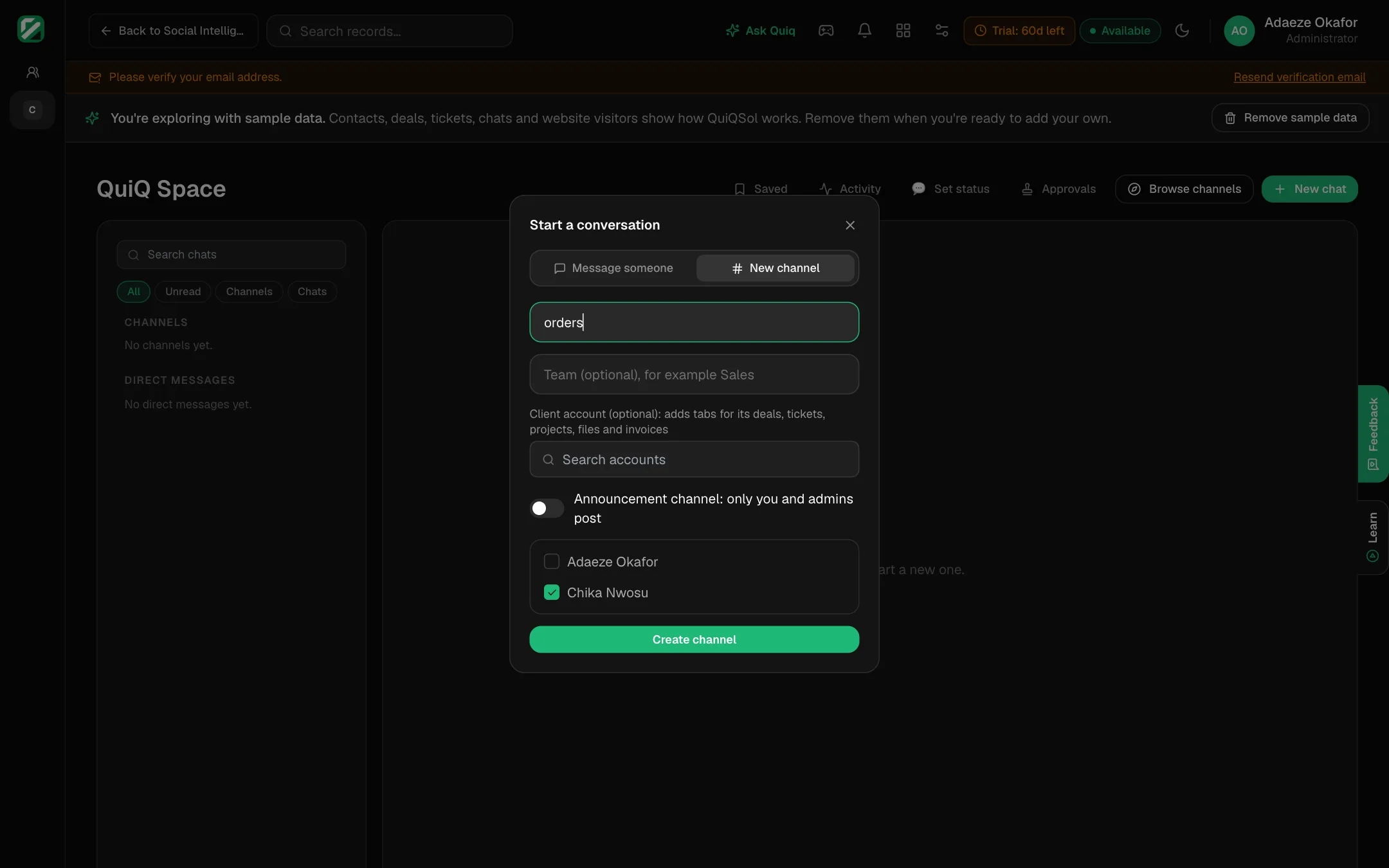 Creating a channel
Browse channels lists the channels you can join.
2. Talk, share and decide
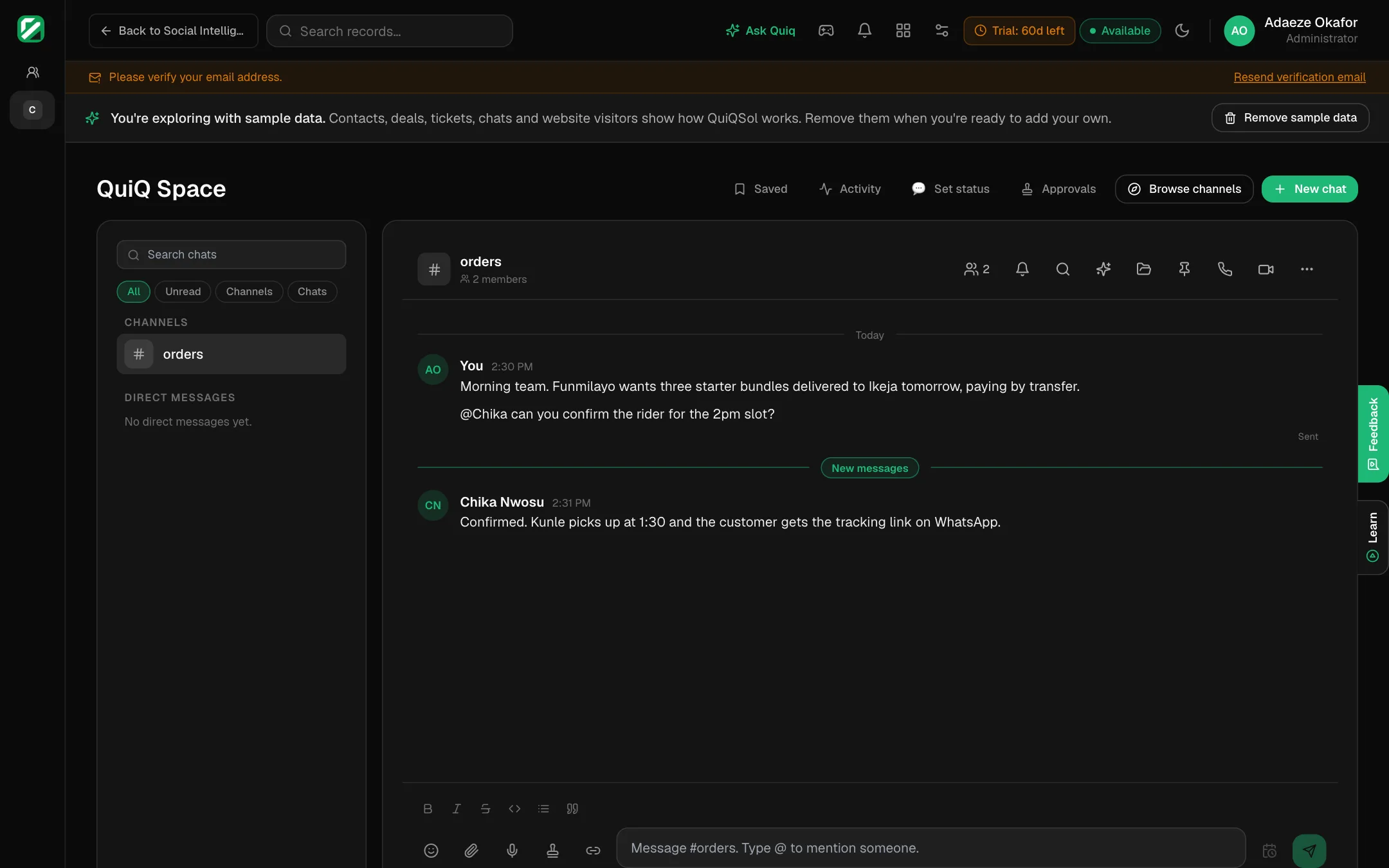 A channel
In the message box:
- Format with bold, italic, strikethrough, code, lists and quotes. Type @ to mention a teammate.
- Add an emoji, attach a file, or record a voice note.
- Link a deal, contact or ticket, so everyone opens the same record.
- Ask for approval of a discount, an expense or time off. The request goes to the approver, who answers in one click under Approvals.
- Schedule for later to send a message at a set time.
At the top of a chat:
- See the members and change Alerts for this chat.
- Search messages, open Files and Pinned messages.
- Catch me up: a short summary of what you missed, written when you ask for it.
- Start an audio call or video call.
- Channel settings: rename it, set its topic, add or remove members, invite a guest from outside your company, or leave.
3. Keep track
- Saved: messages you bookmarked.
- Activity: mentions and replies to you, in one list.
- Set status: in a meeting, focusing, commuting, working remotely, out sick or on leave.
- Filter the chat list by All, Unread, Channels or Chats.
New messages arrive instantly, and QuiQSol notifies you when you are mentioned. Set your quiet hours and notification choices under Settings → Notifications.