
Setting up Quiq Cold Outreach
Set up a sending domain, connect and warm up your mailboxes, write a sequence, enrol leads from your CRM, then answer sorted replies and find who to contact next.
On this page
Quiq Cold Outreach sends personal, step-by-step email sequences to leads already in your CRM, from your own mailboxes, with deliverability protected at every step. Replies are sorted for you and land back on the lead. It is on the Growth and Enterprise plans.
Open it from the Apps menu, then Cold Outreach. The sidebar holds All sequences, Replies, Opportunities, Verifier, Deliverability, Reports, Templates, Schedules, Notifications and Do-not-contact, then Email accounts and LinkedIn accounts.
1. Set up a sending domain
Go to Deliverability and open Set up a domain for cold email. Pick Google Workspace, Microsoft 365 or Zoho Mail for the exact steps.
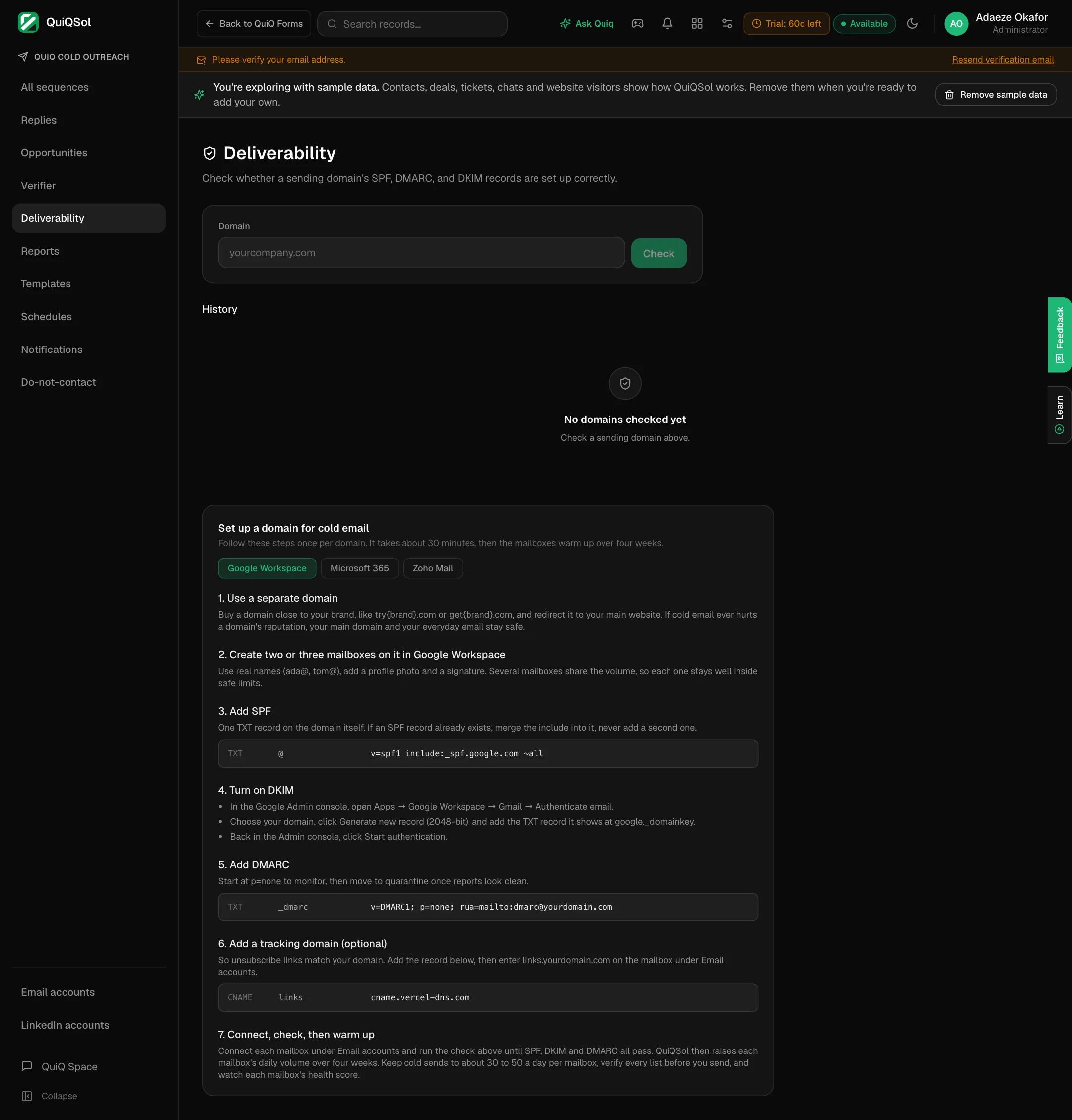 Setting up a domain for cold email
- Use a separate domain, close to your brand, such as try{brand}.com or get{brand}.com, and redirect it to your main website. If cold email ever hurts its reputation, your everyday email is untouched.
- Create two or three mailboxes on it with real names (ada@, tom@), a profile photo and a signature. Several mailboxes share the volume, so each stays low.
- Add SPF: one TXT record. If one already exists, merge into it; never add a second.
- Turn on DKIM in your email provider and add the record it gives you.
- Add DMARC: start at p=none to monitor, then move to quarantine once reports look clean.
- Add a tracking domain (optional), so unsubscribe links match your domain.
- Connect, check, then warm up (steps 2 and 3 below).
Type your domain at the top of Deliverability and click Check to confirm SPF, DKIM and DMARC all pass.
2. Connect your mailboxes
Go to Email accounts and click Connect a mailbox.
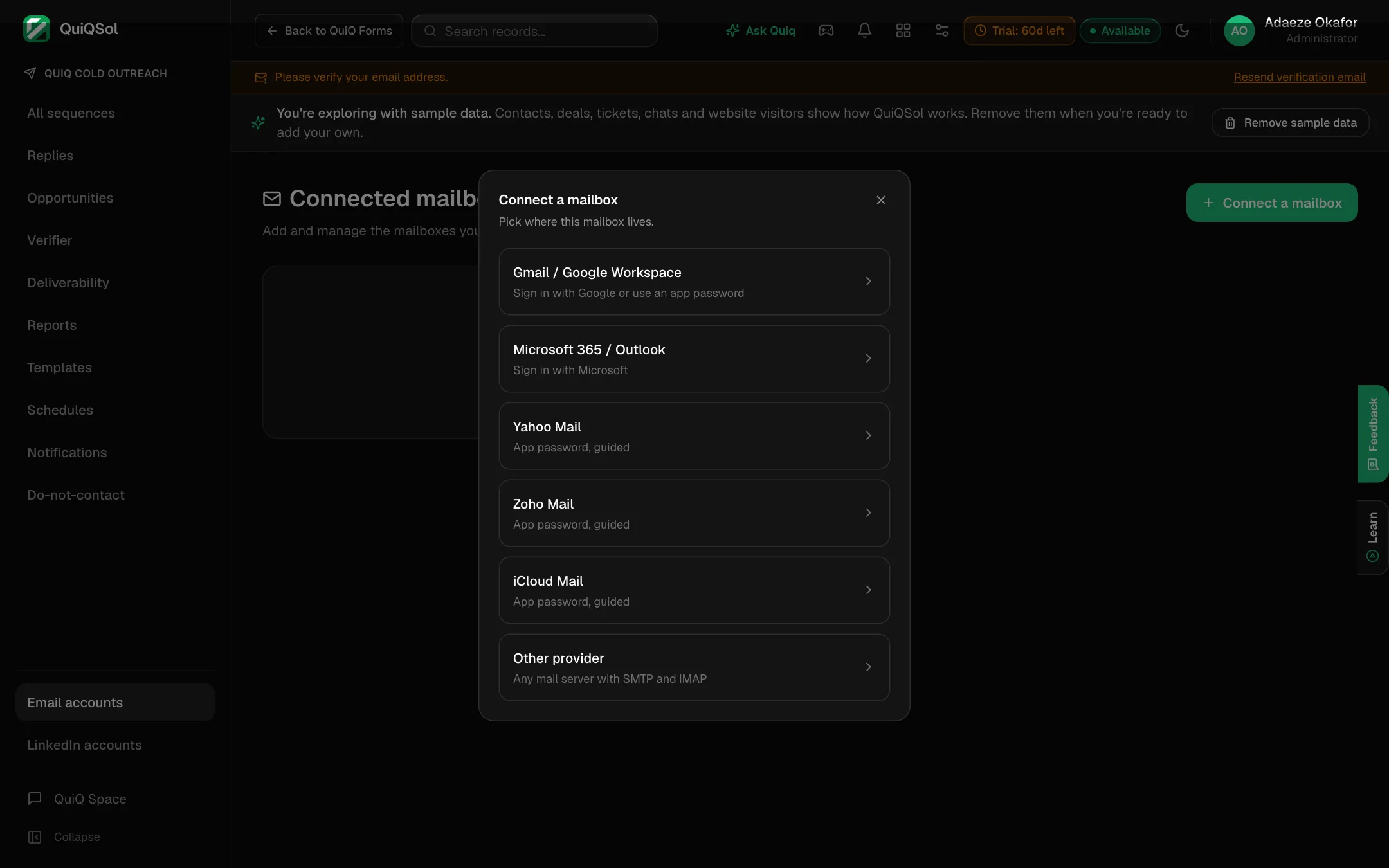 Choosing a mail provider
- Gmail / Google Workspace: sign in with Google, or use an app password.
- Microsoft 365 / Outlook: sign in with Microsoft.
- Yahoo Mail, Zoho Mail and iCloud Mail: an app password, with the steps shown for each.
- Other provider: any mail server with SMTP and IMAP.
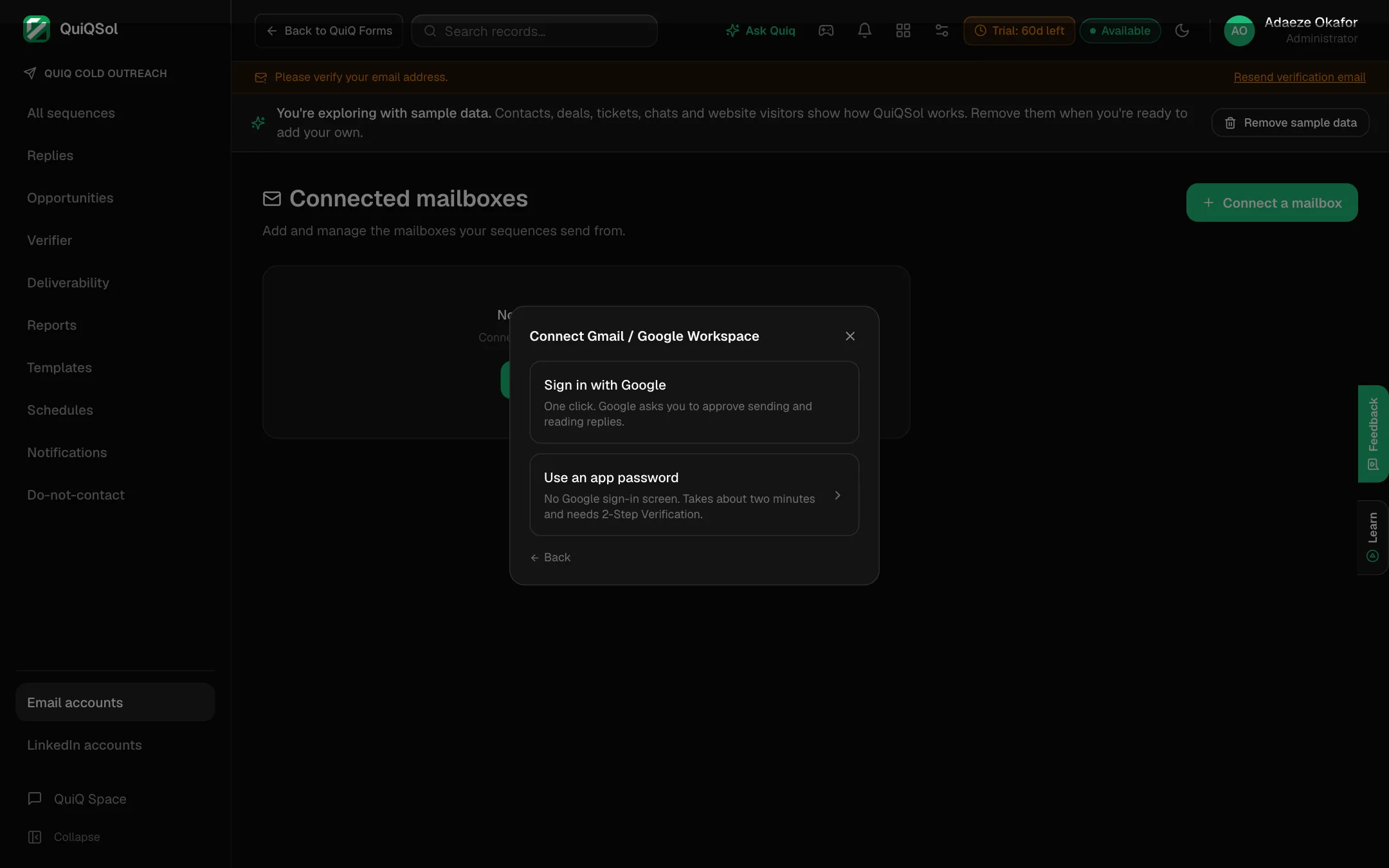 Connecting Gmail or Google Workspace
An app password takes about two minutes and needs 2-Step Verification turned on in your Google account.
For each mailbox, set its sending window (or attach a named window from Schedules) and an optional tracking domain. Put your signature at the end of each step's body; pasting one copied from your email client keeps its formatting.
3. Let each mailbox warm up
A brand-new mailbox that sends 75 cold emails on day one is flagged as spam within days. QuiQSol raises each mailbox's daily limit over four weeks on its own:
- Days 1 to 7: 10 emails a day.
- Days 8 to 14: 20 a day.
- Days 15 to 21: 35 a day.
- Days 22 to 28: 50 a day.
- From day 29: 75 a day.
Email accounts shows each mailbox's status and warm-up day. A mailbox pauses itself if too many emails bounce or sends keep failing, and Notifications can tell you when that happens.
4. Write a sequence
Go to All sequences and click New sequence.
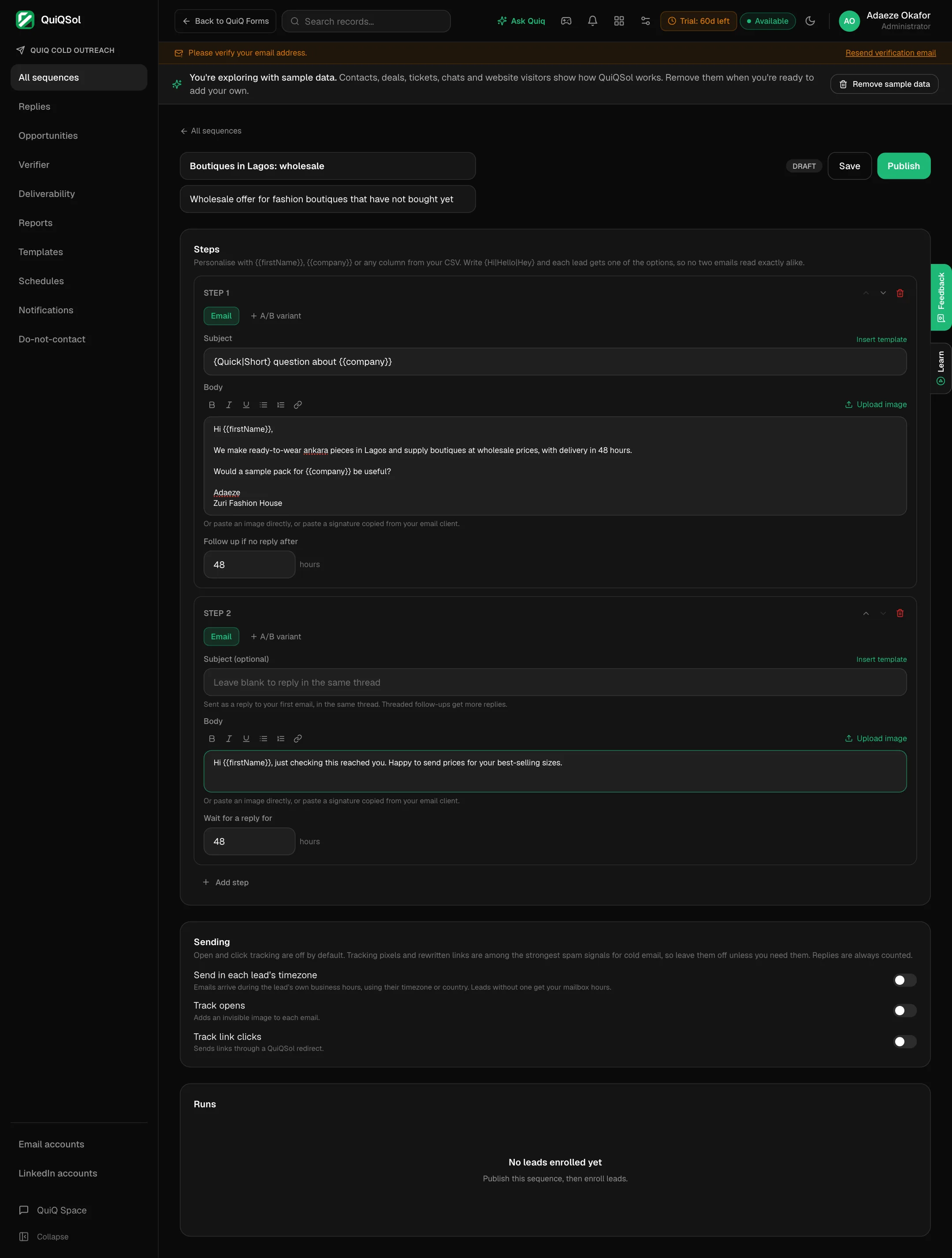 A sequence with two steps
- Name the sequence and add a short description.
- Step 1: the subject and body. Personalise with {{firstName}}, {{company}} or any column from your CSV. Write {Hi|Hello|Hey} and each lead gets one of the options, so no two emails read exactly alike. Insert template reuses a saved subject and body from Templates.
- Follow up if no reply after: how many hours to wait before the next step.
- Add step for each follow-up. Leave a follow-up's subject blank and it is sent as a reply in the same thread, which gets more replies.
- A/B variant on any step tests a second version against the first.
- Under Sending, choose Send in each lead's timezone, so emails arrive in their business hours. Open and click tracking are off by default, because tracking pixels and rewritten links are among the strongest spam signals for cold email. Replies are always counted.
- Click Save, then Publish. Steps lock while a sequence runs, so leads already in it are not affected by edits.
5. Enrol leads
Open a published sequence and click Enroll leads to pick leads from your CRM, filtered by status.
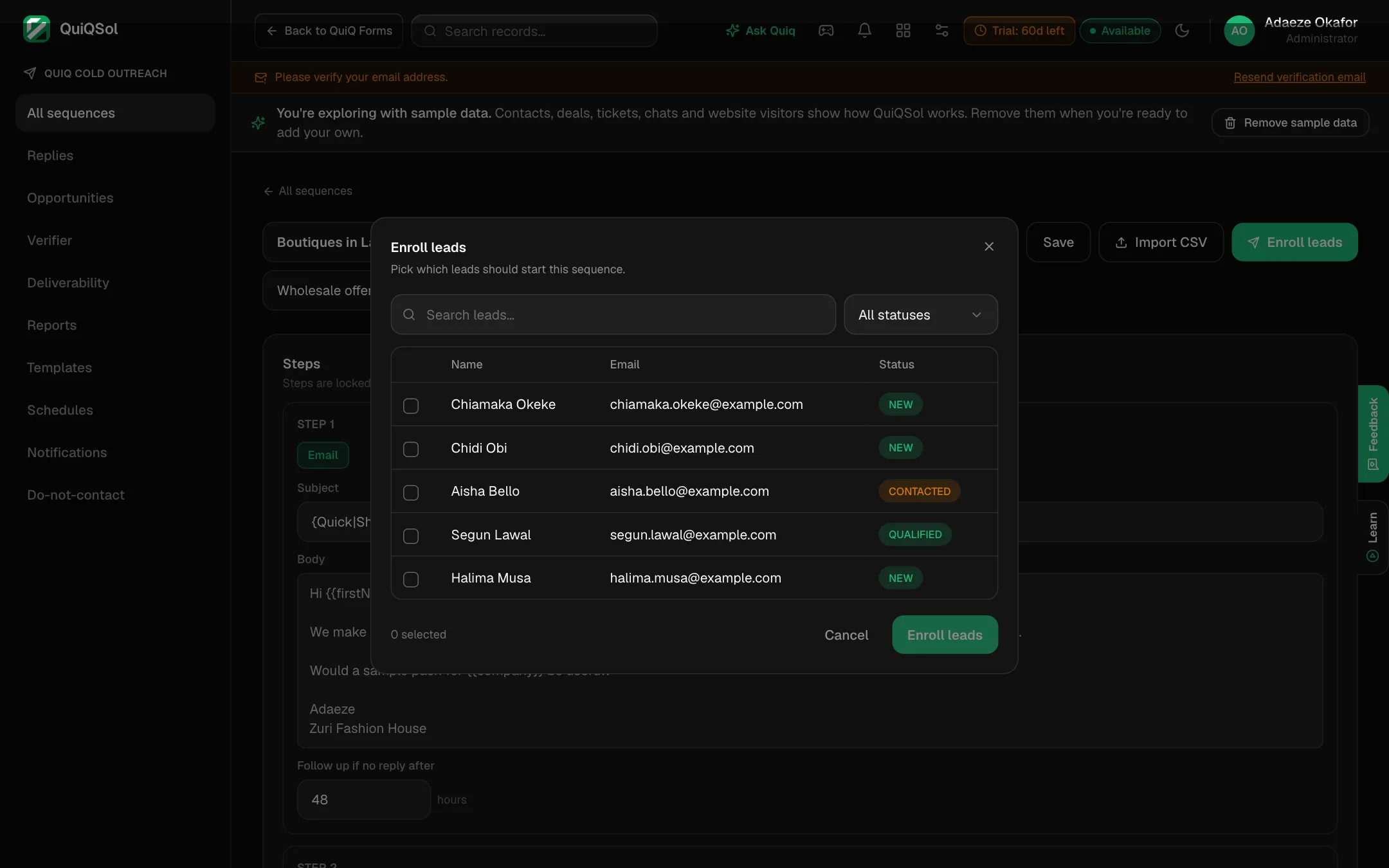 Enrolling leads from the CRM
Or click Import CSV to bring in up to 2,000 leads at once. The file needs an Email column; First Name, Last Name, Company, Title, Phone, Website, Country, Timezone and Industry are also read. Role addresses (info@, sales@) and disposable domains are left out unless you tick Include risky addresses. Imported leads are saved in your CRM.
Not sure an address is real? Verifier checks one address, or a whole CSV, for its format, its mail server and whether it is disposable or role-based, before it costs you a bounce.
6. Answer replies
Replies collects every reply from every mailbox and sorts it: Interested, Meeting request, Not interested, Out of office, Wrong person, Unsubscribe or Other, with Interested and Meeting request first. Change a category with one click, and answer from the same screen. A lead who replies stops receiving the sequence.
Anyone who clicks the unsubscribe link or hard-bounces goes on Do-not-contact and is never emailed by a sequence again. You can add addresses there yourself.
7. Find who to contact next
Opportunities lists leads already in your CRM that nobody has contacted in 30 days, ranked by how much they look like the customers who bought from you (industry, country, seniority and company size), plus how reachable they are (a verified email, past engagement, a company and a title). Every score shows its reasons. Pick the best and enrol them in a sequence.
8. Measure results
Reports shows emails sent (first emails and follow-ups), delivery and bounce rates, reply rate, unsubscribes, the engagement funnel and the activity trend over the last 30 days. Each sequence also shows its own results per step.