
Setting up Quiq CRM
Bring in your contacts, shape your pipeline to how you sell, let deals move on their own, and see where your customers come from and when they will buy again.
On this page
- 1. Start from CRM Home
- 2. Bring in your contacts
- 3. Work your leads
- 4. Shape your pipeline
- 5. Let deals move on their own
- 6. Work your deals
- 7. Know every customer
- 8. See where customers come from
- 9. Sell again to the customers you have
- 10. Add what you sell
- 11. Track performance
- Send your results to LinkedIn Ads
- Connect QuiQSol to Zapier
- Also in the CRM
- Who can do what
Quiq CRM keeps every customer, lead and deal in one place, with every chat, email, call, meeting, ticket and invoice on the same record. This guide takes you from an empty CRM to a working pipeline, then through the features your team will use every day.
Open it from the Apps menu, then CRM. Everything below sits in the CRM sidebar: Home, Leads, Contacts, Possible Duplicates, Accounts, Deals, Buy again, Billing, Sources, Products, Tasks, Meetings, Calls, Documents, Contracts, Daily Sales Pulse and Analytics.
1. Start from CRM Home
CRM Home is your sales day at a glance.
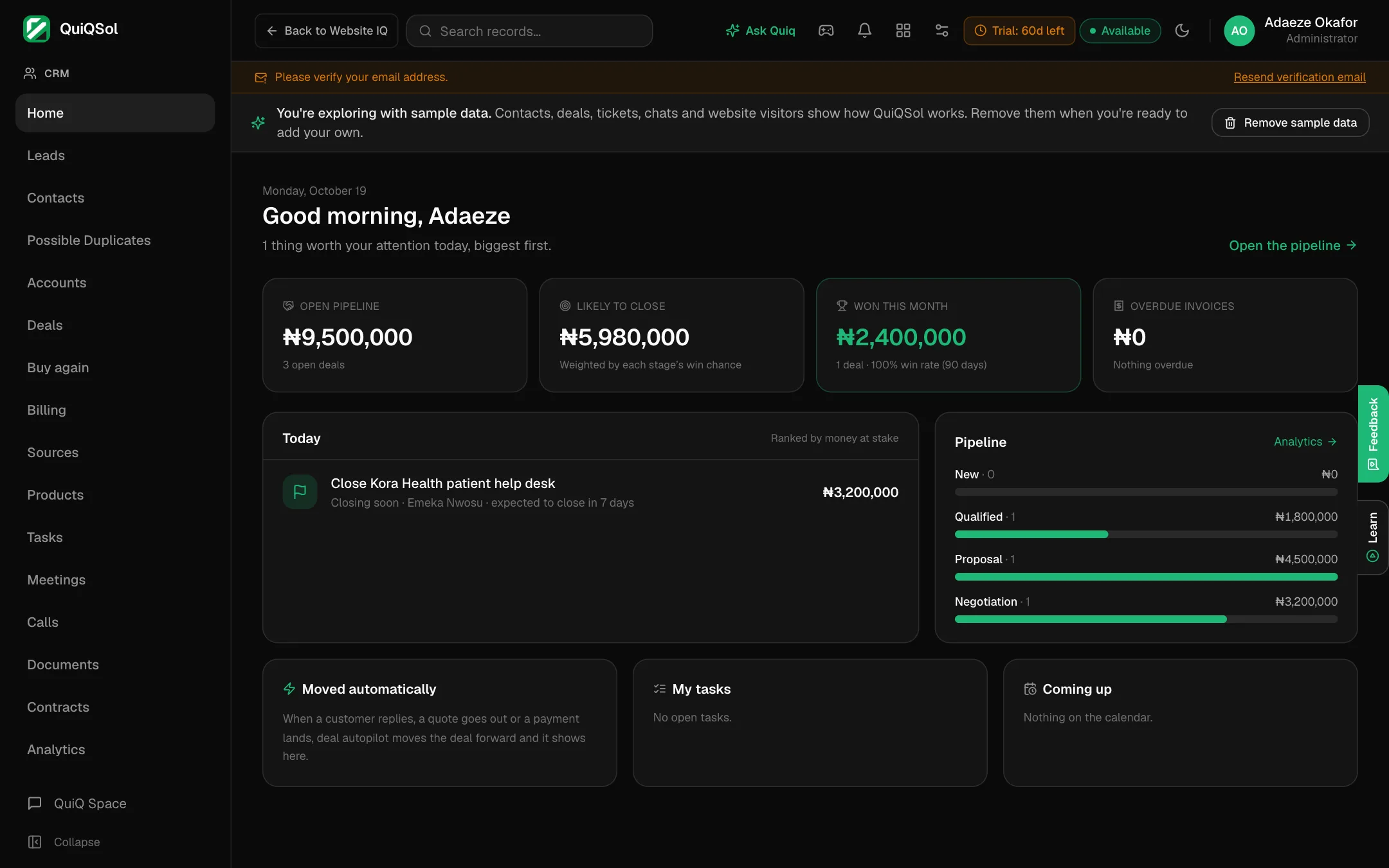 CRM Home with the pipeline totals and the Today list
- Open pipeline: the value of every open deal.
- Likely to close: the same deals weighted by each stage's win chance, so a deal at Proposal counts for less than one at Negotiation.
- Won this month and Overdue invoices.
- Today: the deals and follow-ups that need you, ranked by the money at stake.
- Moved automatically: deals the autopilot moved forward for you (see step 5).
- My tasks and Coming up: your tasks and meetings.
2. Bring in your contacts
Go to Contacts. The toolbar has everything you need to fill it.
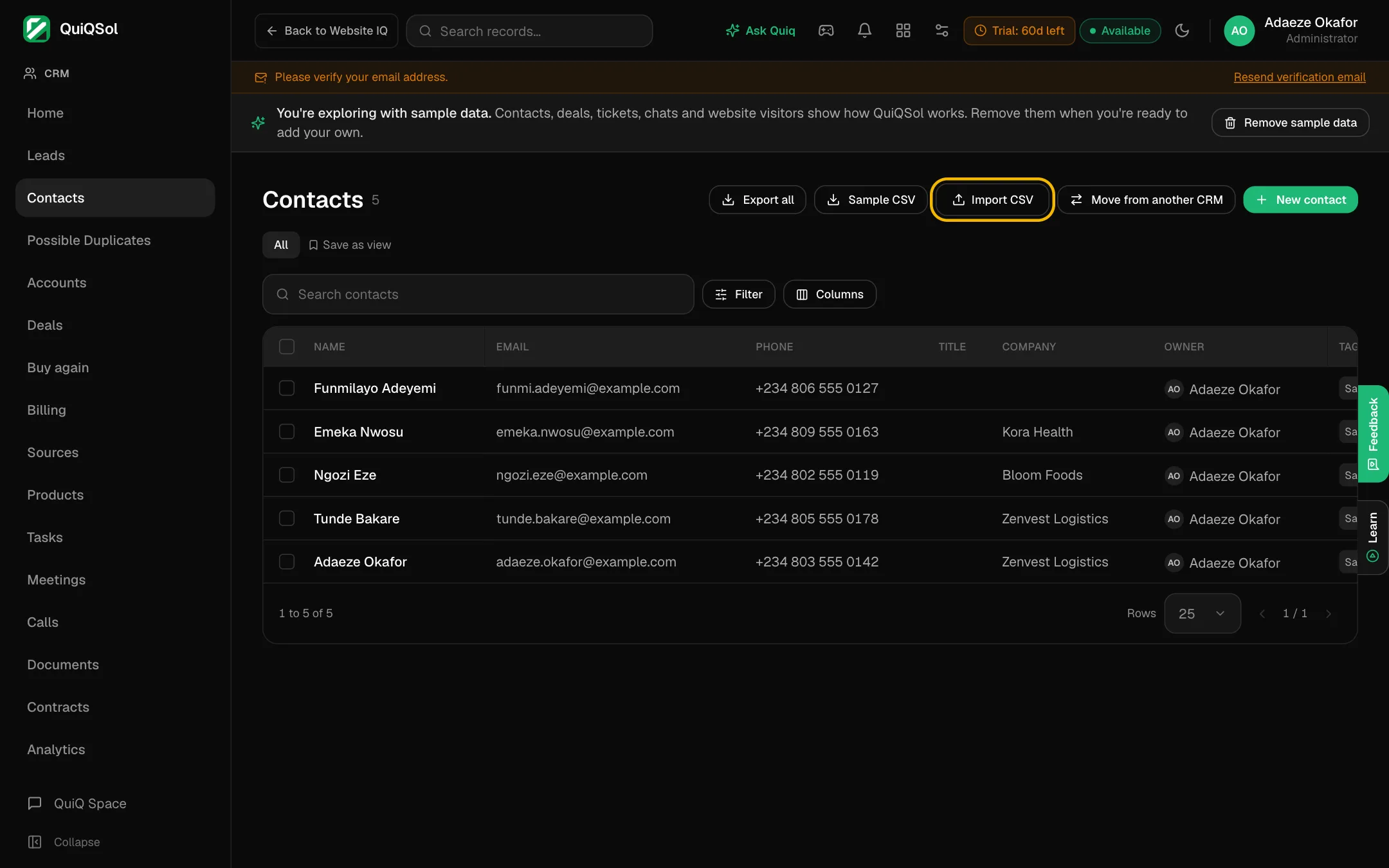 Contacts with Import CSV
From a spreadsheet
- Click Sample CSV to download a template with the right columns: First Name, Last Name, Email, Phone, Company, Job Title, City, Country, Source, plus any custom fields you have added.
- Fill it in. First Name and Last Name are required on every row.
- Click Import CSV and choose your file.
When a row's email already belongs to a contact, that contact is updated instead of duplicated, so you can safely import the same list again. A company name creates the company under Accounts, or links to it if it already exists. Rows that cannot be imported are listed with the reason, so you can fix them and import again.
Leads have their own Sample CSV and import on the Leads page.
From HubSpot or Pipedrive
Click Move from another CRM.
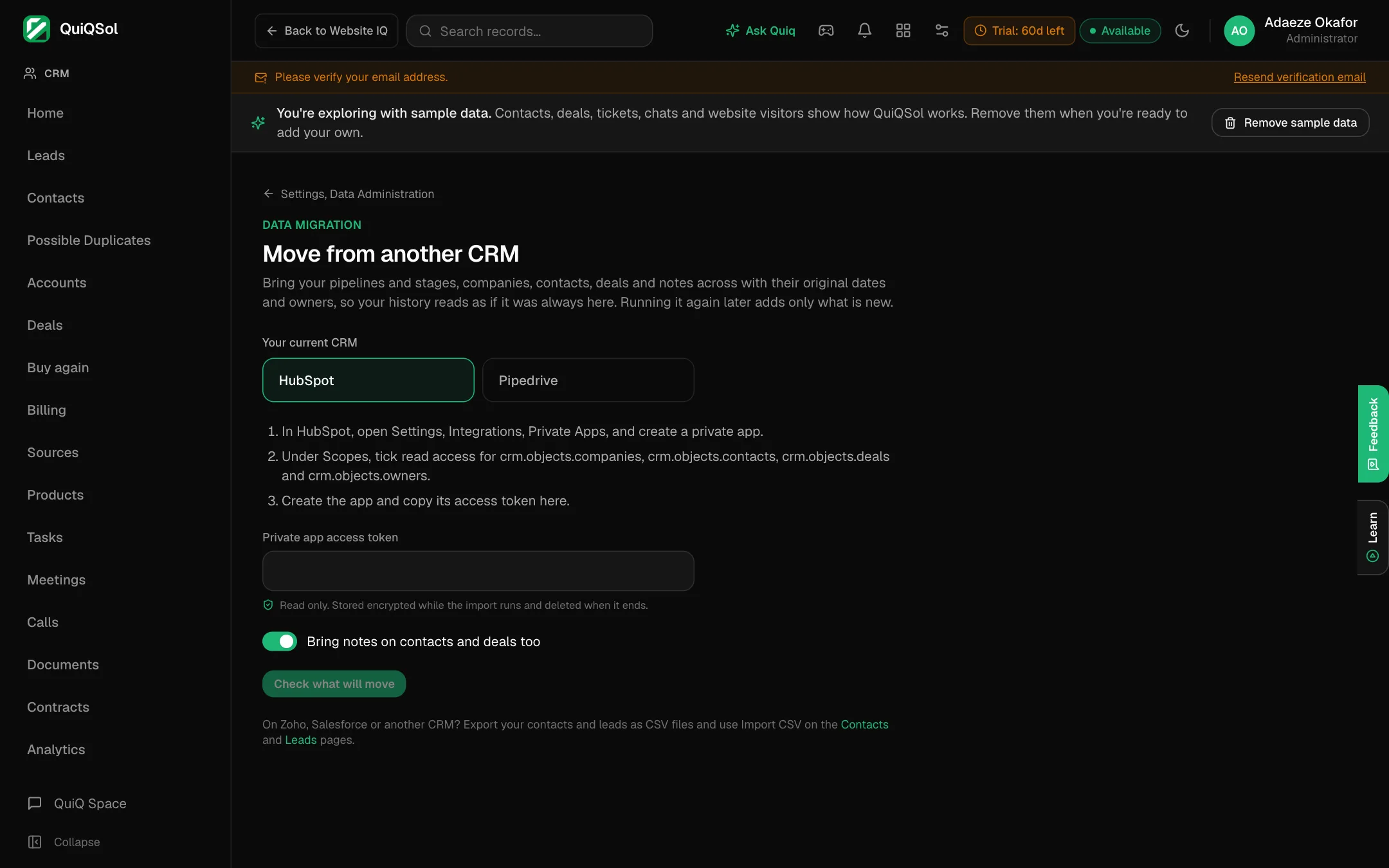 Move from another CRM
- Pick HubSpot or Pipedrive.
- Get an access token from that CRM:
- HubSpot: open Settings, Integrations, Private Apps, and create a private app. Under Scopes, tick read access for crm.objects.companies, crm.objects.contacts, crm.objects.deals and crm.objects.owners. Create the app and copy its access token.
- Pipedrive: open your profile menu, Personal preferences, API, and copy your personal API token. Use an admin account so every deal comes across.
- Paste the token into QuiQSol, then tick Bring notes on contacts and deals too if you want the history.
- Click Check what will move to see the counts first, then start the move. Pipelines and stages, companies, contacts and deals come across, each linked as it was.
Add one by hand
Click New contact. Select several contacts in the list to assign them to a teammate, tag them or delete them in one go.
Possible Duplicates
When QuiQSol finds two records that are probably the same person, they appear under Possible Duplicates for you to confirm. On any contact, Merge into… folds that contact into the one you pick, which keeps the history of both.
3. Work your leads
A lead is someone you have not qualified yet. Leads arrive from your website chat, Website forms, Quiq Forms, LinkedIn lead ads, WhatsApp, booked meetings, imports, or New lead.
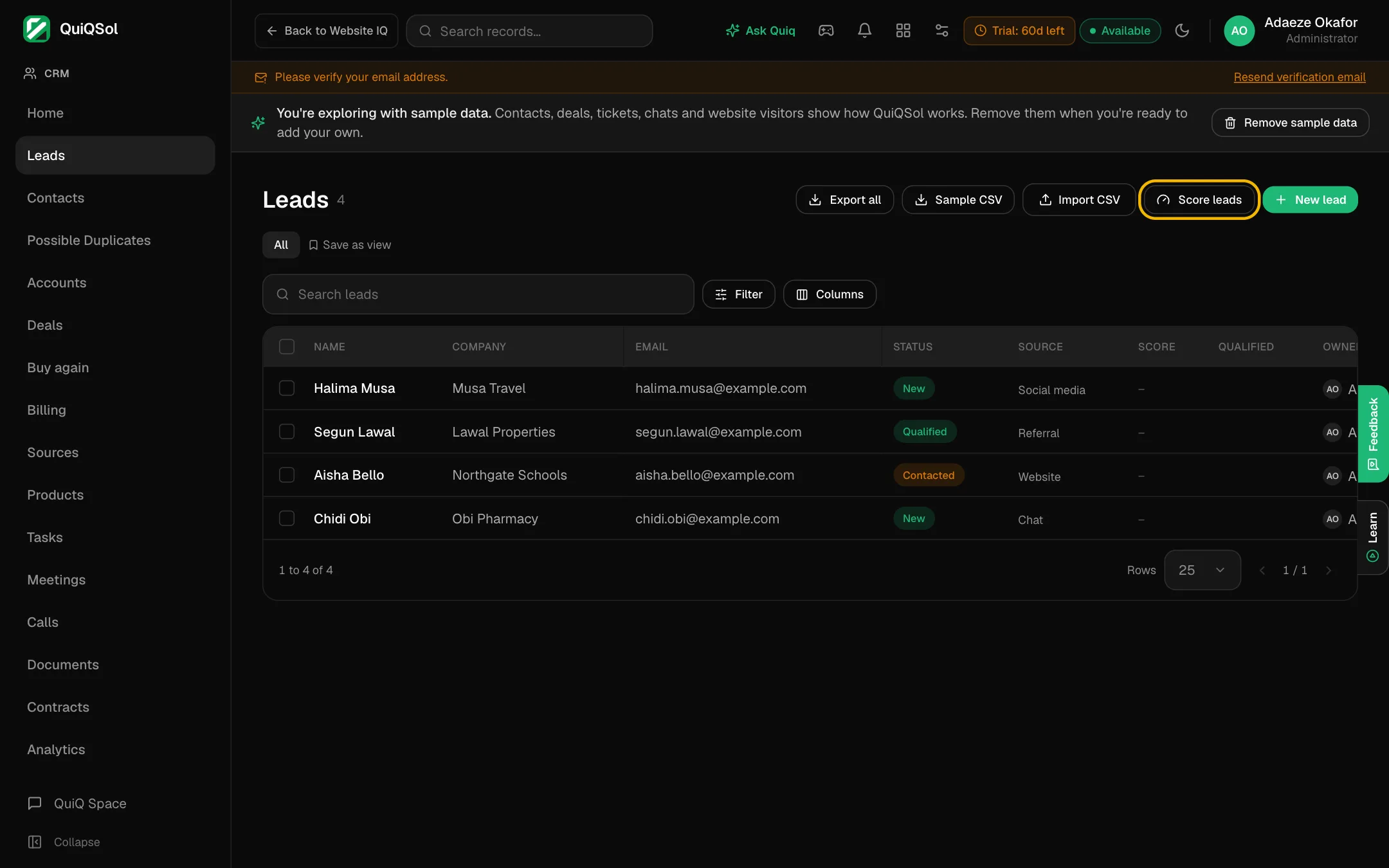 Leads with Score leads
Every lead shows its status and score. Open a lead to see where it came from and what it did on your website.
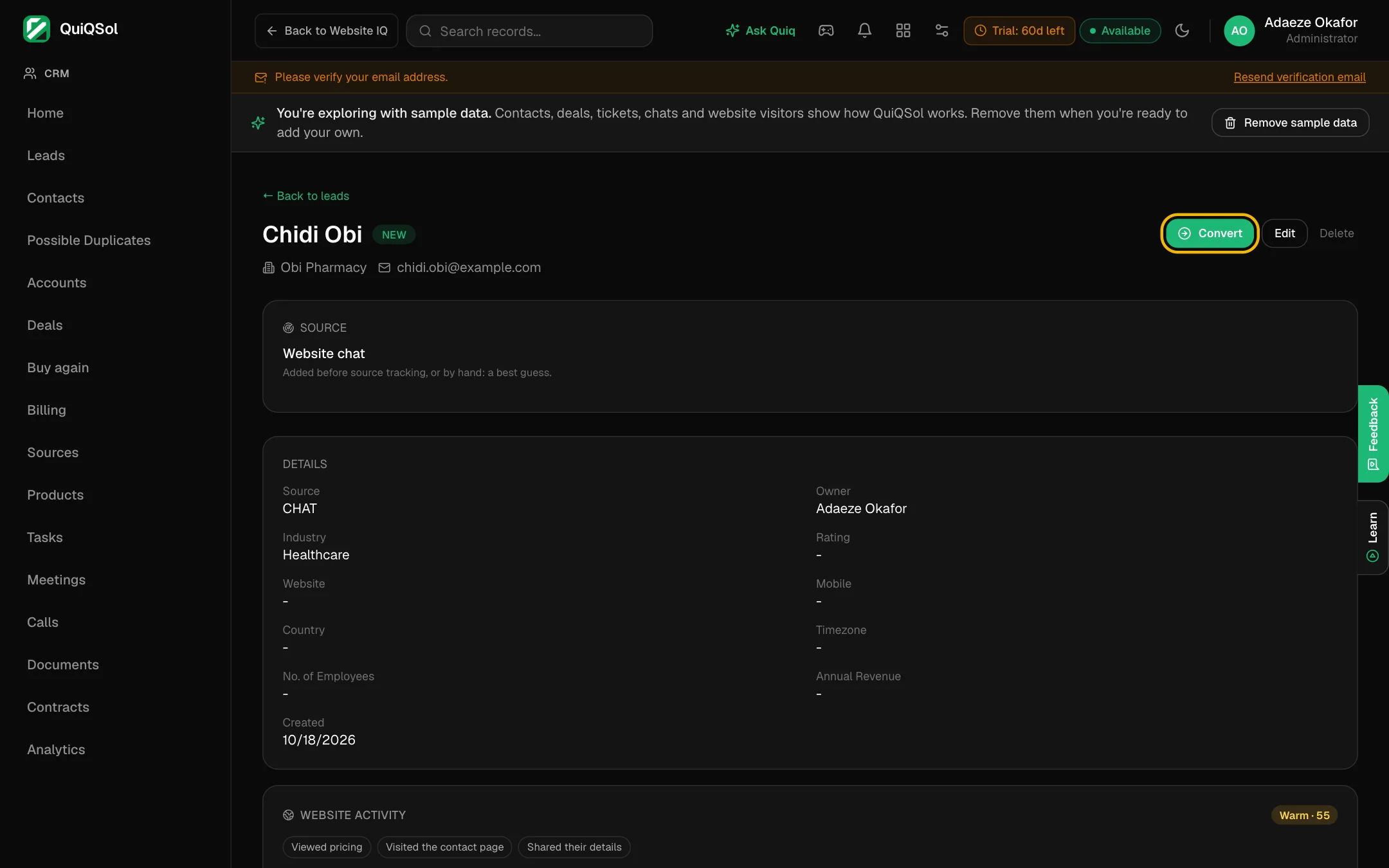 A lead with Convert
When a lead is real, click Convert. QuiQSol turns it into a contact, or links it to the existing contact with the same email or phone, so you never get a second record for the same person. You can create a deal at the same time; it starts in the first stage of your pipeline.
From LinkedIn lead ads
When you run LinkedIn Lead Gen ads, every form response can land in Leads by itself. On the Leads page, click LinkedIn Lead Gen.
- Click Connect LinkedIn and sign in with a LinkedIn profile that has a role on your Campaign Manager ad account. Any role works, Viewer included. QuiQSol only reads your lead forms and their responses; it never posts, edits campaigns or spends.
- Tick the ad accounts whose leads you want and click Save and read lead forms. Every lead form in those accounts appears in the list.
- Open a form. QuiQSol has already matched LinkedIn's standard questions (first name, last name, email, phone, company, job title) to the right CRM fields. Map any other question to a CRM field, to Full name, or to + Create a new CRM field.
- Choose how people already in your CRM are recognised (the email question is picked for you), whether their details are kept or updated, and the lead source (Paid ads by default).
- Tick Sync this form's responses to the CRM and click Save and apply. Sync stays off for every form until you turn it on.
- Click Import the last 90 days to bring in the responses the form received before you connected. LinkedIn keeps leads for 90 days.
New responses arrive within minutes and each one is processed once. By default, a person who is already a contact updates that contact instead of becoming a new lead, and assignment rules give each new lead its owner. In Sources the lead shows as Lead form · LinkedIn Ads · the campaign name · the form name. Recent responses under each form shows what came in and links to each record. To test it, send a test lead from the form in Campaign Manager.
If LinkedIn access expires, the page asks you to Reconnect LinkedIn and picks up the leads that arrived in between. Disconnect stops new leads; leads already synced stay, and your mappings are kept for when you reconnect.
LinkedIn Lead Gen opens in every workspace once LinkedIn approves QuiQSol's Lead Sync access. Until then, send LinkedIn leads to the public API through Zapier or Make, or import the CSV that Campaign Manager exports.
Score leads automatically
Under Settings → CRM → Lead scoring, switch on Score leads automatically and describe your best customer: target industries, target countries and minimum employees. Every open lead gets a score out of 100: up to 50 for how well it fits, and up to 50 for what it did in the last 30 days (email opens, clicks and replies, form submissions, completed calls and chat messages). Scoring is plain arithmetic, so it costs nothing to run. Set a qualifying score and choose whether leads that reach it are marked Qualified on their own; the lead's owner is told when that happens. Score leads on the Leads page rescores everyone now.
4. Shape your pipeline
Go to Settings → CRM.
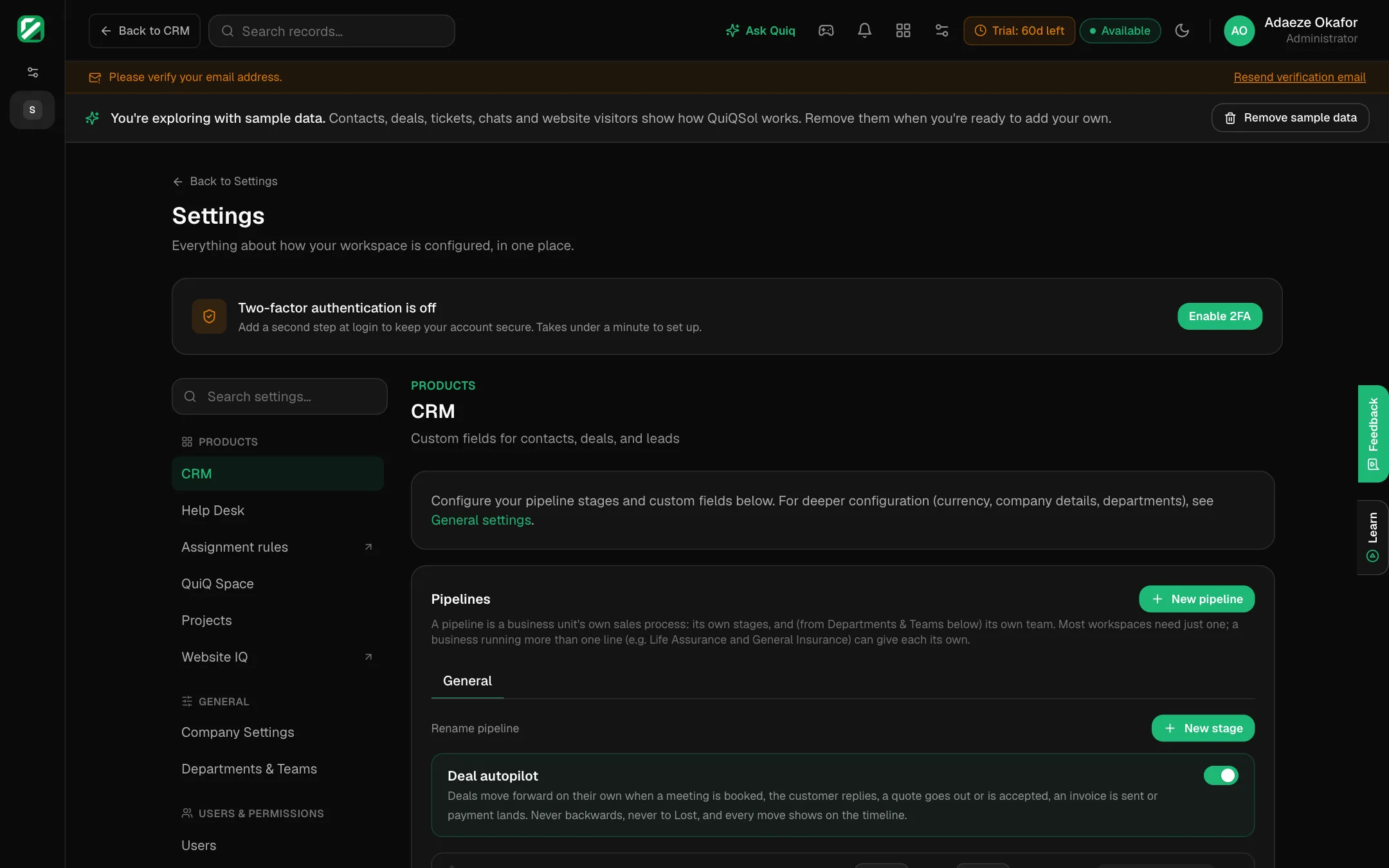 Settings, CRM
Your workspace starts with one pipeline and six stages: New, Qualified, Proposal, Negotiation, Won and Lost. Change them to match how you actually sell.
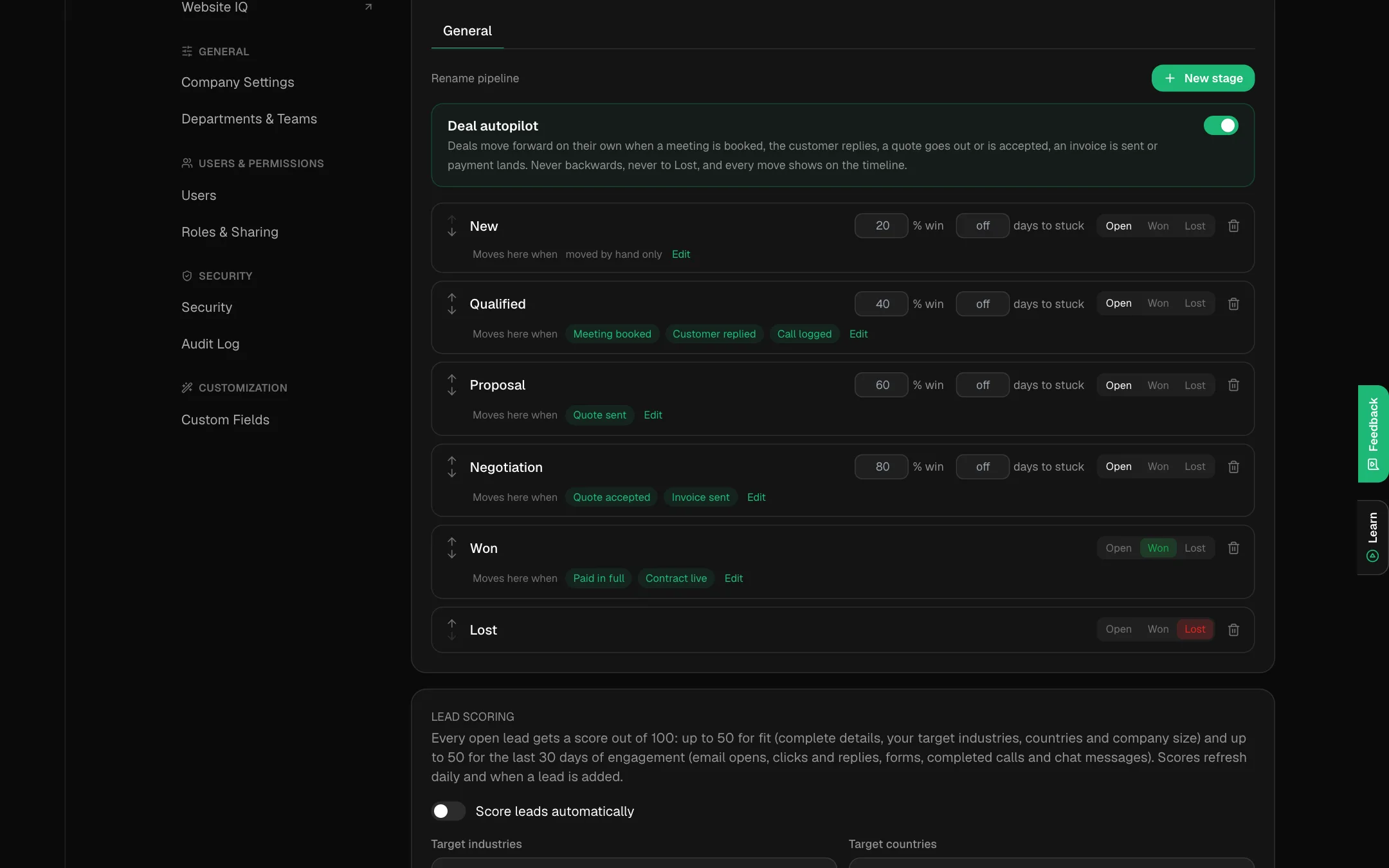 Pipeline stages with win chance, stuck days and autopilot triggers
For each stage you can set:
- Name, and the order with the arrows.
- Win chance (%): how likely a deal at this stage is to close. This drives Likely to close on CRM Home and the Weighted total on the Deals board.
- Days to stuck: a deal that sits in this stage longer is flagged as stuck. Leave it off for stages where time does not matter.
- Kind: Open, Won or Lost. Analytics, the forecast and Buy again count a deal as won or lost by its stage's kind, so mark these correctly.
Click New stage to add one. Selling to different kinds of customer, or through different business units? Click New pipeline to give each its own stages.
5. Let deals move on their own
Deal autopilot moves a deal forward when something real happens: a meeting is booked, the customer replies, a quote goes out or is accepted, an invoice is sent or payment lands. Deals only move forward, never backwards and never to Lost, and every move shows on the deal's timeline and under Moved automatically on CRM Home.
Each stage shows Moves here when with the events that bring a deal to it. Click Edit on a stage to change them. The defaults:
- New: moved by hand only.
- Qualified: meeting booked, customer replied, call logged.
- Proposal: quote sent.
- Negotiation: quote accepted, invoice sent.
- Won: paid in full, contract live.
- Lost: moved by hand only.
Switch Deal autopilot off at the top of the section if your team prefers to move every deal by hand.
6. Work your deals
Go to Deals.
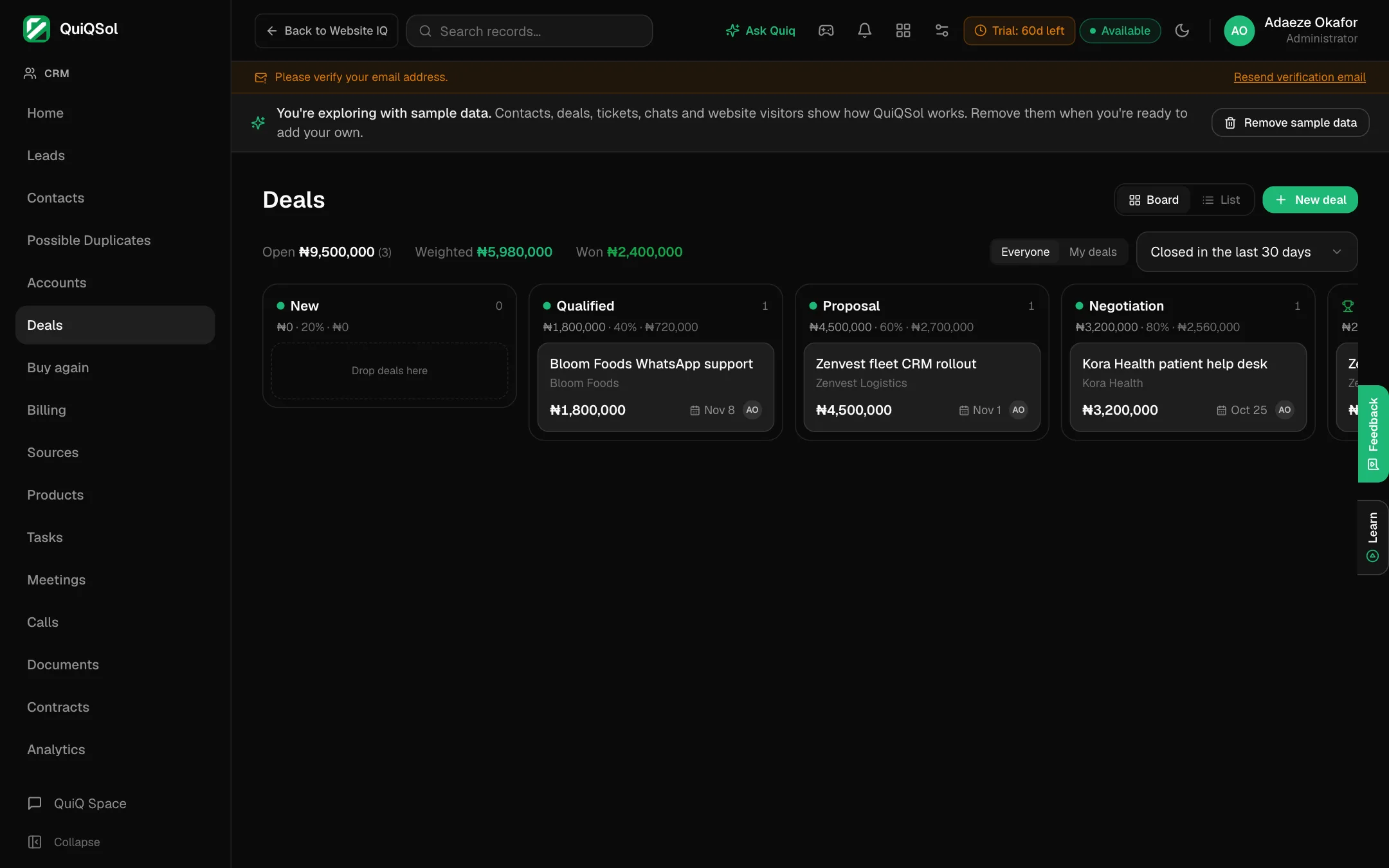 The Deals board
- Switch between Board and List, and between Everyone and My deals.
- The header shows your Open, Weighted and Won totals.
- Each column shows the value in that stage, its win chance and its weighted value.
- Drag a card to another column to move the deal.
- Closed deals show for the last 30 days by default. Change it from 7 days to all closed deals.
Click New deal to add one, then open it.
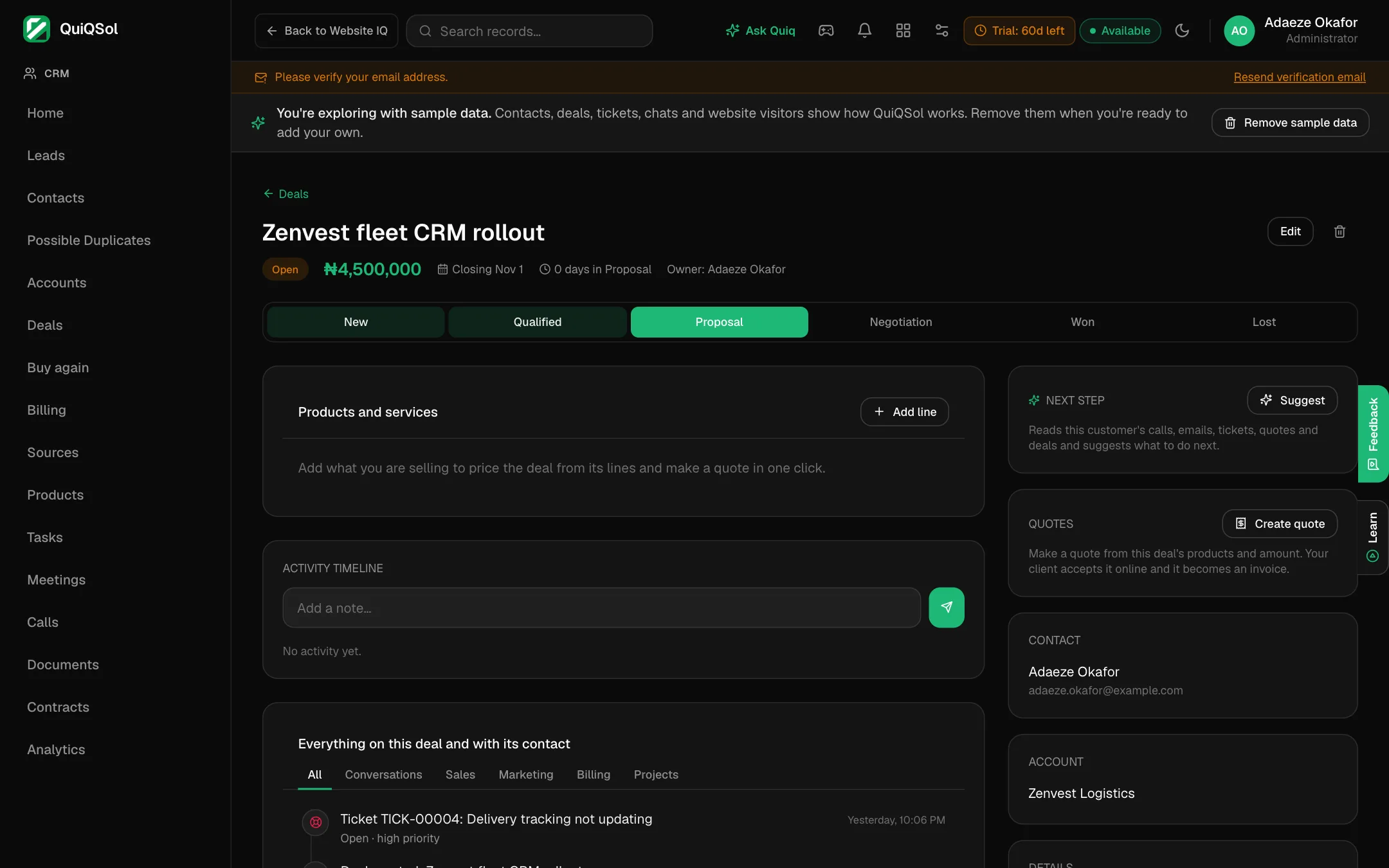 A deal
On the deal page:
- Stage bar: click any stage to move the deal.
- Products and services: click Add line to price the deal from what you sell (see step 9).
- Activity: add notes. Below it, Everything on this deal and with its contact shows every conversation, sale, marketing email, invoice and project, with tabs to filter.
- Next step: what to do next. Click Suggest for an idea based on the deal's history.
- Quotes: click Create quote. The customer accepts it online and it becomes an invoice (with Quiq Invoices on your plan).
7. Know every customer
Open any contact.
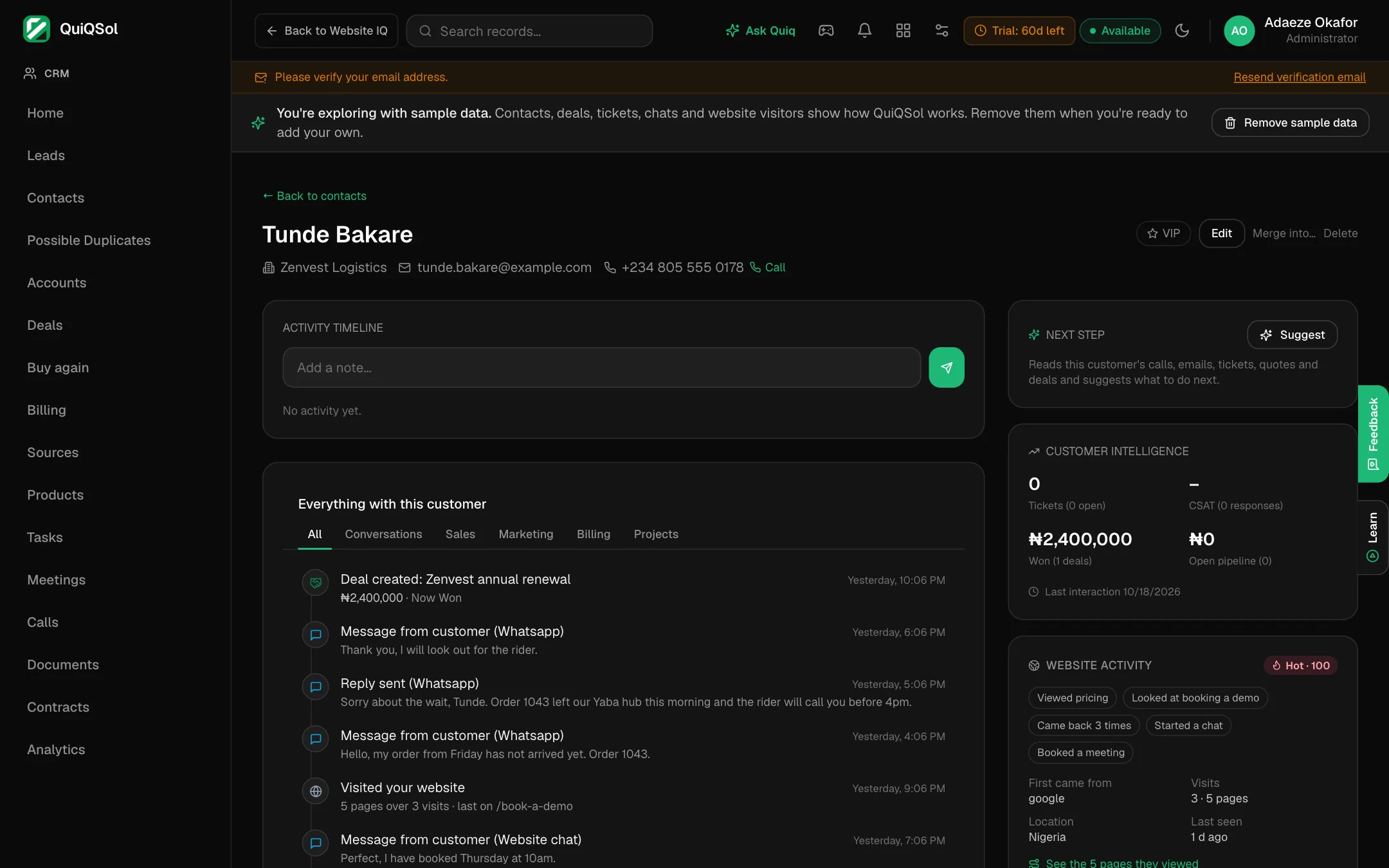 A contact
The contact page brings together:
- Activity: add a note, and see every chat, email, call, meeting, ticket, deal, invoice and project on one timeline.
- Customer intelligence: open tickets, satisfaction score, deals won, open pipeline and last interaction.
- Website activity: a Hot, Warm or Cold score, the pages that matter (pricing, contact), where they first came from, visits and location. This fills in once your website runs the Website IQ code.
- Source, Owner, Deals, and Sent from your website when they filled in one of your forms.
At the top: mark them VIP, Edit, Merge into… or Delete. Click the phone number to call.
8. See where customers come from
Sources shows exactly where your contacts and leads come from, and what they went on to buy.
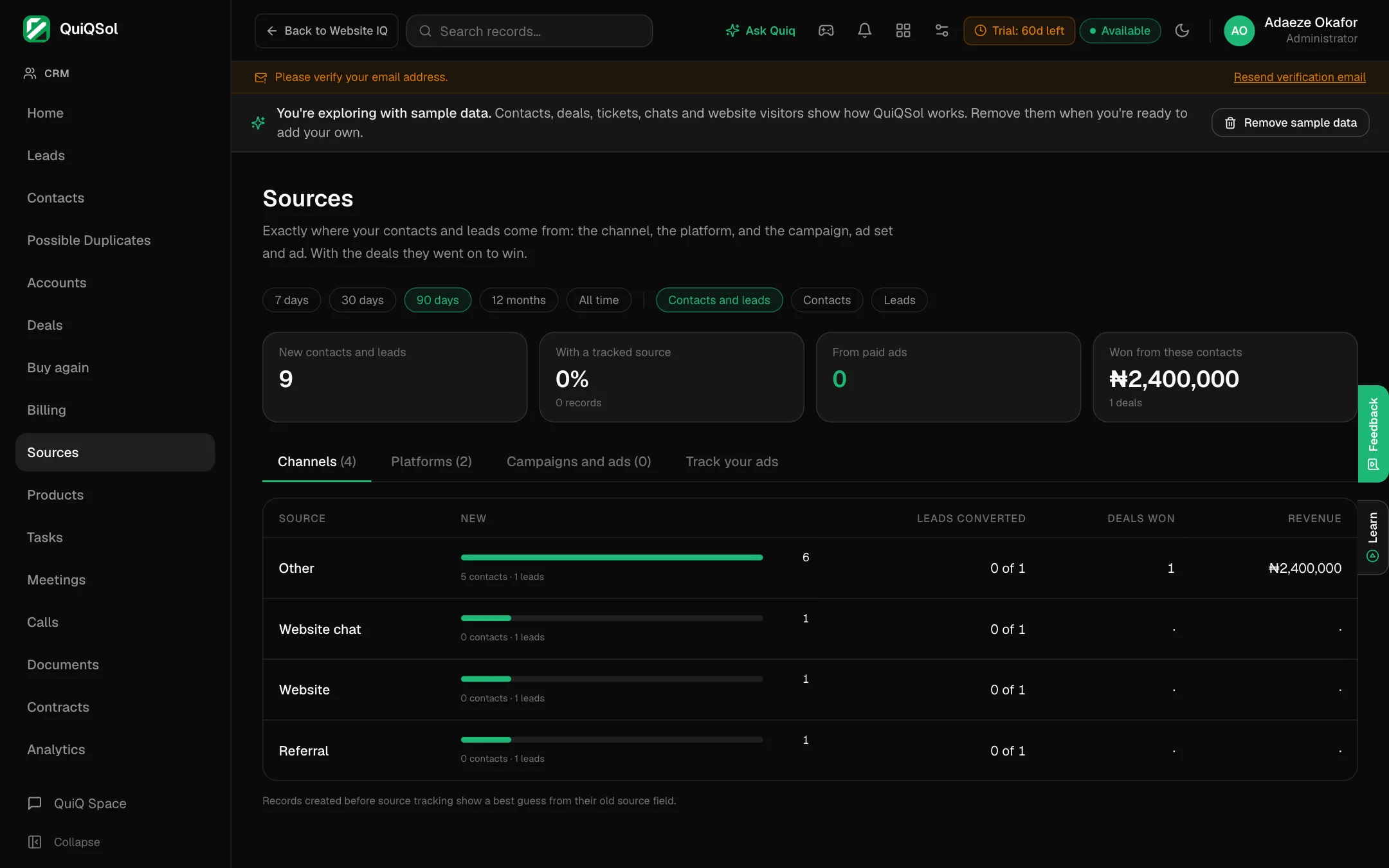 Sources
- Pick a period (7 days to All time) and Contacts, Leads or both.
- Channels: website chat, forms, WhatsApp, referral and more, with leads converted, deals won and revenue for each.
- Platforms: Google, Facebook, Instagram and the rest.
- Campaigns and ads: the campaign, ad set and ad behind each record.
- Track your ads shows the tags to add to your ad links so every lead carries its campaign.
9. Sell again to the customers you have
Buy again reads your won deals and paid invoices and tells you who is due to buy again, and why.
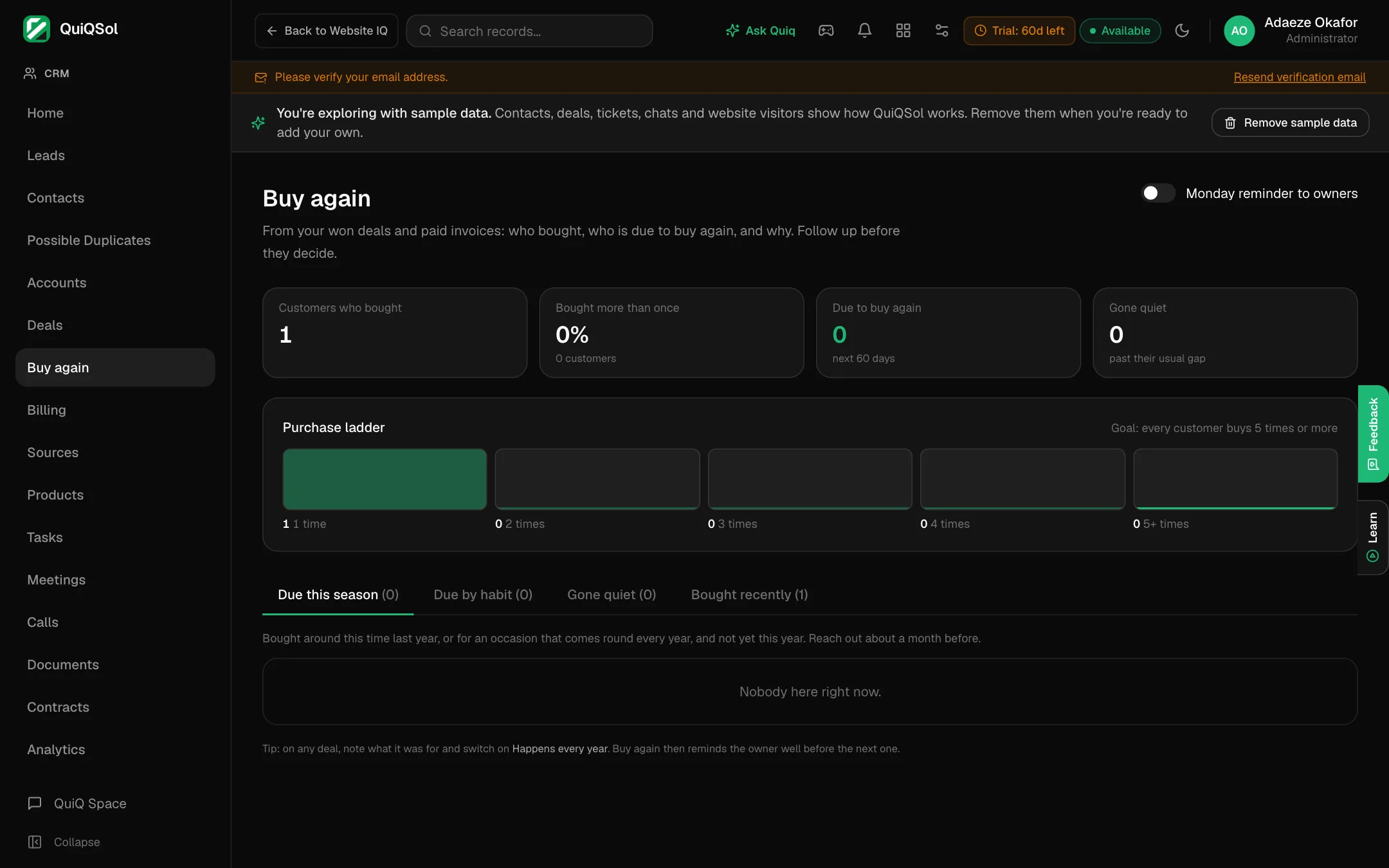 Buy again
- Due this season: bought around this time last year, or for a yearly occasion, and not yet this year.
- Due by habit: customers who buy on a regular gap and are close to their next order.
- Gone quiet: past their usual gap.
- Bought recently.
- The Purchase ladder shows how many customers bought once, twice and up to five times or more.
On any deal, note what it was for and switch on Happens every year: Buy again then reminds the owner well before the next one. Turn on Monday reminder to owners to send each deal owner their list every Monday.
Reorder reminders
Buy again can also message the customers themselves. Reorder reminders sits at the top of the Buy again page and stays off until you switch it on.
- Who: choose any of Due this season, Due by habit and Gone quiet. Seasonal customers hear from you a month before their usual time, habit buyers a week before their next expected order, and quiet customers once.
- Days between reminders: the shortest gap between two reorder reminders to the same customer (45 days to start).
- Send by: WhatsApp, else email; WhatsApp only; or Email only. WhatsApp uses one of your approved templates, and each {{1}}, {{2}} can be filled with the customer's name, what they bought last or the last purchase date. Email uses your own subject and message with the same fields.
- Quiet hours: nothing goes out between the hours you set (20:00 to 08:00 to start, in your workspace time zone), and on weekends unless you untick Weekdays only.
Click Preview the next run to see exactly who would get a reminder and the message each one receives. Nothing is sent from the preview. Click Don't remind on anyone to take them out; they appear under Not reminded, where Allow again brings them back. A customer who replies STOP on WhatsApp, has opted out of email or unsubscribed is never sent a reorder reminder on that channel, and anyone you dismissed in Buy again is skipped. Every reminder shows on the customer's CRM timeline, and the last 50 are listed under Recent reminders.
10. Add what you sell
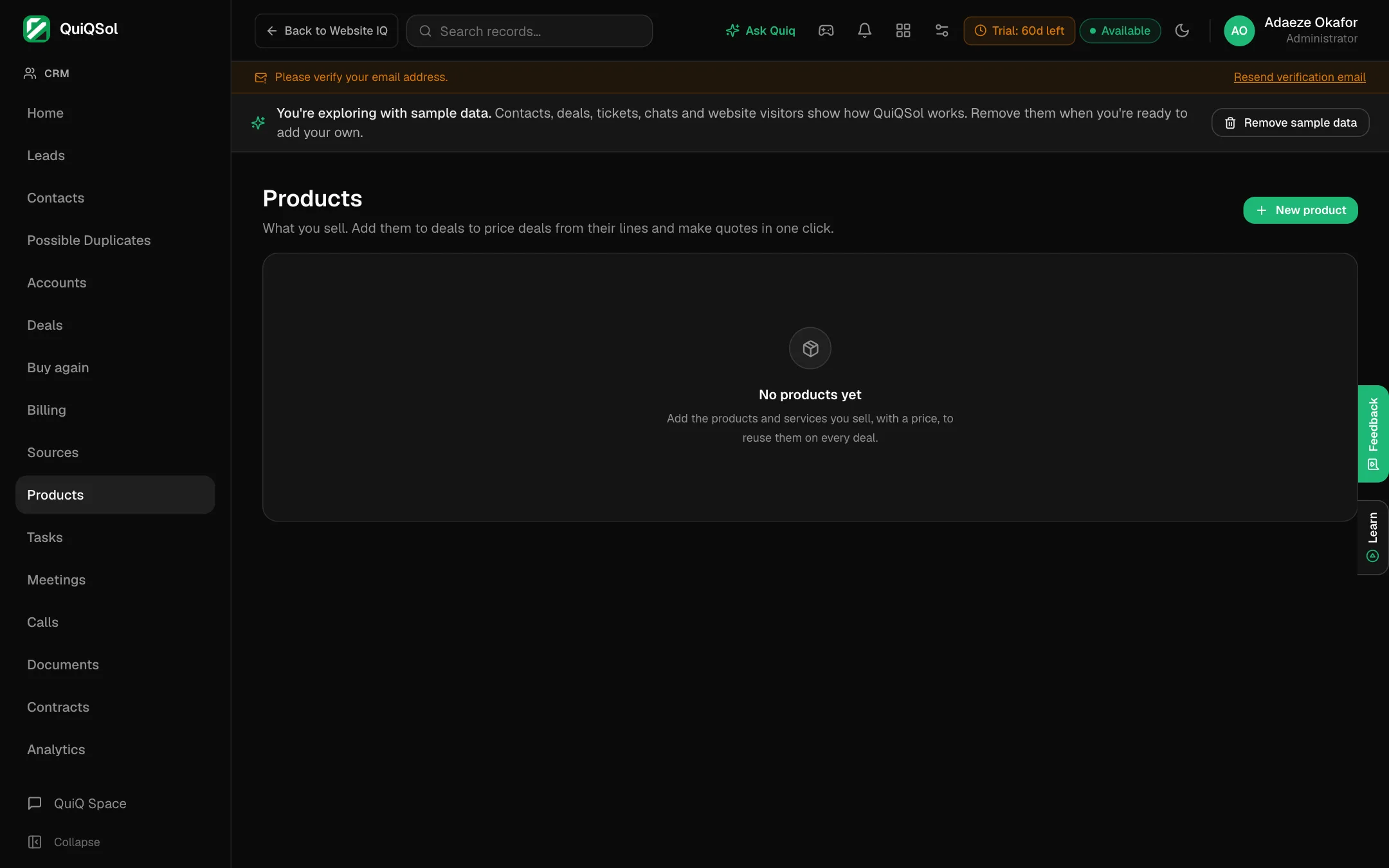
Products holds your products and services with their prices.
 Products
Click New product. Add products to a deal's lines and the deal's value is worked out from them, ready for the quote and the invoice.
11. Track performance
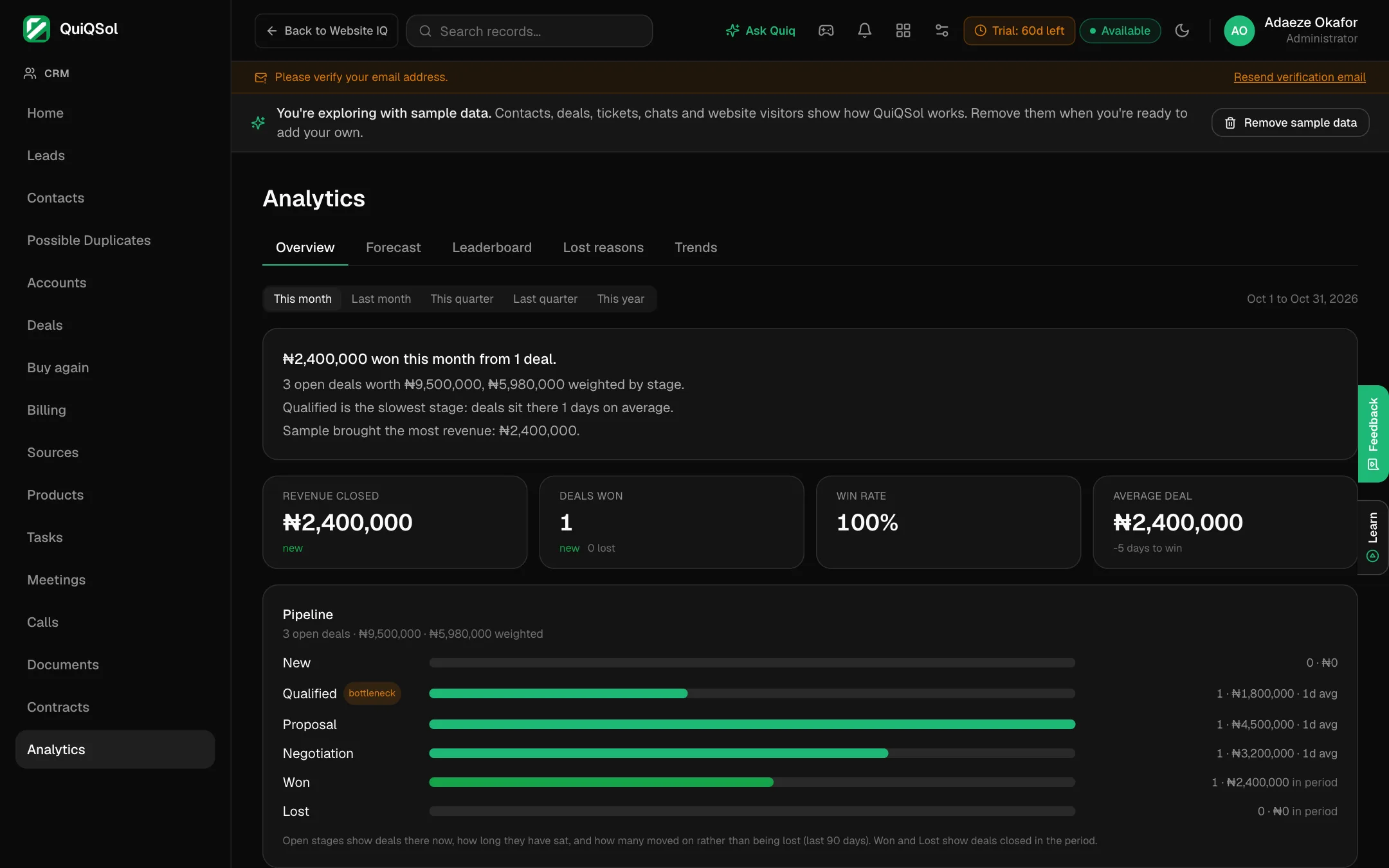
Analytics covers your whole sales team.
 CRM Analytics
- Overview: pipeline, win rate and deal flow.
- Forecast: what is likely to close and when, from each stage's win chance.
- Leaderboard: each rep's results.
- Lost reasons: why deals are lost, so you can fix the pattern.
- Trends: how it all moves over time.
Daily Sales Pulse
Daily Sales Pulse reads your selling from your conversations, CRM and field team. Choose Day, Week, 2 weeks or Month, and use the arrows or the date to move back in time. Every number is compared with the period before.
- The day in numbers: new conversations, how many came from an advert, customers who wrote, how many a person answered after their latest message, replies, messages sent, notes, leads qualified, deals opened and won, and field visits, each against the day before. A bar shows the answered rate for the last seven days. Bot replies and broadcasts do not count as answers.
- Questions customers kept asking: click Read the day with AI to group repeated questions, see who asked and get a suggested fix, such as putting the answer in your opening message. The reading is kept for the day, so opening it again costs nothing.
- Qualified leads: customers who asked about price, minimum order, delivery, samples or custom work, leads qualified that day and deals opened, with the one to handle first.
- Unanswered: every customer still waiting, sorted into real customers, system messages, auto-replies or echoes, misfires and vendor pitches. The headline gives the answered rate for genuine conversations.
- Field sales: click Log visit for each organisation your team visits: who was met, the outcome, the area, a follow-up date, or Could not be located. Log follow-up records calls, emails, revisits and WhatsApp follow-ups. The pulse lists outcomes, unreachable addresses by area and the unreachable rate by round. Visits linked to an account show on its timeline.
If a connected channel stops syncing, a note at the top says which one and from when. PDF and Word export the full report. Email sends the pulse, with the PDF attached, to the teammates you choose at the hour you set; it stays off until you switch it on. Each person starts on daily and picks their own rhythm under Settings → Notifications → Sales Pulse email:
- Daily: every evening, for that day.
- Weekly: Mondays, for the week before.
- Every two weeks: every other Monday, for the two weeks before.
- Monthly: on the 1st, for the month before.
Send your results to LinkedIn Ads
LinkedIn Ads sends your CRM's real results to LinkedIn: new leads, qualified leads, won deals and form responses. LinkedIn uses them to show your ads to more people like the ones who buy, and reports cost per qualified lead and revenue for each campaign. Nothing is sent until you turn it on.
- Open CRM → LinkedIn Ads.
- Connect your ad account. In LinkedIn Campaign Manager choose the ad account, go to Data → Signals Manager → Direct API, click Generate access token and paste the token into QuiQSol. The LinkedIn user needs the Account manager, Campaign manager, Creative manager or Billing admin role. Sign in with LinkedIn appears beside it once LinkedIn completes its review of QuiQSol.
- Choose the ad account if you run more than one.
- Under Conversions, pick the LinkedIn conversion each event counts as, or click New in LinkedIn to create one. A conversion made here is attached to your campaigns; choose which campaigns optimise for it in Campaign Manager.
- Click Save, then switch sending on.
How people are matched: QuiQSol sends a SHA-256 hash of the email, never the address itself, plus the LinkedIn ad click when the person arrived from one of your ads. A won deal carries its value in your workspace currency. Each event is sent once, even if a deal is reopened and won again, and LinkedIn accepts events up to 90 days old.
Leads that came in through LinkedIn Lead Gen are not sent back as new leads, since LinkedIn already counts its own lead forms. When they qualify or buy, the event is matched to the exact form response.
Sent events lists every event with what it matched on. A failed send is retried automatically over the following day, and Retry sends it again straight away. Imported leads are not sent. Click Disconnect to stop sending at once.
Connect QuiQSol to Zapier
The QuiQSol app on Zapier connects your CRM to thousands of other tools.
- Triggers: New Lead, Lead Qualified, Deal Won and New Form Response, delivered the moment they happen.
- Actions: Create or Update Lead and Create or Update Contact. A record with the same email is updated, not duplicated.
In Zapier, search for QuiQSol, choose a trigger or action, and connect with an API key from Settings → Developer Platform → Create API key. Your active Zaps show on CRM → LinkedIn Ads, and every delivery appears under Sent events.
Also in the CRM
- Accounts: the companies your contacts work for, with their contacts and deals.
- Billing: invoices and payments for each customer, from Quiq Invoices (Growth plan).
- Tasks, Meetings and Calls: your follow-ups, booked meetings and logged calls.
- Documents and Contracts: files and contracts kept on the customer record.
Who can do what
What each person sees depends on their role. Set them under Settings → Roles & Sharing: a role can see every record or only the records its people own. See Getting started for inviting your team.